
How to Add an Additional Domain Controller to an Existing Active Directory Domain
Learn how to deploy a second writable Domain Controller, configure DNS, join an existing domain, install Active Directory Domain Services, promote the server and verify replication health.
1. What Is a Domain Controller?
A Domain Controller (DC) is a Windows Server running Active Directory Domain Services (AD DS). It provides centralized identity and access management for an organization’s network.
Its primary responsibilities include:
- Authentication: Validates user and computer credentials.
- Directory services: Stores information about users, computers, groups and other directory objects.
- Authorization: Helps determine which resources users and computers can access.
- Group Policy: Processes and applies domain-based configuration and security policies.
- Directory replication: Exchanges Active Directory changes with other Domain Controllers.
A Domain Controller is a core component of an Active Directory domain.
2. What Is an Additional Domain Controller?
An Additional Domain Controller (ADC) is another Domain Controller installed in an existing Active Directory domain. It maintains a replicated copy of the domain directory database and provides the same core authentication and directory services as other writable Domain Controllers.
Modern Active Directory uses a multi-master replication model. Writable DCs can process directory changes and replicate them to other DCs. Specific operations are handled by servers holding Flexible Single Master Operations (FSMO) roles.
Organizations deploy additional Domain Controllers to:
- Improve authentication availability.
- Provide redundancy if a DC becomes unavailable.
- Distribute authentication and directory-service workloads.
- Support users through site-local Domain Controllers.
- Improve recovery options after server or infrastructure failures.
3. Why Do Enterprises Deploy Multiple Domain Controllers?
Redundancy and fault tolerance
If one Domain Controller fails, clients can authenticate against another available DC, provided DNS, network connectivity and AD replication are healthy.
Authentication load distribution
Multiple DCs allow authentication requests and directory queries to be handled by more than one server.
Site-local logon performance
Organizations with multiple offices can deploy DCs in different Active Directory sites. Clients can locate an appropriate local DC through DNS and site topology, reducing authentication traffic across WAN links.
Disaster recovery
An additional DC provides another replicated copy of directory data. It supports recovery planning, but it is not a replacement for tested system-state backups and an AD forest recovery plan.
Practical Lab: Add an Additional Domain Controller
Lab Environment
| Component | Configuration |
|---|---|
| Existing Domain Controller | server.vmorecloud.com |
| Existing DC IP address | 192.168.91.129 |
| Active Directory domain | vmorecloud.com |
| Existing DNS server | 192.168.91.129 |
| New DC IP address | 192.168.91.135 |
| Default gateway | 192.168.91.2 |
| New server DNS | 192.168.91.129 |
| New server role | Additional writable Domain Controller |
Prerequisites
- The existing Domain Controller is online and healthy.
- DNS resolution for
vmorecloud.comis working. - The new server is running a supported Windows Server version.
- The new server has a unique computer name and static IP address.
- You have an account with appropriate Domain Admin permissions.
- The new server can communicate with the existing DC over the required AD DS, DNS, RPC and SMB ports.
- You have a suitable Directory Services Restore Mode (DSRM) password.
Step 1: Configure a Static IP Address
Log in to the new Windows Server and open Server Manager → Local Server → Ethernet → Properties. Open the network adapter’s IPv4 properties and configure the following values:
| Setting | Value |
|---|---|
| IP address | 192.168.91.135 |
| Subnet mask | Use the subnet mask configured for the existing 192.168.91.129 network. |
| Default gateway | 192.168.91.2 |
| Preferred DNS server | 192.168.91.129 |
| Alternate DNS server | Leave blank during initial domain discovery and promotion. |
Verify the configuration:
ipconfig /allTest connectivity to the existing DC:
ping 192.168.91.129Test DNS resolution:
nslookup server.vmorecloud.com 192.168.91.129Check Active Directory service records:
nslookup -type=SRV _ldap._tcp.dc._msdcs.vmorecloud.com 192.168.91.129The DNS query should return the appropriate Active Directory service records.
Step 2: Join the New Server to the Domain
Before installing AD DS, join the new server to the existing domain. Open PowerShell as Administrator and run:
Add-Computer -DomainName "vmorecloud.com" -Credential (Get-Credential) -Restart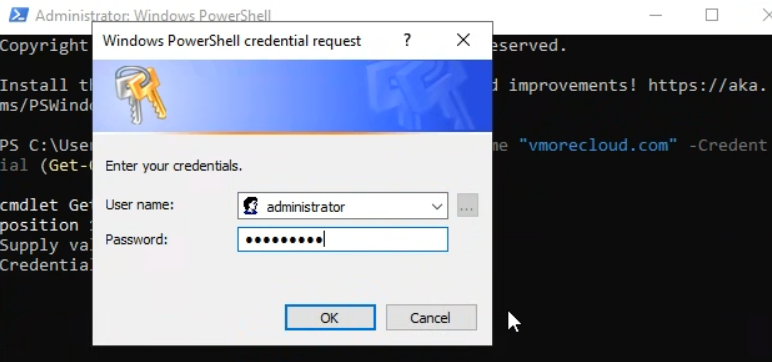
Enter credentials for an account authorized to join computers to the domain. The server will restart after a successful domain join.
After restarting, sign in using an authorized domain account. Verify domain membership:
systeminfo | findstr /B /C:"Domain"Expected domain:
Domain: vmorecloud.comStep 3: Install the Active Directory Domain Services Role
Open PowerShell as Administrator and run:
Install-WindowsFeature AD-Domain-Services -IncludeManagementTools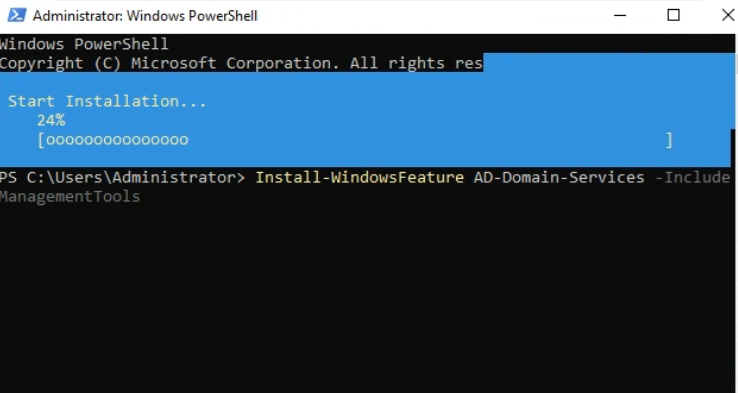
Verify that the role is installed:
Get-WindowsFeature AD-Domain-ServicesThe installation should show the AD DS role as installed.
Step 4: Promote the Server to an Additional Domain Controller
Run the following command in elevated PowerShell:
Install-ADDSDomainController `
-DomainName "vmorecloud.com" `
-InstallDns `
-Credential (Get-Credential) `
-SafeModeAdministratorPassword (Read-Host "Enter DSRM password" -AsSecureString)
Enter credentials for an account with Domain Admin permissions when prompted.
The command will:
- Add this server as a writable Domain Controller in
vmorecloud.com. - Install and configure DNS Server.
- Replicate Active Directory data from an existing Domain Controller.
- Configure the required AD DS components.
- Configure SYSVOL replication.
- Restart the server after successful promotion.
The AD DS deployment process performs prerequisite checks before promotion. Review any warnings or errors before proceeding.
Step 5: Verify the New Domain Controller
After the server restarts, sign in with domain credentials.
Check Domain Controller discovery
nltest /dsgetdc:vmorecloud.comThis should return a discoverable Domain Controller for the domain.
Check Active Directory replication summary
repadmin /replsummaryReview the replication failure and error counts. Investigate any failures rather than assuming replication completed successfully.
Check inbound replication details
repadmin /showreplReview the replication status for each naming context.
Run Domain Controller diagnostics
dcdiag /vRun the DNS-specific tests:
dcdiag /test:dns /vThese checks help identify DNS registration, connectivity and AD DS health problems.
Verify SYSVOL and NETLOGON shares
net shareConfirm that both SYSVOL and NETLOGON are present. These shares are important for Group Policy processing and domain logon services.
Verify the new Domain Controller in Active Directory
On an administrative workstation or DC, open Server Manager → Tools → Active Directory Users and Computers. Expand:
vmorecloud.com → Domain ControllersConfirm that the new Domain Controller appears in the container. Also open DNS Manager and check that the new DC’s host and service records are registered in the appropriate DNS zones.
Step 6: Review DNS Client Configuration After Promotion
During promotion, the new DC should use the existing DNS server at 192.168.91.129.
After promotion, verify that inbound and outbound AD replication is healthy and that the new DC’s DNS records have registered successfully. Then configure DNS client settings according to your organization’s DNS design.
For this two-DC lab, a possible configuration is:
| Domain Controller | Preferred DNS | Alternate DNS |
|---|---|---|
Existing DC (192.168.91.129) | 192.168.91.129 | 192.168.91.135 |
New DC (192.168.91.135) | 192.168.91.135 | 192.168.91.129 |
Common Problems and How to Resolve Them
1. DNS Misconfiguration
Symptoms: The server cannot locate the domain, domain join fails, or promotion cannot find an existing DC.
Resolution:
- Set the new server’s DNS to
192.168.91.129before domain join and promotion. - Check the domain’s SRV records.
- Run
ipconfig /flushdnsafter correcting DNS settings. - Run
ipconfig /registerdnswhen appropriate. - Never use public DNS servers as the AD DNS client resolver.
2. Time Synchronization Problems
Symptoms: Kerberos authentication failures, logon errors or replication authentication problems.
Resolution:
- Check the system clock and time zone on both servers.
- Check the Windows Time service.
- Identify the forest-root PDC Emulator, which normally provides the authoritative time source for the domain hierarchy.
- Avoid configuring each DC with an unrelated time source.
Useful commands:
w32tm /query /statusw32tm /query /sourcew32tm /resync3. Active Directory Replication Errors
Symptoms: repadmin reports failures, directory changes do not appear on both DCs, or SYSVOL is not synchronized.
Resolution:
- Verify DNS resolution and network connectivity between DCs.
- Check Windows Firewall and required AD DS communication ports.
- Review
repadmin /showreplfor the specific error. - Check the Directory Service, DNS Server and DFS Replication event logs.
- Resolve the underlying error before attempting to force replication.
Useful commands:
repadmin /replsummaryrepadmin /showreplrepadmin /syncall /AdePrepadmin /syncall /AdeP only after reviewing the replication topology and correcting the underlying issue. It requests synchronization; it does not repair a broken replication configuration.4. SYSVOL or NETLOGON Shares Missing
Symptoms: The DC promotion appears complete, but the shares are not available.
Resolution:
- Check DFS Replication service status.
- Review the DFS Replication event log.
- Confirm that SYSVOL initialization and replication have completed.
- Do not manually create the shares as a workaround.
Final Verification Checklist
- New DC has static IP
192.168.91.135. - Default gateway is
192.168.91.2. - DNS was pointed to
192.168.91.129during initial setup. - New server successfully joined
vmorecloud.com. - AD DS and DNS roles are installed.
- Server was successfully promoted as a writable DC.
- Replication reports no unresolved failures.
- DNS diagnostic tests pass.
- SYSVOL and NETLOGON shares are available.
- Time synchronization is healthy.
- The new DC is visible in Active Directory and DNS.