Devuan Excalibur ISO: Download, Editions, Features and Installation Guide
Explore Devuan 6 Excalibur, the systemd-free Debian-derived Linux distribution. Compare its ISO images, choose the right installer, verify your download and install it on a PC or virtual machine.
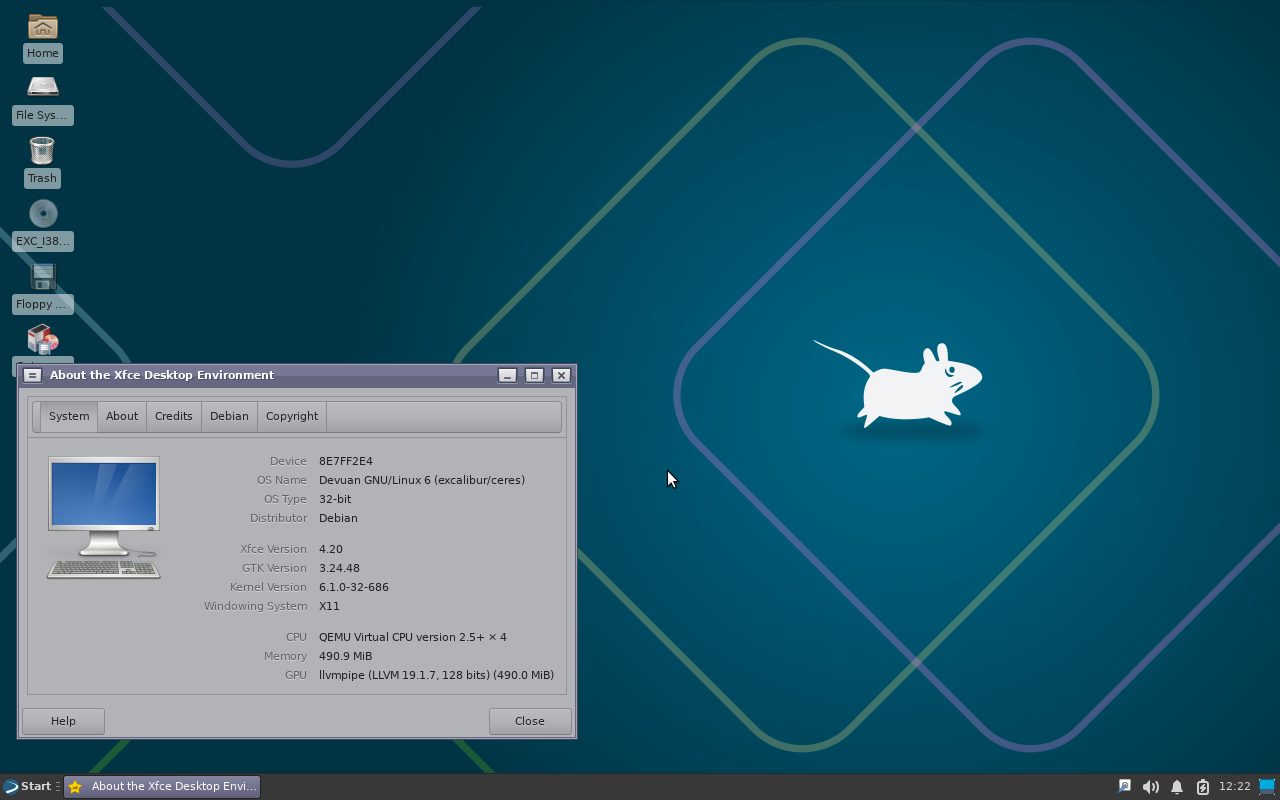
Devuan Excalibur is the sixth stable release of Devuan GNU+Linux. Based on Debian 13 “Trixie”, it provides a Debian-compatible operating system that does not use systemd as its init system. Instead, users can choose from alternatives including SysVinit, OpenRC and runit.
If you are looking for the Devuan Excalibur ISO, it is important to select the correct image for your installation. Devuan publishes several types of media, including a desktop installer, netinstall image, server image, live images and minimal images. Each serves a different purpose, and some images are intended for specific installation workflows rather than direct boot-and-install use.
Key Takeaways
- Devuan 6 “Excalibur” is the stable release, first published on November 2, 2025, and is based on Debian 13 “Trixie”.
- The official project overview lists Linux kernel 6.12 and supports multiple architectures, including amd64 and arm64.
- For a typical 64-bit Intel or AMD PC, the current installer archive lists the
devuan_excalibur_6.1.1_amd64_*.isofamily. - The desktop DVD ISO is the larger, more self-contained installation option; netinstall downloads packages during setup.
- Always verify the ISO with the official SHA256 checksum file and read the release notes before installing or upgrading.
What Is Devuan Excalibur?
Devuan GNU+Linux is a free and open-source operating system derived from Debian. Its defining technical choice is to avoid systemd and preserve what the project calls “Init Freedom”: the ability to use alternative init systems and service-management arrangements.
Excalibur is Devuan’s version 6 stable release. It follows Debian 13 “Trixie” while maintaining Devuan-specific changes to packages, dependencies, repositories and system integration. It is not simply Debian with a different desktop theme. The project maintains modifications intended to avoid systemd dependencies and support its alternative init approach.
Devuan 6 Excalibur: Release and Platform Details
The Devuan project announced Excalibur 6 as its stable release on November 2, 2025. The official overview lists the release’s kernel series, init choices, architectures and desktop options.
| Distribution | Devuan GNU+Linux |
|---|---|
| Release | 6 — Excalibur |
| Initial stable release | November 2, 2025 |
| Upstream base | Debian 13 “Trixie” |
| Kernel series in official overview | Linux 6.12 |
| Init systems | SysVinit, OpenRC, runit |
| Package management | APT and dpkg |
| Package format | DEB |
| Architectures listed | amd64, arm64, armel, armhf, ppc64el |
| Default desktop | Xfce |
| Other desktop options | Cinnamon, KDE, LXQt, LXDE and MATE |
Version note: ISO filenames and point-release numbers can change as installation media are refreshed. The current mirror listing checked for this article showed the 6.1.1 amd64 installer images dated April 25, 2026. Check the official download directory again before publishing or downloading.
Which Devuan Excalibur ISO Should You Download?
The official Excalibur download area separates installation media by purpose. For most users, the decision is between a full desktop image and a smaller network installer. The filename is important: a CD set component such as cd2 is not necessarily the first bootable installer image.
| ISO type | Purpose | Best suited for |
|---|---|---|
| Desktop DVD | Larger installer image with a broad set of packages available locally. | Users who want a desktop installation with less reliance on downloading packages during setup. |
| Netinstall | Smaller installer that retrieves required packages from repositories over a network. | Users with reliable internet access who prefer a smaller download. |
| Server | Installation media intended for server-oriented setups. | Users preparing a headless or server-focused system. |
| CD set images | Split media set containing packages across multiple ISO files. | Offline or multi-disc installation workflows; follow Devuan’s instructions for the set. |
| Desktop Live | Boot a live desktop environment to test hardware and use the system before installation. | Users who want to evaluate the desktop or use the live installer workflow. |
| Minimal Live | A smaller live environment with a reduced software selection. | Advanced users who want a lean environment. |
| Mini ISO / netboot | Small network-oriented boot media for specific installation scenarios. | Experienced administrators and network deployment workflows. |
Recommended image for a typical PC
For a standard 64-bit Intel or AMD desktop or laptop, start by evaluating the amd64 desktop DVD or amd64 netinstall image. Choose desktop DVD if you prefer more installation packages on the image itself. Choose netinstall if you have a stable network connection and want a smaller download.
cd2 through cd5 files are additional discs in a set, not the normal first choice for a standalone installation.Devuan Excalibur ISO Download
Download from Devuan’s official project pages or a listed mirror. The installer archive checked for this guide contains the 6.1.1 amd64 media set, including desktop, netinstall and server images.
Current amd64 installer filenames listed in the archive
devuan_excalibur_6.1.1_amd64_desktop.iso— desktop DVD image, approximately 4 GB.devuan_excalibur_6.1.1_amd64_netinstall.iso— network installer, approximately 594 MB.devuan_excalibur_6.1.1_amd64_server.iso— server image, approximately 629 MB.devuan_excalibur_6.1.1_amd64_cd2.isothroughcd5.iso— additional CD set images.
These filenames and approximate sizes reflect the directory listing available when this article was prepared. The mirror may publish newer point releases or updated media. Check the directory and its checksum file at download time.
How to Verify the Devuan ISO Checksum
Verifying the downloaded image helps detect accidental corruption and confirms that the file matches the checksum published by the mirror. The official installer directory provides SHA256SUMS.txt and a detached signature file named SHA256SUMS.txt.asc.
On Linux
- Download the ISO and
SHA256SUMS.txtfrom the same official directory or mirror. - Open a terminal in the download directory.
- Calculate the image hash:
sha256sum devuan_excalibur_6.1.1_amd64_netinstall.iso- Compare the output character-for-character with the matching filename entry in
SHA256SUMS.txt.
On Windows PowerShell
Get-FileHash .\devuan_excalibur_6.1.1_amd64_netinstall.iso -Algorithm SHA256Compare the displayed hash with the corresponding value in the official checksum file. Replace the example filename if you downloaded a different image.
SHA256SUMS.txt.asc and verify the signing key through trusted project channels.Create a Bootable Devuan USB Drive
After verifying the ISO, write it to a USB flash drive using a trusted imaging utility. Tools such as balenaEtcher, Rufus or the Linux dd utility can be used to create bootable media. Follow the tool’s instructions for image mode and target selection.
- Connect a USB drive with enough capacity for the selected image.
- Open your USB imaging tool.
- Select the Devuan Excalibur ISO.
- Carefully select the USB device as the destination.
- Start writing the image and wait for verification or completion.
- Safely eject the USB drive.
How to Install Devuan Excalibur
Devuan provides official installation documentation with screenshots, including standard installation, live installation, network configuration and full-disk encryption guidance. The exact screens depend on the image you choose, so use the matching official guide alongside these general steps.
- Prepare the computer. Back up important data and confirm that the target machine meets your intended workload requirements.
- Boot from the USB drive. Open the firmware boot menu and select the USB device. On systems with Secure Boot enabled, consult the current Devuan documentation and your firmware settings if the media does not boot.
- Choose the installation path. Start the installer or live environment appropriate to the ISO you downloaded.
- Configure language and keyboard. Select the correct locale, keyboard layout and time zone.
- Configure networking. Netinstall requires a working network connection to retrieve packages. Configure Ethernet or supported wireless networking as prompted.
- Partition storage. Select guided or manual partitioning. If another operating system is installed, understand the partition layout and bootloader implications before changing anything.
- Choose the init system. Select the available init option that suits your needs and the installer’s choices.
- Select software and desktop components. Choose the desktop or package set offered by the installer, if applicable.
- Install the bootloader. Follow the installer’s guidance for the target disk and UEFI or legacy boot configuration.
- Finish and reboot. Remove the installation media when prompted and boot into the new system.
For screenshots and release-specific details, use the official Devuan installation guide. Devuan also publishes separate instructions for full-disk encryption and live installation.
SysVinit, OpenRC or runit: Which Should You Choose?
Devuan’s approach allows users to select an init system instead of requiring systemd. An init system starts the operating system’s user-space services and manages service lifecycle operations. The three options have different designs and administration conventions.
SysVinit
A traditional init system based on startup scripts and runlevels. It may be familiar to administrators who have worked with older Unix and Linux systems.
OpenRC
A dependency-aware service manager used by several Linux distributions. It organizes service startup and shutdown while remaining independent of systemd.
runit
A compact init and service-supervision system built around a simple service model and supervision of running services.
There is no universal best choice for every user. Consider your familiarity, required software, documentation and the way you plan to manage services. Do not copy systemd-specific commands such as systemctl into a Devuan administration guide unless the relevant compatibility layer is actually installed and applicable.
Post-Installation Essentials
Once Devuan is installed, take time to validate the system before using it as a daily workstation or production server.
- Update package metadata and installed packages: use APT according to Devuan’s release notes and repository configuration.
- Review repository entries: Devuan recommends using the release codename, such as
excalibur, rather than generic labels likestableortestingin APT source entries. - Check firmware: Devuan notes that non-free firmware packages are available on installation media; live images include firmware packages pre-installed.
- Validate networking: test Wi-Fi, Ethernet, DNS and connectivity after reboot.
- Check graphics and audio: confirm display resolution, acceleration and sound output.
- Learn the selected init system: read its service-management documentation before changing startup services.
- Review backups: create a baseline backup before making major system changes.
sudo apt update
sudo apt upgrade
These are standard APT commands for refreshing package metadata and applying available upgrades. Review the proposed package changes before confirming, and consult Devuan’s release notes for any release-specific configuration steps.
Who Should Use Devuan Excalibur?
Devuan is a strong candidate for users who specifically want a Debian-derived system without systemd, value init-system choice, or want to build a desktop or server environment around an alternative service-management model.
- Linux enthusiasts: users interested in init freedom and alternative system architectures.
- Administrators: teams that have a clear operational reason to standardize on a supported non-systemd environment.
- Desktop users: people who want a Debian-family desktop and are comfortable checking application compatibility.
- Lab builders: users testing Linux distributions in VMware, VirtualBox, KVM or other virtualization platforms.
It may not be the simplest choice for users who depend on applications that explicitly require systemd or who expect every Debian tutorial to work without modification. Test the applications and hardware you rely on before migrating a primary machine.
Running Devuan Excalibur in a Virtual Machine
Devuan can also be evaluated in a virtual machine before installing it on physical hardware. This is a practical way to learn the installer, compare init systems and test package compatibility without changing a workstation’s existing operating system.
- Create a new Linux virtual machine in your preferred hypervisor.
- Attach the verified Devuan ISO as a virtual CD/DVD.
- Allocate CPU, memory and storage appropriate to the desktop or server workload.
- Use a virtual network adapter with internet access if you are installing from netinstall media.
- Take a VM snapshot after the initial installation and updates, if your hypervisor supports snapshots.
For a basic evaluation VM, modest resources may be sufficient, but actual requirements depend on the desktop environment, applications and workload. Consult the current Devuan documentation and your hypervisor’s guidance rather than treating one resource allocation as a universal minimum.
Final Thoughts
Devuan Excalibur provides a current Debian 13-derived operating system for users who want to avoid systemd and retain a choice of init systems. The range of installation media makes it suitable for different workflows, from a full desktop installation to a smaller network-based setup.
For most 64-bit PC users, the practical starting point is to compare the amd64 desktop DVD and netinstall images. Download from an official project mirror, verify the SHA256 checksum, read the release notes and test the live environment where possible. These simple steps reduce installation risk and help ensure that the selected Devuan ISO matches your hardware and use case.
Official Downloads and References
- Devuan Excalibur Overview — official release facts, architectures, desktop environments and init systems.
- Devuan 6 Excalibur Release Announcement — official stable release announcement.
- Devuan Excalibur Installer ISO Directory — current installer images and SHA256 checksum files.
- How to Install Devuan — official installation, live install and encryption guidance.
- Get Devuan — official download and mirror information.