
DOCKER · DEVOPS · SELF-HOSTING · HOMELAB
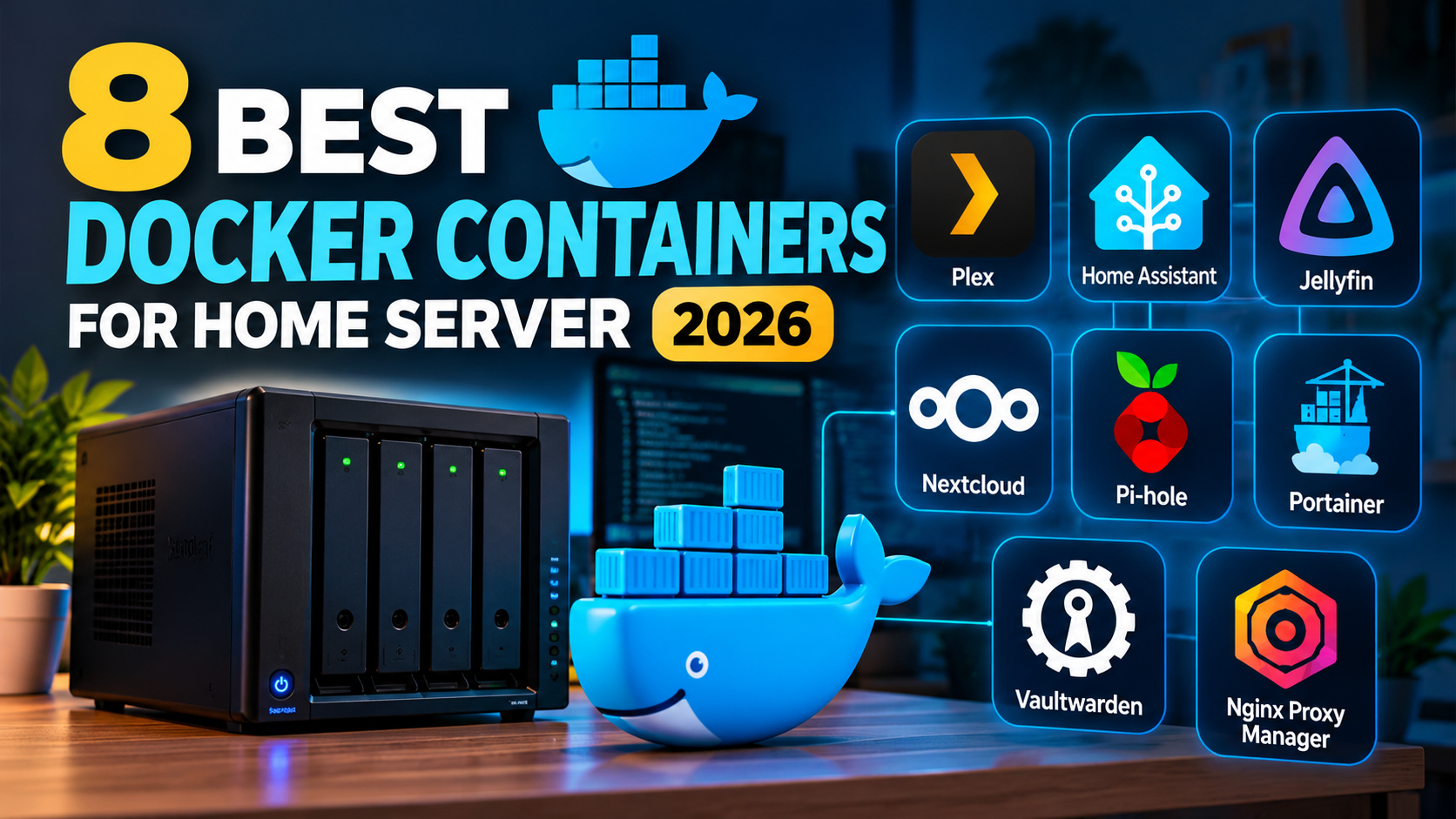
A home server can do much more than store files. With Docker, you can run network-wide ad blocking, private cloud storage, media streaming, automated backups, application monitoring, Git hosting, smart-home management, and file synchronization on hardware you control. The key is choosing services that solve real problems without making your home lab unnecessarily difficult to maintain.
In this updated 2026 guide, we look at eight useful Docker applications for a home server, explain what each one does, identify its advantages and trade-offs, and highlight the type of user who will benefit most. The selection focuses on practical use rather than simply running as many containers as possible.
- AdGuard Home — network-wide DNS filtering.
- Nextcloud — private cloud files and collaboration.
- Uptime Kuma — service uptime monitoring.
- Jellyfin — personal media streaming.
- Duplicati — scheduled encrypted backups.
- Gitea — self-hosted Git repositories.
- Home Assistant — smart-home automation.
- Syncthing — device-to-device file synchronization.
What Are Docker Containers?
Docker containers package an application and its runtime dependencies into a deployable unit. Instead of manually configuring every service directly on the host operating system, you can run supported applications in containers with their own configuration, networking, and storage mappings.
Docker Compose makes it easier to define and manage application stacks through a YAML configuration file. It can start services, display their status, stream logs, and manage the lifecycle of your deployment. Read the official Docker Compose documentation before building a more complex home lab.
How We Selected These Eight Docker Applications
This is a practical editorial shortlist, not a laboratory performance ranking. The applications were selected because they cover common home-server needs, have official project documentation, and can be useful as independent services. Your ideal selection depends on your hardware, network, storage, and maintenance preferences.
- Useful for a recurring home or homelab task.
- Suitable for container-based deployment when the project’s documented requirements are met.
- Provides a clear benefit without requiring every reader to install all eight.
- Has documentation for installation, configuration, or ongoing maintenance.
- Offers a reasonable starting point for a small self-hosted environment.
1. AdGuard Home — Network-Wide DNS Filtering
Best for: Network-wide ad, tracker, and domain filtering.
Official project: AdGuard Home
AdGuard Home is a DNS-based network filtering application. Instead of installing a separate browser extension on every device, you can configure supported devices to use your AdGuard Home server for DNS resolution. This can apply filtering policies across computers, phones, smart TVs, and other devices that use the configured DNS service.
Key advantages
- Centralized DNS filtering and management.
- Configurable blocklists, allowlists, and filtering rules.
- Useful visibility into DNS requests and blocked domains.
- Can serve multiple devices on a supported home network.
Limitations to consider
- Incorrect DNS configuration can interrupt name resolution for the network.
- Some applications and websites may not work correctly with aggressive filtering.
- DNS filtering does not replace endpoint security, a firewall, or safe browsing practices.
Recommendation: Start with one test device, verify that DNS resolution works, and only then configure your router or other devices to use the service. Keep a fallback DNS plan for troubleshooting.
2. Nextcloud — Your Private Cloud Platform
Best for: Self-hosted files, sharing, and collaboration.
Official project: Nextcloud
Nextcloud turns a home server into a private cloud platform for files and collaboration. Depending on the components you deploy, you can synchronize files across devices, share folders, manage contacts and calendars, and extend the platform through additional applications.
Key advantages
- Centralized file storage and sharing.
- Clients for common desktop and mobile platforms.
- Extensible applications and collaboration features.
- Greater control over where your files are stored.
Limitations to consider
- Requires planning for persistent storage, databases, upgrades, and backups.
- Performance depends on server resources, storage, and the number of users.
- Remote access requires careful authentication, TLS, and network configuration.
Recommendation: Follow the official deployment instructions and use a supported application stack. Back up both the data and the configuration needed to restore the service; copying the container image alone does not back up your files.
3. Uptime Kuma — Monitor Your Home Lab
Best for: Monitoring websites, services, and endpoints.
Official project: Uptime Kuma
Uptime Kuma provides a web dashboard for monitoring services and receiving notifications when a monitored endpoint becomes unavailable. It is useful for a home lab running applications such as Nextcloud, Jellyfin, a local website, or other web services.
Key advantages
- Visual overview of monitored services and their availability.
- Support for multiple monitor types and notification channels.
- Useful uptime history for troubleshooting recurring interruptions.
- Can help identify outages before another user reports them.
Limitations to consider
- A running monitor does not guarantee that the monitored application is functioning correctly.
- Notifications depend on the availability and configuration of their delivery channel.
- Monitoring on the same physical server may not detect every host-level failure.
Recommendation: Monitor both the application endpoint and the important infrastructure supporting it. If possible, send critical notifications through a channel that does not depend entirely on the monitored server.
4. Jellyfin — Stream Your Personal Media
Best for: Organizing and streaming personal media.
Official project: Jellyfin
Jellyfin is an open-source media server that organizes supported video, music, and other media libraries and makes them accessible through compatible clients. A Docker deployment can keep the application separate from the host operating system while storing media in dedicated host directories or attached storage.
Key advantages
- Self-hosted media library and streaming service.
- Control over your media files and server configuration.
- Supports a range of client devices and playback scenarios.
- Can use compatible hardware acceleration when correctly configured.
Limitations to consider
- Transcoding can require substantial CPU or GPU resources.
- Hardware acceleration depends on compatible hardware, drivers, and configuration.
- Remote streaming requires attention to bandwidth and secure access.
Recommendation: If most of your clients can directly play your media files, the server may need fewer resources than a workload that frequently transcodes video. Check the official Jellyfin documentation before configuring hardware acceleration.
5. Duplicati — Scheduled Backups
Best for: Scheduled file backups to supported destinations.
Official project: Duplicati
A home server often becomes the place where important files accumulate. Duplicati provides a backup application with scheduling, incremental backup capabilities, encryption options, and support for multiple storage destinations. It can help protect personal files and selected application data when configured correctly.
Key advantages
- Scheduled backup jobs and configurable retention.
- Encrypted backups for supported backup configurations.
- Support for different local and remote storage destinations.
- A web interface for managing backup tasks.
Limitations to consider
- Large restores can take time and require access to the complete backup chain.
- Backup success notifications do not replace restoration testing.
- Database-backed applications may require application-consistent backups rather than a simple copy of live files.
Recommendation: Back up important data to a separate destination, not only to another directory on the same disk. Perform test restores regularly and retain any encryption credentials needed to recover your files.
6. Gitea — Self-Hosted Git Repositories
Best for: Source-code hosting and personal development projects.
Official project: Gitea
Gitea is a lightweight, self-hosted Git service for managing repositories, issues, code reviews, and collaborative development workflows. It can be useful for personal coding projects, configuration files, scripts, and small development teams.
Key advantages
- Host Git repositories on infrastructure you control.
- Browser-based repository management and issue tracking.
- Useful for private projects and home-lab configuration repositories.
- Can integrate with development workflows and automation tools.
Limitations to consider
- Requires persistent storage and a reliable backup plan.
- Remote collaboration requires secure authentication and network access.
- Large teams or specialized development workflows may need additional services.
Recommendation: Store your Compose files and infrastructure documentation in a private repository. Never commit passwords, access tokens, private keys, or unencrypted secrets to Git.
7. Home Assistant — Smart-Home Automation
Best for: Integrating compatible smart-home devices.
Official project: Home Assistant
Home Assistant brings supported smart-home devices and services together in one automation platform. You can create routines, monitor sensors, manage lights, and connect compatible integrations. A home server can keep these automations running locally, depending on the devices and integrations you use.
Key advantages
- Centralized control of supported smart-home integrations.
- Flexible automation and dashboards.
- Local operation for many supported integrations.
- A broad community and extensive documentation.
Limitations to consider
- USB radio adapters and local device discovery can require special host or network configuration.
- Some integrations depend on external cloud services.
- Updates and configuration changes can affect existing automations.
Recommendation: Check the official installation guide before choosing a Docker deployment. USB device passthrough, multicast discovery, and host networking requirements vary by integration and should not be assumed to work with a basic port mapping.
Official guide: Home Assistant installation documentation.
8. Syncthing — Synchronize Files Between Devices
Best for: Synchronizing files between computers and devices.
Official project: Syncthing
Syncthing synchronizes files between participating devices. It is useful when you want documents or project folders to stay synchronized without relying on a single hosted file-sync provider. A home server can act as one of the devices in your synchronization setup.
Key advantages
- Device-to-device file synchronization.
- Useful for documents, project folders, and selected personal files.
- Works across supported operating systems.
- Offers device pairing and configurable folder sharing.
Limitations to consider
- Synchronization is not a complete backup strategy; deletions and unwanted changes may propagate.
- Devices must be configured correctly and have connectivity to synchronize.
- Large data sets require planning for disk space, bandwidth, and conflict handling.
Recommendation: Use Syncthing for synchronization and a separate backup solution for recovery. Review folder-sharing permissions before adding new devices.
Compare the Eight Docker Applications
| Application | Primary purpose | Resource planning | Best starting point |
|---|---|---|---|
| AdGuard Home | DNS filtering | Usually modest; plan DNS availability | Home network |
| Nextcloud | Private cloud | Plan storage, database, and memory | File storage and sharing |
| Uptime Kuma | Monitoring | Depends on monitor count and history | Existing home-lab services |
| Jellyfin | Media streaming | Plan for transcoding and media storage | Personal media library |
| Duplicati | Backups | Depends on data size and backup schedule | Important files and folders |
| Gitea | Git hosting | Depends on repositories and usage | Personal code projects |
| Home Assistant | Smart-home automation | Depends on integrations and history | Compatible smart-home devices |
| Syncthing | File synchronization | Depends on file volume and device count | Multiple personal devices |
These are qualitative planning estimates, not benchmark measurements. Actual resource usage depends on configuration, workload, storage, and the number of users and devices.
How to Choose the Right Containers for Your Home Server
You do not need all eight applications. Start with the services that solve the most important problems in your household or lab.
- For a useful first deployment: Choose one application, such as Uptime Kuma or AdGuard Home, and learn how to update, back up, and troubleshoot it.
- For private files: Evaluate Nextcloud if you want a broader cloud platform, or Syncthing if device-to-device synchronization is sufficient.
- For media: Choose Jellyfin and assess your storage and transcoding requirements.
- For data protection: Set up Duplicati or another supported backup tool, then test a restoration.
- For development: Use Gitea for repository hosting and version control.
- For smart-home projects: Check Home Assistant’s supported installation methods and hardware requirements.
Docker Home Server Best Practices for 2026
Use Docker Compose
Keep each service’s Compose configuration organized and documented. Compose lets you define services, networks, volumes, and restart behavior in a reproducible configuration. Store your Compose files in version control, but keep secrets out of public repositories.
See the official Docker Compose guide for configuration and lifecycle commands.
Persist application data
Containers can be recreated. Important configuration, databases, and user files should be stored in documented persistent volumes or bind mounts. Identify each application’s data paths before recreating or removing its containers.
Secure remote access
Avoid exposing every application port directly to the internet. Prefer private network access or a properly secured remote-access design. Use strong authentication, HTTPS where appropriate, and firewall rules that restrict access to trusted clients.
Plan updates and backups
Keep track of image versions, release notes, and upgrade requirements. Avoid assuming that every update is backward-compatible. Back up persistent data before major upgrades and test restoration procedures.
Monitor the host as well as the containers
Application-level monitoring is useful, but it does not replace checking disk health, free storage, memory pressure, CPU usage, and host availability. A home server with a full disk can affect every service running on it.
Final Verdict
The best Docker containers for a home server are the ones you will use consistently and can maintain securely. AdGuard Home helps manage DNS filtering, Nextcloud offers a broader private-cloud experience, Uptime Kuma tracks service availability, and Jellyfin organizes personal media. Duplicati, Gitea, Home Assistant, and Syncthing cover backups, development, automation, and file synchronization.
Start small, keep configuration and data organized, and establish a backup-and-update routine before adding more services. A reliable home lab is built through thoughtful service selection and maintenance—not through the number of containers running on the host.
Official Sources and Further Reading
- Docker Compose documentation
- AdGuard Home official website
- Nextcloud official website
- Uptime Kuma official project
- Jellyfin documentation
- Duplicati official website
- Gitea official website
- Home Assistant installation documentation
- Syncthing official website
Related Articles on VMoreCloud
- Previous edition: 8 Best Docker Containers for Home Servers in 2025
- Linux tutorials and news
- Virtualization guides
- Cloud computing and containers
Verify all category URLs before publishing. The 2025 article link is included as a historical reference; when replacing the old article’s content with this edition, remove that self-link to avoid linking to the current page itself.
Editorial note: This guide is a curated comparison based on the projects’ published documentation and intended use cases. Resource requirements vary by deployment. No independent performance benchmark or hands-on test is claimed here.