




Windows 11 Installation Assistant 25H2 – upgrade your W10 or W11 with the help of this new tool from Microsoft
87views
If you’re planning to stay on Windows, there’s now a new tool from Microsoft that makes the upgrade process much easier. Even better, the company is scaling back some of the AI Copilot integration. Copilot’s presence is being reduced in apps like Notepad, Snipping Tool, Photos, and Widgets, and it’s being removed from areas such as Notifications and Settings—largely in response to community feedback.
For users still running Windows 10 (version 2004 or later) or older Windows 11 builds like 24H2 or earlier, this tool provides a straightforward upgrade path. One of the simplest ways to move forward—without reinstalling your system or dealing with ISO files—is the new Windows 11 Installation Assistant 25H2.
I’ve tested this in my lab environment across several machines, both physical and virtual, and it reliably preserves files, applications, and most settings while performing a full upgrade to 25H2. In my experience, the process has been smooth, with no data loss or major issues.
If you’re looking for the easiest way to access the latest features, security updates, and performance improvements in 25H2, this tool is a solid choice.
What is the Windows 11 Installation Assistant?
It’s a small (about 4 MB) executable from Microsoft that handles the entire in-place upgrade process for you. It automatically checks your hardware compatibility, downloads the necessary files (around 3 GB), installs Windows 11 25H2, and reboots as needed. Perfect for x64 PCs – note that it doesn’t support ARM-based devices (you’ll need Windows Update or an ISO for those).
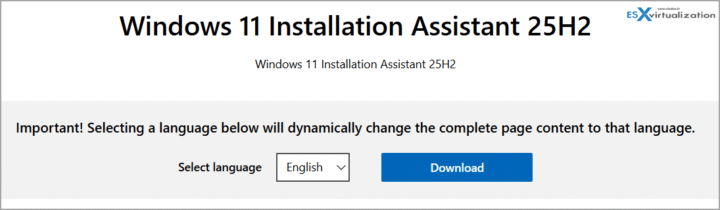
You can grab it directly from the official Microsoft Download Center:
Download Windows 11 Installation Assistant 25H2
The file is called Windows11InstallationAssistant.exe and was published on September 30, 2025.
Prerequisites – Don’t Skip These
Before you start, make sure your PC is ready:
- Hardware requirements (same as Windows 11 in general): 1 GHz or faster 64-bit processor with 2+ cores, 4 GB RAM, 64 GB storage (with at least 9 GB free), UEFI firmware with Secure Boot enabled, TPM 2.0, and a DirectX 12-compatible GPU with WDDM 2.0 driver.
- Current OS: Windows 10 version 2004 or later, or any previous Windows 11 build.
- Valid license: Windows 10 or 11 license (it carries over).
- Backup: I always recommend a full backup of important data – just in case something unexpected happens (rare, but better safe than sorry).
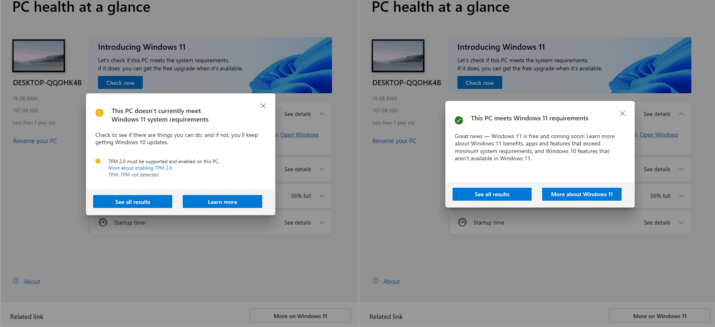
- PC Health Check App: Download and run Microsoft’s free PC Health Check app first to confirm everything is compatible.
Run everything with a stable power source – no interruptions during the process.
Step-by-Step: Upgrading with the Installation Assistant
- Download the tool – Head over to the Microsoft link above and click the big Download button. Save the Windows11InstallationAssistant.exe file somewhere easy to find (I usually drop it on the Desktop).
- Run as Administrator – Right-click the executable and choose Run as administrator. Accept the User Account Control (UAC) prompt.
- Compatibility check – The assistant will automatically scan your hardware. If something doesn’t meet the requirements, it will stop and tell you (usually something like “This PC can’t run Windows 11”). Fix the issue and try again.
- Accept the license terms – Review and click Accept to continue.
- Download and install – The tool will now download the 25H2 files. You’ll see a progress bar – this is the longest part (depends on your internet speed). Once downloaded, it starts the installation automatically.
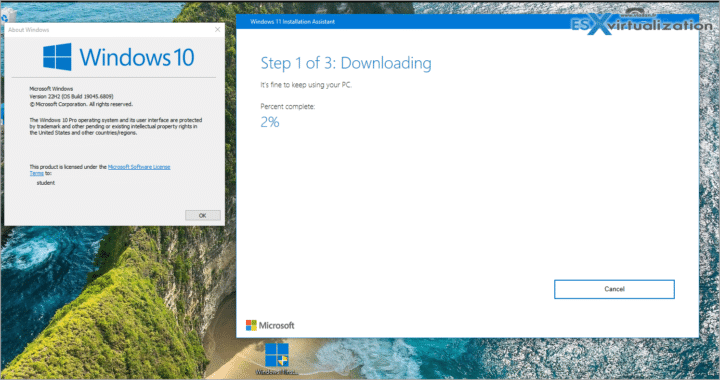
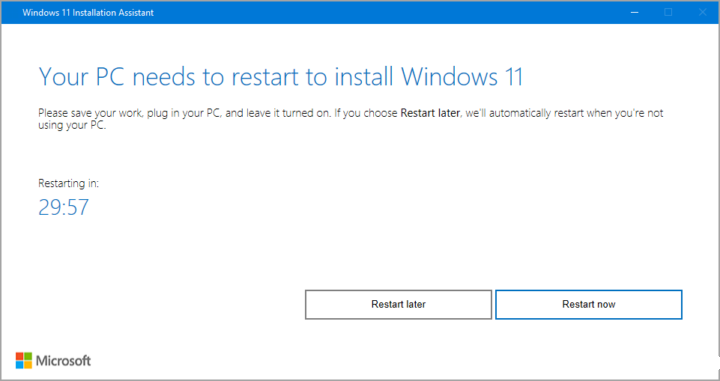
Restart when prompted – The assistant will ask you to restart. Your PC may reboot several times – do not turn it off manually. Just let it do its thing. The whole process can take 30–60 minutes or more depending on your hardware.
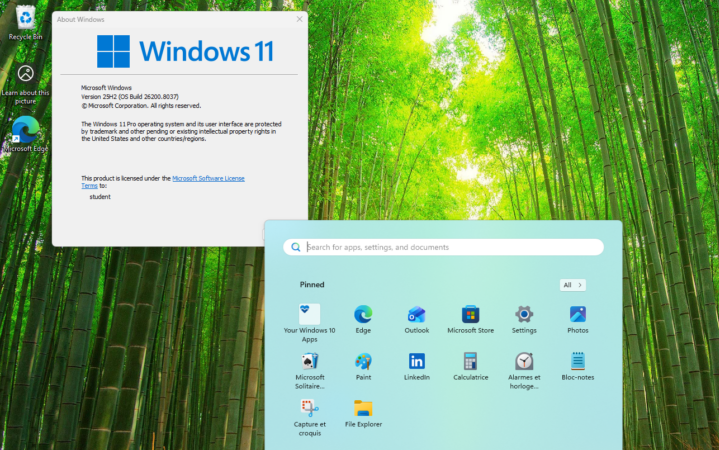
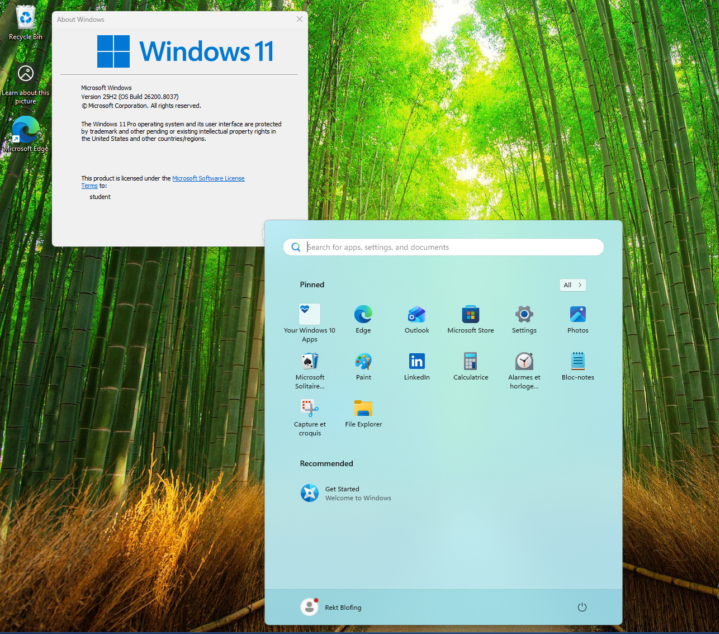
- Verify the upgrade – After everything settles, go to Settings > System > About. You should now see Windows 11 version 25H2 with the latest OS build.
In my lab tests, the whole thing ran smoothly on compatible hardware, and all my apps and files were right where I left them.
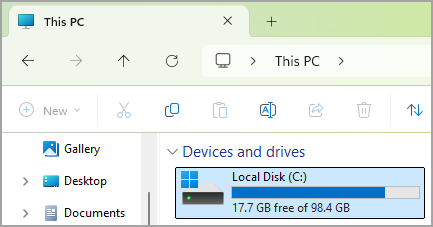
Note: You’ll need disk space. I was asked for an additional disk space during the installation process. I thought I had enough (100Gb disk) but I did not. Luckilly I could “plug-in” a new disk (the test was in the VM running in VMware Workstation btw) so the process could continue without starting from zero.
Final Words
The Windows 11 Installation Assistant is probably the least stressful way to get to 25H2 right now. No need to create media, no clean installs, and Microsoft handles all the heavy lifting. I still prefer clean install, but sometimes you need to upgrade if you don’t have the skills to reinstall all, or if you are time constrained. So yes, the tool is working, and working as expected.
add a comment


PowerShell SysAdmin Crash Course
PowerShell SysAdmin Crash Course: Unlock the Full Potential of PowerShell with Advanced Techniques, Automation, and Configuration by Steeve Lee is...
Windows App is replacing Remote Desktop: LAN support, keylogging protection, RDP Multipath, Mobile Application Management (MAM)
Microsoft is making a clear transition as Windows App replaces Remote Desktop, offering a unified experience for accessing cloud PCs,...
Microsoft Entra March 2026: Passkeys GA, backup preview
Microsoft’s March 2026 Microsoft Entra update brings passkey authentication to general availability, introduces a built-in tenant backup feature in public...
Introducing the new Windows 365 monitoring and reporting platform now in Public Preview
We’re excited to introduce the new Windows 365 monitoring and reporting platform, now available in public preview. This platform delivers...




