




285views
As you know, VMware Workstation or Fusion VMs runs on your desktop, but you don’t really have a native solution from VMware to backup those VMs while they are running. You can either do a snapshot from time to time to save a point of restore manually, but you don’t really have a regular periodic backup that is able to run automatically and keep your backup files elsewhere in case your beefed PC where ou VMware Workstation runs, dies. You don’t have a native backup solution for running VMs on VMware Workstation with scheduling capabilities. All you can do from time to time, is stop your VM(s) and do a manual backup.
There is a Workstation VM backup software that I’d like to talk about today because, after a quick test in my lab, I like it. It’s called Vimalin and it has a scheduled backup possibility where you can choose to backup daily, weekly or monthly. The backup targets can be disks on the same PC where VMware Workstation is running or it can also be a network location (in case you have a NAS device where you want to send those backups).
For periodic backups of running VMs, you need software like Vimalin that can backup to another volume or to a network location, automatically, according to a selected schedule. Worth noting that the software also works with Free VMware Player if you don’t have a VMware Workstation license.
Readers of this blog know that I’m focusing on data center virtualization, however, tools like VMware Workstation are constantly running test VMs here and there. VMware Workstation is also a good tool to create a proof of concept (POC) however even those environments sometimes need protection if you want to go back to a specific time.
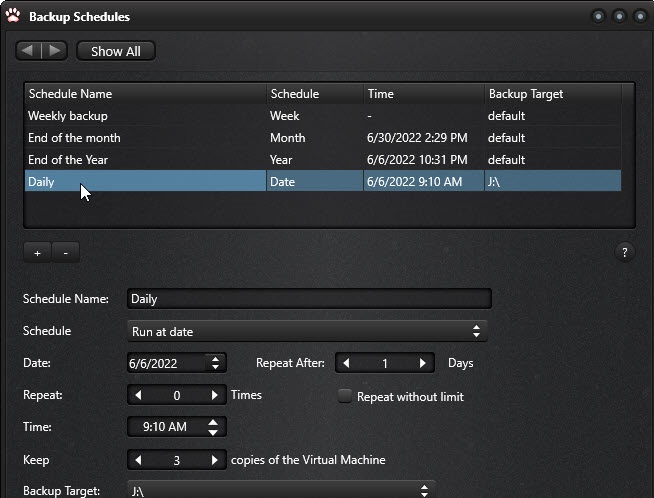
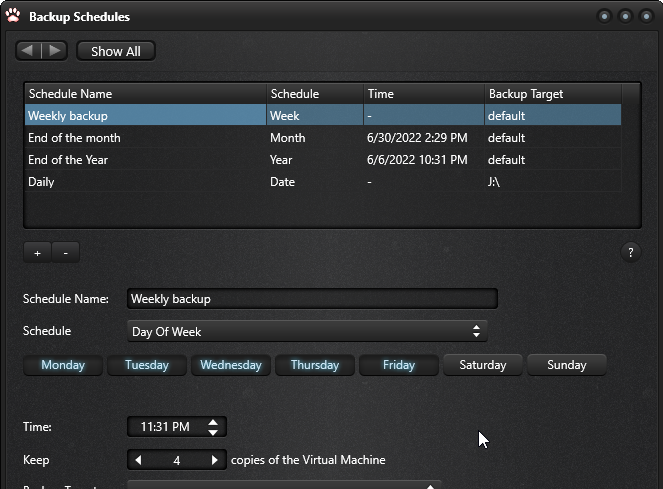
An example of the daily schedule here shows a possibility to configure the number of copies, repeat cycle etc…
Vimalin Backup Features
- Scheduled backups of Running VMs – Predefined and custom schedules
- Tiny interface – very simple to navigate and use (right click is your friend)
- Email notification – you can configure email notification
- No Agents – No need to install agents inside your VMs
- All OS support – there is not only Windows, or Linux. All VMs can be backed up. Even your ESXi nested hypervisors!!!!
Backup Target
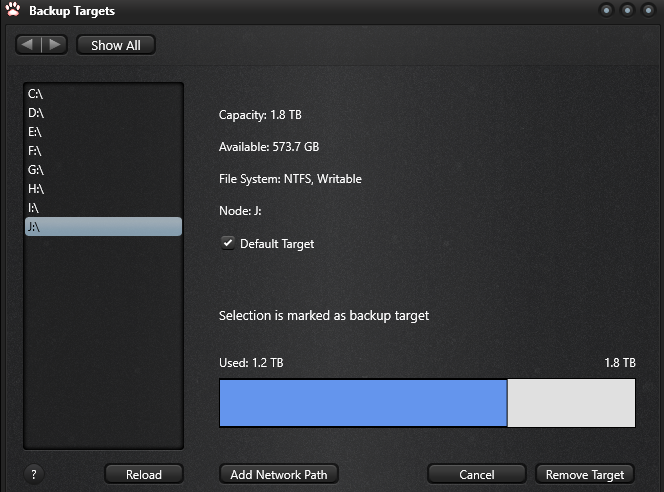
After clicking the Backup target Icon, you select your disk or volume, and check the box default target. Here is the screenshot
Scheduled backups – There are 3 pre-configured backups that are sufficient to start with, but you can also add your personalized schedule if you like. In the example above I created a “Daily” schedule, but when selecting the Weekly backup, you can check Mo-Fri and have the software to automatically take backups each working day of the week.
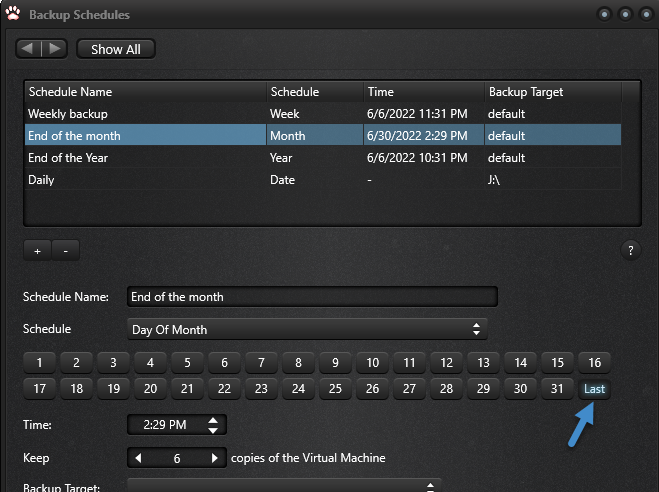
The same way, when selecting the “End of the Month” backup, you can see that the preconfigured day of execution is the last day of each month. Pretty neat.
With the minimalistic aproach, it takes couple of min to get use to the UI, but once done its a blast. For example, those tiny plus/minus buttons or the Show All buttons are all you need to know when you creating schedules/Adding VMs or willing to get back to the main screen.
So selecting the VM will show you the backup schedule.
Each VM has its own schedule. In my example I selected the backup called DC with my custom “Daily”, Weekly backup and End of the month backup schedules.
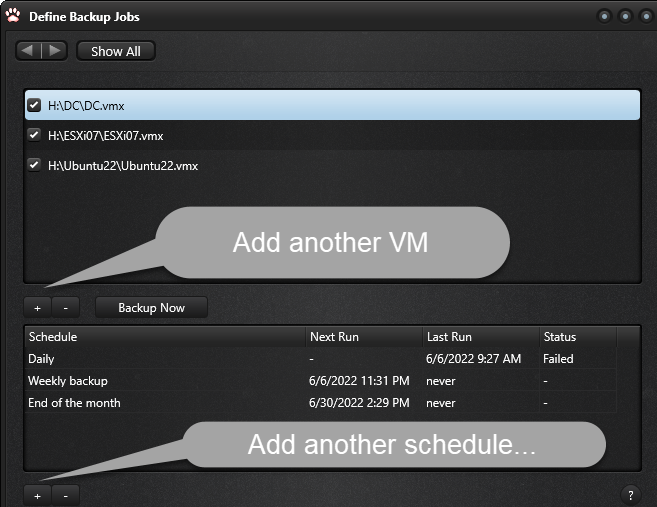
You can repeat and add couple of VMs, then select them one-by-one and create schedule. You can’t have a group of VMs within the same backup job. (at least I haven’t found how you can do that).
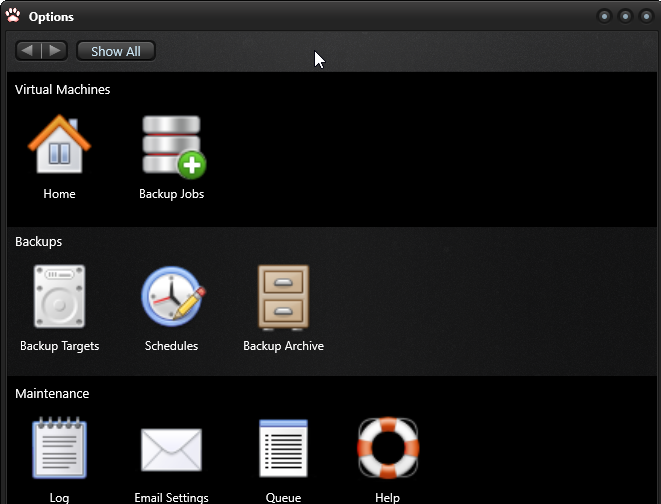
Oh, btw, the main screen (after clicking the Show all button looks like this…
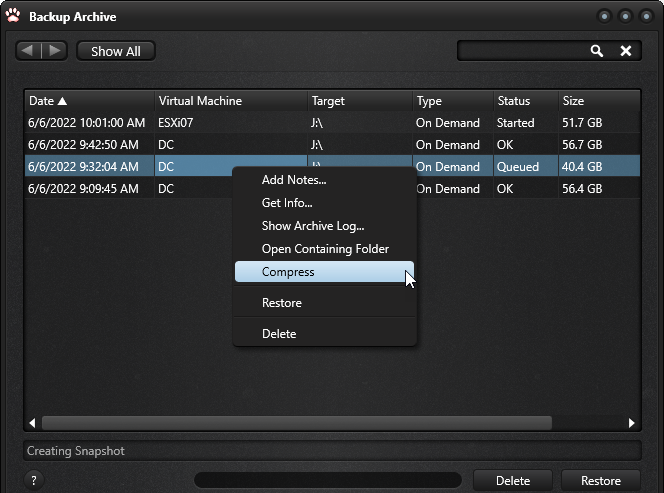
Right click is your friend
To use the different operations (restore, compress, notes etc) the best is to right-click your backup and do whatever you want/need.
Licensing
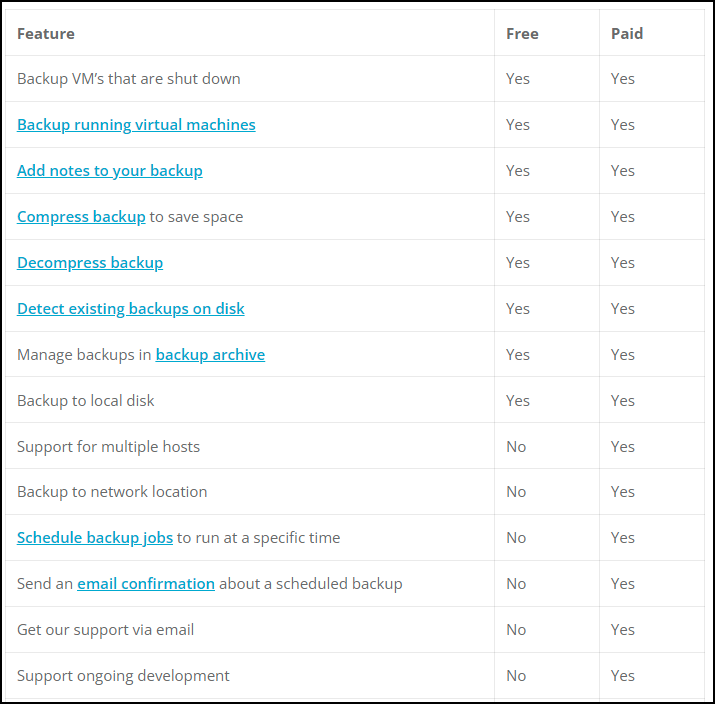
The 60 days trial turns into a Free version that can run a backup on demand and deleting/restoring your backups. No schedule, however.
Try before you buy. You can test the full package for 60 days, just download and install. After 60 days Vimalin will revert to the free license and you can continue to use it as long as you want.
Differences between paid and free…
Some interesting topics from FAQ:
Does Vimalin verify the data?
Yes, before copying the files of data to your backup disk, Vimalin will create a signature of your data file.
This signature is then kept in a database so that it can always be used to verify.
In fact when you restore a Virtual Machine, Vimalin will verify each copied file against that signature to make sure every bit is still the same.
Vimalin uses industry standard MD5 sum hash signatures.
If needed, you can verify the files by hand by looking at the job.metadata file in your backup folder. Note that this file is only kept at the backup folder, not copied to your VM when you happen to restore the virtual machine.
Final Words
If your company runs a lot of desktop VMs within Workstation/fusion/player, you need a reliable backup solution like this one. It was created by Wil van Antwerpen that says that:
1 Comment
Leave a Response


How to Set Up Automated Incremental Backups with rsync and Cron on Linux
Data loss is one of the most disruptive events a system administrator or Linux user can experience. Hard drives fail....

Proxmox Finally Has a Real RVTools-Style Report (This is What Was Missing)
Introduction If you spent any meaningful time in VMware environments, RVTools was likely one of the first utilities you installed...

Download Virtuozzo 9 ISO
Virtuozzo 9 is a powerful enterprise-grade virtualization and cloud platform designed for service providers, hosting companies, and enterprises. It combines...
Check Point R81.20 T634 for VMware
If you're running Check Point environments in production, staying updated with the latest Jumbo Hotfix is critical for security, performance,...




[…] I’m running a nested lab only on a beefed PC from 3 years ago (64Gb of RAM, 16-core AMD 5950X). For me, its flexible and I can use the same system for other tasks. The underlying OS is W11. It is a homelab on steroids, ok, but know that you can also set-up a backups -:). In fact, users running nested labs with VMware Workstation can also backup their VMs on regular bases automatically with a software called Vimalin. I have done the writed up couple of years ago, in case you missed it – How To backup running VMs on VMware Workstation with schedule. […]