
How to Deploy a Read-Only Domain Controller (RODC) in Windows Server 2022
A Read-Only Domain Controller (RODC) is a special type of Active Directory Domain Controller designed primarily for branch offices and locations where physical security cannot be guaranteed. Unlike a traditional writable Domain Controller, an RODC maintains a read-only copy of the Active Directory database and receives directory updates through replication from writable Domain Controllers.
In this tutorial, we will deploy a Read-Only Domain Controller in an existing Windows Server 2022 Active Directory environment. We will configure a new server, install Active Directory Domain Services (AD DS), promote the server as an RODC, configure Password Replication Policy (PRP), and verify successful deployment.
Lab Environment and Network Topology
Before starting the deployment, let’s review the existing infrastructure.
Our Active Directory domain is vmorecloud.com. We already have two writable Domain Controllers:
- DC1: 192.168.248.135
- DC2: 192.168.248.139
We will introduce a third server with the hostname RODC01 and IP address 192.168.248.140.
IP Address Configuration
| Component | Hostname | IP Address | Purpose |
|---|---|---|---|
| Gateway | VMware Gateway | 192.168.248.2 | Network connectivity |
| Primary DC | DC1 | 192.168.248.135 | AD DS, DNS and FSMO roles |
| Additional DC | DC2 | 192.168.248.139 | Writable AD DS and DNS |
| Read-Only DC | RODC01 | 192.168.248.140 | Read-only Active Directory |
RODC01 Network Configuration
| Computer Name | RODC01 |
| Operating System | Windows Server 2022 |
| IP Address | 192.168.248.140 |
| Subnet Mask | 255.255.255.0 |
| Default Gateway | 192.168.248.2 |
| Preferred DNS | 192.168.248.135 |
| Alternate DNS | 192.168.248.139 |
| Domain | vmorecloud.com |
2. What Is a Read-Only Domain Controller?
A Read-Only Domain Controller is a domain controller that hosts a read-only copy of the Active Directory database.
Traditional writable Domain Controllers allow administrators to create, modify and delete Active Directory objects. An RODC, however, does not accept ordinary directory changes locally.
Its main characteristics include:
- Read-only Active Directory database.
- Inbound replication of directory changes from writable DCs.
- Password Replication Policy (PRP).
- Credential caching for authorized users and computers.
- Delegated administration.
- Optional DNS Server and Global Catalog functionality.
Why Do We Need an RODC?
Imagine an organization with its headquarters in Islamabad and a branch office in Swabi.
The headquarters has writable Domain Controllers, but the branch office has limited physical security and fewer IT resources.
Deploying an RODC at the branch office provides local directory services while reducing the risk associated with storing a fully writable directory database at a less secure location.
3. Prerequisites for RODC Deployment
Before promoting the server, ensure the following requirements are satisfied:
- A functioning Active Directory domain already exists.
- At least one writable Domain Controller is available.
- DNS resolution is working correctly.
- The new server has a static IP address.
- The new server can communicate with existing Domain Controllers.
- The server is running a supported Windows Server edition.
- You have suitable credentials to promote a domain controller.
- The forest functional level meets the RODC requirements (Windows Server 2003 or higher).
4. Step 1: Configure the Network Settings
First, configure the static IP address on the new Windows Server.
Open:
Server Manager → Local Server → Ethernet → IPv4 Properties
Enter the network configuration shown in the table above.
You can also verify the configuration using PowerShell:
ipconfig /all5. Step 2: Rename the Server
Rename the new Windows Server to RODC01.
Open PowerShell as Administrator and execute:
Rename-Computer -NewName RODC01 -RestartThe server will restart automatically.
After restarting, verify the hostname:
hostnameExpected output:
RODC016. Step 3: Join the Existing Active Directory Domain
Before promoting the server, you can join it to the existing domain.
- Open Server Manager.
- Select Local Server.
- Click the current workgroup setting.
- Select Change.
- Choose Domain.
- Enter vmorecloud.com.
- Provide suitable domain credentials.
- Restart the server when prompted.
You can also use PowerShell:
Add-Computer -DomainName "vmorecloud.com" -RestartAfter restarting, verify domain membership:
Get-CimInstance Win32_ComputerSystem |
Select-Object Name, Domain, PartOfDomain
Expected result:
Name         : RODC01
Domain       : vmorecloud.com
PartOfDomain : True7. Step 4: Install Active Directory Domain Services
Now we will install the AD DS role on RODC01.
Using Server Manager
- Open Server Manager.
- Select Manage.
- Click Add Roles and Features.
- Select Role-based or feature-based installation.
- Select RODC01 as the destination server.
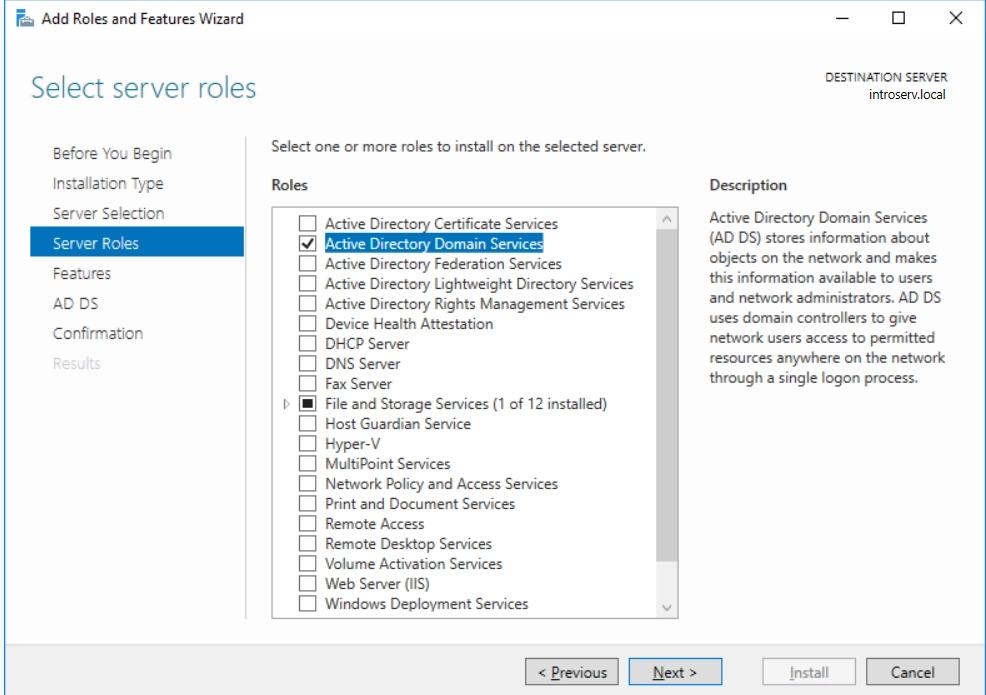
- Select Active Directory Domain Services.
- Add the required management tools.
- Click Next and install.
Using PowerShell
Alternatively, run:
Install-WindowsFeature AD-Domain-Services -IncludeManagementToolsVerify installation:
Get-WindowsFeature AD-Domain-ServicesThe installation state should show Installed.
8. Step 5: Promote the Server as a Read-Only Domain Controller
This is the most important part of the deployment.
After installing AD DS, open Server Manager.
- Click the notification flag.
- Select Promote this server to a domain controller.
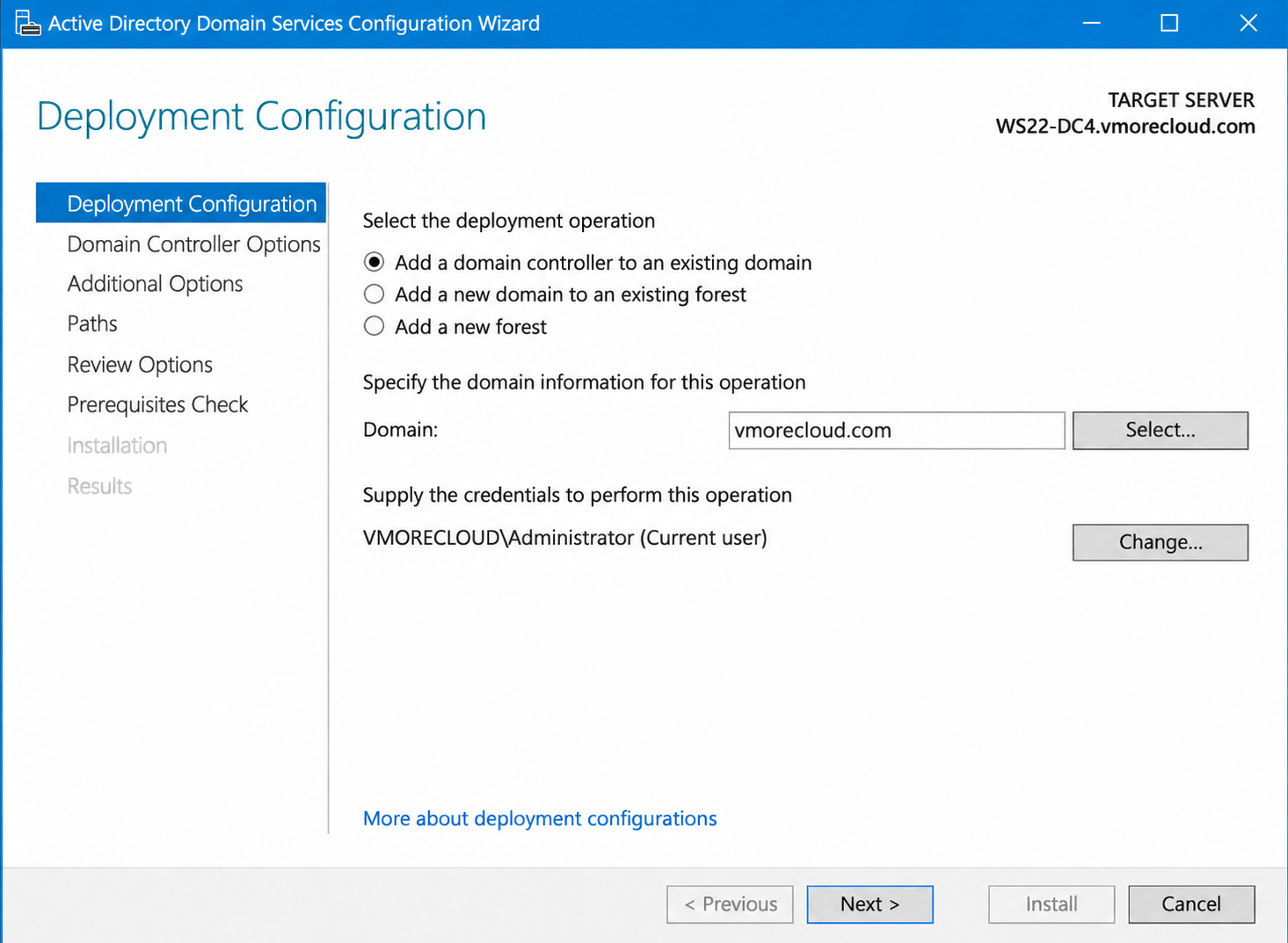
- The Active Directory Domain Services Configuration Wizard will open.
Deployment Configuration
Select:
Domain: vmorecloud.com
Provide the appropriate domain credentials.
Domain Controller Options
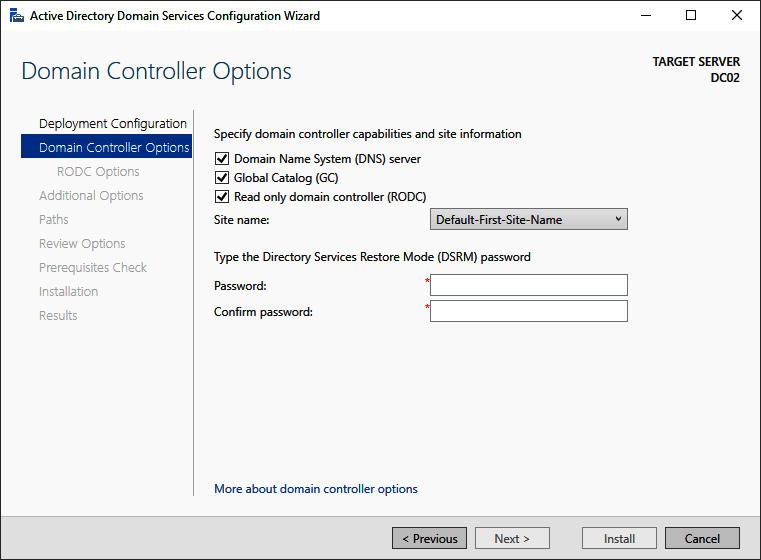
On the Domain Controller Options page, configure the following:
| Option | Configuration |
|---|---|
| DNS Server | Optional |
| Global Catalog | Recommended for this lab |
| Read-only domain controller (RODC) | Selected |
| DSRM Password | Set a strong password |
DNS and Global Catalog services are optional choices depending on your infrastructure requirements. For a branch-office deployment, installing both can provide useful local directory and name-resolution services.
9. Step 6: Configure Password Replication Policy
Password Replication Policy (PRP) is one of the most important features of an RODC.
Unlike writable Domain Controllers, an RODC does not automatically cache every user’s password.
The Password Replication Policy determines which users and computers are permitted to have their credentials cached on the RODC.
For example, we can allow branch-office users to cache their passwords while preventing privileged administrative accounts from being cached.
Suggested Password Replication Policy
| Account or Group | Policy |
|---|---|
| Branch Office Users | Allow |
| Branch Office Computers | Allow |
| Domain Admins | Deny |
| Enterprise Admins | Deny |
| Schema Admins | Deny |
Configure PRP Through Active Directory Users and Computers
- Open Active Directory Users and Computers.
- Locate the Domain Controllers organizational unit.
- Open the properties of RODC01.
- Select the Password Replication Policy tab.
- Add the required users and groups to the appropriate lists.
Remember that an account being allowed by PRP does not mean its password has already been cached. The credential must be replicated or successfully cached through an authentication process.
10. Step 7: Configure Delegated Administration
One advantage of RODC is the ability to delegate local administrative responsibilities without granting the delegated administrator Domain Admin privileges.
During promotion, you can specify a user or group that will be allowed to administer RODC01.
For example:
vmorecloud\BranchITAdminThis delegated account can manage the RODC locally without automatically receiving full domain administrative rights.
11. Step 8: Complete the RODC Promotion
After configuring the deployment options:
- Review Additional Options.
- Select the replication source Domain Controller.
- Review the database, log and SYSVOL paths.
- Run the prerequisites check.
- Review any warnings.
- Click Install.
The server will restart after successful promotion.
You now have an RODC in your existing Active Directory domain.
12. Step 9: Verify the RODC Deployment
After restarting, log in to RODC01 and open PowerShell.
Verify the Domain Controller
Get-ADDomainController -Identity RODC01 |
Format-List HostName,IPv4Address,IsReadOnly,IsGlobalCatalog
Expected output should include:
HostName        : RODC01.vmorecloud.com
IPv4Address     : 192.168.248.140
IsReadOnly      : True
IsGlobalCatalog : True
Verify Active Directory Replication
repadmin /showrepl RODC01This displays the inbound replication status and replication partners.
Check Domain Controller Health
dcdiag /s:RODC01 /vVerify DNS Resolution
If DNS is installed on RODC01, test:
nslookup vmorecloud.com 192.168.248.140Verify RODC Properties
Get-ADDomainController -Filter * |
Select-Object HostName,IPv4Address,IsReadOnly13. Practical RODC Testing
To understand how an RODC behaves, perform the following experiments.
Experiment 1: Create a User on RODC01
Try creating a new user directly on RODC01 using Active Directory Users and Computers.
Expected result: You cannot write ordinary Active Directory changes directly to the RODC. Create the user on a writable DC instead.
Experiment 2: Create a User on DC1
On DC1 (192.168.248.135), create a test account:
Username: TestUser
Domain: vmorecloud.com
After replication, verify that the account appears in the directory when viewed through RODC01.
Experiment 3: Test Password Replication Policy
Configure a test user as allowed by the RODC’s Password Replication Policy.
Authenticate using that account against RODC01, then check whether the password has been cached.
repadmin /prp view RODC01 revealExamine the accounts whose passwords are permitted to be cached:
repadmin /prp view RODC01 allowAnd accounts denied caching:
repadmin /prp view RODC01 denyExperiment 4: Test Cached Credentials
Once an authorized user’s password has been cached, temporarily disconnect RODC01 from writable DCs and test authentication at the branch-office client.
An eligible user with cached credentials may still authenticate locally.
However, new password changes and other directory modifications require connectivity to a writable domain controller.
14. RODC vs. Writable Domain Controller
| Feature | Writable DC | RODC |
|---|---|---|
| Read Active Directory database | Yes | Yes |
| Write ordinary AD changes locally | Yes | No |
| Accepts inbound replication | Yes | Yes |
| Sends ordinary AD changes to replication partners | Yes | No |
| Password Replication Policy | No RODC PRP | Yes |
| Credential caching | Normal DC credential storage | Controlled by PRP |
| DNS Server | Supported | Supported |
| Global Catalog | Supported | Supported |
| Delegated local administration | Supported | Special RODC delegation feature |
15. Important AZ-802 Examination Concepts
For Microsoft AZ-802, pay special attention to these RODC-related topics:
- RODC deployment and prerequisites.
- Password Replication Policy.
- Credential caching and authentication.
- Delegated administration.
- RODC replication behaviour.
- DNS and Global Catalog configuration.
- RODC unavailability and recovery.
- Differences between writable DCs and RODCs.
Conclusion
In this practical lab, we deployed a Read-Only Domain Controller in an existing Windows Server 2022 Active Directory environment.
Our infrastructure now contains two writable Domain Controllers and one Read-Only Domain Controller:
The RODC provides read-only directory services, controlled credential caching and delegated administration capabilities. This makes it particularly useful for branch-office environments where physical security and administrative control are important considerations.
Microsoft Learn – Read-Only Domain Controllers (RODCs)