Physical Address
304 North Cardinal St.
Dorchester Center, MA 02124
Physical Address
304 North Cardinal St.
Dorchester Center, MA 02124

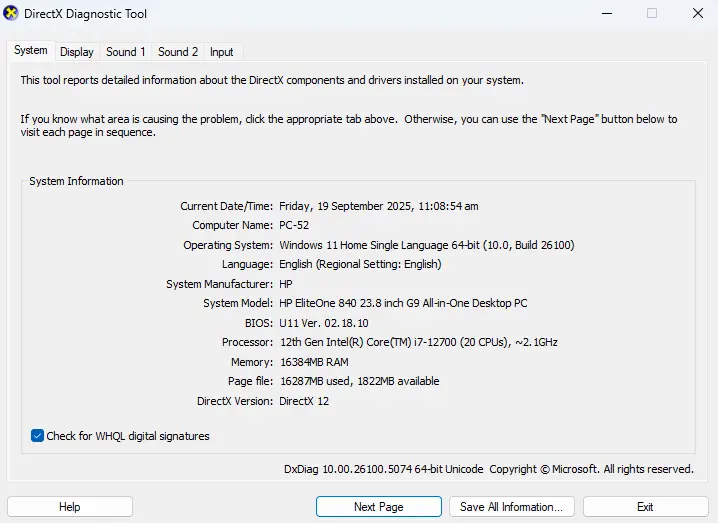
Pull up a chair and let me share something that’ll save you tons of time and frustration. You know that moment when you’re trying to figure out what graphics card is actually running inside your PC? Maybe you’re troubleshooting a game that won’t launch, checking if your system meets the requirements for that shiny new software, or simply curious about your hardware specs.
Well, I’ve got great news for you – Windows has a built-in diagnostic tool that’s been hiding in plain sight, and today we’re diving deep into how to use DXDiag to get all the GPU information you need.
Let me paint you a picture. DirectX Diagnostic Tool, or DXDiag as we tech folks call it, is like having a backstage pass to your computer’s performance. It’s Microsoft’s own system information utility that’s been quietly sitting in every Windows installation since the late ’90s, just waiting to spill all the secrets about your hardware.
Think of DXDiag as your system’s personal biography writer – it knows everything about your graphics card, from its name and manufacturer to how much memory it has and what drivers it’s running. And the best part? You don’t need to download anything or spend a dime.
Alright, let’s get our hands dirty. Here are three super-quick methods to fire up DXDiag:
Press Windows key + R simultaneously
Type dxdiag and hit Enter
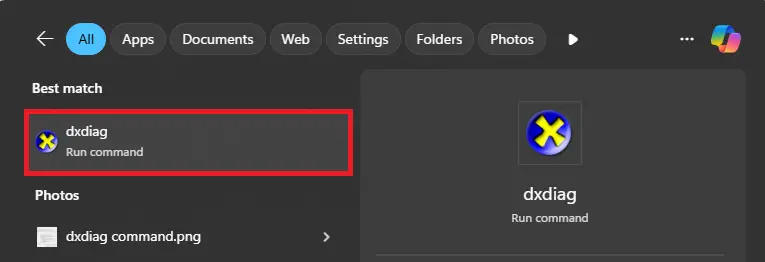
Click the Windows Start button
Type “dxdiag” in the search bar
Click on “dxdiag” when it appears
Open Command Prompt (cmd)
Type dxdiag and press Enter

Pro tip: If you see a prompt asking whether to check if your drivers are digitally signed, just click “Yes” – it’s totally safe and gives you more detailed information.
Once DXDiag opens, you’ll see several tabs at the top. Here’s where the magic happens for GPU information:
Click on the “Display” tab (or “Display 1” if you have multiple monitors), and feast your eyes on this treasure trove of information:
Device Information:
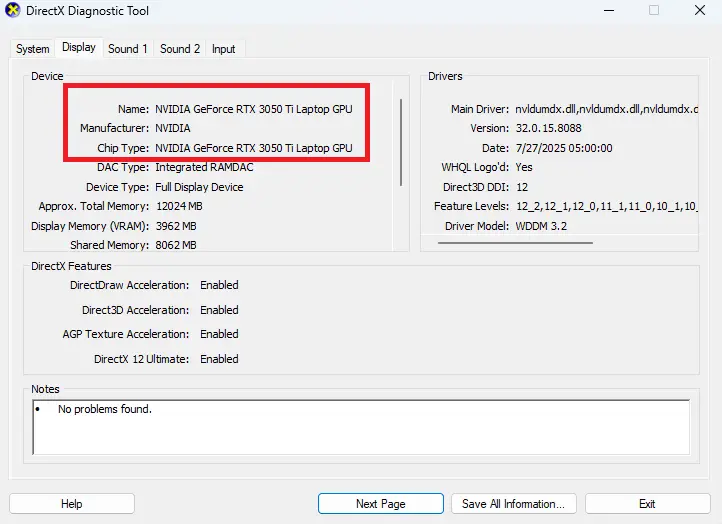
Memory Details:
Driver Information:
If you’re running a laptop with both integrated and dedicated graphics (hello, gaming laptops!), or you have multiple GPUs, you’ll see “Display 1,” “Display 2,” and so on. Each tab represents a different graphics processor, so make sure to check them all.
Let me break down what these specifications actually mean for you:
That “Approx. Total Memory” number? It’s crucial for gaming and professional work. Modern games typically need at least 6-8GB of VRAM for smooth 1440p gaming, while 4K gaming or professional video editing might require 12GB or more.
If your driver date is more than a few months old, it might be time for an update. Newer drivers often include performance improvements and bug fixes for the latest games and applications.
Sometimes DXDiag might show unexpected results. Here’s what to do:
This usually means Windows isn’t recognizing your graphics card properly. Try:
This is normal if you have:
If DXDiag shows driver issues, head to:
While you’re in DXDiag, don’t miss these other valuable sections:
Shows your overall system specs, including CPU, RAM, and Windows version – perfect for compatibility checks.
Check if DirectX features are working properly. Any “Not Available” entries might indicate driver or hardware issues.
If you’re having audio issues with games or media, the Sound tab can help diagnose problems.
DXDiag is fantastic for quick checks and built-in convenience, but here’s when you might want alternatives:
Use DXDiag when you need:
Consider other tools for:
Need to save this information or share it with tech support? DXDiag has you covered:
There you have it! DXDiag is like having a computer technician built right into Windows. Whether you’re a gamer trying to optimize performance, a content creator checking system requirements, or just someone curious about their hardware, DXDiag gives you the GPU information you need in seconds.
The beauty of this tool lies in its simplicity and availability – no downloads, no installations, no subscriptions. Just press Windows+R, type “dxdiag,” and you’re golden.
Ready to become your own GPU detective? Fire up DXDiag right now and explore what’s powering your digital world. Trust me, once you start using this tool regularly, you’ll wonder how you ever managed without it.