

373views
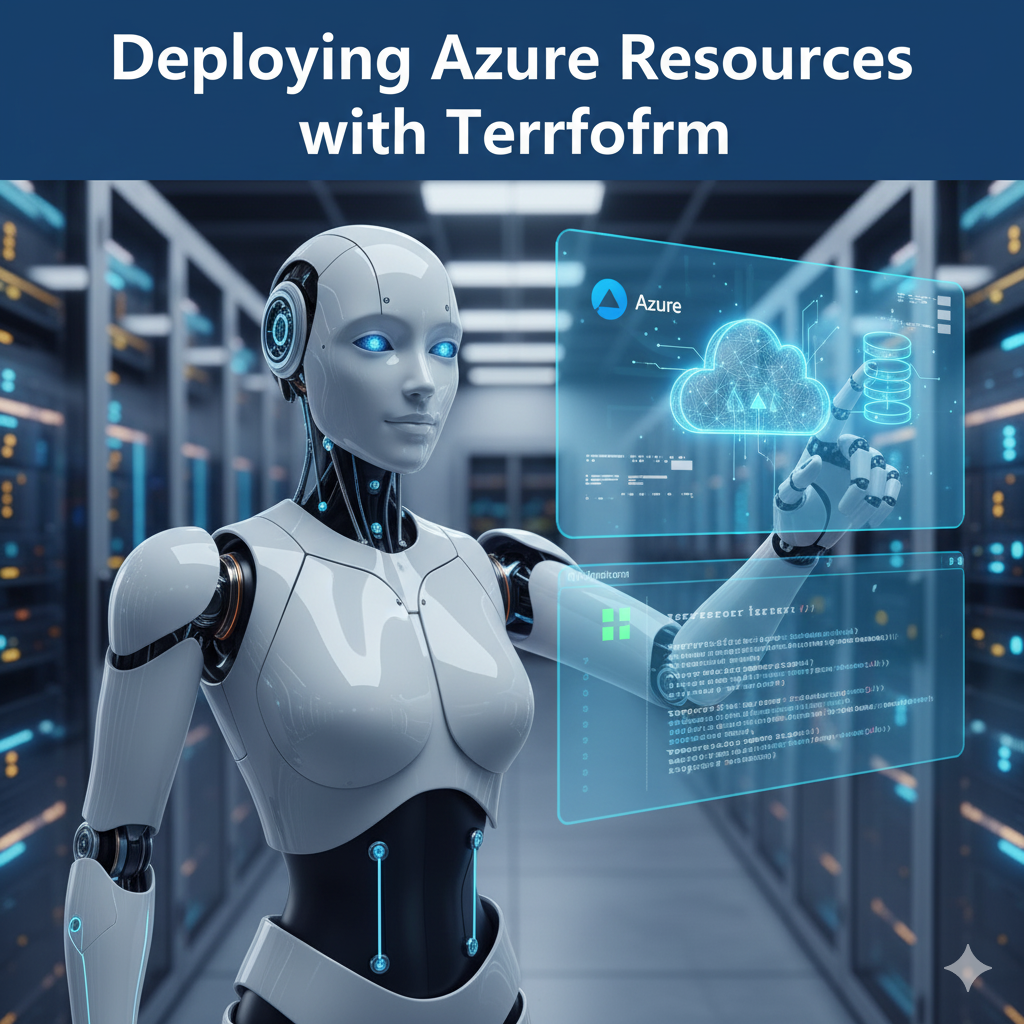
If you’ve been working with Azure, you know the drill: log into the portal, click around, set configurations, and repeat every time you need a new resource. It works—but it’s not scalable, and it’s prone to human error.
Enter Terraform, one of the most popular Infrastructure-as-Code (IaC) tools out there. With Terraform, you define what you want in simple configuration files, and Terraform takes care of how to build it in Azure. No more guesswork, no more repetitive clicking.
In this post, we’ll walk through:
- What Terraform is and why you should use it
- How to set it up for Azure
- Writing your first Terraform configuration (a resource group + VM)
- Deploying resources step by step
- Best practices for Terraform in Azure
Let’s get started 🚀
What is Terraform (and Why Should You Care)?
Terraform is an open-source IaC tool from HashiCorp that lets you:
- Define resources in configuration files (
.tf). - Plan deployments before running them (no surprises).
- Apply changes consistently across environments.
Unlike ARM templates or Bicep, which are Azure-native, Terraform is cloud-agnostic. That means you can use the same tool to manage Azure, AWS, Google Cloud, Kubernetes, and more.
For teams that run multi-cloud or hybrid environments, Terraform is often the go-to choice.
Setting Up Terraform for Azure
Before we can deploy anything, let’s get Terraform and Azure ready.
Step 1: Install Terraform
Download Terraform from the official site, and verify the installation:
terraform -v
You should see the version number printed out.
Step 2: Install Azure CLI
Terraform talks to Azure through the Azure CLI, so make sure you have it installed:
az --version
Step 3: Authenticate with Azure
Login to your Azure account:
az login
A browser window will pop up. After logging in, Terraform can use your credentials.
Writing Your First Terraform Configuration
Let’s deploy something simple: an Azure Resource Group and a Virtual Machine.
Create a new folder and inside it a file called main.tf.
provider "azurerm" {
  features {}
}

resource "azurerm_resource_group" "my_rg" {
  name     = "terraform-demo-rg"
  location = "East US"
}

resource "azurerm_virtual_network" "my_vnet" {
  name                = "terraform-demo-vnet"
  address_space       = ["10.0.0.0/16"]
  location            = azurerm_resource_group.my_rg.location
  resource_group_name = azurerm_resource_group.my_rg.name
}

resource "azurerm_subnet" "my_subnet" {
  name                 = "terraform-demo-subnet"
  resource_group_name  = azurerm_resource_group.my_rg.name
  virtual_network_name = azurerm_virtual_network.my_vnet.name
  address_prefixes     = ["10.0.1.0/24"]
}

resource "azurerm_network_interface" "my_nic" {
  name                = "terraform-demo-nic"
  location            = azurerm_resource_group.my_rg.location
  resource_group_name = azurerm_resource_group.my_rg.name

  ip_configuration {
    name                          = "internal"
    subnet_id                     = azurerm_subnet.my_subnet.id
    private_ip_address_allocation = "Dynamic"
  }
}

resource "azurerm_linux_virtual_machine" "my_vm" {
  name                = "terraform-demo-vm"
  resource_group_name = azurerm_resource_group.my_rg.name
  location            = azurerm_resource_group.my_rg.location
  size                = "Standard_B1s"
  admin_username      = "azureuser"

  network_interface_ids = [
    azurerm_network_interface.my_nic.id,
  ]

  admin_password = "P@ssw0rd1234!"

  os_disk {
    caching              = "ReadWrite"
    storage_account_type = "Standard_LRS"
  }

  source_image_reference {
    publisher = "Canonical"
    offer     = "UbuntuServer"
    sku       = "18.04-LTS"
    version   = "latest"
  }
}
Deploying the Resources
Now the fun part—let’s run Terraform commands:
Step 1: Initialize Terraform
terraform init
This downloads the Azure provider and sets up your working directory.
Step 2: Preview the Deployment
terraform plan
This shows what Terraform will create—like a “dry run.”
Step 3: Apply the Deployment
terraform apply
Confirm with yes, and Terraform provisions the resource group, VNet, subnet, NIC, and VM.
Verifying in the Azure Portal
Head to the Azure Portal, refresh the Resource Groups, and you’ll see terraform-demo-rg with all your deployed resources. 🎉
Wrapping Up
With Terraform, you gain:
- Repeatability – Run the same config in dev, test, and prod.
- Portability – Same tool across multiple clouds.
- Control – Preview changes before applying them.
Whether you’re deploying a simple VM or a full-scale production environment, Terraform + Azure gives you the power of automation and flexibility of code.
add a comment

Creating & Adding an Azure Subscription to Azure AD
Creating & Adding an Azure Subscription to Azure AD | vmorecloud.com :root { --azure: #0078d4; --azure-dark: #004578; --azure-light: #deecf9; --azure-mid:...

KDE Introduces KIO S3 for Native Amazon S3 Storage Access
The KDE Project has announced KIO S3, a new component that introduces built-in access to Amazon’s S3 storage service and...
Adding a Custom Domain to Azure AD and Configuring Company Branding
When you create a new tenant in Microsoft Azure, it automatically includes a default domain such as: yourtenant.onmicrosoft.com This initial...

Running Windows Server 2025 on Microsoft Azure
As organizations continue shifting workloads to the cloud, mastering Windows Server deployments in modern infrastructure has become an essential skill...




