Physical Address
304 North Cardinal St.
Dorchester Center, MA 02124
Physical Address
304 North Cardinal St.
Dorchester Center, MA 02124

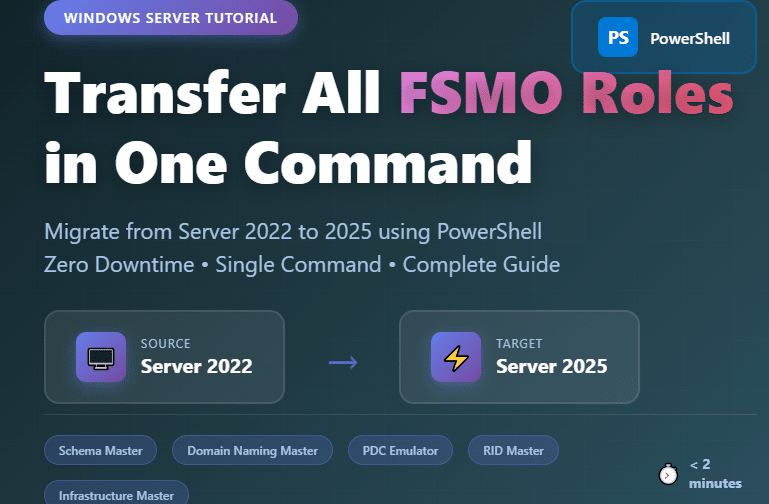
Migrating your Active Directory infrastructure from Windows Server 2022 to Windows Server 2025 requires careful planning, especially when transferring Flexible Single Master Operations (FSMO) roles. This comprehensive guide walks you through the fastest and safest method to transfer all five FSMO roles using a single PowerShell command, ensuring zero downtime for your domain.
Whether you’re upgrading domain controllers, performing scheduled maintenance, or consolidating your AD infrastructure, mastering FSMO role transfers is essential for every Windows Server administrator.
💡 Pro Tip: This tutorial works for transferring FSMO roles between any Windows Server versions (2016, 2019, 2022, 2025), not just 2022 to 2025.
Active Directory uses a multi-master replication model for most operations, but certain critical tasks require a single authoritative source. These are handled by the five FSMO roles:
1. Schema Master
The Schema Master is the gatekeeper of your entire Active Directory forest’s structure. Think of the schema as the blueprint that defines every possible object type and attribute that can exist in your Active Directory—from user accounts and computers to custom objects created by applications. This role maintains exclusive write access to the schema, ensuring that only one domain controller can modify this critical foundation at any given time.
Whenever you install enterprise applications like Microsoft Exchange, deploy Microsoft 365 Directory Sync, or add any software that extends Active Directory’s capabilities, those applications need to modify the schema by adding new object classes or attributes. The Schema Master must be online and accessible during these installations. For example, when you install Exchange Server, it adds attributes like mailbox databases and mail-enabled security groups to the schema. Because there’s only one Schema Master per forest, all schema changes across every domain in your organization funnel through this single authoritative source, preventing conflicts and maintaining consistency across your entire Active Directory infrastructure.
2. Domain Naming Master
The Domain Naming Master serves as the traffic controller for your Active Directory forest’s domain structure. This role has the exclusive authority to add new domains to the forest or remove existing ones, acting as the single source of truth for which domains exist within your organization’s forest.
When you need to create a new child domain, add a domain tree, or restructure your Active Directory hierarchy, the Domain Naming Master must be online and reachable. It ensures that domain names remain unique within the forest and prevents naming conflicts that could cause serious replication and authentication issues. For instance, if you’re expanding your organization and need to add a new geographic domain like “europe.vmorecloud.com” to your existing forest, the Domain Naming Master validates that this name doesn’t conflict with existing domains and then authorizes its creation. Without access to this role holder, you simply cannot modify the forest’s domain structure, making it essential for any Active Directory expansion or consolidation projects.
Before transferring FSMO roles, ensure you meet these requirements:
powershell
# Check AD replication health
repadmin /replsummary

# Verify no replication errors
repadmin /showrepl

# Run domain controller diagnostics
dcdiag /v

# Ensure both DCs are communicating
Test-Connection -ComputerName DC2025 -Count 4
⚠️ Important: Always create a system state backup of your domain controllers before making any FSMO role changes.
powershell
# Using Windows Server Backup
wbadmin start systemstatebackup -backupTarget:E: -quietBefore transferring roles, identify which domain controller currently holds each FSMO role.
powershell
Get-ADDomain | Select-Object InfrastructureMaster, PDCEmulator, RIDMasterExpected Output:
InfrastructureMaster : DC2022.vmorecloud.com
PDCEmulator          : DC2022.vmorecloud.com
RIDMaster : DC2022.vmorecloud.compowershell
Get-ADForest | Select-Object SchemaMaster, DomainNamingMasterExpected Output:
SchemaMaster        : DC2022.vmorecloud.com
DomainNamingMaster : DC2022.vmorecloud.compowershell
# View all FSMO role holders
netdom query fsmoThis is the moment you’ve been waiting for. You can transfer all five FSMO roles with just one PowerShell command.
Log in to your new Windows Server 2025 domain controller and run:
powershell
Move-ADDirectoryServerOperationMasterRole -Identity "DC2025" -OperationMasterRole 0,1,2,3,4Replace "DC2025" with your actual target domain controller hostname. For example, if your target server is server.vmorecloud.com, the command would be:
powershell
Move-ADDirectoryServerOperationMasterRole -Identity "server" -OperationMasterRole 0,1,2,3,4If you prefer using role names for clarity:
powershell
Move-ADDirectoryServerOperationMasterRole -Identity "DC2025" -OperationMasterRole PDCEmulator,RIDMaster,InfrastructureMaster,SchemaMaster,DomainNamingMasterBy default, PowerShell prompts you to confirm each role transfer. To skip all prompts:
powershell
Move-ADDirectoryServerOperationMasterRole -Identity "DC2025" -OperationMasterRole 0,1,2,3,4 -Confirm:$false📌 Note: You’ll see a confirmation prompt for each role unless you use
-Confirm:$false. Press A (Yes to All) to transfer all roles without individual confirmations.
After running the transfer command, verify that all FSMO roles have successfully moved to the new domain controller.
powershell
# Check domain-level roles
Get-ADDomain | Select-Object InfrastructureMaster, PDCEmulator, RIDMaster

# Check forest-level roles
Get-ADForest | Select-Object SchemaMaster, DomainNamingMaster
Expected Output (after successful transfer):
InfrastructureMaster : DC2025.vmorecloud.com
PDCEmulator          : DC2025.vmorecloud.com
RIDMaster            : DC2025.vmorecloud.com

SchemaMaster        : DC2025.vmorecloud.com
DomainNamingMaster : DC2025.vmorecloud.comcmd
netdom query fsmoCheck the Directory Service event log on both domain controllers:
On the new DC (DC2025):
On the old DC (DC2022):
regsvr32 schmmgmt.dllWhile the single PowerShell command is the fastest method, here are alternatives:
If you need more control, transfer each role separately:
powershell
# Transfer PDC Emulator
Move-ADDirectoryServerOperationMasterRole -Identity "DC2025" -OperationMasterRole PDCEmulator

# Transfer RID Master
Move-ADDirectoryServerOperationMasterRole -Identity "DC2025" -OperationMasterRole RIDMaster

# Transfer Infrastructure Master
Move-ADDirectoryServerOperationMasterRole -Identity "DC2025" -OperationMasterRole InfrastructureMaster

# Transfer Schema Master
Move-ADDirectoryServerOperationMasterRole -Identity "DC2025" -OperationMasterRole SchemaMaster

# Transfer Domain Naming Master
Move-ADDirectoryServerOperationMasterRole -Identity "DC2025" -OperationMasterRole DomainNamingMastercmd
ntdsutil
roles
connections
connect to server DC2025
quit
transfer schema master
transfer naming master
transfer PDC
transfer RID master
transfer infrastructure master
quit
quitDetailed GUI instructions are available above in the verification section, but PowerShell is significantly faster for bulk transfers.
Error Message:
Move-ADDirectoryServerOperationMasterRole : Access is deniedSolution:
powershell
Get-ADPrincipalGroupMembership $env:USERNAME | Select-Object nameError Message:
The transfer of the operation master role cannot be performed because:
The requested FSMO operation failed. The current FSMO role holder could not be contacted.
Solutions:
If the old DC is permanently offline and cannot be recovered:
powershell
Move-ADDirectoryServerOperationMasterRole -Identity "DC2025" -OperationMasterRole 0,1,2,3,4 -Force⚠️ Critical Warning: Only seize roles if the old DC will never return to service. Bringing back the old DC after seizure causes serious conflicts.
Some administrators report failures when using Fully Qualified Domain Names. Use hostname only:
powershell
# This may fail
Move-ADDirectoryServerOperationMasterRole -Identity "server.vmorecloud.com" ...

# This works better
Move-ADDirectoryServerOperationMasterRole -Identity "server" ...

# Or use short hostname for vmorecloud.com domain
Move-ADDirectoryServerOperationMasterRole -Identity "DC2025" ...When seizing the RID Master role:
Check current RID pool:
powershell
Get-ADDomain | Select-Object RIDAvailablePoolWhile FSMO role transfers cause minimal disruption, schedule them during planned maintenance windows to minimize user impact.
Small Environments (< 10 DCs):
Large Environments:
Maintain documentation of:
For 24-48 hours after transfer, monitor:
After successful transfer and verification:
A: Yes! FSMO role transfers are online operations with minimal impact. The PDC Emulator role transfer may cause a brief delay in password changes, but this is typically unnoticeable.
A: Using PowerShell, all five roles transfer in under 2 minutes. Individual role transfers take seconds.
A: No restart is required. Changes take effect immediately.
A:
A: Yes! The Move-ADDirectoryServerOperationMasterRole cmdlet can run from any domain-joined computer with the ActiveDirectory PowerShell module installed.
powershell
# Remote execution from your workstation
Move-ADDirectoryServerOperationMasterRole -Identity "server" -OperationMasterRole 0,1,2,3,4 -Server "server.vmorecloud.com"
Example with IP address (if DNS resolution fails):
powershell
# Using IP address for direct connection
Test-Connection -ComputerName 192.168.91.129 -Count 4
Move-ADDirectoryServerOperationMasterRole -Identity "server" -OperationMasterRole 0,1,2,3,4A: PowerShell transfers roles sequentially. If a transfer fails, previously transferred roles remain on the new DC, and failed roles stay on the old DC. Re-run the command for failed roles only.
A: No. You can distribute roles across multiple DCs. However, in small environments, placing all roles on one reliable DC simplifies management.
A: Absolutely! Just specify the roles you want to transfer:
powershell
# Transfer only PDC Emulator and RID Master
Move-ADDirectoryServerOperationMasterRole -Identity "DC2025" -OperationMasterRole 0,1A: Check your group membership:
powershell
whoami /groups | findstr -i "schema admins enterprise admins domain admins"A: Yes! Simply transfer the roles back to the original DC using the same command with the old DC as the identity.
Transferring FSMO roles from Windows Server 2022 to Windows Server 2025 doesn’t have to be complicated. With a single PowerShell command, you can migrate all five critical roles in under two minutes with zero downtime.
Remember the key command:
powershell
Move-ADDirectoryServerOperationMasterRole -Identity "DC2025" -OperationMasterRole 0,1,2,3,4 -Confirm:$falseWhether you’re upgrading domain controllers, performing maintenance, or recovering from a failure, mastering FSMO role management is an essential skill for every Windows Server administrator.

We have detected that you are using extensions to block ads. Please support us by disabling these ads blocker.





