Manual updates are a chore. You know you should run them regularly, but let’s be honest—how often do you actually remember to SSH into your server and type apt update && apt upgrade? Meanwhile, security vulnerabilities pile up, and your system becomes an easier target for attackers.
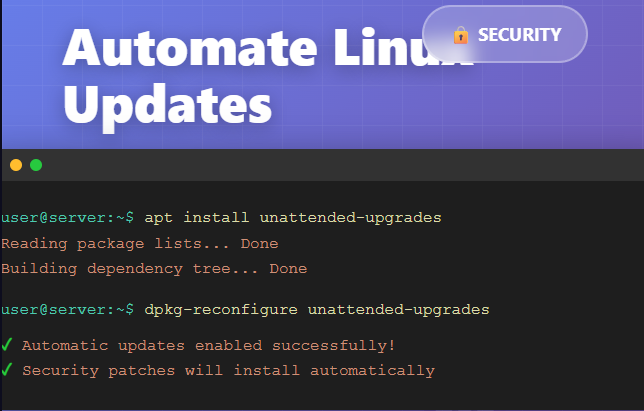
The good news is that Linux makes it easy to automate this process. With just two commands, you can set up automatic updates that keep your system patched without any manual intervention.
Why Automatic Updates Matter
Security patches are released constantly. When a critical vulnerability is discovered in software running on your system, the clock starts ticking. Attackers scan the internet for unpatched systems, and if you’re running outdated software, you’re essentially leaving the door unlocked.
Automatic updates ensure that security patches are applied as soon as they’re available, significantly reducing your exposure to threats. This is especially important for servers that are accessible from the internet.
Setting Up Unattended Upgrades
The unattended-upgrades package handles automatic updates on Debian-based systems like Ubuntu. Here’s how to set it up:
Step 1: Install the Package
First, install the unattended-upgrades package:
bash
sudo apt install unattended-upgradesThis installs the necessary tools to automatically download and install updates in the background.
Step 2: Configure Automatic Updates
Next, run the configuration tool:
bash
sudo dpkg-reconfigure --priority=low unattended-upgradesWhen prompted, select “Yes” to enable automatic updates. This configures your system to automatically install security updates without any further action required.
What Gets Updated Automatically?
By default, unattended-upgrades only installs security updates from trusted repositories. This is a sensible default that keeps your system secure while minimizing the risk of something breaking due to a major version upgrade.
The configuration file is located at /etc/apt/apt.conf.d/50unattended-upgrades if you want to customize which packages get updated automatically. You can also configure email notifications, automatic reboots for kernel updates, and more.
Alternative: Scheduling Updates with Cron
If you prefer more control over when updates run, or if you want to use a simpler approach, you can schedule automatic updates using cron. This gives you the flexibility to specify exact times and chain multiple commands together.
Creating a Cron Job for Updates
You can add a cron job to run updates at a specific time. For example, to run updates on the 5th, 23rd, and 28th of each month at 3:00 AM:
bash
echo '0 3 5,23,28 * * apt update && apt upgrade -y && apt autoremove -y' | sudo tee -a /etc/crontabOr add it directly to root’s crontab:
bash
sudo crontab -eThen add this line:
0 3 5,23,28 * * apt update && apt upgrade -y && apt autoremove -yBreaking Down the Cron Syntax
The cron time format is: minute hour day month day-of-week
0 3= 3:00 AM5,23,28= On the 5th, 23rd, and 28th day of the month* *= Every month, every day of the week
Chaining Commands
The && operator chains commands together, so the next command only runs if the previous one succeeds:
apt update= Refresh package listsapt upgrade -y= Install updates without promptingapt autoremove -y= Remove unnecessary packages
You can adjust the schedule to fit your maintenance windows. For a weekly update every Sunday at 2 AM:
0 2 * * 0 apt update && apt upgrade -y && apt autoremove -yLogging Cron Updates
To keep a log of what gets updated, redirect the output to a file:
0 3 5,23,28 * * apt update && apt upgrade -y && apt autoremove -y >> /var/log/auto-updates.log 2>&1Unattended-Upgrades vs Cron: Which Should You Use?
Use unattended-upgrades if:
- You want updates to run automatically in the background without manual scheduling
- You only want security updates installed automatically
- You need fine-grained control over which packages get updated
- You want built-in email notifications and logging
Use cron if:
- You want complete control over timing and what gets updated
- You’re comfortable with command-line tools and scripting
- You want to chain additional maintenance tasks
- You prefer a simpler, more transparent approach
You can also use both together—unattended-upgrades for daily security patches and cron for weekly full system updates during scheduled maintenance windows.
Best Practices
While automatic updates are convenient, keep these tips in mind:
Monitor your logs. Check /var/log/unattended-upgrades/ for unattended-upgrades or your custom log file for cron jobs to ensure updates are running smoothly and no errors are occurring.
Consider automatic reboots carefully. Some updates require a reboot to take effect. You can configure unattended-upgrades to automatically reboot, but make sure this won’t disrupt critical services.
Test your cron jobs. If using cron, test your update commands manually first to ensure they work as expected before scheduling them.
Keep manual oversight for production servers. For mission-critical systems, you might want to review updates in a staging environment before they hit production, even if you use automatic updates elsewhere.
Combine with monitoring. Automatic updates don’t replace proper system monitoring. You should still have alerts set up for suspicious activity or system issues.
Use email notifications. Configure your system to email you after updates run so you know what changed and can catch any issues quickly.
Wrapping Up
Whether you choose unattended-upgrades or cron-based scheduling, automating your updates is essential for maintaining a secure Linux system. Two simple commands (or a few lines in crontab) are all it takes to stop worrying about whether your system is up to date.
With automatic updates enabled, security patches are applied on schedule, and you can focus on more important tasks than babysitting package managers. Your future self will thank you when you’re not scrambling to patch a critical vulnerability at 2 AM because you forgot to run updates for the past three months.