Take Control of Your Network with Advanced Monitoring and Real-Time Alerts
In today’s hyper-connected world, knowing exactly what’s happening on your network isn’t just convenient—it’s essential. Whether you’re a home user protecting your family’s devices, a small business safeguarding critical infrastructure, or a tech enthusiast building your smart home, NetAlertX delivers enterprise-grade network visibility in an accessible, self-hosted package.
What is NetAlertX?
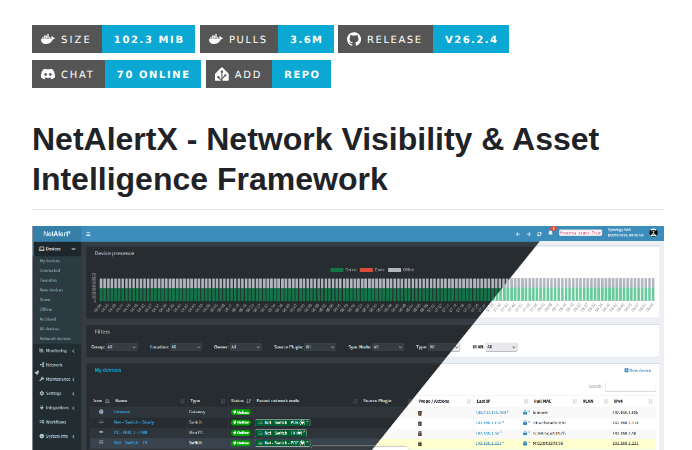
NetAlertX is a powerful, open-source network monitoring and asset intelligence framework that scans your WIFI/LAN network to provide complete visibility of connected devices. Think of it as your network’s security guard—constantly watching, analyzing, and alerting you to any changes or potential threats.
Built on the foundation of the original Pi.Alert project, NetAlertX has evolved into a comprehensive solution that combines network scanning, presence detection, asset management, and intelligent alerting into a single, elegant platform.
Key Features That Set NetAlertX Apart
1. Intelligent Alert System
NetAlertX doesn’t just detect—it notifies. With support for over 80 notification services through Apprise integration, you can receive alerts via:
- Telegram
- Pushover
- Pushsafer
- NTFY
- Slack
- Discord
- SMS
- And 70+ more services
Configure alert thresholds to avoid notification fatigue while staying informed about critical network events.
Technical Specifications
Deployment Options
NetAlertX is designed for flexibility, supporting multiple deployment methods:
Docker (Recommended)
bash
docker run -d \
  --network=host \
  --restart unless-stopped \
  -v /local_data_dir:/data \
  -v /etc/localtime:/etc/localtime:ro \
  --tmpfs /tmp:uid=20211,gid=20211,mode=1700 \
  -e PORT=20211 \
  -e APP_CONF_OVERRIDE='{"GRAPHQL_PORT":"20214"}' \
  ghcr.io/jokob-sk/netalertx:latest
Home Assistant Add-on
One-click installation via the Home Assistant add-on repository
Bare Metal Installation
Traditional installation on Linux systems for maximum control
Unraid Community App
Available through the Unraid App Store
System Requirements
- Processor: ARM or x86 architecture
- Memory: Minimum 512MB RAM (1GB recommended)
- Storage: 1GB for application and database
- Network: Ethernet connection recommended (WiFi supported)
- OS: Linux-based systems, Docker-compatible platforms
Supported Browsers
- Chrome/Chromium (latest)
- Firefox (latest)
- Edge (Chromium-based)
- Safari (latest)
Installation Guide
NetAlertX offers multiple installation methods to suit different environments and expertise levels. Choose the method that best fits your setup.
Prerequisites
Before installing NetAlertX, ensure you have:
- A Linux-based system, Raspberry Pi, or Docker-compatible platform
- Network connectivity (Ethernet recommended for best results)
- At least 512MB RAM (1GB recommended)
- 1GB free disk space
- Administrative/root access to your system
Method 1: Docker Installation (Recommended)
Docker is the easiest and most popular way to deploy NetAlertX. This method works on any system that supports Docker.
Step 1: Install Docker
If you don’t have Docker installed:
On Ubuntu/Debian:
bash
curl -fsSL https://get.docker.com -o get-docker.sh
sudo sh get-docker.sh
sudo usermod -aG docker $USER
On Raspberry Pi OS:
bash
curl -fsSL https://get.docker.com -o get-docker.sh
sudo sh get-docker.sh
sudo usermod -aG docker pi
Log out and back in for group changes to take effect.
Step 2: Create Data Directories
Create directories to store NetAlertX configuration and database:
bash
mkdir -p ~/netalertx/config
mkdir -p ~/netalertx/db
Step 3: Run NetAlertX Container
Basic Installation:
bash
docker run -d \
  --name netalertx \
  --network=host \
  --restart unless-stopped \
  -v ~/netalertx/config:/data/config \
  -v ~/netalertx/db:/data/db \
  -v /etc/localtime:/etc/localtime:ro \
  --tmpfs /tmp:uid=20211,gid=20211,mode=1700 \
  -e PORT=20211 \
  -e APP_CONF_OVERRIDE='{"GRAPHQL_PORT":"20214"}' \
  ghcr.io/jokob-sk/netalertx:latest
Alternative: Using Docker Hub:
bash
docker run -d \
  --name netalertx \
  --network=host \
  --restart unless-stopped \
  -v ~/netalertx/config:/data/config \
  -v ~/netalertx/db:/data/db \
  -v /etc/localtime:/etc/localtime:ro \
  --tmpfs /tmp:uid=20211,gid=20211,mode=1700 \
  -e PORT=20211 \
  -e APP_CONF_OVERRIDE='{"GRAPHQL_PORT":"20214"}' \
  jokobsk/netalertx:latest
Step 4: Verify Installation
Check if the container is running:
bash
docker ps | grep netalertxView logs to ensure proper startup:
bash
docker logs netalertxStep 5: Access the Web Interface
Open your web browser and navigate to:
http://YOUR-SERVER-IP:20211Replace YOUR-SERVER-IP with your server’s IP address (e.g., http://192.168.1.100:20211).
Method 2: Docker Compose Installation
Docker Compose provides better configuration management and is ideal for more complex setups.
Step 1: Install Docker Compose
bash
sudo apt-get update
sudo apt-get install docker-compose-plugin
Step 2: Create Project Directory
bash
mkdir ~/netalertx
cd ~/netalertx
Step 3: Create docker-compose.yml
Create a file named docker-compose.yml:
bash
nano docker-compose.ymlAdd the following content:
yaml
version: '3'

services:
  netalertx:
    image: ghcr.io/jokob-sk/netalertx:latest
    container_name: netalertx
    network_mode: host
    restart: unless-stopped
    volumes:
      - ./config:/data/config
      - ./db:/data/db
      - /etc/localtime:/etc/localtime:ro
    tmpfs:
      - /tmp:uid=20211,gid=20211,mode=1700
    environment:
      - PORT=20211
      - APP_CONF_OVERRIDE={"GRAPHQL_PORT":"20214"}
Save and exit (Ctrl+X, then Y, then Enter in nano).
Step 4: Deploy with Docker Compose
bash
docker compose up -dTo view logs:
bash
docker compose logs -fTo stop NetAlertX:
bash
docker compose downTo update to the latest version:
bash
docker compose pull
docker compose up -d
Method 3: Building from Source
For developers or those who want to customize NetAlertX, you can build from source.
Step 1: Clone the Repository
bash
git clone https://github.com/netalertx/NetAlertX.git
cd NetAlertX
Step 2: Build and Run
bash
docker compose up --force-recreate --buildTo run in detached mode:
bash
docker compose up -d --force-recreate --buildStep 3: Customize (Optional)
Edit the docker-compose.yml file to customize ports, volumes, or environment variables:
bash
nano docker-compose.ymlAfter making changes, rebuild:
bash
docker compose up -d --force-recreate --buildMethod 4: Home Assistant Add-on
For Home Assistant users, NetAlertX is available as a supervised add-on.
Step 1: Add Repository
Click this button to add the repository automatically: Show Image
Or manually add the repository:
- Navigate to Supervisor → Add-on Store
- Click the menu (⋮) in the top right
- Select Repositories
- Add:
https://github.com/alexbelgium/hassio-addons
Step 2: Install NetAlertX
- Find NetAlertX in the Add-on Store
- Click Install
- Wait for installation to complete
Step 3: Configure the Add-on
- Go to the Configuration tab
- Adjust settings as needed:
- Port (default: 20211)
- Scan intervals
- Network interface
Step 4: Start the Add-on
- Click Start
- Enable Start on boot (recommended)
- Enable Watchdog (recommended)
Step 5: Access the Web UI
Click Open Web UI or navigate to:
http://homeassistant.local:20211Method 5: Unraid Installation
Unraid users can install NetAlertX through the Community Applications.
Step 1: Open Community Applications
- Go to the Apps tab in Unraid
- Search for “NetAlertX”
Step 2: Install from Template
- Click on NetAlertX
- Review the default settings
- Modify if needed:
- Web UI Port (default: 20211)
- Container paths
- Network mode
Step 3: Apply and Start
- Click Apply
- Wait for the container to download and start
- Click the NetAlertX icon to access the web interface
Method 6: Bare Metal Installation (Advanced)
For advanced users who prefer running NetAlertX directly on the host system without containers.
Step 1: Install Dependencies
On Ubuntu/Debian:
bash
sudo apt-get update
sudo apt-get install -y python3 python3-pip python3-dev \
  git arp-scan net-tools nmap iproute2 \
  php php-sqlite3 php-curl php-xml \
  apache2 libapache2-mod-php
On Raspberry Pi OS:
bash
sudo apt-get update
sudo apt-get install -y python3 python3-pip python3-dev \
  git arp-scan net-tools nmap iproute2 \
  php php-sqlite3 php-curl php-xml \
  lighttpd php-cgi
Step 2: Clone Repository
bash
cd /opt
sudo git clone https://github.com/netalertx/NetAlertX.git
cd NetAlertX
Step 3: Install Python Requirements
bash
sudo pip3 install -r requirements.txtStep 4: Configure Web Server
For Apache:
bash
sudo cp install/apache-netalertx.conf /etc/apache2/sites-available/
sudo a2ensite apache-netalertx
sudo systemctl restart apache2
For Lighttpd (Raspberry Pi):
bash
sudo cp install/lighttpd-netalertx.conf /etc/lighttpd/conf-available/
sudo lighty-enable-mod netalertx
sudo systemctl restart lighttpd
Step 5: Set Permissions
bash
sudo chown -R www-data:www-data /opt/NetAlertX
sudo chmod -R 755 /opt/NetAlertX
Step 6: Create Systemd Service
bash
sudo nano /etc/systemd/system/netalertx.serviceAdd the following content:
ini
[Unit]
Description=NetAlertX Network Monitor
After=network.target

[Service]
Type=simple
User=www-data
WorkingDirectory=/opt/NetAlertX
ExecStart=/usr/bin/python3 /opt/NetAlertX/back/netalertx.py
Restart=always

[Install]
WantedBy=multi-user.target
Step 7: Enable and Start Service
bash
sudo systemctl daemon-reload
sudo systemctl enable netalertx
sudo systemctl start netalertx
Step 8: Verify Installation
bash
sudo systemctl status netalertxAccess the web interface at http://YOUR-SERVER-IP/netalertx
Post-Installation Configuration
Once NetAlertX is installed and running, follow these steps to configure it for your network.
Initial Setup Wizard
- Access the Web Interface: Navigate to
http://YOUR-IP:20211 - Choose Scanning Method: Select your primary scanning method:
- ARP Scan: Best for most networks (requires host network mode)
- Pi-hole: If you have Pi-hole installed
- DHCP: For DHCP lease monitoring
- SNMP: For router-level monitoring
- Configure Network Settings:
- Set your network subnet (e.g.,
192.168.1.0/24) - Select network interface (usually
eth0orwlan0) - Set scan interval (recommended: 5 minutes)
- Set your network subnet (e.g.,
- Set Up Notifications:
- Navigate to Settings → Notifications
- Choose notification method (Email, Telegram, Pushover, etc.)
- Enter required credentials
- Test notification to verify setup
- Configure Alert Rules:
- Go to Settings → Alerts
- Enable alerts for:
- New device detection
- Device disconnections
- Unknown devices
- IP changes
- First Scan: Click Run Scan to discover all devices on your network
- Device Management:
- Review discovered devices under Devices tab
- Mark known devices as “recognized”
- Add device names and notes
- Group devices by type or location
Getting Started with NetAlertX
Quick Start Guide
After installation, follow these steps to start monitoring your network:
- Access the Web UI: Navigate to
http://your-ip:20211 - Configure Scanners: Enable and configure your preferred scanning methods
- Set Up Notifications: Connect your preferred notification services
- Customize Alerts: Configure what events trigger notifications
- Run Initial Scan: Discover all devices currently on your network
- Review Devices: Mark known devices and add identifying information
- Enable Workflows: Set up automation rules for repetitive tasks
- Add Device Details: Enrich your device inventory with notes and metadata
Resource Usage
Typical resource consumption:
- CPU: 1-5% average (spikes during scans)
- RAM: 200-500MB depending on device count
- Disk I/O: Minimal (logging and database updates)
- Network: Low bandwidth usage during scans
Comparison with Alternatives
| Feature | NetAlertX | Fing | WatchYourLAN | NetBox |
|---|---|---|---|---|
| Open Source | ✅ | ❌ | ✅ | ✅ |
| Self-Hosted | ✅ | ❌ | ✅ | ✅ |
| Plugin System | ✅ | ❌ | ❌ | ✅ |
| Home Assistant | ✅ | ❌ | Limited | Limited |
| Free | ✅ | Limited | ✅ | ✅ (Community) |
| Mobile App | ❌ | ✅ | ❌ | ❌ |
| Notifications | 80+ services | Limited | Basic | API-based |
| Learning Curve | Low | Very Low | Low | Moderate |
Conclusion
NetAlertX represents the future of self-hosted network monitoring—powerful enough for professionals, accessible enough for enthusiasts, and private enough for everyone concerned about data security.
Whether you’re protecting your home network, managing a small business infrastructure, or building advanced home automation, NetAlertX provides the visibility and control you need.