


18views
The Apache HTTP server is one of the most popular Web servers in the world. It is an open-source application that runs on any Linux server and is completely free to install. It is, used to handle requests and deliver static/dynamic content. Due to its reliability, flexibility, and security, millions of Website Owners, Developers, and Web Hosting providers trust it. Let me walk you through the steps involved in installing the Apache (httpd) server on Rocky Linux 9.
Here are some of the main features of Apache HTTP Server:
* Loadable Dynamic Modules.
* Static File Handling.
* Auto-Indexing and Content Negotiation.
* .htaccess Configuration Support.
* IPv6 and HTTP/2 Compatibility.
* Compression, Bandwidth Throttling, and FTP Support.
* Built-in Scripting Support, Load Balancing, and Session Tracking.
* URL Rewriting and Geolocation Based on IP Address.
Prerequisites :
Operating System       :    Rocky Linux / RHEL /CentOS /Fedora
Packages & Dependencies:    httpd
User account           :    root user or user account with sudo privileges
Recommended to run all the administrative commands as with sudo privilege instead of root.
Lab Setup :
Apache Server:

Operating System    :   Rocky Linux release 9.1 (Blue Onyx)
Hostname            :   apache.linuxteck
IP Address          :   192.168.1.100
Step 1: Install Apache HTTPd package
Note:
You should consistently update your operating system prior to installing the Apache server package. With the “DNF Package Manager”, you can fetch the Rocky Linux updates from AppStream & BaseOS.
$ sudo dnf update
The Apache httpd server package can now be installed directly from the AppStream repository of Rocky Linux by executing the following command:
$ sudo dnf install httpd
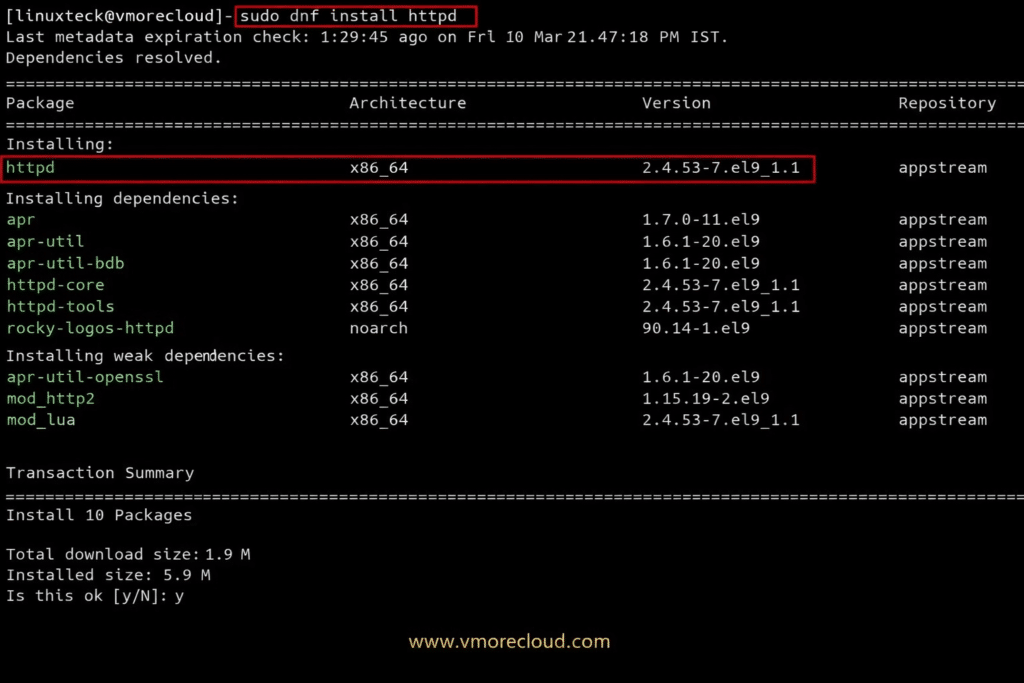
Note:
The output above indicates that the version of Apache HTTP Server is 2.4.53, and it is the best version of Apache HTTP Server (“httpd”).
You can also check the status and version of the Apache package in the Terminal with the following command.
$ sudo httpd -v
Output :
[vmorecloud@apache ~]$ httpd -v
Server version: Apache/2.4.53 (Rocky Linux)
Server built:   Jan 31 2026 00:00:00
Step 2: HTTPd Service: Start and Enable
By using the following command, we can start, enable and check the status of the HTTPD service:
    $ sudo systemctl start httpd

    $ sudo systemctl enable httpd

    $ sudo systemctl status httpd
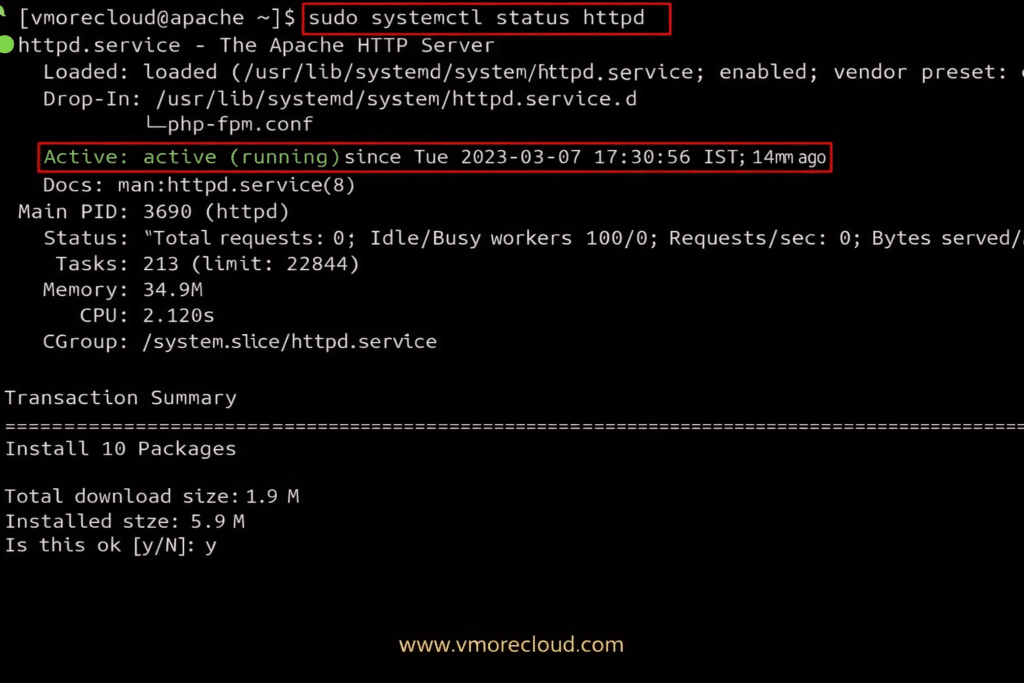
Note:
The screenshot above can confirm that our newly installed Apache webserver service is active and running.
Step 3: Enable firewallD Service
Note:
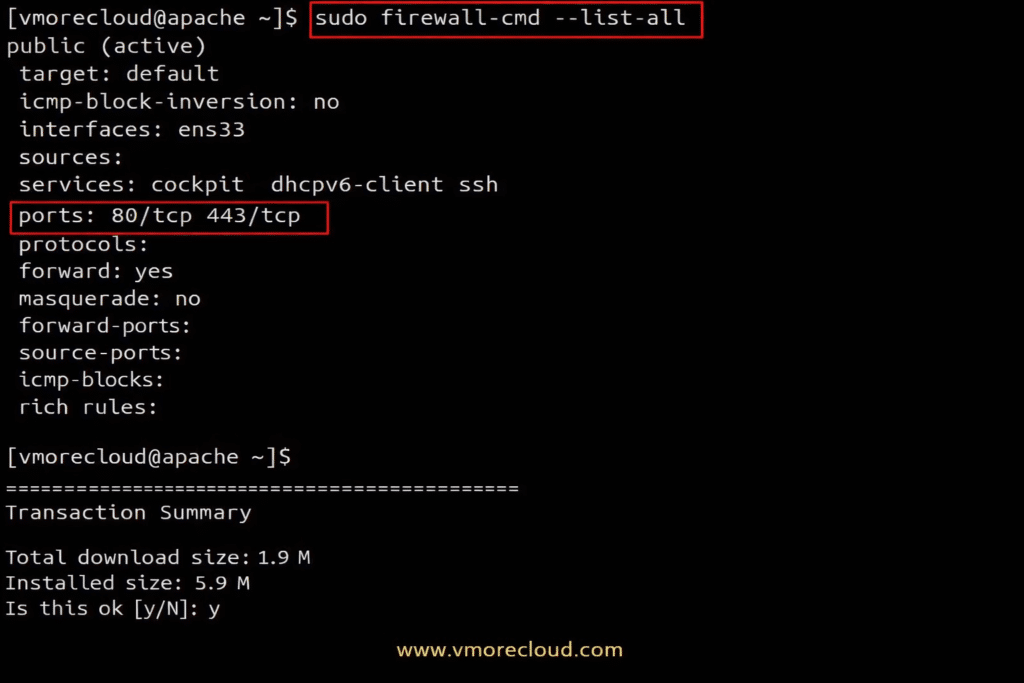
Firewalls are always recommended to protect our system. By default, most Linux distros include a firewall package with the basic installation. However, it won’t be enabled by default. Firewalls are essential to prevent unauthorized access to network security systems. After activating our firewall, we should permit ports for each type of service to access it publicly. In our demo, we will open HTTP (80) and HTTPS (443) to access our Website for everyone.
To open the ports, run the following commands:
    $ sudo firewall-cmd --permanent --add-port=80/tcp

    $ sudo firewall-cmd --permanent --add-port=443/tcp

    $ sudo firewall-cmd --reload
The following command will allow you to verify that all of the above-executed commands have been added to the zone file.
$ sudo firewall-cmd --list-all
Step 4: Apache HTTP Server Test Page
Note:
That’s it, the Apache server is ready for use. Open your browser and enter your Server IP address or Server Hostname, hit enter key, and you will get the “HTTP Server Test Page.” In my case, http://192.168.1.100 and hit the enter key, the Apache Test Page will appear as shown below. This means that the server is up and running.
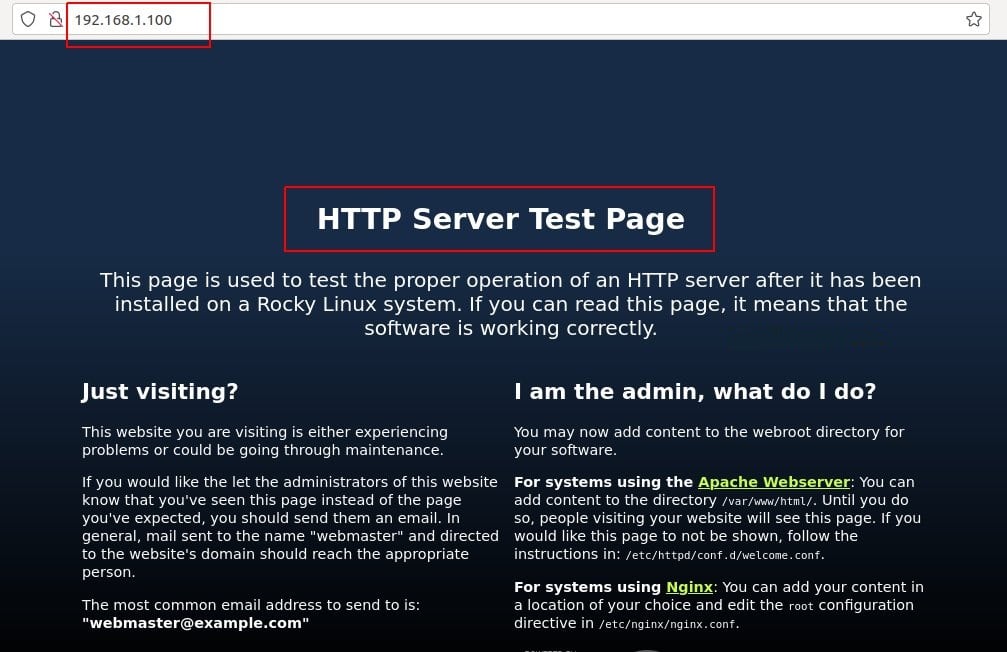
The above output confirms that Apache Web Server has been successfully installed and is working fine with Rocky Linux 9. Basic Apache installations usually only cover a single-page website. In the following section, let’s look into some advanced setups in the Apache configuration.
Step 5: Setting Up Apache Virtual Host
Note:
The above session taught us how to build a single-page website and the valid access methods (IP address and hostname). Our next session will focus on setting up a virtual host for Multi-Website Pages. All configurations for multi-site setup will be stored in virtual host files.
TIPS to manage Apache:
* Configuration files for Apache are located in /etc/httpd directory.
* The main configuration file of Apache is /etc/httpd/conf/httpd.conf.
* There is also a .conf file extension in the /etc/httpd/conf.d/ directory that is included in the apache main configuration file.
* Loading modules are controlled by the /etc/httpd/conf.modules.d configuration file.
* The log file of apache “error_log and access_log files” are located in the /var/log/httpd/ directory.
Before making any changes to any configuration file, you need to follow some important rules:
1. We recommend keeping the latest copy of your original config files as a backup. If you do this, you will be able to restore /compare/troubleshoot much more easily.
2. Make sure you edit only a small portion of the block at a time.
By doing this, you can easily check if they are working and, if not, you can easily revert back.
3. You need to understand syntax before you begin editing it, which means you need to know the structure and format.
4. Ensure that new changes are recorded including the date and description.
5. The last step is to restart the apache server after making any changes to the config files.
We will start by looking at our hostname (which is our system name) through the following command:
$ hostname
Output :
vmorecloud.com
The “hostname -I” command will display the system’s IP address.
Output :
192.168.1.100
Note:
As you can see, our hostname is linuxteck.com, and the corresponding IP address is “192.168.1.100”. For our demo, we will use the same IP address as above for the new domain name “linuxteck-vhost.net”
First, let’s create a virtual host file for the new domain. Rocky Linux also stores Apache configuration files in the same directory as CentOS/RHEL, which is “/etc/httpd/conf.d”.
$ sudo vi /etc/httpd/conf.d/linuxteck-vhost.net.conf
You will now need to add the following entries to the virtual host file: :
<VirtualHost *:80>
    ServerAdmin   admin@vmorecloud-vhost.net
    ServerName    www.linuxteck-vhost.net
    ServerAlias   linuxteck-vhost.net
    DocumentRoot  /var/www/linuxteck-vhost
    ErrorLog      /var/log/httpd/linuxteck-vhost.net-error.log
    CustomLog     /var/log/httpd/linuxteck-vhost.net-access.log combined
</VirtualHost>
Now save and exit the file using shift: wq!
Note:
Next, create a directory to accommodate all the files for the new domain “vmorecloud-vhost.net”. As soon as the Apache (httpd) package is installed, the default “DocumentRoot” directory “/var/www/” will be created. Apache serves content from this directory, which is known as the root directory.
$ sudo mkdir /var/www/vmorecloud-vhost
Create a sample index.html file to test the new domain
$ sudo vi /var/www/vmorecloud-vhost/index.html
Here are the HTML entries to add: :
<html>
<head>
<title>Welcome to vmorecloud-vhost.net!</title>
</head>
<body>
<h1>Great news! The virtual host for <span style="color:red; font-size: 35px;">vmorecloud-vhost.net</span> is now up and running!</h1>
</body>
</html>
Now save and exit the file using shift: wq!
Make sure to apply the correct permissions for the files and folder to access the Website publicly. Usually, Web Servers interact with two types of users: “Authenticated and Anonymous.” Apache is typically run by the user “www-data” on many Linux distros. However, we can do this based on our needs. In case you are unsure of the type of ownership or permission you should grant. You can determine which user Apache/httpd is used by running the following command.
$ ps -aux | grep apche OR $ ps -aux | grep httpd
My output:
[vmorecloud@linuxteck ~]$ ps -aux | grep apche

linuxte+    2262  0.0  0.0 221664  2344 pts/0    S+   18:35   0:00 grep --color=auto apche

[vmorecloud@linuxteck ~]$ ps -aux | grep httpd

linuxte+    2266  0.0  0.0 221664  2264 pts/0    S+   18:36   0:00 grep --color=auto httpd
[vmorecloud@linuxteck ~]$
The above output shows that Apache uses the user “vmorecloud” on my system. In the same way, you can apply permissions based on the user.
$ sudo chown -R $USER:$USER /var/www/vmorecoud-vhost/index.html
Let’s verify this now
$ sudo ls -l /var/www/vmorecloud-vhost/index.html
Output:
-rw-r--r--. 1 vmorecloud vorecloud 176 Mar 11 18:13 /var/www/vmorecloud-vhost/index.html
[vmorecloud@vmorecloud ~]$
It is always a good idea to run the config test before restarting the httpd daemon. It will assist you in finding any syntax errors in the configuration files.
$ sudo apachectl configtest
Output:
[vmorecloud@vmorecloud ~]$
[vmorecloud@vmorecloud ~]$ sudo apachectl configtest
Syntax OK
[vmorecloud@vmorecloud ~]$
As a final step, we need to restart the Apache service.
$ sudo systemctl restart httpd
Conclusion:
We hope this article has helped you understand how to install Apache Server in Rocky Linux 10 step by step.
add a comment

12 useful ‘sed’ commands in Linux
In this article, we will learn how to use sed command in linux with 12 practical examples. The sed command is a powerful and useful tool in Unix / Linux for editing the content (files) line by line, including inserts, appends, changes, and deletes. Furthermore, it supports regular expressions, so it can match complex patterns. Commonly it is used to find and replace the strings in files like configuration files, bash scripts, SQL files, etc. The sed commands are mostly abstracted from the 'ed' text editor. The sed command allows...

KDE Introduces KIO S3 for Native Amazon S3 Storage Access
The KDE Project has announced KIO S3, a new component that introduces built-in access to Amazon’s S3 storage service and...


Calibre 9.5 E-Book Manager Released With Reading Progress Column
The open-source e-book management application Calibre has released version 9.5, marking the fifth maintenance update in the 9.x series. One...


APTUI Introduces a Modern TUI for Debian, Ubuntu, and Mint Packages
A new open-source tool named APTUI has been introduced to simplify package management on Linux systems that use the APT...
