
VMware Workstation Pro 25H2u1 Download (Build 25219725)
VMware Workstation Pro lets you run multiple operating systems as virtual machines on a Windows desktop or workstation. This guide covers the installer named VMware-Workstation-Full-25H2u1, how to obtain it through Broadcom, installation steps, important compatibility notes, and safer download practices.
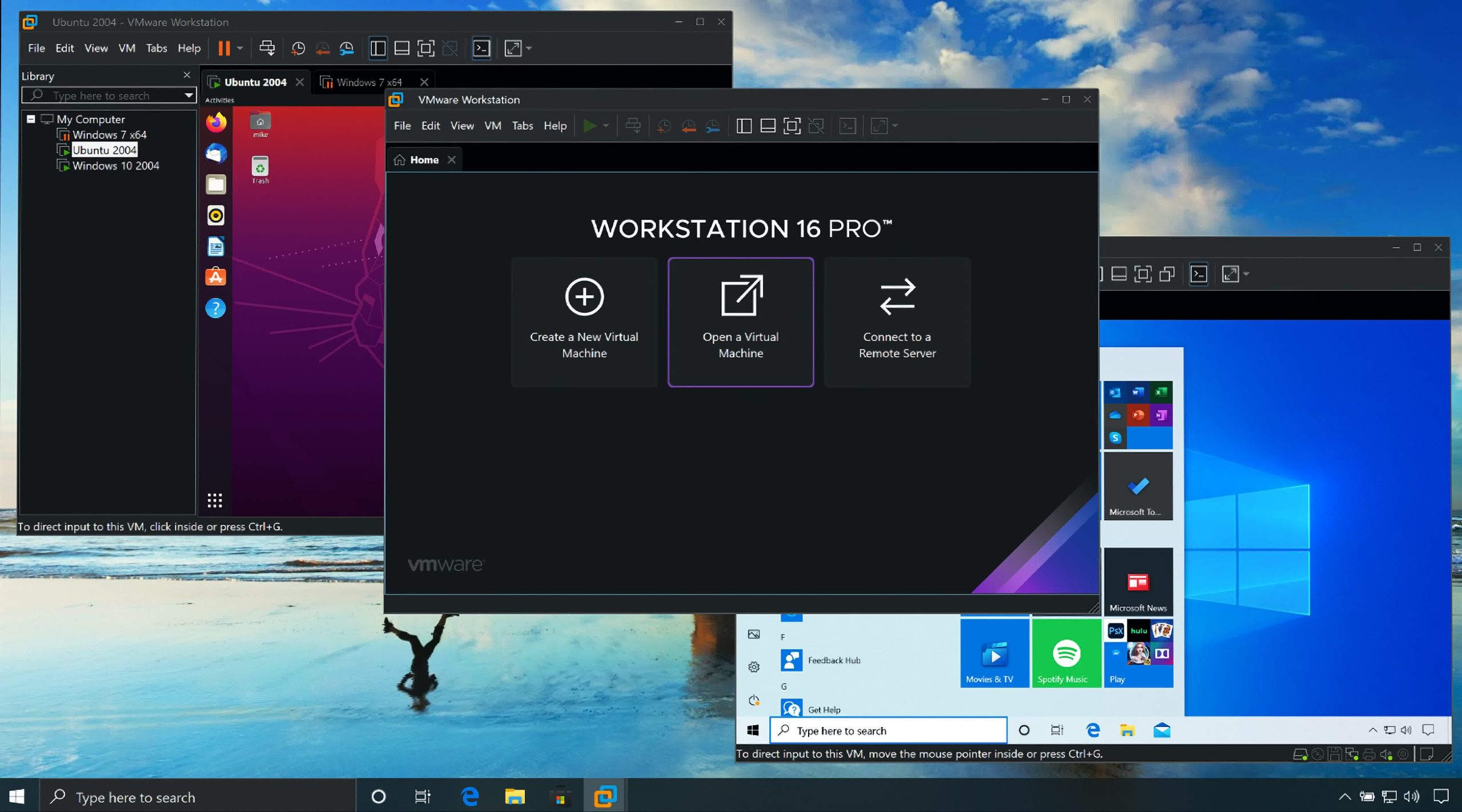
| Product | VMware Workstation Pro |
|---|---|
| Release | 25H2u1 |
| Build | 25219725 |
| Windows installer | VMware-Workstation-Full-25H2u1-25219725.exe |
| File size | About 278 MB (reported for this build; verify the portal listing) |
| Publisher | Broadcom / VMware |
Broadcom may require portal sign-in, profile verification, and acceptance of its terms before the download is enabled. This page does not host the installer itself.
What is VMware Workstation Pro?
VMware Workstation Pro is a hosted desktop hypervisor that allows users to create and run virtual machines on a compatible Windows or Linux host. A virtual machine can run a guest operating system such as a supported Windows or Linux distribution in an isolated virtual hardware environment. It is commonly used for IT labs, software development, training, compatibility testing, and learning server administration without requiring a separate physical computer for each operating system.
Workstation Pro is different from VMware ESXi, which is a bare-metal hypervisor designed to run directly on supported server hardware. Workstation Pro runs as an application on a host operating system.
Key features and common use cases
- Multiple operating systems: Run supported guest operating systems as virtual machines on one workstation.
- Lab environments: Build isolated labs for Windows Server, Linux, networking, and security practice.
- Snapshots: Capture a VM state before a change so you can return to that state when supported by the VM configuration. Snapshots are not a substitute for independent backups.
- Virtual networking: Use virtual networks for host-only, NAT, and other supported network configurations.
- Development and testing: Test software or configuration changes without changing the host installation directly.
Available capabilities depend on the release, host operating system, guest OS, hardware, and VM configuration. Consult the official documentation for feature-specific details.
Requirements and compatibility
Check Broadcom’s current host-system and guest operating-system compatibility documentation before installing. At a minimum, verify the following:
- A supported 64-bit host operating system and compatible processor.
- Hardware virtualization support and the required firmware settings, where applicable.
- Sufficient RAM and free disk space for the host and each planned virtual machine.
- Administrator rights to install drivers and networking components.
- Compatibility with other hypervisors or virtualization-based security features enabled on the host.
Do not assume that every Windows edition, CPU generation, guest OS, or nested-virtualization scenario is supported by every Workstation release. Confirm against the release-specific official requirements.
How to download VMware Workstation Pro 25H2u1
- Open the official Broadcom Workstation Pro 25H2u1 for Windows page.
- Sign in to your Broadcom Support Portal account. If required, create an account and complete any profile verification.
- Select the Windows release and review the applicable terms and conditions.
- Accept the terms to enable the download action, then download the file named
VMware-Workstation-Full-25H2u1-25219725.exe. - Save the file to a known location, such as your Downloads folder. Keep the original filename so you can identify the build later.
If the portal does not offer 25H2u1, check whether the release has been moved or superseded. Do not treat an unofficial mirror as an equivalent to an official vendor download. Broadcom’s instructions for manual downloads are available in its Workstation Pro installation knowledge-base article.
How to install VMware Workstation Pro on Windows
- Save your work and close applications that may depend on virtualization.
- Right-click the downloaded installer and choose Run as administrator.
- Follow the installation wizard and review each option. Choose the features appropriate for your system.
- If Windows requests permission to install drivers or networking components, confirm only when the installer and publisher details are as expected.
- Restart Windows if the installer requests it.
- Launch Workstation Pro, create a new virtual machine, and install a supported guest operating system using media you are authorized to use.
Broadcom may recommend uninstalling an existing version before installing a new one in some circumstances. Before upgrading or reinstalling, read the version-specific upgrade guidance and back up important VM files. Do not delete virtual-machine folders when uninstalling the application unless you intend to remove those VMs.
Verify the installer before running it
Download only from Broadcom’s official portal whenever possible. Before running the installer, verify the digital signature in Windows:
- Right-click the EXE and select Properties.
- Open the Digital Signatures tab if it is present.
- Select the signature and view its details. Confirm that Windows reports the signature as valid and that the signer is consistent with the expected publisher.
- If the signature is missing, invalid, or unexpected, do not run the installer; download a fresh copy from the vendor portal and investigate.
For additional checks, compare any checksum shown by Broadcom with a locally calculated hash. Do not rely on a hash published only by an unrelated third-party download site as proof of authenticity.
Get-FileHash .\VMware-Workstation-Full-25H2u1-25219725.exe -Algorithm SHA256The command calculates a SHA-256 hash; it does not validate the file by itself. You need a trustworthy vendor-published reference hash to compare against.
Common download and installation issues
Broadcom portal does not show the download
Sign in, complete any required profile verification, select the correct Windows product and release, and open the terms and conditions before expecting the download action to activate. If the release is no longer listed, use the portal to identify the supported current release.
Installer says virtualization is unavailable
Check CPU virtualization support and firmware settings, and review whether another hypervisor or Windows security feature affects how virtualization is exposed. Do not disable security controls without understanding the impact and following your organization’s policy.
Virtual network adapters do not work
Review Workstation’s virtual network configuration, Windows network settings, firewall rules, and any VPN or endpoint security software. Change one setting at a time and record the original configuration.
A VM will not start after an upgrade or downgrade
Review the release notes and VM hardware compatibility. Some virtual hardware or virtual TPM changes may not be backward compatible. Keep a backup before changing virtual hardware compatibility or moving a VM between releases.
Should you install 25H2u1 or a newer release?
Choose 25H2u1 if you specifically need this build for a controlled lab, reproducing an issue, or compatibility with an existing environment. For general use, compare it with the latest release listed by Broadcom and review the release notes and security advisories first. A newer version may contain important fixes, but upgrades should still be tested against your VM inventory and workflows.
For enterprise server virtualization, Workstation Pro should not be confused with ESXi or vSphere. If you are learning other hypervisor technologies, read our VMoreCloud guides on KVM vs QEMU and KVM vs VMware.
Official resources
- Broadcom: Workstation Pro 25H2u1 for Windows download
- Broadcom: Workstation Pro 25H2u1 release notes
- Broadcom KB: Installing VMware Workstation Pro
- VMware desktop hypervisor FAQs
VMoreCloud shares independent technical information. Product names and trademarks belong to their respective owners. Always download software from the official publisher and review the applicable license and security guidance.

