
VMware vRealize Log Insight 8.18.0 Download (Build 24179185)
VMware vRealize Log Insight 8.18.0 build 24179185 is listed by Broadcom as VMware Aria Operations for Logs 8.18.0 Hot Fix 1 (HF1). This release is distributed as a .PAK update package for an existing 8.18 environment—not as an OVA appliance installer. Use the official Broadcom Support Portal to access the package and confirm that it matches your deployment and entitlement.
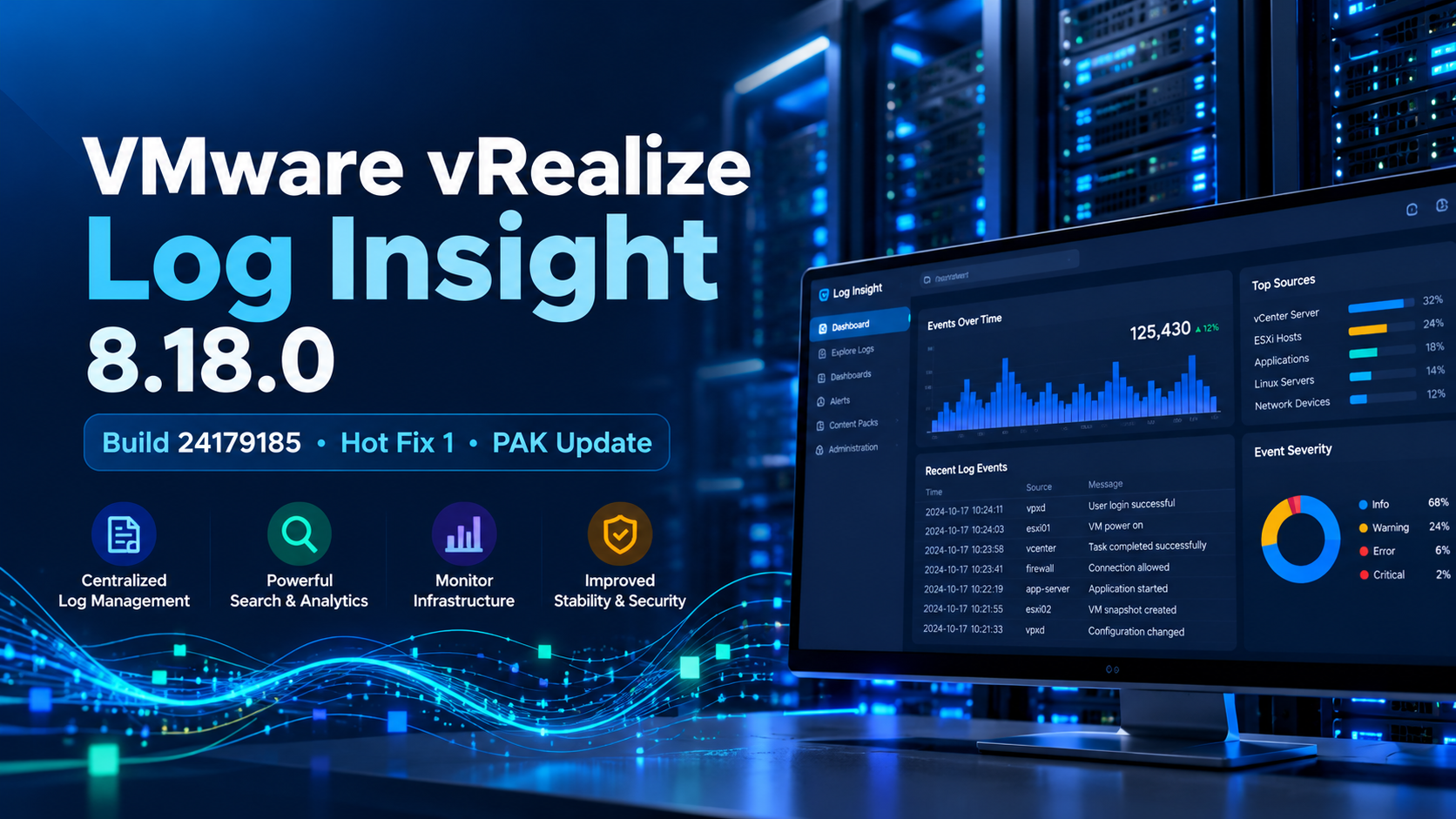
Featured image: VMware vRealize Log Insight 8.18.0 HF1. Replace this image URL with the WordPress Media Library URL before publishing.
.pak file named VMware-vRealize-Log-Insight-8.18.0-24179185.pak. It is not an OVA. If you need to deploy a new virtual appliance, locate the appropriate appliance installer separately in Broadcom’s product downloads.A Broadcom account and appropriate product entitlement may be required. This button opens the vendor portal; it is not a direct file download link.
Download details
| Product name | VMware vRealize Log Insight / VMware Aria Operations for Logs |
|---|---|
| Version | 8.18.0 Hot Fix 1 (HF1) |
| Build number | 24179185 |
| Release date | August 8, 2024 (as listed by Broadcom) |
| Package filename | VMware-vRealize-Log-Insight-8.18.0-24179185.pak |
| Package type | PAK hotfix/update package |
| Intended use | Apply the hotfix to an existing compatible Log Insight 8.18 environment |
| Download source | Broadcom Knowledge Base article 373991 and the official support portal |
| File Szie | 1.1 GB |
What is VMware vRealize Log Insight?
VMware vRealize Log Insight—now branded VMware Aria Operations for Logs—is a centralized log-management and analysis platform used to collect, search, filter, and investigate machine-generated log data. Administrators can use log evidence to investigate infrastructure events, troubleshoot systems, and correlate activity across supported environments.
This page focuses on the specific 8.18.0 HF1 update package identified by build 24179185. It is not a general-purpose installer page for every Log Insight release.
What does build 24179185 address?
Broadcom’s HF1 article identifies fixes involving API-client session time-to-live handling and a race condition that could cause the application to crash while reconfiguring a component. The same advisory lists security fixes for bundled components. Review the vendor article for the full issue and CVE list before deciding whether this historical hotfix is appropriate for your environment.
API session handling
The fix addresses a case where an API client did not correctly recognize an expired session and extend it before an API call.
Component reconfiguration
The fix addresses a race condition associated with a Log Insight crash during component reconfiguration.
Read Broadcom’s complete HF1 issue and security-fix details ↗
Before downloading or installing
- Confirm the product and version. Verify that your current deployment is a compatible VMware Aria Operations for Logs 8.18 environment and read the vendor’s applicable upgrade guidance.
- Choose the correct package. The manual update uses the
.pakfile. Broadcom also lists a separate.patchpackage for use with Aria Suite Lifecycle Manager; do not interchange these files. - Back up first. Broadcom instructs administrators to create snapshots or backup copies of the virtual appliance nodes before applying the hotfix.
- Plan a maintenance window. Review cluster health, operational impact, available recovery options, and internal change-control requirements.
- Use the official source. Avoid third-party mirrors and verify the filename against Broadcom’s documentation. Do not assume a checksum if the vendor has not published one for the exact file.
How to apply the PAK hotfix
The following is a high-level summary of Broadcom’s documented procedure for an existing Log Insight cluster. Consult the official article and the product documentation for the complete, environment-specific instructions.
- Download the correct Log Insight 8.18.0 HF1 PAK file from the Broadcom Support Portal.
- Take snapshots or backup copies of the Log Insight virtual appliance nodes and verify that your recovery plan is usable.
- Sign in to the Log Insight web interface using an account with the required Edit Admin permission. The UI is typically accessed through the primary node’s hostname or IP address using HTTPS.
- Open Management → Cluster and select Upgrade Cluster.
- Upload the matching PAK file and follow the interface prompts, including acceptance of any applicable updated EULA.
- Allow the update process to complete. Monitor the cluster and verify that all nodes return to the expected state.
- Check the product interface and vendor guidance to confirm the installed build and successful completion. Restore any required maintenance-mode settings as appropriate.
- After confirming stability and following your organization’s retention policy and vendor guidance, remove temporary snapshots within the vendor-recommended period.
PAK hotfix vs. OVA appliance installer
| Package | Typical purpose | For build 24179185? |
|---|---|---|
| .PAK | Update or hotfix an existing Log Insight deployment using the product UI | Yes — this is the documented HF1 package |
| .patch | Package for the Aria Suite Lifecycle Manager workflow when specifically provided for that method | Broadcom lists a separate Lifecycle Manager package; use the matching workflow |
| .OVA | Deploy a virtual appliance, subject to the product’s deployment requirements | No — the cited build is not an OVA |
Should you install this historical hotfix today?
Build 24179185 was released on August 8, 2024. It should be treated as a historical maintenance build, not automatically as the best target for a new deployment or an upgrade today. Broadcom’s build history lists later 8.18 releases and hotfixes. Check current vendor support status, the latest supported release, upgrade paths, and compatibility with your environment before proceeding.
Do not jump directly from an older release to a hotfix without checking the documented upgrade path. Apply only packages that match the product, version, and installation method in your environment.
Review Broadcom’s Aria Operations build history ↗
Official resources
- Broadcom KB 373991 — VMware Aria Operations for Logs 8.18 Hot Fix 1
- Broadcom Support Portal — product downloads
- Broadcom KB 379176 — Aria Operations released-build history

