
COSMIC System Monitor Brings Native Resource Monitoring to Linux
System76’s COSMIC desktop environment now has its own native system-monitoring utility, bringing CPU, memory, GPU, disk, network, and process information into a consistent graphical interface.
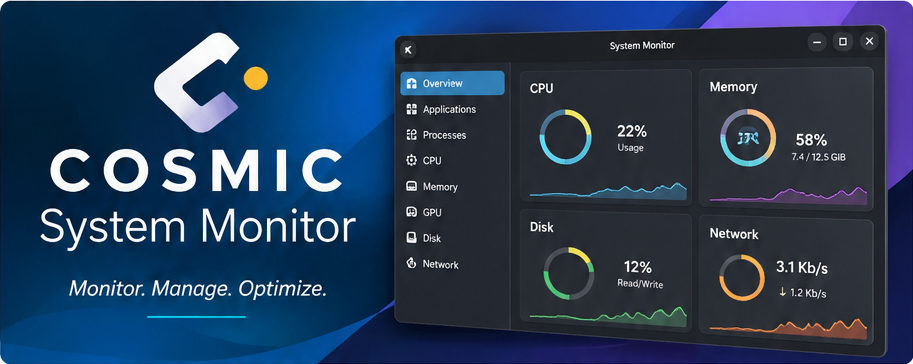
- COSMIC System Monitor is a native system utility developed for System76’s COSMIC desktop.
- Its dashboard brings together applications, processes, CPU, memory, GPU, disk, and network information.
- Detailed resource views provide charts and information about processes using system resources.
- The application uses the Rust-based libcosmic toolkit for a consistent desktop experience.
- COSMIC Desktop 1.10 introduced further monitor improvements, including changes to window layout and search results.
Linux users have many ways to inspect system performance, from command-line utilities to graphical monitoring tools. System76’s COSMIC System Monitor adds a desktop-native option for users of its Rust-based COSMIC environment.
First announced on June 26, 2026, the application was designed to present important resource information in an integrated layout. It is available through the COSMIC Store in Pop!_OS and other supported distributions, although package availability depends on the distribution.
What Is COSMIC System Monitor?
COSMIC System Monitor is a graphical application for checking how a Linux computer uses its hardware and software resources. It is developed as part of the wider COSMIC desktop ecosystem by System76, the company behind Pop!_OS.
Instead of treating system monitoring as an unrelated utility, System76 built the application with libcosmic, its Rust-based interface toolkit. This gives it a visual style consistent with other COSMIC applications.
The main dashboard displays multiple resource categories together, while detailed pages provide additional graphs and information about the processes responsible for resource usage.
Key Features of COSMIC System Monitor
1. Integrated resource dashboard
The dashboard consolidates application and process information alongside CPU, memory, GPU, disk, and network statistics. This allows users to review several aspects of system activity without constantly switching between separate monitoring tools.
2. CPU and memory monitoring
Processor and memory monitoring can help identify resource pressure when a computer becomes slow or unresponsive. Detailed views add graphs and process information, making it easier to investigate which workloads are consuming resources.
3. GPU and graphics-memory information
COSMIC System Monitor can display GPU-related activity, making it relevant for users running graphics applications, games, or GPU-intensive workloads.
The available metrics depend on hardware and driver support. Later COSMIC updates also expanded some GPU monitoring capabilities.
4. Disk and network monitoring
Storage and network information helps users investigate disk activity and data transfers. These statistics can be useful when examining unexpected slowdowns, downloads, or applications performing intensive I/O operations.
5. Applications and process management
The monitor provides information about running applications and processes. Users can identify resource-intensive workloads and close or terminate misbehaving processes when necessary.
Forcefully terminating an application may result in unsaved work being lost, so normal application closure should be attempted first.
6. Detailed performance graphs
Resource-specific views combine charts with process information. This helps users understand not only whether resource usage is high, but also which processes may be contributing to that activity.
COSMIC System Monitor Features at a Glance
| Feature | What it provides |
|---|---|
| Unified dashboard | Overview of major system resources and processes. |
| CPU monitoring | Processor activity and related process information. |
| Memory monitoring | System memory usage and resource context. |
| GPU monitoring | Graphics resource information where supported. |
| Disk monitoring | Storage activity and disk-related statistics. |
| Network monitoring | Network traffic and activity information. |
| Process management | Inspection and management of running processes. |
| Native COSMIC design | Interface consistency through the libcosmic toolkit. |
What Changed in COSMIC Desktop 1.10?
COSMIC System Monitor has continued to evolve after its original launch. The COSMIC Desktop 1.10 update, covered in October 2026, brought additional improvements to the application.
The monitor now uses a multi-window layout by default, while search results more clearly distinguish applications from individual processes. These refinements help users navigate system activity and identify the correct process when investigating a problem.
COSMIC Desktop 1.10 also introduced broader desktop improvements, including launcher rendering changes, compositor fixes, and application refinements.
How to Install COSMIC System Monitor on Linux
System76 announced that COSMIC System Monitor is available through the COSMIC Store in Pop!_OS and other Linux distributions. The exact installation method depends on the packages provided by your distribution.
- Open the COSMIC Store on a supported COSMIC desktop installation.
- Search for COSMIC System Monitor.
- Select the application and review its details.
- Install it using your distribution’s supported package-management method.
- Launch the monitor and explore its dashboard and resource-specific views.
If the application is not listed, consult your distribution’s official repositories or documentation. Availability and versions may differ across distributions.
View COSMIC System Monitor on GitHub →
COSMIC System Monitor vs Traditional Linux Monitoring Tools
COSMIC System Monitor is designed primarily for graphical desktop monitoring. It does not replace every specialized diagnostic tool available on Linux.
| Tool | Typical use |
|---|---|
| COSMIC System Monitor | Native graphical monitoring within COSMIC. |
| GNOME System Monitor | Graphical process and resource monitoring in GNOME. |
| htop | Interactive terminal-based process monitoring. |
| btop | Terminal-based resource visualization. |
For COSMIC users, the main advantage is native integration. For server administration, automation, and advanced troubleshooting, command-line and specialized monitoring tools remain valuable.
Why This Matters for the COSMIC Desktop
A desktop environment needs more than a launcher, panel, and window manager. Everyday utilities such as file managers, terminals, software stores, and system monitors contribute to a complete user experience.
By building its own system monitor, System76 is extending COSMIC’s application ecosystem and providing a consistent interface for routine performance diagnostics.
This is especially useful for users migrating to Linux who expect essential desktop tools to be available without additional configuration.
Official Sources and Further Reading
- System76 — COSMIC Hits Keep Coming With New System Monitor
- COSMIC System Monitor — Official GitHub repository
- COSMIC Desktop — Release information
- Linuxiac — COSMIC Desktop Gets a Native System Monitor App
Final Thoughts
COSMIC System Monitor is a practical addition to System76’s Linux desktop environment. Its integrated dashboard, resource graphs, and process-management capabilities make everyday monitoring more accessible.
The improvements delivered in later COSMIC releases demonstrate continued development of the application. Users interested in trying it should check their distribution’s package availability and consult official project documentation.
For more open-source software coverage, visit VMoreCloud Linux Software .

