
Linux · OpenSSH · System Administration
SSH Multiplexing: Speed Up SSH Connections with ControlMaster
SSH multiplexing lets multiple shell sessions and file-transfer commands reuse one authenticated SSH connection. With OpenSSH’s ControlMaster, ControlPath, and ControlPersist options, you can reduce repeated connection setup for trusted hosts and automation workflows.
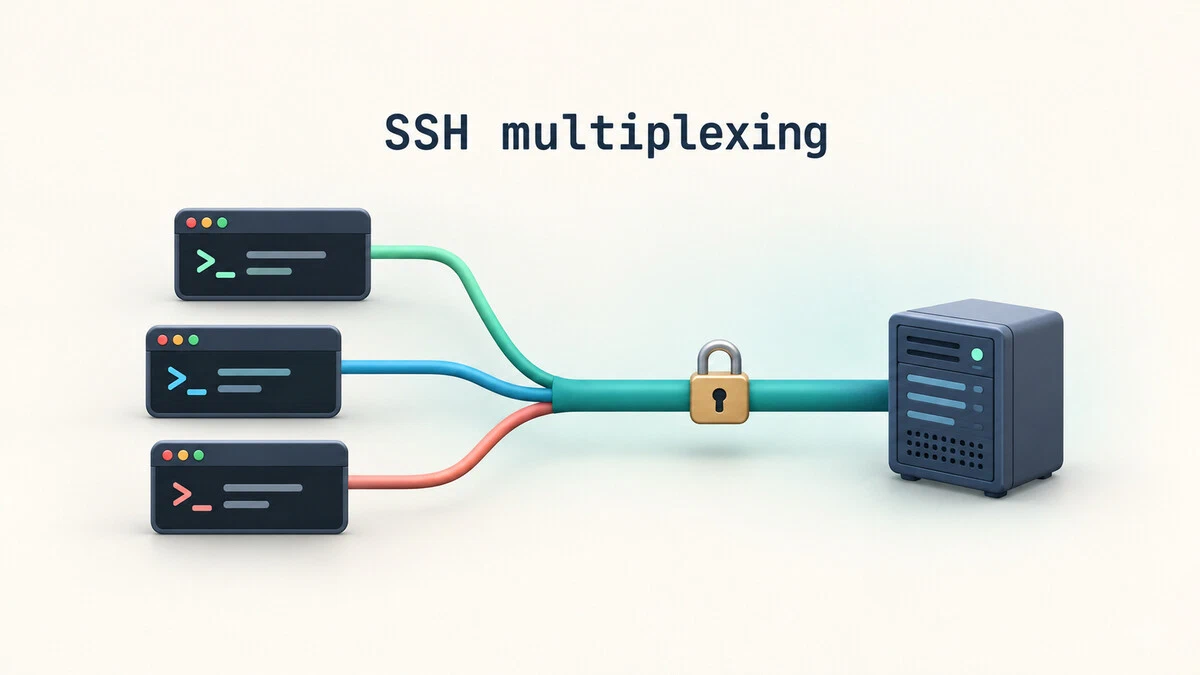
What is SSH multiplexing?
SSH multiplexing is an OpenSSH feature that allows multiple logical sessions to share a single underlying network connection to the same destination. Normally, a new SSH connection performs connection setup, key exchange, and authentication. When you repeatedly connect to the same host, that setup can add overhead—especially in scripts, deployment jobs, and high-latency networks.
With multiplexing enabled, the first connection becomes the master. Later SSH clients that use the same control socket can open additional channels over the existing connection. This can also benefit tools such as scp and rsync when they use matching SSH options.
Potential benefits
- Less repeated connection setup
- Convenient repeated commands
- Useful for automation and deployments
- Independent shell sessions over a shared transport
Important limitations
- Sessions depend on the master connection staying healthy
- Server session limits still apply
- Forwarding options come from the master session
- It does not increase network bandwidth
Multiplexing reduces connection-establishment overhead; it does not remove latency from remote commands or make a slow network transfer faster by itself.
How ControlMaster, ControlPath, and ControlPersist work
| Option | Purpose | Recommended starting point |
|---|---|---|
ControlMaster auto | Reuse an existing master if available, or create one when needed. | auto |
ControlPath | Defines the local Unix-domain socket used by clients to reach the master. | ~/.ssh/cm-%C |
ControlPersist 10m | Keeps the master in the background after its last client session closes, for the configured idle period. | 10m |
The %C token expands to a hash based on connection details, helping distinguish connections and keeping the socket filename short. OpenSSH recommends a unique control path and a directory that other users cannot write to. The local ~/.ssh directory is a practical location when its ownership and permissions are correct.
Step 1: Secure your SSH configuration directory
Run these commands on the client computer where you initiate SSH connections:
mkdir -p ~/.ssh
chmod 700 ~/.ssh
If the SSH configuration file does not exist, create it. Keep it owned by your account and do not make your SSH directory or control sockets writable by other users.
Step 2: Configure multiplexing for one host
Edit ~/.ssh/config and add a host alias. Replace the example address and username with your own server details:
Host deploy
    HostName 203.0.113.10
    User deployer
    ControlMaster auto
    ControlPath ~/.ssh/cm-%C
ControlPersist 10m203.0.113.10 is a documentation-only IP address. Replace it with your actual server address. The deploy value is a local alias, and deployer is the remote account name.Connect with the alias:
ssh deployThe first connection creates the master. Open another terminal and run ssh deploy again. If the connection settings match and the master remains available, the new session should reuse it. With ControlPersist 10m, the master can remain available for ten minutes after its last client session closes.
Step 3: Enable multiplexing for multiple hosts
If you want to enable connection sharing broadly, you can add a default block to ~/.ssh/config:
Host *
    ControlMaster auto
    ControlPath ~/.ssh/cm-%C
    ControlPersist 10m
Use this global configuration carefully. Host-specific settings should be placed before the broad Host * block when you need exceptions, because OpenSSH generally uses the first value obtained for each option. You may prefer enabling multiplexing only for hosts you trust and use frequently.
Step 4: Test multiplexing from the command line
You can test the settings without changing your SSH config. Use your own account and host:
ssh -o ControlMaster=auto \
    -o 'ControlPath=~/.ssh/cm-%C' \
    -o ControlPersist=10m user@example.com
Run the same command again in another terminal. The connection will be shared only if the destination and the effective control-socket path match an active master. For repeatable administration, a named host alias is usually easier to maintain than repeating several options.
Step 5: Reuse the connection with rsync
Tools that invoke SSH can benefit when they use the same connection-sharing settings. For example, the following previews a transfer of local files to a remote directory:
rsync -rv --dry-run \
  -e 'ssh -o ControlPath=~/.ssh/cm-%C' \
  ./dist/ user@example.com:/var/www/
The --dry-run option previews the transfer without copying files. Review the source, destination, and output before removing --dry-run. The remote account needs the appropriate write permissions. For reuse to work, rsync’s SSH invocation must point to the same active master socket; otherwise, SSH will open a normal connection or fail if the requested settings cannot be used.
Step 6: Check and manage the master connection
OpenSSH supports control commands through the -O option. Use the same host alias and connection settings used to create the master.
Check whether the master is running
ssh -O check deployA successful check reports that a master is running and includes its process ID. It checks the local master process; it does not guarantee that a new remote command will succeed.
Stop accepting new multiplexed sessions
ssh -O stop deployThis removes the control socket from use for new sessions while allowing existing sessions to continue. With ControlMaster auto, later connections can create a new master.
Terminate the master immediately
ssh -O exit deployUse this only after confirming that sessions and file transfers using the master can be interrupted. Terminating the master disconnects sessions that depend on it.
Security considerations
- Protect the control socket: keep it in a directory owned by your user and not writable by other accounts.
- Limit persistence: start with a reasonable idle timeout, such as ten minutes, rather than keeping masters alive indefinitely without a clear need.
- Understand shared forwarding: agent and X11 forwarding use the forwarding context established by the master. A later session cannot switch to a different forwarded agent or display on that same master.
- Use agent forwarding selectively: only enable it for servers you trust. An administrator with root access on a remote server may be able to use a forwarded agent to authenticate while it is available, even though the private key remains on your client.
- Use normal SSH authentication: multiplexing does not replace host-key verification, secure key handling, or least-privilege access.
Troubleshooting SSH multiplexing
New sessions do not reuse the master
Print the effective SSH configuration:
ssh -G deploy | grep -E '^(hostname|user|port|controlmaster|controlpath|controlpersist) 'Confirm that the host, username, port, and control path match the master. The effective ControlPersist value may be displayed in seconds. You can also use verbose mode:
ssh -v deployLook for messages about finding an existing master or creating a control socket.
ControlPath is too long
Unix-domain socket paths have platform-specific length limits. Use a short path such as ~/.ssh/cm-%C instead of a long path containing multiple host and user strings.
Control socket does not exist
The master may have expired, exited, or been started with different connection settings. Recheck the effective configuration and start a fresh connection. Avoid deleting all control sockets indiscriminately because other active master connections may rely on them.
Master is stale after a network change
Open a separate connection without connection sharing:
ssh -S none deployThis bypasses the configured control socket for that invocation. If the remote server restarted or the network path changed, a new connection may be required.
Additional sessions are refused
The server’s MaxSessions setting limits concurrent shell, command, and subsystem sessions on one network connection. Its default is commonly 10; a value of 1 prevents multiple sessions from sharing the same connection. Close unused sessions, review the server’s policy, or use ssh -S none deploy when a separate connection is appropriate. Do not change server limits without considering the security and capacity implications.
When should you use SSH multiplexing?
| Scenario | Recommendation |
|---|---|
| Repeated SSH commands to a trusted server | Good fit; use a short idle timeout. |
| Deployment scripts invoking SSH repeatedly | Good fit when commands share the same host and options. |
| One long-running interactive session | Usually little benefit unless you open additional sessions. |
| Untrusted shared client or uncertain socket permissions | Do not enable sharing until the local security model is understood. |
| Many sessions exceed server limits | Review session limits and whether separate connections are required. |
Conclusion
SSH multiplexing is a practical OpenSSH feature for administrators who connect to the same hosts repeatedly. Configure ControlMaster auto, a short and unique ControlPath, and a sensible ControlPersist timeout. Verify reuse with ssh -O check, and close masters deliberately when they are no longer needed.
For reliable production use, keep control sockets private, be deliberate about agent forwarding, and test your actual scripts before relying on connection sharing for deployments.
Official references and further reading
- OpenSSH client configuration manual (ssh_config) — ControlMaster, ControlPath, ControlPersist, and forwarding behavior.
- OpenSSH specifications — protocol documentation and connection-sharing protocol references.
- Ubuntu Server documentation: OpenSSH — practical configuration guidance for SSH connection multiplexing.
- Linuxize: SSH Multiplexing: Speed Up SSH with ControlMaster — source article used as the topic basis.

