
How to Disable Password Complexity in Windows Server 2022
Learn how to turn off the built-in password complexity requirement in Windows Server 2022 using Local Security Policy or Group Policy Management. This step-by-step guide explains standalone servers, Active Directory domain controllers, policy refresh, verification, and how to restore the original security setting.
Windows Server 2022 includes password policies that help administrators protect local accounts and Active Directory users. In a controlled test lab, you may need to disable the built-in complexity requirement to test software compatibility or demonstrate policy behavior.
This guide shows how to change the Password must meet complexity requirements setting. The correct procedure depends on whether the server is standalone, a domain controller, or a member of an Active Directory domain.
Disabling password complexity makes weak passwords easier to use and can increase the risk of account compromise. Use this change only when you have a clear requirement, preferably in an isolated lab. Do not weaken production administrator or domain password policies without a documented security review.
Before You Begin
- Sign in with an account authorized to manage local or domain Group Policy.
- Identify whether the target account is local or belongs to Active Directory.
- Record the current policy settings so you can restore them later.
- For a domain environment, confirm which Group Policy Object controls the domain password policy.
Need installation media for a test lab? Visit the VMoreCloud Windows Server 2022 download guide.
Method 1: Disable Complexity on a Standalone Server
Use this method when the server is not governed by an Active Directory domain password policy. The Local Group Policy Editor is included in standard Windows Server installations with the relevant graphical management tools.
Step 1: Open the Local Group Policy Editor
- Sign in to Windows Server 2022.
- Press Windows + R to open the Run dialog.
- Type the command below and press Enter.
gpedit.msc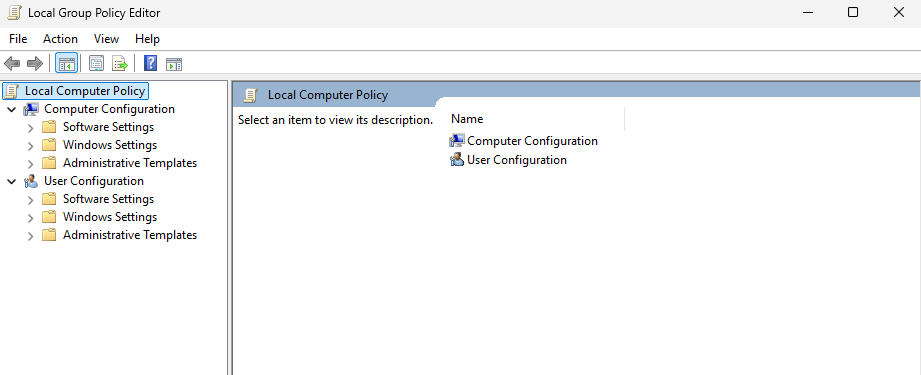
Step 2: Navigate to Password Policy
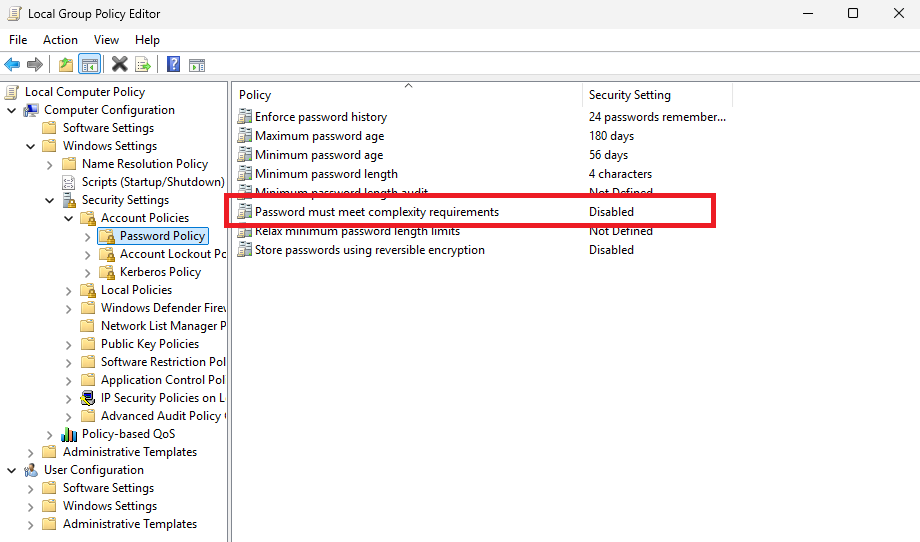
In the Local Group Policy Editor, expand the following folders in the left pane:
Computer Configuration
  └─ Windows Settings
     └─ Security Settings
        └─ Account Policies
           └─ Password Policy
Select Password Policy. The right pane displays settings such as password history, minimum password length, and password complexity.
Step 3: Open the complexity setting
- In the right pane, locate Password must meet complexity requirements.
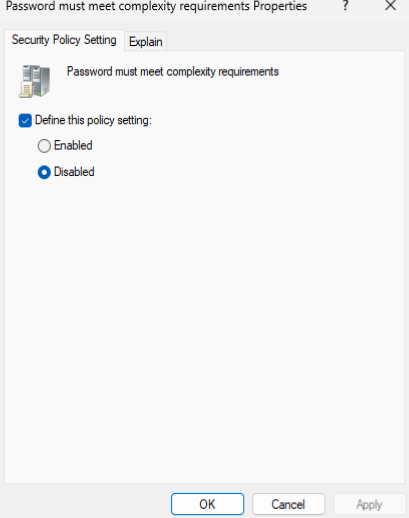
- Double-click the setting to open its properties.
- Note its current state before changing it.
Step 4: Set the policy to Disabled
- Select Disabled.
- Click Apply.
- Click OK to close the properties window.
- Close the Group Policy Editor.
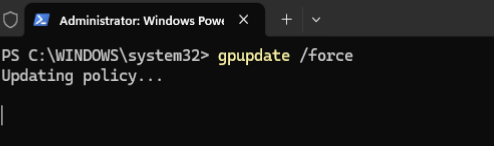
Step 5: Refresh Group Policy
Open Command Prompt or Windows Terminal as administrator and run:
gpupdate /forceWait for the refresh to finish. Review the output for errors. This command refreshes policy processing; it does not override a conflicting domain policy or every third-party password filter.
Method 2: Disable Complexity in an Active Directory Domain
If users authenticate with domain accounts, changing the local policy on an individual member server usually does not change the domain’s password requirements. Configure the applicable domain policy instead.
Editing the Default Domain Policy can affect domain users broadly. For a lab, use an appropriate test domain. In production, review the scope, existing Group Policy links, fine-grained password policies, and organizational security requirements before changing domain-wide settings.
Step 1: Open Group Policy Management
- Sign in to a domain controller or a management computer with the required administrative tools.
- Open Server Manager.
- Select Tools → Group Policy Management.
- Expand the forest and domain in the console tree.
You can also open the Group Policy Management console from Run if the management tools are installed:
gpmc.msc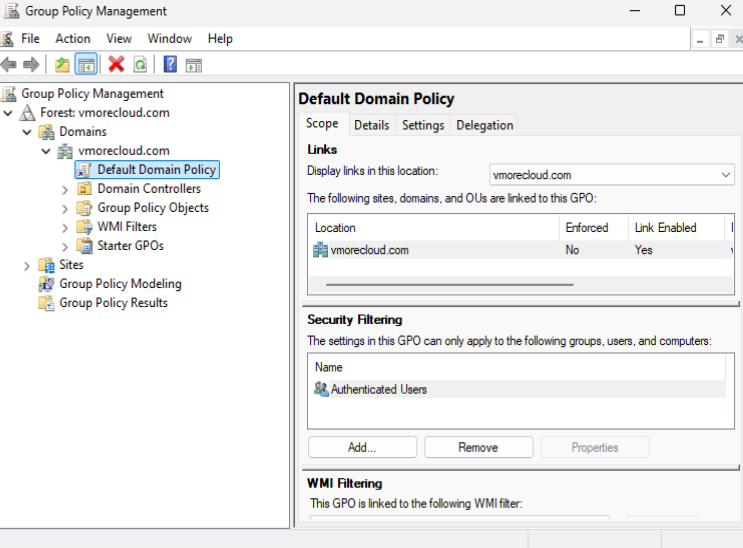
Step 2: Edit the policy controlling domain passwords
- Locate the GPO that defines the domain account password policy.
- In a typical domain, this is configured in the Default Domain Policy unless the environment has a different supported design.
- Right-click the relevant GPO and select Edit.
Avoid assuming that a GPO linked only to an organizational unit controls the domain’s default password policy. Domain account password policies are normally governed at the domain level, while more specific password settings can be assigned through Active Directory fine-grained password policies.
Step 3: Locate Password Policy
Navigate to:
Computer Configuration
  → Policies
    → Windows Settings
      → Security Settings
        → Account Policies
          → Password Policy
Step 4: Disable the complexity requirement
- Open Password must meet complexity requirements.
- Select Disabled.
- Click Apply and then OK.
- Close the editor and verify the change follows your organization’s change-control process.
Step 5: Refresh policy on the relevant computers
On the domain controller, refresh policy as appropriate:
gpupdate /forceOn a domain-joined test client, run the same command to request a policy refresh:
gpupdate /forceGroup Policy replication between domain controllers and policy processing on client computers can take time. Check the effective policy and the domain’s replication health if the change does not appear immediately.
Verify the Effective Password Policy
Do not assume that editing a policy proves it is effective. Confirm the actual result on the system or domain that controls the account.
Check the resulting policy with PowerShell
On a system where the command is available, run:
secedit /export /cfg C:\Windows\Temp\LocalSecurityPolicy.inf /areas SECURITYPOLICY
Open the exported file and locate the PasswordComplexity entry. A value of 0 indicates complexity is disabled in that exported security-policy configuration; a value of 1 indicates it is enabled.
This export is useful for local security policy inspection. For a domain account, it does not replace checking the effective domain password policy or any fine-grained policy applied to the user.
To inspect domain password policy using the Active Directory PowerShell module, run:
Get-ADDefaultDomainPasswordPolicyThe command reports the default domain password-policy properties. Fine-grained password policies can take precedence for specific users or groups, so investigate the applicable resultant policy if the behavior differs.
Why a Simple Password May Still Be Rejected
Disabling complexity does not automatically remove every password restriction. If a password is still rejected, check these possibilities:
- Minimum password length: The proposed password may still be too short.
- Password history: The new password may match a recently used password.
- Minimum password age: The user may not be allowed to change the password again yet.
- Domain policy: An Active Directory policy may still enforce the requirement.
- Fine-grained password policy: A Password Settings Object may apply stricter rules to the account.
- External password filter: A third-party identity or security product may impose additional rules.
- Local Administrator protection: Certain Windows security updates and built-in account protections may affect local Administrator password behavior.
Avoid disabling unrelated password controls just to make one test password work. Identify the policy that rejects the password and change only what is necessary for the approved test.
How to Re-Enable Password Complexity
Once testing is complete, restore the policy so the server does not remain with unnecessarily weak password requirements.
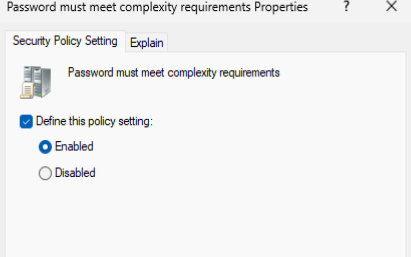
- Open Local Group Policy Editor or the appropriate domain GPO.
- Navigate to Account Policies → Password Policy.
- Open Password must meet complexity requirements.
- Select Enabled.
- Click Apply and OK.
- Run
gpupdate /forcewhere appropriate. - Verify the effective policy and document the restoration.
gpupdate /forceDownload Windows Server 2022
If you are building a lab to practise Group Policy, domain administration, or Windows Server security configuration, use the VMoreCloud guide below to find Windows Server 2022 download information.
Windows Server 2022 Download Guide
Visit the VMoreCloud guide for Windows Server 2022 download information and installation guidance.
Windows Server 2022 Download ↗Security Recommendations
- Keep password complexity enabled on production systems unless a documented requirement justifies a controlled exception.
- Use sufficiently long, unique passwords or passphrases.
- Protect privileged accounts with multifactor authentication where supported.
- Use separate administrator accounts rather than everyday accounts for administrative tasks.
- Review account lockout, auditing, and password policy settings as part of a broader security baseline.
- Restore the original configuration after completing lab testing.
Official Sources and Further Reading
- Microsoft Learn: Passwords technical overview
- Microsoft Learn: Password Policy
- Microsoft Learn: Password must meet complexity requirements
- Microsoft Learn: Fine-grained password policies
Conclusion
You can disable the built-in password complexity requirement in Windows Server 2022 through Local Group Policy for a standalone server or the applicable domain password policy for Active Directory accounts. The essential steps are to change the correct policy, refresh policy processing, and verify the effective result.
Make this change carefully, particularly on domain controllers and production servers. When the test is complete, re-enable complexity and verify that the intended security controls are back in place.

