
VMware ESXi DCUI: The Complete Guide to Configuration and Troubleshooting
Learn how to use the Direct Console User Interface (DCUI) in VMware ESXi to configure management networking, assign VLANs, troubleshoot connectivity, manage troubleshooting services, inspect system logs, and recover access when the vSphere Client is unavailable.
esxi-dcui-complete-guide.webp
VMware ESXi is a bare-metal hypervisor used to run virtual machines on physical servers. Most day-to-day administration is performed through the ESXi Host Client or vCenter Server, but there are times when network problems, service failures, or management connectivity issues make those interfaces unavailable.
This is where the Direct Console User Interface (DCUI) becomes important. DCUI provides local, keyboard-driven access to essential host configuration and recovery functions. Administrators can use it through a physical monitor and keyboard or a server’s out-of-band management console, such as Dell iDRAC or HPE iLO.
1. What Is ESXi DCUI?
DCUI stands for Direct Console User Interface. It is the menu-based local interface displayed by an ESXi host. The administrator uses the keyboard to access configuration options, review certain logs, and perform selected troubleshooting operations.
Common DCUI tasks include:
- Configuring the management network’s IPv4 and IPv6 settings.
- Selecting management network adapters.
- Setting a management VLAN, DNS servers, and DNS suffix.
- Testing management network connectivity.
- Enabling or disabling the ESXi Shell and SSH troubleshooting services.
- Reviewing available system logs and support information.
- Changing the root password when the current credentials are known.
- Restarting management agents where appropriate.
- Performing selected network recovery operations.
- Shutting down or restarting the host.
The exact menu and options differ across ESXi releases. For authoritative instructions, consult Broadcom’s DCUI and console access guidance.
2. When Should You Use DCUI?
| Situation | Why DCUI Helps |
|---|---|
| ESXi Host Client is unreachable | Check or correct the management network locally. |
| Host appears disconnected in vCenter | Check host networking and, when appropriate, management services. |
| Incorrect management IP or gateway | Review and correct the management IPv4 or IPv6 configuration. |
| Incorrect management VLAN | Correct the VLAN configuration to match the physical network. |
| DNS or hostname problems | Review the DNS server, hostname, and suffix configuration. |
| Remote access is unavailable | Use a physical console or out-of-band management console. |
| Host requires a controlled reboot | Initiate a shutdown or restart after checking workload and cluster impact. |
3. How to Access DCUI
Method 1: Physical server console
- Connect a monitor and keyboard to the ESXi server.
- Wait for ESXi to finish booting.
- At the main console screen, press F2.
- Enter the appropriate authorized credentials.
- Navigate the menus using the arrow keys, Enter, and Esc.
Method 2: iDRAC, iLO, or remote KVM
- Sign in to the server’s out-of-band management controller.
- Open its remote console or virtual KVM.
- Send the F2 key to the ESXi console.
- Authenticate and select the required DCUI option.
Remote KVM is particularly useful for nested virtualization labs and remote data centers where physical access is unavailable.
Method 3: Console function-key combinations
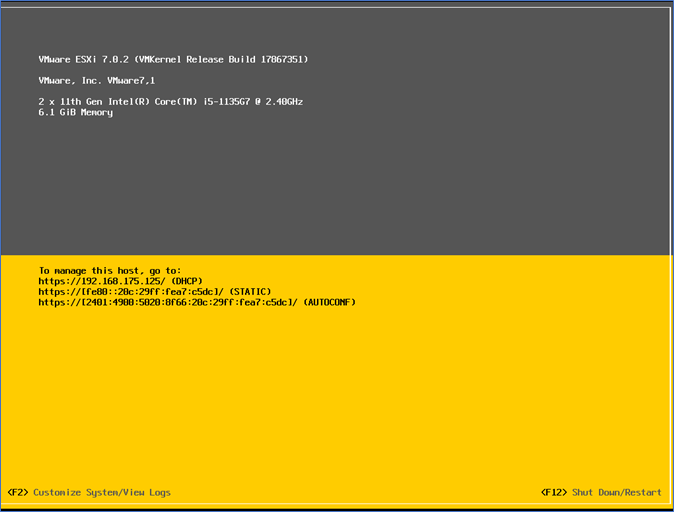
On supported ESXi versions, the console offers different screens through Alt+Function-key combinations. The following are documented for ESXi 7.x and 8.x:
| Shortcut | Function |
|---|---|
F2 | Open system customization and log in. |
F12 | Open shutdown/restart options. |
Alt + F1 | Switch to the local console/shell when shell access is enabled. |
Alt + F2 | Return to DCUI. |
Alt + F11 | Return to the yellow/grey banner screen. |
Alt + F12 | Display the VMkernel log on the console. |
Function-key behavior can vary with the remote KVM, browser, laptop, and ESXi version. You may need to use the KVM’s Send Key option.
4. Understanding the Main DCUI Menu
Press F2 and authenticate to open the system customization menu. Depending on the ESXi build, you may find options similar to these:
- Configure Password: Change the current root password.
- Configure Lockdown Mode: Review or change the host’s lockdown state when permitted.
- Configure Management Network: Set network adapters, VLAN, IP addressing, DNS, and suffixes.
- Restart Management Network: Apply network changes and restart management networking.
- Test Management Network: Run available connectivity tests.
- Network Restore Options: Access supported recovery options.
- Configure Keyboard: Select an appropriate keyboard layout.
- Troubleshooting Options: Manage shell, SSH, timeouts, and available management-agent operations.
- View System Logs: Inspect available log categories.
- View Support Information: Review host support details.
- Reset System Configuration: Reset the host configuration; this is not a normal reboot option.
5. Configure the ESXi Management Network
The management network allows administrators and management systems to reach the ESXi host. It is used for host management traffic, not automatically for every virtual machine’s network traffic.
Information to prepare first
- Management IPv4 address and subnet mask or prefix.
- Default gateway.
- Management VLAN ID, if required.
- DNS server IP addresses.
- Correct ESXi hostname and DNS suffix.
- Physical NIC connected to the correct switch port.
Step-by-step configuration
- Open the DCUI with F2 and authenticate.
- Select Configure Management Network.
- Open Network Adapters and select the appropriate physical adapter or adapters.
- Open VLAN (Optional) and enter the correct management VLAN if the network requires it.
- Open IPv4 Configuration.
- Select the static IPv4 configuration option if you are assigning a static address.
- Enter the IP address, subnet mask, and default gateway provided by your network plan.
- Configure IPv6 as required by your environment.
- Open DNS Configuration and enter the correct DNS servers and hostname where available.
- Configure the custom DNS suffix if needed.
- Press Esc to leave the configuration screens and confirm applying the changes when prompted.
- Use Test Management Network to validate the resulting connectivity.
6. Configure the Management VLAN
A VLAN separates traffic into logical Layer 2 networks. The management VLAN configured on ESXi must match the physical switch port’s design. For a tagged management network, the physical switch port must permit that VLAN. For an untagged network, do not configure a tagged VLAN on the ESXi management path unless your design specifically requires it.
- Open F2 and authenticate.
- Select Configure Management Network.
- Select VLAN (Optional).
- Enter the VLAN ID assigned to ESXi management traffic.
- Confirm the setting and apply the changes.
- Run Test Management Network and check connectivity to the gateway and management services.
For a relevant troubleshooting example, see Broadcom’s guidance on management IP connectivity and VLAN mismatches.
7. Configure DNS and Hostname
DNS resolution is important when vCenter Server and ESXi communicate using hostnames. Incorrect DNS entries or inconsistent forward and reverse records can cause connection, registration, or certificate problems.
- Open DCUI and select Configure Management Network.
- Open DNS Configuration.
- Enter the primary and alternate DNS server addresses used by your environment.
- Verify the hostname and custom DNS suffix.
- Apply the changes and restart the management network when prompted.
- Validate DNS records from the relevant DNS server and test management connectivity.
If vCenter uses a fully qualified domain name, verify that the ESXi hostname and its forward and reverse DNS records agree with the naming plan. Avoid changing a production host’s identity without reviewing vCenter, certificates, and dependent integrations.
8. Test Management Network Connectivity
Select Test Management Network from DCUI. Depending on configuration, the test can check connectivity to the default gateway, DNS servers, and vCenter Server or other configured targets.
Interpret the results systematically:
- Gateway test fails: Check the IP address, subnet, VLAN, physical NIC, switch port, and gateway.
- DNS test fails: Check DNS server addresses, routing, DNS service availability, and firewall rules.
- vCenter test fails: Check DNS resolution, routing, firewalls, vCenter health, and host management services.
- All tests pass but the UI fails: Investigate the Host Client service, browser connectivity, firewall policy, and host responsiveness.
A successful ping does not prove that every management service or TCP port is healthy. Use it as one diagnostic signal rather than the only test.
Run connectivity checks from Windows Command Prompt
DCUI’s Test Management Network runs checks on the ESXi host. You can also run the following commands from a Windows management workstation to investigate whether the host is reachable. These are Windows Command Prompt (CMD) commands—not DCUI menu options.
C:\> ping 192.168.1.50
C:\> tracert 192.168.1.50
C:\> nslookup esxi01.example.local
Before running: Replace 192.168.1.50 with your
ESXi management IP and esxi01.example.local with the host’s
actual fully qualified domain name. The sample values are examples only.
ping: Checks basic IP reachability if ICMP is allowed.tracert: Shows the network path toward the host; some hops may not respond.nslookup: Checks whether the configured DNS server can resolve the ESXi hostname.
C:\> prompt. The prompt is shown to identify the
Windows Command Prompt; when typing a command, enter the text after the prompt.
Do not type the prompt itself. A failed ping alone does not prove ESXi is down,
because ICMP may be filtered.
9. Network Restore and Recovery
DCUI provides network recovery options for certain misconfigurations. Availability depends on ESXi version and network architecture. For example, supported vSphere versions can offer recovery for specific distributed-switch management-network errors.
Before restoring network settings
- Use the physical or out-of-band console so you do not depend on the network being changed.
- Record the current IP address, VLAN, DNS, gateway, physical NIC assignments, and switch design if they are available.
- Identify whether the management VMkernel interface uses a standard switch or a distributed switch.
- Review the exact recovery option and its consequences for the host’s network configuration.
- Apply only the recovery procedure appropriate to the observed failure.
Reference: Recovering from network configuration errors using DCUI.
10. Change the ESXi Root Password
If you know the existing root password and have authorized access, you can change it through DCUI.
- Press F2 and authenticate using the current credentials.
- Select Configure Password.
- Enter the new password as prompted and confirm it.
- Exit the configuration menu and securely update your password vault.
Use a unique, strong password and follow your organization’s credential management policy. Changing the password does not replace the need for named administrator accounts, least privilege, and appropriate access controls. This procedure is not a password-bypass method; forgotten credentials require a supported recovery path.
Reference: Broadcom: Changing the ESXi root password.
11. Enable ESXi Shell and SSH
ESXi Shell and SSH provide command-line troubleshooting capabilities. They should be enabled only when needed and disabled again according to your security policy.
Enable the ESXi Shell
- Open DCUI and press F2.
- Navigate to Troubleshooting Options.
- Select Enable ESXi Shell, if available.
- Return to the main screen.
- Use Alt+F1 to switch to the local shell on supported consoles.
- Use Alt+F2 to return to DCUI.
Enable SSH
- Open Troubleshooting Options.
- Select Enable SSH, if available.
- Connect from an authorized management workstation using your SSH client.
- Perform only the required diagnostic tasks.
- Disable SSH after troubleshooting if continuous access is not approved.
12. Restart Management Agents Safely
Management agents help ESXi communicate with the Host Client and vCenter Server. If a host is shown as disconnected or not responding, an unresponsive management agent may be one possible cause.
DCUI procedure
- Confirm that the host is not simply experiencing a network, DNS, firewall, or vCenter problem.
- Check whether virtual machines and critical workloads are healthy.
- Open DCUI and navigate to Troubleshooting Options.
- Locate Restart Management Agents, if present and appropriate for the environment.
- Review the confirmation prompt and proceed only if the operation is safe for your host configuration.
- Allow the agents to recover and verify host connectivity in vCenter.
Read the current official procedure before restarting agents: Broadcom KB: Restarting Management Agents in ESXi.
If the problem persists, collect relevant logs and support information. A host reboot should not be the automatic next step.
13. View ESXi System Logs
The DCUI can provide access to selected log categories. The available entries vary by version.
- Press F2 and authenticate.
- Select View System Logs.
- Choose the available log category using the displayed menu.
- Review timestamps and error messages around the incident.
- Correlate the findings with vCenter events, hardware management logs, and network-device logs.
Useful areas to investigate include:
- VMkernel and network-related events.
- Host management service errors.
- Storage connectivity or device-related messages.
- Hardware alerts from the server management controller.
Alt+F12 can display VMkernel log messages on supported ESXi consoles. This is useful for quick inspection, but a full diagnostic investigation may require exporting logs through supported management tools.
14. Shut Down or Restart ESXi
The DCUI provides a shutdown/restart path, commonly accessed with F12. Use it carefully: restarting an ESXi host affects the virtual machines running on it unless workloads have been migrated or otherwise handled.
- Check the host’s workloads, cluster status, storage dependencies, and maintenance requirements.
- For a cluster, follow the appropriate maintenance-mode and workload migration procedure.
- Open the DCUI console and press F12.
- Authenticate when prompted.
- Select the intended shutdown or restart operation and confirm it.
- After startup, validate management networking, storage, host services, and vCenter connectivity.
15. Lockdown Mode and DCUI Security
Lockdown Mode is designed to restrict direct host management and centralize administration through vCenter Server, subject to the selected mode and permitted exceptions.
- Normal Lockdown Mode: Allows an authorized local recovery path through DCUI under the applicable rules.
- Strict Lockdown Mode: More restrictive; local DCUI access is disabled according to the mode’s behavior.
- Exception users: Accounts explicitly permitted for particular access needs, where supported and configured.
If normal Lockdown Mode is enabled and vCenter connectivity is lost, an authorized administrator may be able to use DCUI to recover access. Strict Lockdown Mode can make local recovery substantially more difficult. Plan and test your access strategy before enabling it.
References: Enabling or disabling Lockdown Mode and Troubleshooting direct access when Lockdown Mode is enabled.
16. Useful ESXi DCUI Keyboard Shortcuts
| Key | Typical use |
|---|---|
| F2 | Open system customization and authentication. |
| F11 | Confirm a prompted operation, such as a supported restart or agent restart. |
| F12 | Open shutdown/restart options. |
| Enter | Open or confirm the selected menu option. |
| Esc | Return to the previous menu or leave a screen. |
| Arrow keys | Move through menus and selectable settings. |
| Alt+F1 | Switch to the local shell if enabled and supported. |
| Alt+F2 | Return to DCUI. |
| Alt+F12 | Display VMkernel logs on supported consoles. |
Always follow the on-screen prompts. The exact function-key behavior may differ between ESXi releases and remote console products.
17. Practical Troubleshooting Scenarios
Scenario A: ESXi is unreachable after changing its management IP
- Open the server’s physical or out-of-band console.
- Inspect the IPv4 address, subnet mask, gateway, VLAN, and active management adapters.
- Correct any mismatch with the approved IP plan.
- Apply the configuration and run Test Management Network.
- From a management workstation, test reachability and browse to the host’s management URL.
- Verify that vCenter can reconnect to the host.
Scenario B: ESXi shows as disconnected in vCenter
- Use DCUI to check management IP settings and network tests.
- Check name resolution, routing, and relevant firewall rules.
- Check whether vCenter itself is healthy.
- Investigate host management agent health.
- Restart management agents only after reviewing the current Broadcom guidance and any vSAN, NSX, LACP, or shared-GPU considerations.
- Recheck vCenter connectivity and collect a support bundle if the issue remains.
Scenario C: The host has an IP address but cannot be pinged
- Verify the configured management VLAN in DCUI.
- Check physical NIC link status and switch port configuration.
- Confirm the IP address, subnet, gateway, and routing.
- Check whether ICMP is filtered or restricted in the network.
- Test the Host Client and management services separately from ping.
Scenario D: Host Client and vCenter are both unavailable
- Access DCUI using a physical console or out-of-band management controller.
- Check management network settings and run the available tests.
- Inspect relevant logs and hardware alerts.
- Correct the underlying network or service issue before considering a reboot.
- If recovery options are necessary, confirm their effects on the current network design.
18. ESXi DCUI Best Practices
- Secure physical access and out-of-band management credentials.
- Use a dedicated, restricted management network.
- Document host IPs, VLANs, gateways, DNS servers, and uplink assignments.
- Keep ESXi and vCenter supported, patched, and compatible with the environment.
- Enable ESXi Shell and SSH only when required and disable them afterward unless an approved policy requires otherwise.
- Use unique administrator accounts and strong credentials where supported.
- Back up host configuration and document recovery procedures before significant changes.
- Do not reset network or host configuration without understanding the consequences.
- Do not restart all management agents indiscriminately, particularly on hosts using vSAN, NSX, LACP, or shared graphics.
- Plan maintenance-mode, workload migration, and restart activities for production hosts.
- Test recovery procedures in a lab before applying them to critical infrastructure.
19. Hands-On Lab: Practice ESXi DCUI
Use a non-production ESXi host or an isolated nested-virtualization environment. Do not deliberately disconnect a production management network merely to practise recovery.
Lab checklist
- Access the host console and open DCUI.
- Record the current management IP, VLAN, gateway, and DNS settings.
- Verify the selected management network adapter.
- Review the DNS configuration without making unnecessary changes.
- Run Test Management Network and record the results.
- Review the available system log categories.
- Inspect the Troubleshooting Options menu and current SSH/Shell status.
- Review the Lockdown Mode setting and understand the recovery implications.
- Document the correct shutdown/restart procedure for the lab host.
- Write a recovery runbook with the correct IP, VLAN, gateway, DNS, and out-of-band access details.
Expected outcome: You should be able to navigate DCUI, identify the host’s management configuration, interpret basic network test results, locate troubleshooting options, and explain how to approach common connectivity failures safely.
20. Official References and Further Reading
- Broadcom: Accessing the ESXi DCUI and console with Alt+F keys
- Broadcom: Accessing DCUI from an SSH session
- Broadcom: Restarting Management Agents in ESXi
- Broadcom: Changing the ESXi root password
- Broadcom: Recovering from network configuration errors using DCUI
- Broadcom: Enabling or disabling Lockdown Mode
- Broadcom: Difference between resetting system configuration and restarting ESXi
- Broadcom documentation portal
Conclusion
The VMware ESXi Direct Console User Interface is an essential tool for basic host configuration and local recovery. Understanding its networking menus, diagnostic options, security controls, and restart procedures can help administrators restore management access without making unnecessary or risky changes.
The most important rule is to diagnose first and make the smallest supported change necessary. Always consider the impact on virtual machines, storage, vCenter, distributed networking, NSX, and vSAN before restarting services or changing host configuration.
Disclaimer: This guide is for educational and administrative purposes. Menu options and supported procedures can vary by ESXi version and environment. Consult current Broadcom documentation before changing production systems. VMware and Broadcom are trademarks of their respective owners. VMoreCloud is an independent technical publication.