



448views
Table of Contents
Understanding vCenter 8.0 Root Password Expiration
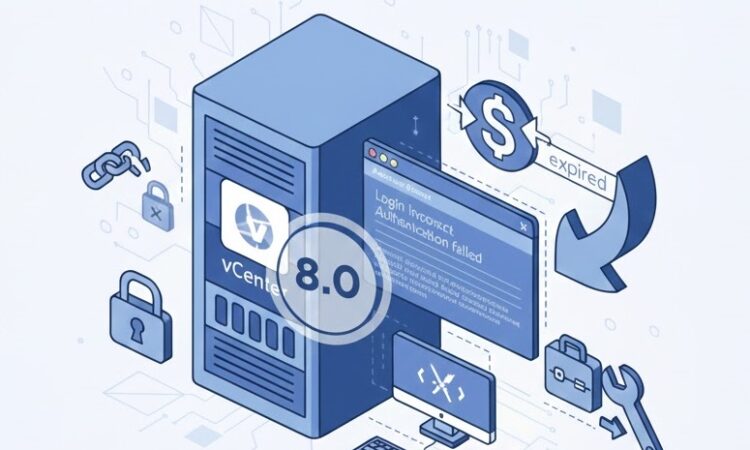
When your vCenter 8.0 root password expired, it can bring critical virtual infrastructure management to a halt. VMware vCenter Server implements default password expiration policies as a security measure, with root passwords typically expiring every 90 days. This guide provides proven solutions based on real-world VMware administration experience.
Why Does the vCenter 8.0 Root Password Expire?
VMware vCenter Server Appliance (VCSA) 8.0 enforces password expiration policies to maintain security compliance. The root account, which provides administrative access to the underlying operating system, follows these strict password lifecycle rules. Understanding this mechanism helps prevent unexpected lockouts during critical operations.
Default Password Expiration Settings
vCenter 8.0 implements several password policy parameters:
- Maximum password age: 90 days (default)
- Minimum password age: 0 days
- Password complexity requirements: Enabled
- Warning period: 7 days before expiration
Symptoms of an Expired Root Password
Recognizing the signs early can prevent complete lockouts:
- Unable to SSH into the vCenter Server Appliance
- Authentication failures at the console login prompt
- Error messages stating “Your password has expired”
- VAMI (Virtual Appliance Management Interface) inaccessibility with root credentials
- Inability to perform administrative tasks requiring root access
Solution 1: Reset Password Using GRUB Boot Menu (Primary Method)
This method works when you have console access to your vCenter Server Appliance.
Step-by-Step Recovery Process
Step 1: Access the Console
Connect to your vCenter Server Appliance through vSphere Client, VMware Host Client, or direct console access (physical or remote management interface).
Step 2: Reboot into GRUB
Restart the vCenter Server Appliance. When the Photon OS boot screen appears, press the e key quickly to enter GRUB edit mode. You have approximately 5 seconds to intercept the boot process.
Step 3: Modify Boot Parameters
Locate the line beginning with linux. Navigate to the end of this line and append the following paramete
rw init=/bin/bash
This modification boots the system into single-user mode with bash shell access, bypassing normal authentication.
Step 4: Boot Modified Configuration
Press F10 or Ctrl+X to boot with the modified parameters. The system will boot directly to a root shell without password authentication.
Step 5: Remount Filesystem
Once at the bash prompt, remount the root filesystem with read-write permissions:
mount -o remount,rw /
Step 6: Reset Root Password
Execute the password change command:
passwd root
Enter your new password twice when prompted. Ensure your password meets VMware’s complexity requirements: minimum 8 characters, including uppercase, lowercase, numbers, and special characters.
Step 7: Update Password Expiration
To extend the password expiration period:
chage -M 365 root
This command sets the maximum password age to 365 days. You can verify the change:
chage -l root
Step 8: Restore SELinux Context (Critical)
For vCenter 8.0 running on Photon OS, restore proper file contexts:
/usr/sbin/fixfiles restore
Step 9: Reboot Normally
exec /sbin/init
Or perform a hard reboot:
reboot -f
Solution 2: Using VAMI When Partially Accessible
If you still have access to the VAMI interface at https://vcenter-fqdn:5480, you may be able to manage the root password through the administrative interface.
VAMI Password Reset Procedure
Log into VAMI using the administrator@vsphere.local account or another administrative account with proper permissions. Navigate to Administration > Users and select the root user to reset the password. This method requires that at least one administrative account remains accessible.
Solution 3: Recovery Using Installation Media
For environments where console access proves problematic, VMware provides recovery options through ISO mounting.
ISO-Based Recovery Steps
Mount the vCenter Server installation ISO to the appliance. Boot from the ISO and select recovery or rescue mode options. Follow the on-screen prompts to access a recovery shell where you can execute password reset commands similar to the GRUB method.
Preventing Future Password Expiration Issues
Proactive password management prevents service disruptions and maintains security compliance.
Configure Email Notifications
Enable SMTP settings within vCenter to receive password expiration warnings. Navigate to Administration > Deployment > System Configuration > Nodes and select your vCenter node. Configure email settings under Monitor > Notifications to receive alerts 7 days before expiration.
Adjust Password Policies
Balance security requirements with operational needs by customizing password policies:
Access the appliance shell through SSH or console and modify /etc/security/pwquality.conf for complexity requirements. Use chage commands to adjust expiration periods for service accounts and administrative users.
Click here to read more about Changing or Resetting the root password in vCenter Server Appliance
Implement Password Management Best Practices
Establish a password rotation schedule that aligns with your organization’s security policies. Document password change procedures in your runbooks. Maintain secure, encrypted password storage solutions for administrative credentials. Create calendar reminders 14 days before known expiration dates.
Use Configuration Management
For environments with multiple vCenter instances, implement automated configuration management using PowerCLI scripts or Ansible playbooks to maintain consistent password policies across your infrastructure.
Troubleshooting Common Issues
Unable to Access Console
If virtual console access fails, check network connectivity to your ESXi host. Verify that the vCenter VM has not been suspended or powered off. Consider using ESXi Host Client for direct VM console access, bypassing vCenter dependencies.
Password Complexity Requirements Not Met
vCenter 8.0 enforces strict password policies. Ensure your new password includes:
- Minimum 8 characters (15+ recommended)
- At least one uppercase letter
- At least one lowercase letter
- At least one number
- At least one special character
- No dictionary words or username derivatives
GRUB Edit Mode Timing Issues
The GRUB menu appears briefly during boot. If you miss the timing window, restart the appliance and remain attentive during the boot sequence. Some virtual console interfaces experience input lag; pressing e repeatedly may help.
SELinux Context Errors
After password reset, if services fail to start properly, SELinux contexts may be incorrect. Execute these commands from emergency mode:
/usr/sbin/fixfiles -F restore
restorecon -Rv /
Monitoring and Logging
Enable comprehensive logging for authentication attempts. Configure syslog forwarding to centralized logging infrastructure. Regularly review authentication logs for suspicious activity. Implement intrusion detection systems monitoring vCenter access patterns.
Advanced Password Management Techniques
For enterprise environments managing multiple vCenter instances, consider these advanced approaches.
PowerCLI Automation
Develop PowerCLI scripts to query password expiration status across your vCenter infrastructure:
Connect-VIServer -Server vcenter.domain.com
$vmhosts = Get-VMHost
foreach ($vmhost in $vmhosts) {
    # Check password expiration logic
}
Centralized Authentication Integration
Integrate vCenter with Active Directory or LDAP for centralized user management. This approach reduces the need for direct root access and leverages existing enterprise authentication infrastructure.
Third-Party Password Managers
Enterprise password management solutions like CyberArk, Thycotic, or HashiCorp Vault can manage vCenter credentials, enforce rotation policies, and provide audit trails for privileged account access.
Click here to read how to fix vCenter 7.0 root user password expired
Conclusion
A vCenter 8.0 root password expired situation, while disruptive, can be resolved efficiently with proper procedures. The GRUB boot method provides reliable recovery when console access is available, while proactive password management prevents future occurrences. Balancing security requirements with operational needs ensures your virtual infrastructure remains both secure and accessible.
Regular password audits, automated notifications, and documented recovery procedures form the foundation of robust vCenter administrative practices. By implementing the solutions and preventive measures outlined in this guide, VMware administrators can maintain continuous access to critical infrastructure while upholding security standards.
Click here to read article on How to Fix vCenter Root Password Expired SSH
add a comment


Proxmox Finally Has a Real RVTools-Style Report (This is What Was Missing)
Introduction If you spent any meaningful time in VMware environments, RVTools was likely one of the first utilities you installed...

Download Virtuozzo 9 ISO
Virtuozzo 9 is a powerful enterprise-grade virtualization and cloud platform designed for service providers, hosting companies, and enterprises. It combines...
Check Point R81.20 T634 for VMware
If you're running Check Point environments in production, staying updated with the latest Jumbo Hotfix is critical for security, performance,...

VMware Cloud Director 10.3.3 OVA Download
The VMware Cloud Director-10.3.3 appliance is a ready-to-deploy OVA package that allows users to quickly set up VMware Cloud Director...




