




95views
Table of Contents
Introduction
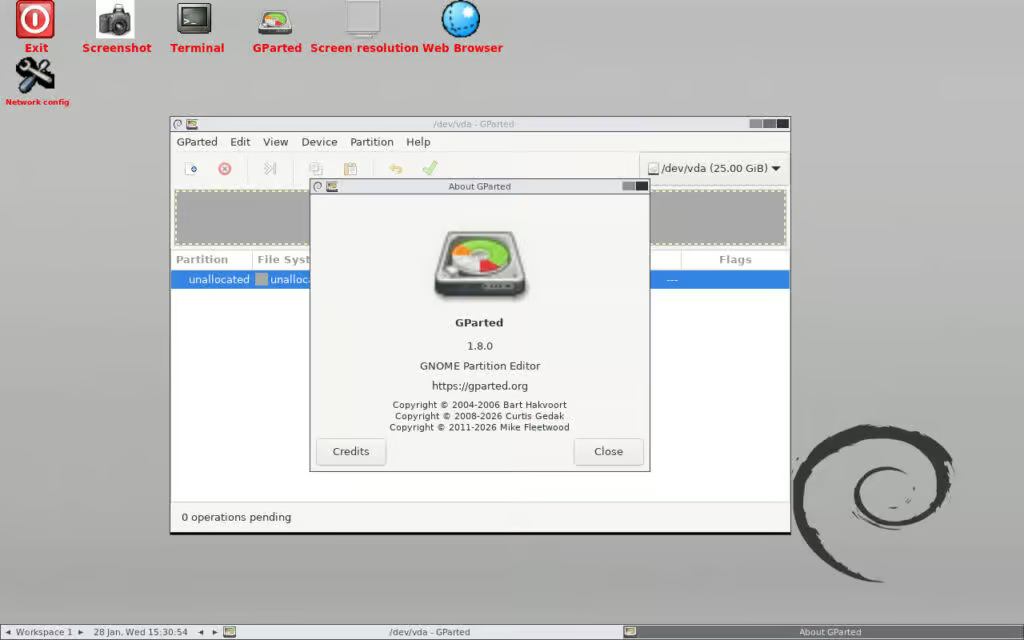
Released on January 28, 2026, GParted Live 1.8.0-2 represents the cutting edge of bootable partition management systems. This latest release brings together the recently unveiled GParted 1.8 partition editor with the brand-new Linux kernel 6.18 LTS (Long-Term Support), creating a powerhouse tool that’s both incredibly capable and remarkably stable. Whether you’re a system administrator managing enterprise servers, a power user juggling multiple operating systems, or someone who just needs to free up some disk space, this guide will walk you through everything you need to know.
What makes this release particularly exciting is its foundation on Debian Sid repositories as of January 27, 2026, ensuring you’re working with the freshest, most compatible software stack available. The inclusion of Linux kernel 6.18.5-1 officially designated as an LTS release supported until December 2027 means you’re not just getting cutting-edge features; you’re getting rock-solid reliability that will serve you for years to come.
Understanding GParted Live: What It is and Why it Matters
The Essence of GParted Live
GParted Live is a complete, standalone Linux distribution designed for one primary purpose: managing disk partitions safely and efficiently. Unlike installed partition management software, GParted Live boots directly from a USB drive or DVD, meaning it operates independently of any operating systems installed on your computer. This independence is crucial it allows you to manipulate partitions on your main hard drive without any risk of the operating system interfering with the process.
Think of it as a surgical suite for your hard drives. Just as surgeons work in sterile environments to prevent contamination, GParted Live provides a clean, isolated environment where partition operations can proceed without interference from running operating systems, active file locks, or background processes.
What’s New in Version 1.8
The GParted Live 1.8 release brings several significant improvements that elevate it beyond previous versions:
Linux Kernel 6.18.5-1: This isn’t just any kernel update—it’s the latest LTS (Long-Term Support) kernel, officially supported until December 2027. The kernel brings enhanced hardware support for modern systems, improved power management, better driver compatibility, and significant performance optimizations. If you’ve struggled with hardware recognition issues in the past, kernel 6.18 dramatically expands support for contemporary GPUs, storage controllers, and peripheral devices.
GParted 1.8 Application: The partition editor itself received substantial enhancements, particularly around FAT file system handling, GPT partition management, and crash prevention. We’ll explore these improvements in detail as we work through real-world scenarios.
Blank Screen Fix: One of the most frustrating issues with bootable live systems has been blank screens on certain graphics configurations. GParted Live 1.8 introduces a new mechanism specifically designed to prevent these startup failures, ensuring a smoother experience across diverse hardware.
Supported File Systems: The Complete Roster
One of GParted Live’s greatest strengths is its comprehensive file system support. Here’s what you can manage:
Linux Native:
- ext2, ext3, ext4 (the workhorses of Linux systems)
- Btrfs (the next-generation copy-on-write filesystem)
- XFS (high-performance file system for large files)
- ReiserFS and Reiser4 (older but still used systems)
- linux-swap (for swap partitions)
- LVM2 PV (Logical Volume Management)
Windows Compatible:
- FAT16 and FAT32 (universal compatibility)
- exFAT (for large files on removable media)
- NTFS (Windows’ primary file system)
macOS Compatible:
- HFS and HFS+ (Apple’s hierarchical file systems)
- APFS (Apple File System, with limited support)
Unix and Others:
- UFS (Unix File System)
- Bcachefs (experimental high-performance FS)
- NILFS2, Minix, and others
This extensive support means you can manage partitions from virtually any operating system, making GParted Live the perfect tool for dual-boot setups, data recovery operations, and cross-platform disk management.
Getting Started: Downloading and Creating Your GParted Live USB
Downloading GParted Live 1.8
The first step in your GParted journey is obtaining the ISO image. Head to the official GParted project on SourceForge or the GParted website (gparted.org) to download GParted Live 1.8.0-2.
Important Note: As of this release, GParted Live only provides amd64 (x86-64 bit) images. The i386/i686 versions have been discontinued following Debian’s decision to drop 32-bit kernel packages from their Sid repository. If you’re running ancient 32-bit hardware, you’ll need to use an older GParted Live release.
Download Options:
- ISO Format: Standard bootable image for DVD burning or USB creation (recommended)
- ZIP Format: Contains the ISO plus additional files
Verify Your Download: For security-conscious users, GParted provides multiple checksums:
MD5SUM:  Check against published hash
SHA1SUM: More secure verification
SHA256SUM: Industry-standard verification
SHA512SUM: Maximum security verification
Always verify your download matches the published checksums to ensure you haven’t downloaded a corrupted or tampered file.
Creating a Bootable USB Drive
Once you’ve downloaded the ISO, you need to create a bootable USB drive. Here are the best methods for different operating systems:
On Windows: Using Rufus
Rufus is the gold standard for creating bootable USB drives on Windows.
Step 1: Download Rufus from rufus.ie (it’s free and portable)
Step 2: Insert a USB drive (minimum 1 GB, though 2-4 GB is recommended for breathing room)
Step 3: Launch Rufus and configure:
- Device: Select your USB drive
- Boot selection: Click “SELECT” and choose your GParted Live ISO
- Partition scheme: GPT (for UEFI systems) or MBR (for older BIOS systems)
- File system: FAT32 (universally compatible)
- Cluster size: Default
Step 4: Click “START” and confirm any warnings
Pro Tip: Rufus automatically detects the optimal settings for your ISO, so the default choices are usually perfect.
On Linux: Using dd Command
Linux users can leverage the powerful dd command for a quick, clean USB creation.
bash
# First, identify your USB drive
lsblk

# Unmount the USB drive if it's mounted
sudo umount /dev/sdX*

# Write the ISO to USB (replace /dev/sdX with your actual device)
sudo dd if=gparted-live-1.8.0-2-amd64.iso of=/dev/sdX bs=4M status=progress conv=fdatasync

# Sync to ensure all data is written
sync
Critical Warning: Double-check your device identifier! Using the wrong device with dd will overwrite that drive’s data irreversibly. The command lsblk shows all block devices—make absolutely certain you’re targeting your USB drive, not your main hard disk.
On macOS: Using balenaEtcher or dd
Mac users have two excellent options:
Option 1 – balenaEtcher (User-Friendly):
- Download balenaEtcher from balena.io/etcher
- Open balenaEtcher
- Select the GParted ISO file
- Select your USB drive
- Click “Flash!”
Option 2 – dd Command (Advanced):
bash
# Find your USB drive
diskutil list

# Unmount the drive
diskutil unmountDisk /dev/diskN

# Write the ISO
sudo dd if=gparted-live-1.8.0-2-amd64.iso of=/dev/rdiskN bs=4m

# Note: Using /dev/rdiskN (raw disk) is faster than /dev/diskN
Booting from USB: Entering Your Boot Menu
With your bootable USB created, you need to configure your computer to boot from it:
Step 1: Insert the USB drive before powering on
Step 2: Access your boot menu or BIOS/UEFI settings:
- Dell: F12 during boot
- HP: F9 or Esc during boot
- Lenovo: F12 or F1
- ASUS: F8 or Del
- Acer: F12
- Generic PCs: Try F12, F11, F8, or Del
Step 3: Select your USB drive from the boot menu
Step 4: If your system doesn’t boot from USB:
- Enter BIOS/UEFI settings
- Disable Secure Boot (often required for Linux live systems)
- Enable USB Boot or change boot order to prioritize USB devices
- Save settings and restart
For more details, see the release notes.
add a comment

OpenVPN 2.7.1 Introduces Username-Only Authentication Option
OpenVPN, a widely used user-space VPN daemon that enables secure, encrypted tunnels over IP networks, has released version 2.7.1 as...
GNOME 49.5 Improves Stability With Fixes in Shell, Nautilus, and Mutter
GNOME 49.5, the fifth maintenance release in the older GNOME 49 branch, is now available, bringing updates to key components...
Fastfetch 2.61 System Information Tool Drops Windows 7 and 8 Support
Fastfetch, a well-known tool among Linux users for displaying a clean and stylish system summary in the terminal, has released...

Rspamd 4.0 Spam Filtering System Released With checkv3 Protocol
Rspamd 4.0, the latest release of the popular open-source spam filtering system for mail servers and gateways, brings major architectural...




