



561views
If you’ve ever tried to live-migrate virtual machines between ESXi hosts with different CPU generations, you’ve probably encountered compatibility errors. That’s exactly what Enhanced vMotion Compatibility (EVC) mode solves. This comprehensive guide walks you through everything you need to know about enabling, configuring, and managing EVC mode in your vSphere environment without the downtime headaches.
What is EVC Mode and Why Does It Matter?
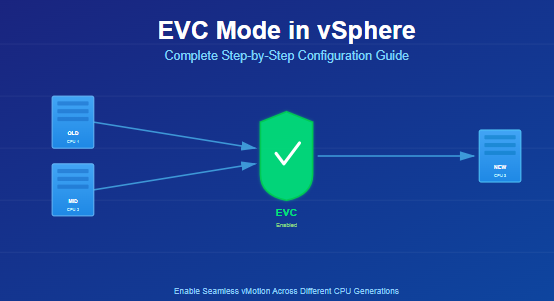
Enhanced vMotion Compatibility (EVC) is a vSphere cluster feature that masks CPU instruction differences between ESXi hosts with different processor generations. By creating a uniform CPU baseline across your cluster, EVC ensures that virtual machines can seamlessly migrate via vMotion between hosts, regardless of their underlying CPU architecture.
Think of it this way: your older servers might have Intel Sandy Bridge processors, while your newer ones use Skylake or Ice Lake. Without EVC, VMs can’t migrate between these hosts because they expose different CPU feature sets. EVC acts as an equalizer, presenting a common set of CPU instructions to all VMs in the cluster.
Real-world benefits:
- Add new servers with modern CPUs to existing clusters without disrupting operations
- Perform maintenance and load balancing through seamless vMotion migrations
- Extend the lifecycle of older hardware while gradually introducing newer equipment
- Maintain operational flexibility in heterogeneous environments
How Does EVC Mode Work in VMware?
EVC operates by leveraging the CPUID instruction set—essentially an API that communicates CPU capabilities. When you enable EVC on a cluster, it:
- Identifies the oldest CPU generation in your cluster
- Establishes a baseline using that CPU’s instruction set
- Masks advanced features on newer CPUs that aren’t available on older ones
- Presents a uniform instruction set to all virtual machines
The key mechanism is CPUID masking. Newer processors contain additional instruction sets (like AVX, AVX2, or AVX-512) that older generations lack. EVC hides these newer instructions from VMs, ensuring compatibility across all hosts.
Important note: EVC has zero performance overhead on your infrastructure. The masking happens at the hypervisor level and doesn’t slow down VM operations—though newer VMs won’t access the latest CPU features if they’re masked by a lower EVC baseline.
Prerequisites Before Enabling EVC Mode
Before you configure EVC, verify these requirements:
Hardware Requirements:
- All ESXi hosts must use processors from the same vendor (all Intel or all AMD—never mixed)
- Processor virtualization features (Intel VT-x or AMD-V) must be enabled in BIOS/UEFI
- All hosts must be managed by the same vCenter Server
Software Requirements:
- vCenter Server version must support your desired EVC baseline
- ESXi hosts should be configured for vMotion
- Check the VMware Compatibility Guide to determine your compatible EVC modes
Planning Considerations:
- Identify your oldest CPU generation—this determines your maximum EVC level
- Consider future hardware additions when selecting your baseline
- Understand that existing powered-on VMs may need to be cycled for changes to take effect
Step-by-Step: How to Enable EVC Mode in vSphere Cluster
Method 1: Enable EVC on a New Cluster (Recommended)
VMware strongly recommends enabling EVC when creating a new cluster. This avoids the complexity of dealing with running VMs.
Step 1: Create the Cluster
Log into vSphere Web Client
Navigate to Hosts and Clusters
Right-click your datacenter and select New Cluster
Name your cluster
Step 2: Enable EVC During Creation
- In the cluster creation wizard, go to EVC settings
- Select Enable EVC for AMD Hosts or Enable EVC for Intel Hosts
- Choose your EVC baseline from the dropdown menu
- Click OK to create the cluster
Step 3: Verify Configuration
- Select your cluster in the inventory
- Go to Configure > VMware EVC
- Confirm your EVC mode is active
Method 2: Enable EVC on an Existing Cluster
Enabling EVC on a production cluster with running VMs requires more careful planning.
Step 1: Check CPU Compatibility
- In vSphere Client, navigate to Hosts and Clusters
- Select each ESXi host and note the processor model
- Open the VMware Compatibility Guide
- Select your ESXi version and CPU series
- Click CPU/EVC Matrix to identify your compatible EVC mode
Step 2: Access EVC Settings
- Select your target cluster
- Click the Configure tab
- Navigate to Configuration > VMware EVC
- Click Edit
Step 3: Select EVC Mode
- Choose Enable EVC for Intel Hosts or Enable EVC for AMD Hosts
- From the VMware EVC Mode dropdown, select your baseline
- Choose the EVC mode matching your oldest processor
- The interface shows compatibility validation at the bottom
- Review the compatibility section for any warnings
Step 4: Handle Running VMs
- Validation Success: If you see “Validation succeeded,” you can proceed
- Compatibility Issues: VMs using CPU features above the selected baseline must be powered off first
Step 5: Apply and Verify
- Click OK to enable EVC
- Power off and power on any affected VMs (a guest OS reboot is not sufficient)
- Verify EVC is active by checking the cluster’s VMware EVC section
How to Enable EVC Mode Without Downtime
This is the million-dollar question. Under specific conditions, you can enable EVC without powering off all VMs.
Zero-Downtime Scenario Requirements:
- VMs are currently running on the host with the oldest processor
- The EVC baseline you’re selecting matches that oldest processor’s generation
- You’re using vCenter 4.1 or later
Alternative Strategy: Temporary Cluster Method
When zero-downtime isn’t possible with the above conditions, use this workaround:
- Create a temporary cluster with a few spare hosts
- vMotion all VMs from your production cluster to the temporary cluster
- Enable EVC on your now-empty production cluster
- Migrate VMs back to the production cluster (they’ll automatically pick up the EVC settings)
- Decommission the temporary cluster
Caution: This method still requires vMotion availability and careful planning to minimize service disruption.
How to Change EVC Baseline in vSphere
You might need to adjust your EVC mode when adding new hardware or retiring old servers.
Raising the EVC Mode
When to raise: After removing older hosts from your cluster, you can increase the baseline to expose more CPU features.
- Navigate to your cluster’s Configure tab
- Select VMware EVC > Edit
- Choose a higher EVC mode from the dropdown
- Click OK
- Power cycle all VMs (power off, then power on) to apply the new baseline
Lowering the EVC Mode
When to lower: When adding hosts with older CPUs to your cluster.
Critical requirement: All VMs in the cluster must be powered off before lowering the baseline. There’s no workaround for this.
- Power off all virtual machines in the cluster
- Go to Configure > VMware EVC > Edit
- Select the lower EVC baseline
- Click OK
- Power on your VMs
How to Check EVC Mode in vSphere
Check Cluster EVC Mode
- In vSphere Client, select your cluster
- Go to the Summary tab
- Look for VMware EVC in the cluster information
- Click Current CPUID Details to see detailed CPU masking information
Check Per-VM EVC Mode (vSphere 6.7+)
Starting with vSphere 6.7, VMs can have individual EVC settings that override cluster-level settings.
- Select the virtual machine
- Click the Configure tab
- Navigate to More > VMware EVC
- View the current EVC status and baseline
Key indicators:
- Deactivated: VM inherits cluster EVC settings
- Activated: VM has its own EVC baseline configuration
How to Disable EVC Mode in vSphere
Need to turn off EVC? Here’s the process.
Impact of Disabling EVC:
- vSphere HA remains functional (VMs power cycle during failover)
- DRS and vMotion continue working but only between compatible CPU hosts
- VMs retain their current CPU exposure until powered off and on
Steps to Disable:
- Select your cluster
- Go to Configure > VMware EVC > Edit
- Select Disable EVC
- Click OK
- VMs will maintain their EVC baseline until manually power cycled
Important: Once disabled, VMs can only vMotion to hosts with the same CPU generation or newer.
Per-VM EVC Mode: Advanced Configuration
Introduced in vSphere 6.7, Per-VM EVC allows you to set EVC at the virtual machine level instead of the entire cluster.
Benefits of Per-VM EVC
- VMs maintain their EVC settings when migrating between clusters
- Enables mobility across vCenter servers and data centers
- Facilitates hybrid cloud migrations to VMware Cloud on AWS
- Provides granular control over CPU feature exposure
Requirements for Per-VM EVC
- vSphere 6.7 or later
- Virtual machine hardware version 14 or higher
- VM must be powered off to configure
How to Configure Per-VM EVC
Step 1: Upgrade VM Hardware (if needed)
- Power off the VM
- Right-click the VM and select Compatibility > Upgrade VM Compatibility
- Select ESXi 6.7 and later (hardware version 14+)
- Click OK
Step 2: Enable Per-VM EVC
- Select the powered-off VM
- Go to Configure > More > VMware EVC
- Click Edit
- Select Activate EVC
- Choose your desired CPU baseline from the dropdown
- Click OK
Important Limitation: If the VM is in an EVC cluster, the per-VM EVC mode cannot exceed the cluster’s EVC mode, or the VM will fail to power on.
Using PowerCLI for Per-VM EVC
For automation enthusiasts, you can configure per-VM EVC using PowerCLI:
powershell
# Get available EVC modes
$evcModes = Get-Cluster "YourCluster" | Get-View | Select -ExpandProperty SupportedEVCMode

# Apply EVC mode to a VM
$vm = Get-VM "YourVM"
$vmView = $vm | Get-View
$spec = New-Object VMware.Vim.VirtualMachineConfigSpec
$spec.FeatureMask = $evcModes | Where {$_.Key -eq "intel-sandybridge"} | Select -First 1 -ExpandProperty FeatureMask
$vmView.ReconfigVM($spec)
Common EVC Mode Issues and Troubleshooting
Issue 1: “The target host does not support the virtual machine’s current hardware requirements”
Cause: The VM is using CPU features not available in the target host’s EVC baseline.
Solution:
- Verify the cluster’s EVC mode matches or exceeds the VM’s requirements
- Check if per-VM EVC is configured higher than the cluster baseline
- Power cycle the VM if EVC was recently enabled
Issue 2: Cannot Enable EVC Due to Powered-On VMs
Cause: Running VMs are using CPU features that would be masked by the selected EVC mode.
Solution:
- Identify which VMs are blocking EVC enablement (vCenter shows this in the validation section)
- Power off the problematic VMs
- Enable EVC
- Power on the VMs
Issue 3: VM Won’t Power On After Setting Per-VM EVC
Cause: Per-VM EVC baseline exceeds the cluster’s EVC mode.
Solution:
- Lower the per-VM EVC mode to match or go below the cluster setting
- Or raise the cluster EVC mode (requires powering off all VMs)
Issue 4: Performance Concerns with EVC
Reality Check: EVC itself has no performance impact. However, if you’re masking advanced CPU features that your applications could use (like AVX-512 for scientific computing), you might see reduced performance compared to running without EVC.
Best Practice: Select the highest EVC baseline that all your hosts support to maximize available features while maintaining compatibility.
Best Practices for EVC Mode Management
1. Enable EVC from Day One
Don’t wait until you’re adding new hardware. Enable EVC when creating clusters to avoid future complications.
2. Choose Your Baseline Strategically
- Consider your hardware refresh cycle
- Select a baseline that accommodates planned future additions
- Balance compatibility with performance needs
3. Document Your EVC Configuration
- Record which EVC mode each cluster uses
- Track CPU generations in each cluster
- Document any per-VM EVC configurations for critical workloads
4. Plan Hardware Purchases Around EVC
When buying new servers, check their EVC compatibility with existing clusters in the VMware Compatibility Guide.
5. Use Per-VM EVC for Hybrid Cloud Workloads
If you’re using VMware Cloud on AWS or planning hybrid deployments, configure per-VM EVC on VMs that will move between environments.
6. Test in Non-Production First
Before enabling EVC on production clusters, test the process in a development or staging environment.
7. Monitor After Enabling EVC
- Verify vMotion operations work as expected
- Check application performance for any unexpected issues
- Confirm DRS is functioning correctly
EVC Mode and vSphere Versions
Different vCenter versions support different EVC baselines:
- vCenter 6.0-6.5: Supports up to Broadwell baseline
- vCenter 6.7: Introduces per-VM EVC and supports Skylake
- vCenter 7.0: Adds Ice Lake and Cascade Lake support
- vCenter 8.0: Includes latest Intel and AMD baseline options
Tip: Newer EVC modes are backward compatible, so upgrading vCenter expands your EVC options without breaking existing configurations.
Conclusion
EVC mode is essential for maintaining a flexible, scalable vSphere environment in today’s heterogeneous infrastructure landscape. By standardizing CPU features across clusters, it eliminates compatibility barriers for vMotion, enabling seamless VM mobility regardless of underlying hardware generations.
Whether you’re adding new servers to extend capacity, performing routine maintenance, or planning a gradual infrastructure refresh, EVC ensures your virtual machines remain mobile and your operations stay agile. The small upfront effort of configuring EVC properly pays enormous dividends in operational flexibility and reduced downtime.
Frequently Asked Questions
Q: Can I mix Intel and AMD processors in an EVC cluster?
A: No. EVC requires all hosts to use processors from the same vendor.
Q: Does EVC work with nested virtualization?
A: Yes, but ensure your EVC baseline supports the virtualization extensions your nested VMs require.
Q: Will EVC affect my licensing?
A: No, EVC doesn’t impact vSphere licensing.
Q: Can I use EVC with vSAN?
A: Absolutely. EVC and vSAN work together seamlessly.
Q: What happens if I add a host that doesn’t support my cluster’s EVC mode?
A: vCenter will prevent you from adding the host to the cluster. You must either lower the cluster’s EVC mode or choose a different cluster.
add a comment


Proxmox Finally Has a Real RVTools-Style Report (This is What Was Missing)
Introduction If you spent any meaningful time in VMware environments, RVTools was likely one of the first utilities you installed...

Download Virtuozzo 9 ISO
Virtuozzo 9 is a powerful enterprise-grade virtualization and cloud platform designed for service providers, hosting companies, and enterprises. It combines...
Check Point R81.20 T634 for VMware
If you're running Check Point environments in production, staying updated with the latest Jumbo Hotfix is critical for security, performance,...

VMware Cloud Director 10.3.3 OVA Download
The VMware Cloud Director-10.3.3 appliance is a ready-to-deploy OVA package that allows users to quickly set up VMware Cloud Director...




