





145views
DeepSeek has conquered the AI world. While it’s convenient to use DeepSeek on your hosted website, we know there’s no place like it 127.0.0.1.
However, with recent events such as a cyberattack on DeepSeek AI that disrupted new user registrations or the exposed DeepSeek AI database , it makes us wonder why more people are choosing to run LLMs locally.
Running your AI locally not only gives you complete control and better privacy, but also keeps your data out of anyone else’s reach.
In this guide, we will walk you through configuring DeepSeek R1 on your Linux machine using Ollama as the back-end and Open WebUI as the front-end.
Let’s get started!
The version of DeepSeek that you will run on your local system is a simplified version of the real DeepSeek that has ‘overpowered’ ChatGPT. You will need Nvidia/AMD graphics in your system to run it.
Step 1: Install Ollama
Before we get to DeepSeek itself, we need a way to efficiently run Large Language Models (LLMs). This is where Ollama comes in .
What is Ollama?
Ollama is a lightweight and powerful platform for running LLMs locally. It simplifies model management, allowing you to download, run, and interact with models with minimal hassle.
The best part? It abstracts away all the complexities, eliminating the need to manually configure dependencies or set up virtual environments.
Installing Ollama
The easiest way to install Ollama is by running the following command in your terminal:
curl -fsSL https://ollama.com/install.sh | sh
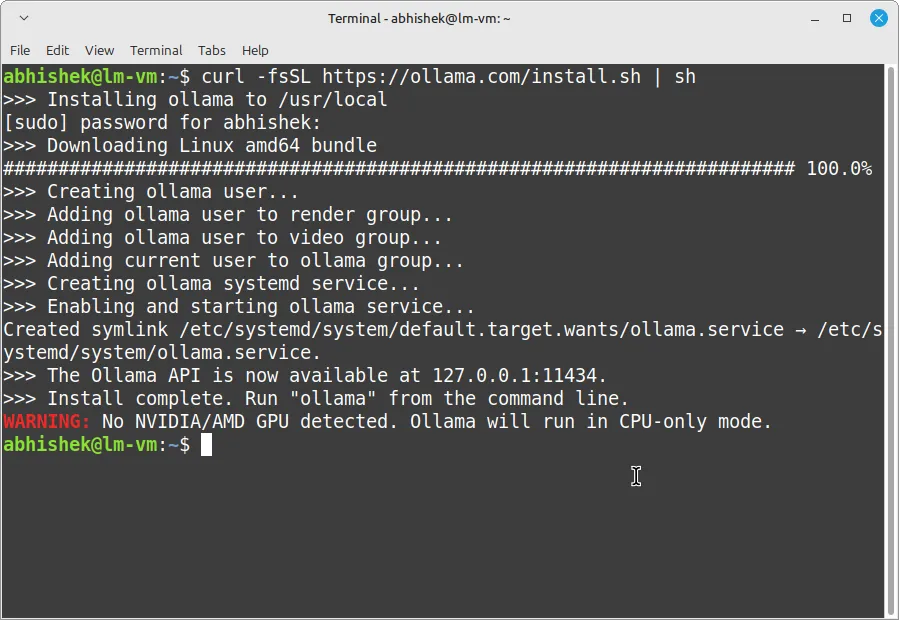
After installation, verify the installation:
ollama --version
Now, let’s get DeepSeek running with Ollama .
Step 2: Install and run the DeepSeek template.
With Ollama installed, extracting and running the DeepSeek template is really simple:
ollama run deepseek-r1:1.5b
This command downloads the DeepSeek-R1 1.5B model , which is a small but powerful AI model for text generation, question answering, and much more.
The download may take some time depending on your internet speed, as these templates can be quite large.
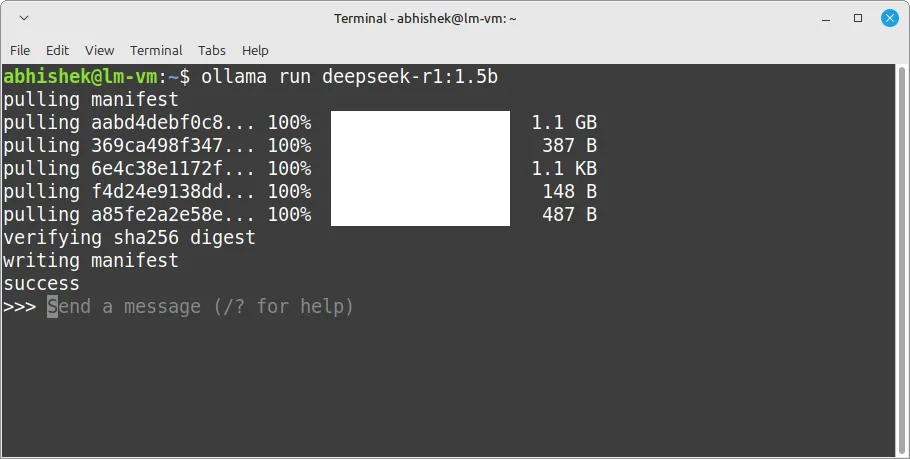
Once the download is complete, you can interact with it immediately in the terminal:
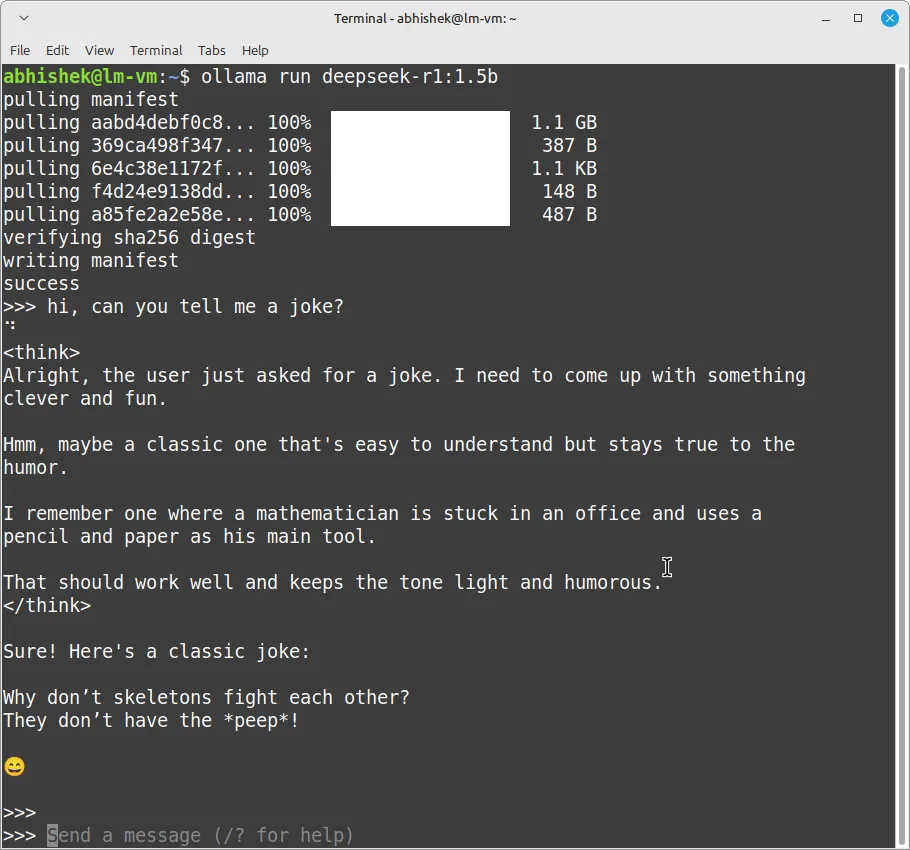
But let’s be honest, while the terminal is great for quick tests, it’s not the most polished experience. It would be better to use a web-based user interface like Ollama. Although many such tools exist, Open WebUI is preferred .
Step 3: Configuring Open WebUI
Open WebUI provides a beautiful and user-friendly interface for chatting with DeepSeek. There are two ways to install Open WebUI:
- Direct installation (for those who prefer a traditional setup)
- Docker installation (author’s preferred method)
Don’t worry, we’ll both address it.
Method 1: Direct Installation
If you prefer a traditional installation without Docker, follow these steps to configure Open WebUI manually.
Step 1: Install Python and the virtual environment.
First, make sure you have Python installed along with the package venvto create an isolated environment.
Execute the following command:
sudo apt install python3-venv -y
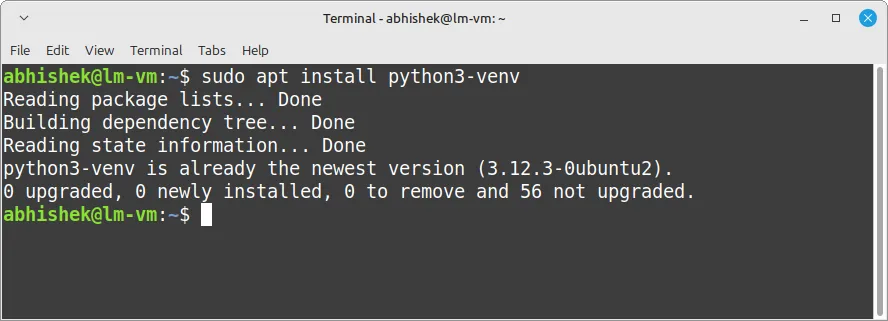
This installs the necessary package for managing virtual environments.
Step 2: Create a virtual environment
Next, create a virtual environment within your home directory:
python3 -m venv ~/open-webui-venv
Then, activate the virtual environment we just created:
source ~/open-webui-venv/bin/activate
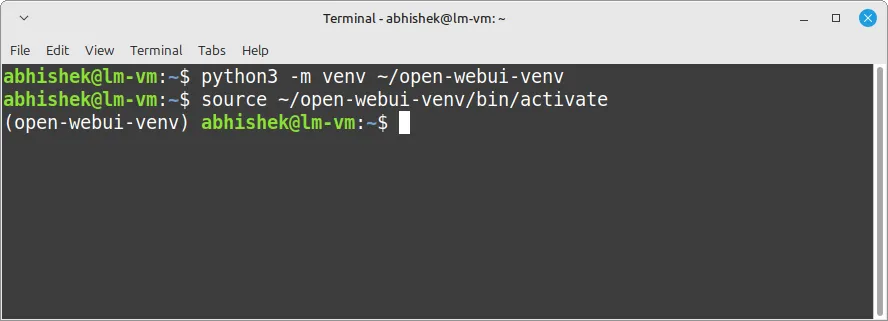
You will notice that the terminal prompt changes, indicating that you are inside the virtual environment.
Step 4: Install Open WebUI
With the virtual environment enabled, install Open WebUI by running:
pip install open-webui
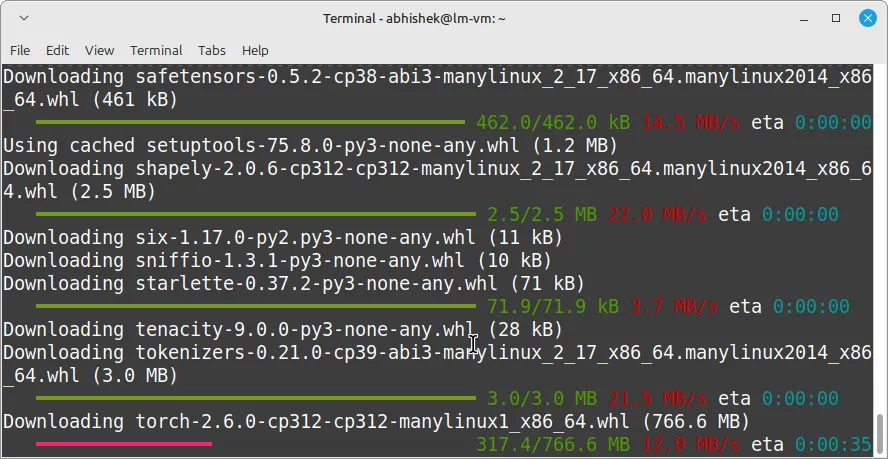
This downloads and installs Open WebUI along with its dependencies.
Step 5: Run Open WebUI
To start the Open WebUI server, use the following command:
open-webui serve
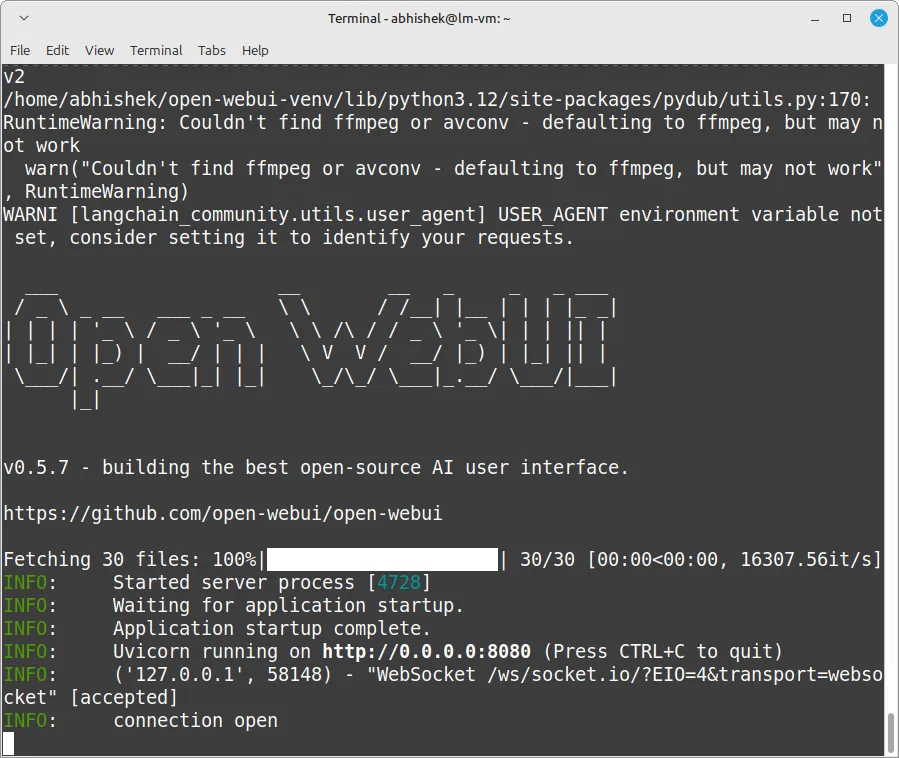
After the server starts, you will see output confirming that Open WebUI is running.
Step 6: Access the Open WebUI in your browser.
Open your web browser and go to: http://localhost:8080
Now you will see the Open WebUI interface, where you can start chatting with DeepSeek AI!
Method 2: Docker Installation (preferred)
If you haven’t installed Docker yet, don’t worry! Check out our step-by-step guide on how to install Docker on Linux before proceeding.
Once that’s out of the way, let’s get Open WebUI up and running with Docker.
Step 1: Extract the Open WebUI Docker image
First, download the latest Open WebUI image from Docker Hub:
docker pull ghcr.io/open-webui/open-webui:main
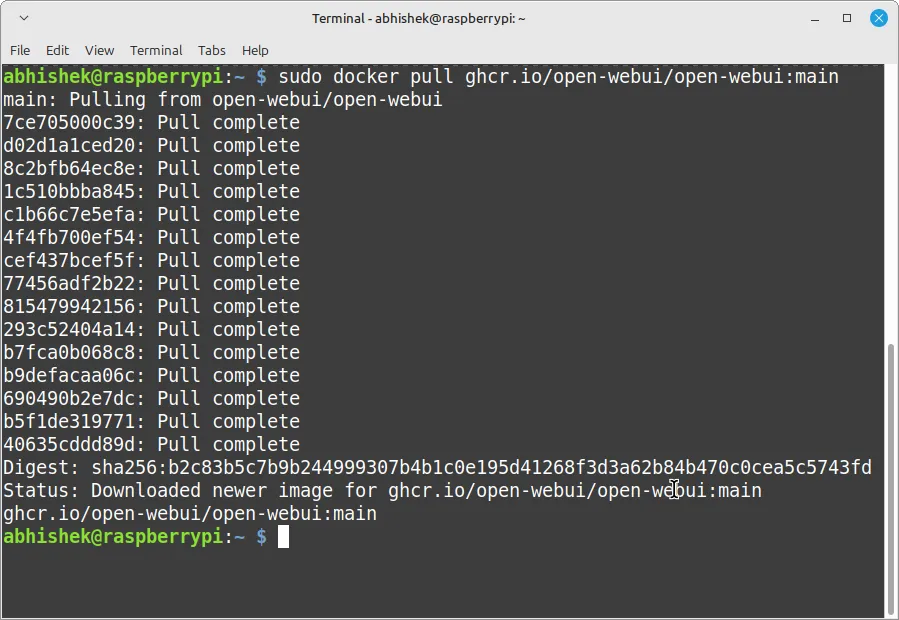
This command ensures you have the most up-to-date version of Open WebUI.
Step 2: Run Open WebUI in a Docker container.
Now, activate the Open WebUI container:
docker run -d \ -p 3000:8080 \ --add-host=host.docker.internal:host-gateway \ -v open-webui:/app/backend/data \ --name open-webui \ --restart always \ ghcr.io/open-webui/open-webui:main
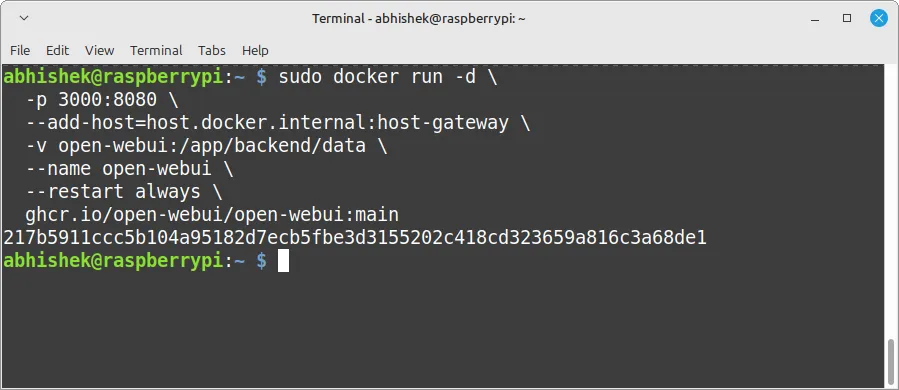
Let’s be honest, that big command might seem intimidating, but we’re going to expose it.
| Command | Explanation |
|---|---|
docker run -d | Run the container in the background, in detached mode. |
-p 3000:8080 | Map port 8080 inside the container to port 3000 on the host. Therefore, you will access Open WebUI at http://localhost:3000. |
--add-host=host.docker.internal:host-gateway | It allows the container to communicate with the host system, useful when running other services alongside Open WebUI. |
-v open-webui:/app/backend/data | Creates a persistent storage volume called open-webui to save chat history and settings. |
--name open-webui | Assign a custom name to the container for easy reference. |
--restart sempre | Ensures that the container is automatically restarted if the system is restarted or if Open WebUI crashes. |
ghcr.io/open-webui/open-webui:main | This is the Docker image for Open WebUI, pulled from the GitHub Container Registry. |
Step 3: Access the Open WebUI in your browser.
Now, open your web browser and go to: http://localhost:8080
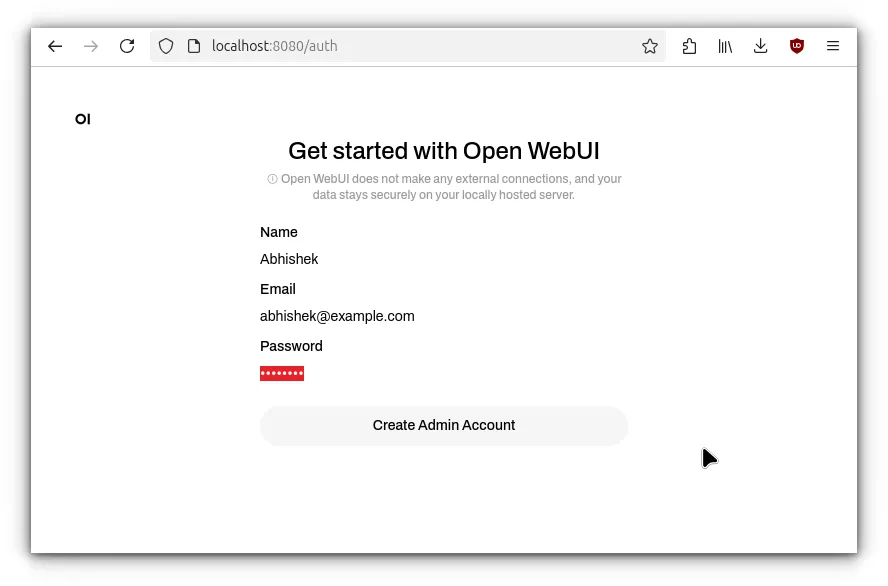
You should see the Open WebUI interface, ready for use with DeepSeek!
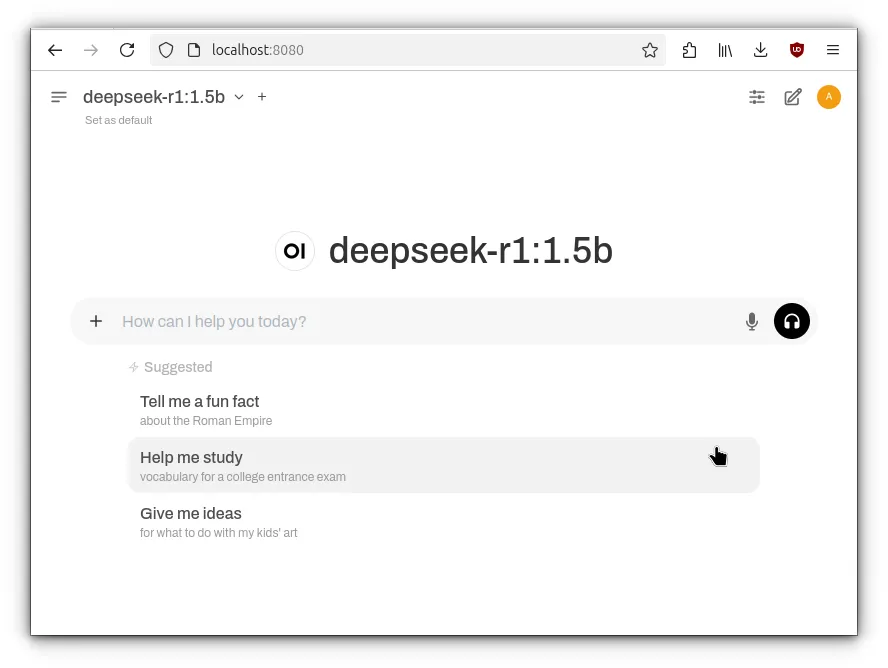
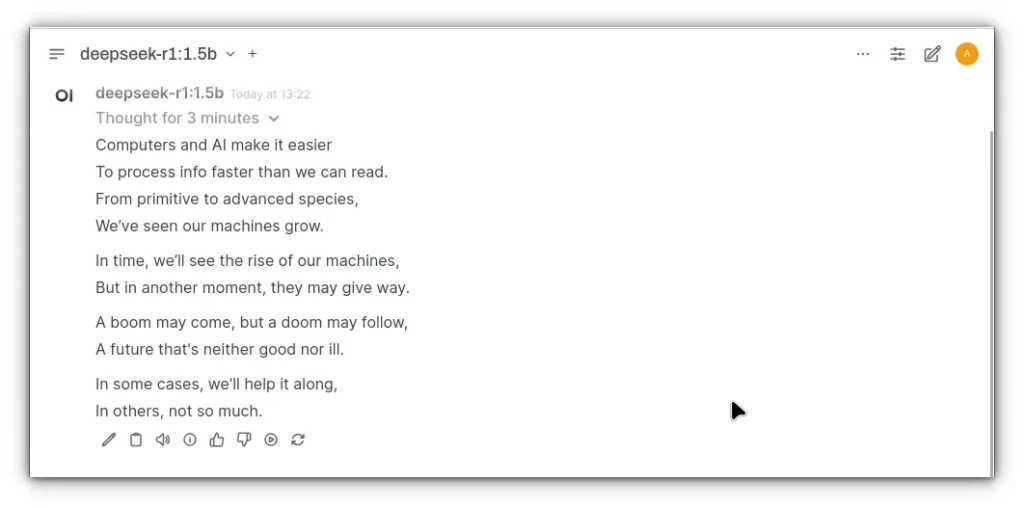
For a fun experiment, I decided to test DeepSeek AI with a small challenge. I asked it to write a rhyming poem using the words “computer,” “AI,” “human,” “evolution,” “destruction,” and “boom.”
And let’s just say… the answer was a little scary . 😅
Here is the complete poem, written by DeepSeek R1:
Conclusion
And there you have it! In just a few simple steps, you can have DeepSeek R1 running locally on your Linux machine with Ollama and Open WebUI.
Whether you opted for the Docker route or the traditional installation, the setup process is simple and should work on most major Linux distributions.
So go ahead, challenge DeepSeek to create another quirky poem or perhaps put him to work on something more practical. It’s his to play with, and the possibilities are endless.
Who knows, maybe your next challenge will be more creative than mine (although that poem about “misfortune” and “boom” was a little scary!).
Enjoy your new local AI assistant and great experiences!
add a comment

Incus 6.23 Container & Virtual Machine Manager Released
The Incus project has rolled out version 6.23, marking the final update in the 6.x series before the anticipated 7.0...


KaOS 2026.03 Released With Major Move Away From systemd Components
The KaOS project has rolled out its March 2026 ISO, introducing one of the most extensive internal transformations the distribution...


8 Ubuntu Terminal Tools You Must Master in 2026
Introduction1. micro — The Terminal Editor With Zero Learning Curve2. Neovim — IDE-Level Terminal Editing When You Are Ready3. tmux...


Canonical Plans Controversial GRUB Changes for Ubuntu 26.10 Secure Boot
Canonical is considering a significant overhaul to how Secure Boot works in Ubuntu 26.10, with a proposal aimed at reducing...
