




481views
The vCenter Server backup is a crucial operation in a vSphere infrastructure since the vCenter Server provides core features such as HA, DRS, vDS, vSAN, and it must be protected accordingly.
To guarantee the recovery of the vSphere infrastructure functionality in case of a failure, the vCenter Server backup operation must be configured in the correct way to ensure a quick and working restore.
File-Based Backup and Restore
The Best Practices to perform the vCenter Server backup recommend using the native file-based backup and restore method.
Backup
The file-based backup can be created directly from the vCenter Server VAMI. Access the VAMI and go to Backup section.
The file-level vCenter Server backup includes the following:
- Core configuration
- Inventory
- Historical data
The backup is not stored in the vCenter Server appliance but streamed to a remote target using FTP, FTPS, HTTP, HTTPS, SFTP, NFS, or SMB protocols.
Restore
The restore process can be performed using the GUI installer or the vCenter Server instance.
The restore process has two stages:
- Deployment of a new vCenter Server appliance
- Restore of the configuration from the data stored in the file-based backup
Consideration and limits
This method used for the vCenter Server backup implies some consideration and limits.
- Protocols – to perform the backup, the following points should be considered:
- If FTP and HTTP are the protocols used to backup and restore the vCenter, they are not secure protocols.
- To use HTTP or HTTPS, you must enable WebDAV.
- If the HTTP proxy server is configured, only FTP, FTPS, HTTP, or HTTPS protocols can be used to transmit data.
- For FTPS only explicit mode is supported.
- Mixed mode of IP versions between the backup server and the vCenter Server is not supported.
- Restore – when the restore is performed, the following configuration is reverted:
- Virtual machine resource settings.
- Resource pool hierarchy and setting.
- Cluster-host membership.
- DRS configuration and rules.
- Distributed Virtual Switch – if used in your infrastructure, export the Distributed Virtual Switch configuration before performing the restore to keep all the changes occured since the last backup. The vDS configuration can be then imported after the restore.
- Content Libraries – if Content Libraries or items have been deleted or created after the backup, a manual intervention is required to fix the inconsistencies.
- vSphere HA – make sure the HA cluster stays the same during restore and backup operations.
- vCenter HA – after the restore, the vCenter HA has to be reconfigured.
Check out the dedicated VMware page for additional info.
Image-Based Backup and Restore
The Image-Based Backup and Restore operations can be added to your backup strategy as an additional protection level to support the native file-based backup and restore that remains the recommended method to perform the vCenter Server backup.
Backup
To backup the vCenter Server appliance, the following recommendation must be followed:
- Make sure that all components on the vSphere network are time synced using NTP.
- A dedicated Backup Job should be created.
- Run the backup when no other Backup Jobs are running.
- Disable VMware Tools Quiescence.
- Disable Application-Aware Processing and Guest File System Indexing.
Restore
To perform the restore operation, the same considerations made for file-level backup must be considered.
File-level vCenter Server backup configuration
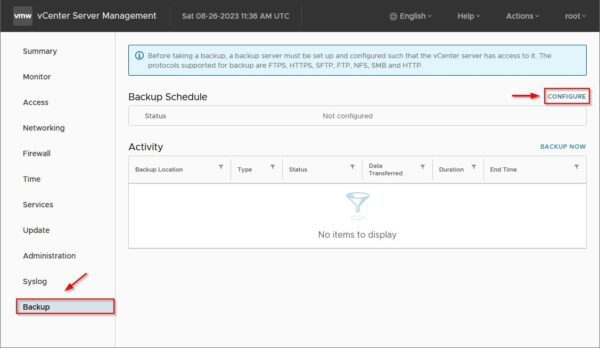
Access the vCenter Server VAMI and login as root.

Go to Backup section. Click Configure.
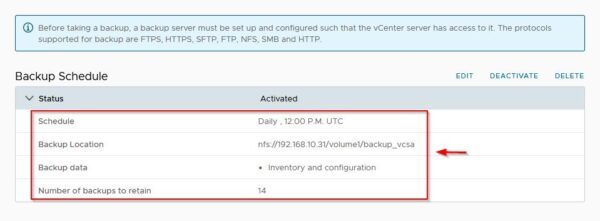
Enter the Backup location details using the syntax protocol://server-address:<port>/folder/subfolder and the Backup server credentials if required (in the example, the backup is performed to a NFS share). Configure the desired Schedule, specify the Number of backup to retains and optionally you can Encrypt backup by entering the Encryption Password. Thick Stats, Events, and Tasks option to retain also this Data. Click Create.

The saved configuration. The backup will be performed at scheduled time.
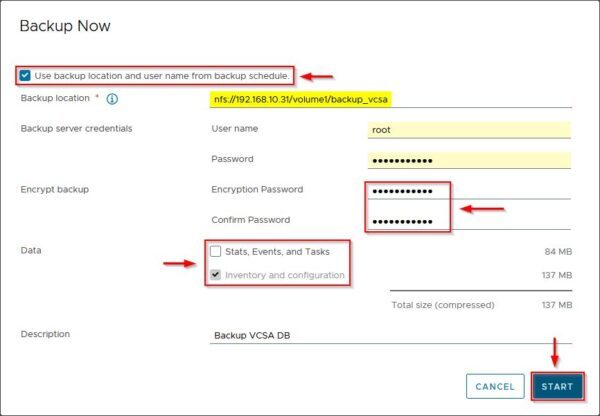
To backup the vCenter Server appliance manually, just click Backup Now.

Enable Use backup location… option to use same repository as configured in the scheduled task section. Enter the Encryption Password and select the type of Data to backup. Click Start.
The backup is being performed.

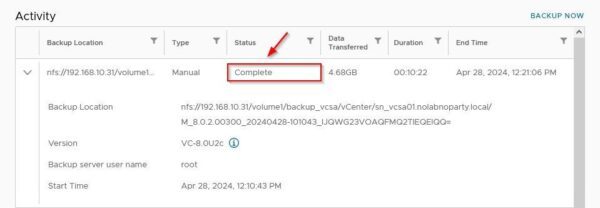
After few seconds the backup is completed successfully. All available restore points can be found under Activity.
Restore the vCenter Server
Before proceeding with the restore operation, make sure to have a valid vCenter Server backup.
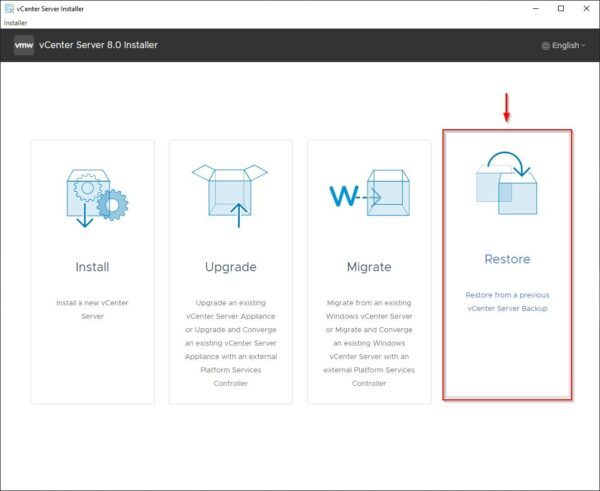
Mount the vCenter Server ISO file in your computer and double click the installer.exe file.

Select Restore to launch the restore wizard.
Stage 1 – Deploy a new appliance
From the wizard, click Next.

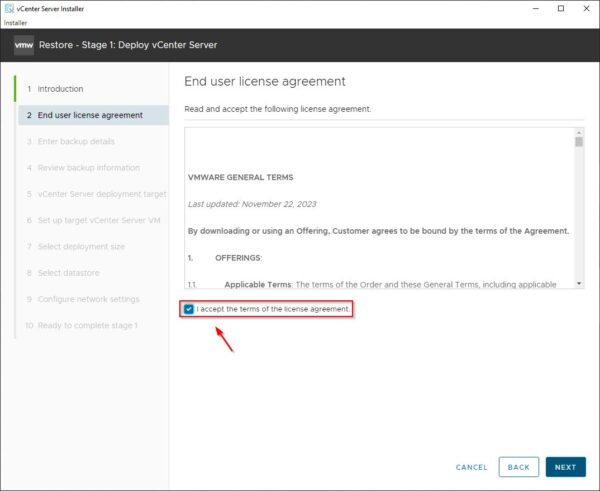
Accept the EULA and click Next.
Identify in the backup storage the path where the required JSON file is stored. This path specify the restore point to use if you have multiple backups available.

Enter the Location or IP/hostname of the backup to use using the format <Server_Address>/path/folder/subfolder and the credentials. Click Next.
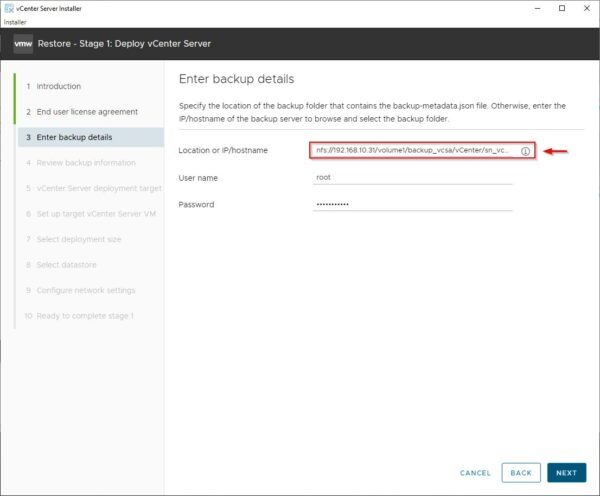
Make sure the Location or IP/hostname points to the desired restore point then click Next.

Specify FQDN or IP of the ESXi host or vCenter Server name where the new appliance should be deployed and the root/administrator credentials. Click Next.
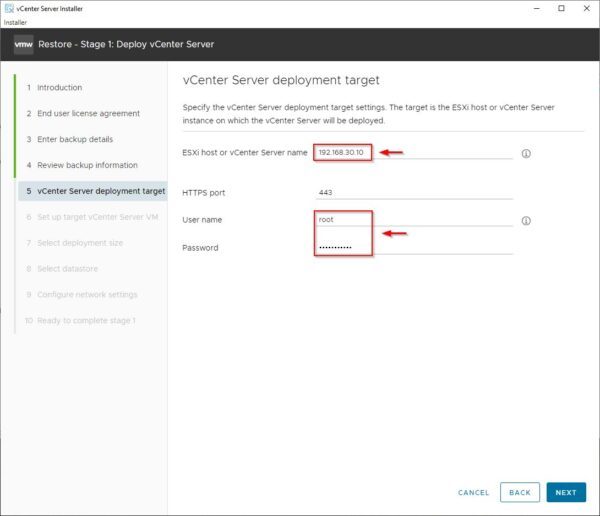
Click Yes to accept the Certificate.

Enter the VM name and the root password. Click Next.
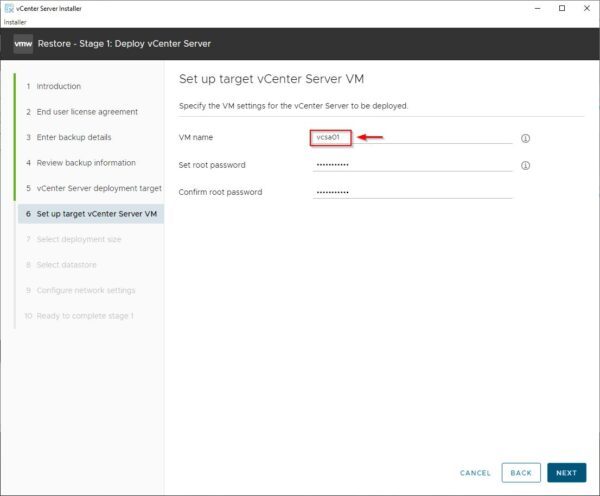
Select the appropriate Deployment size and click Next.

Select the datastore to save the new appliance and click Next.
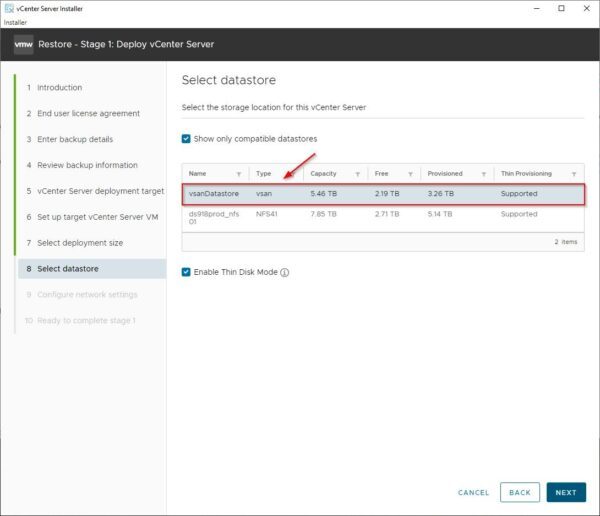
Provide the necessary network configuration settings. You must have an Ephemeral portgroup type if the ESXi host is used as deployment target. If not present, the dropdown list will be empty. Click Next when done.

Click Finish to start the deployment of the new vCenter Server.
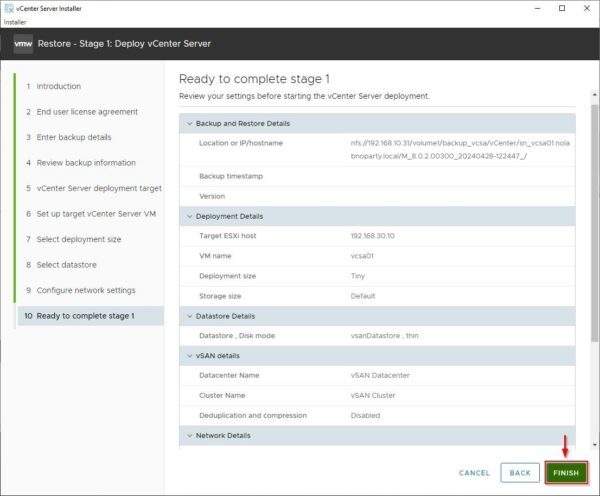
The appliance is being deployed.

When the new appliance has been deployed successfully, click Continue to proceed with Stage 2.
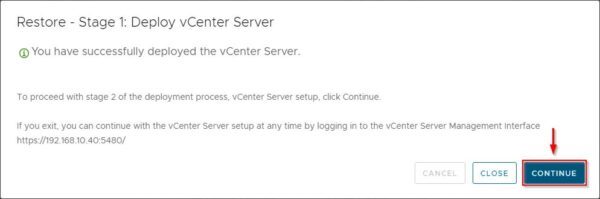
Stage 2 – Restore from backup
Click Next to execute the Restore from backup stage.

Enter the Encryption password if used during the backup then click Next.
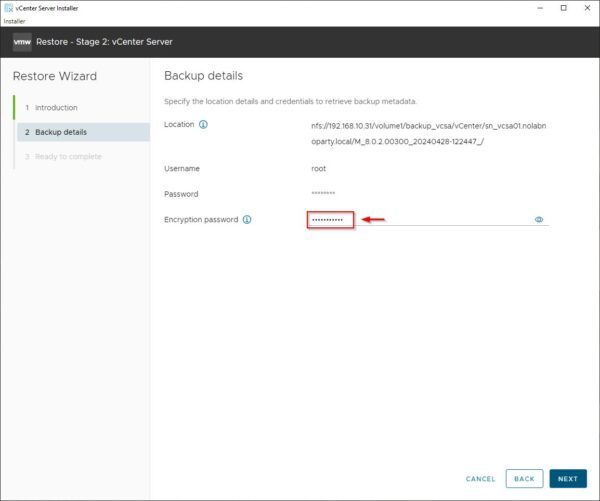
Click Finish to start the restore. Make sure the source VCSA is powered off.

Click OK to proceed.
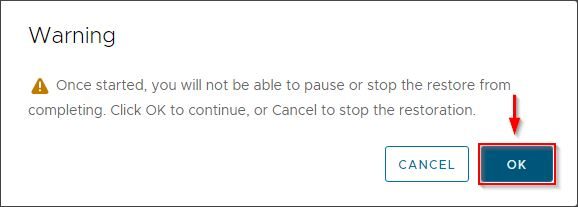
The restore process is being executed.

After few minutes the restore operation completes successfully.
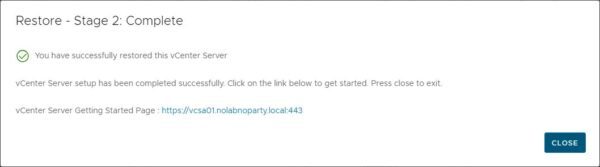
The vCenter Server is up and running again. In the example you can see the failed old VCSA.

Troubleshooting
It may happen that during the Backup details validation, the process fails with the following error
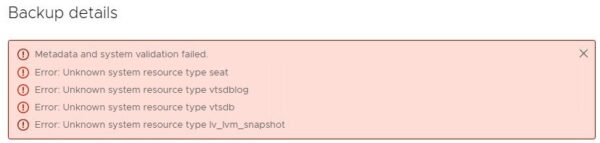
The file-level restore process heavily depends on how the new VCSA is configured compared to the old one. Make sure all disks in the old and in the new VCSA have exactly the same size.
To check the disks size, we need to SSH both old and new VCSA. Because SSH in the new VCSA is disabled, using the preferred browser enter the address https://<IP_VCSA>:5480 and select Setup instead of Restore. Click Next and select Activated from the SSH access dropdown menu.

SSH the new VCSA and run the following command to check the disks size:
# df -h
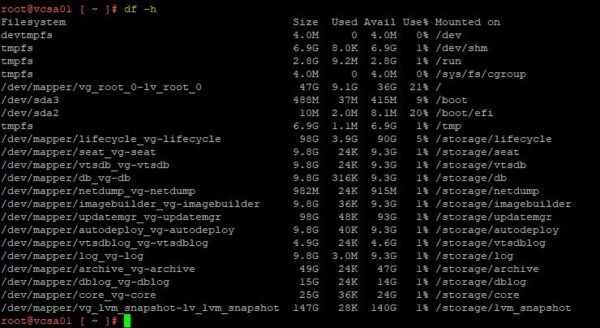
Now shutdown the new VCSA and power on the old VCSA (of course if the VCSA can be booted) and run the following command to check the disks size:
# df -h

Comparing the disks size, some disks don’t match.
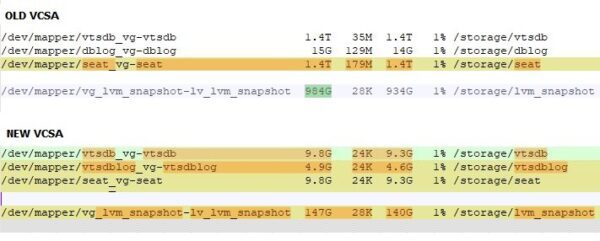
To identify the corresponding disks number, this KB provides a list of VMDKs and their respective components. The partition reported in the error message are disks 8, 14 ,15 and 17.

Select the new VCSA appliance and edit the VM settings. Change the disks size with the same values retrieved from the old VCSA then click Save.
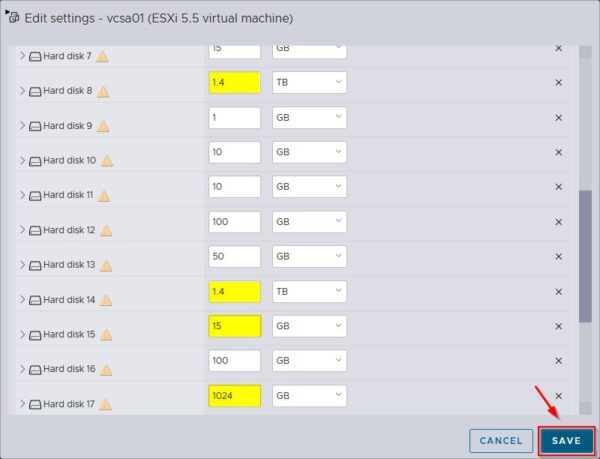
Now run the following command to increase the file system size on those disks.
# /usr/lib/applmgmt/support/scripts/autogrow.sh

Analyzing the script result, disks size have been changed to the new value.
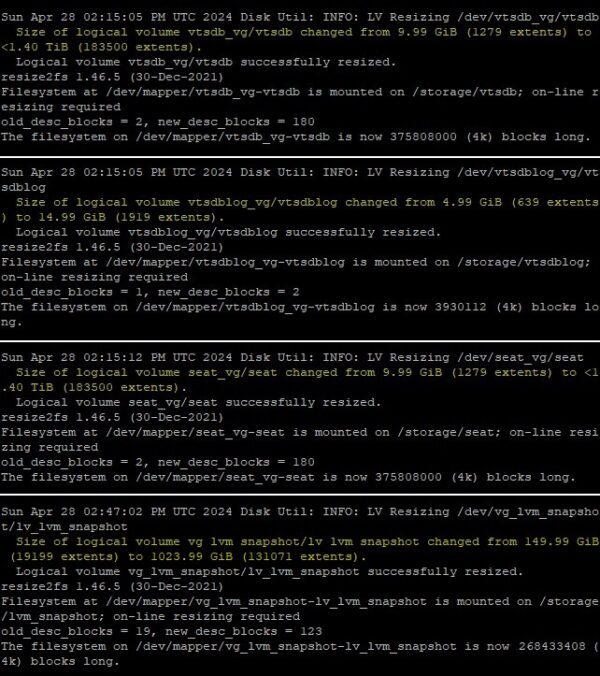
Running the Backup details validation once again, this time the check succeed.

To perform an image-level restore of the vCenter Server appliance when the vSphere infrastructure uses a Distributed Switch, the vCenter must be connected to an Ephemeral port-group type to complete the operation successfully.
add a comment


Proxmox Finally Has a Real RVTools-Style Report (This is What Was Missing)
Introduction If you spent any meaningful time in VMware environments, RVTools was likely one of the first utilities you installed...

Download Virtuozzo 9 ISO
Virtuozzo 9 is a powerful enterprise-grade virtualization and cloud platform designed for service providers, hosting companies, and enterprises. It combines...
Check Point R81.20 T634 for VMware
If you're running Check Point environments in production, staying updated with the latest Jumbo Hotfix is critical for security, performance,...

VMware Cloud Director 10.3.3 OVA Download
The VMware Cloud Director-10.3.3 appliance is a ready-to-deploy OVA package that allows users to quickly set up VMware Cloud Director...




