Physical Address
304 North Cardinal St.
Dorchester Center, MA 02124
Physical Address
304 North Cardinal St.
Dorchester Center, MA 02124

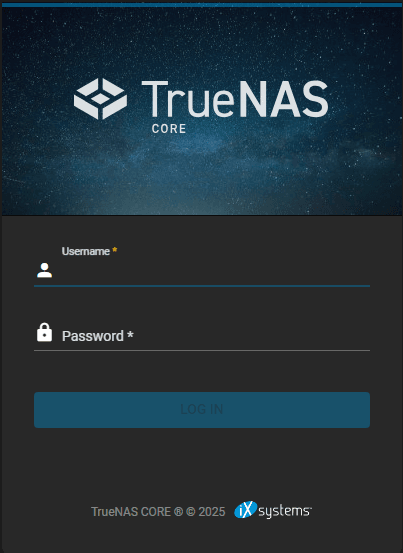
TrueNAS is an open-source network-attached storage (NAS) solution designed for data storage, management, and sharing across networks. Developed by iXsystems, it provides a robust, scalable, and cost-effective alternative to proprietary NAS solutions. TrueNAS is widely used in enterprises, small businesses, and home labs for its reliability, security, and powerful features.
ZFS (Zettabyte File System) is an advanced file system known for its robustness, data integrity, and self-healing capabilities. Unlike traditional file systems (such as NTFS, EXT4, or XFS), ZFS integrates both volume management and file system functions, reducing the risk of data corruption and enhancing performance.
TrueNAS supports multiple storage protocols, including:
TrueNAS uses bhyve (BSD Hypervisor), a lightweight virtualization technology based on FreeBSD. It enables users to create and manage Windows, Linux, and BSD virtual machines directly within the TrueNAS environment. With TrueNAS, we can create and manage VMs through a web-based GUI. Allocate CPU, RAM, and disk storage resources to VMs. Attach virtual disks and network interfaces. Run multiple guest operating systems without additional hypervisor software.
Running TrueNAS as a virtual machine on VMware ESXi 8 provides flexibility and maximizes hardware utilization. This setup allows users to consolidate workloads while leveraging TrueNAS’s powerful storage features.
We want to install this TrueNAS on VMwar ESXi. Click on the link to download VMware ESXi. Log in to your VMware ESXi Web UI. Next step is to download TrueNAS from the website. Click on the link to start download the ISO file.
Go to Virtual Machines > Create/Register VM.
Select Create a new virtual machine and click Next.
Name the VM (e.g., TrueNAS-VM).
Choose Guest OS Family: Other and Guest OS Version: FreeBSD 13 or later.
Select the datastore where the VM will be stored.

Configure the following VM settings:
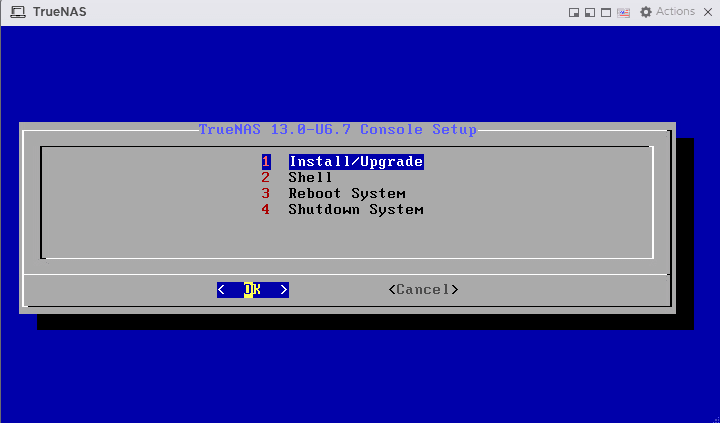
Once the VM boots, note the IP address displayed in the console. As we have installed this TrueNAS on VMware ESXi 8. we first login to ESXi. On the left side of navigational menu all VMs are listed. Click on the TrueNAS VM and check the IP address of this TrueNAS. Open a web browser and navigate to http://192.168.92.136
Log in with the root credentials.

Set up Storage Pools by adding disks.
Configure Network Settings and enable necessary services (SMB, NFS, iSCSI, etc.).
Installing TrueNAS on VMware ESXi 8 allows users to leverage a robust storage solution in a virtualized environment. Whether for home labs, business storage, or testing environments, this setup ensures efficiency, security, and high performance. By following this step-by-step guide, you can successfully deploy TrueNAS and manage your data effectively.

We have detected that you are using extensions to block ads. Please support us by disabling these ads blocker.





