




204views
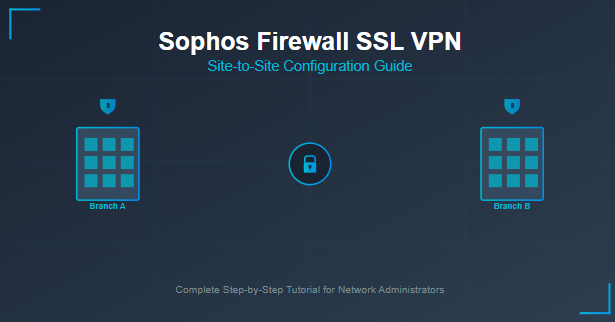
Connecting multiple branch offices securely has become essential for modern businesses. Whether you’re a network administrator managing remote locations or an IT professional looking to establish secure communication channels, understanding how to properly configure a Site-to-Site SSL VPN on Sophos Firewall is crucial. This comprehensive tutorial walks you through every step of the process, from initial setup to connection verification.
Why Choose SSL VPN for Site-to-Site Connections?
Before diving into the configuration steps, let’s understand why SSL VPN might be your preferred choice over traditional IPsec VPN solutions. SSL VPN operates over HTTPS (typically port 443), making it excellent for environments with strict firewall policies. It’s particularly useful when you need to traverse NAT devices or when IPsec protocols might be blocked by intermediate firewalls.
Key advantages of Sophos SSL VPN include:
- Easier firewall traversal using standard HTTPS ports
- No complex routing protocols required for basic setups
- Simplified certificate-based authentication
- Better compatibility with cloud-hosted environments
- Lower administrative overhead compared to IPsec in certain scenarios
Prerequisites and Planning
Before starting your configuration, ensure you have the following ready:
Required Information
For the Head Office (Server):
- Static public IP address or DDNS hostname
- Internal network subnet (e.g., 192.168.1.0/24)
- Administrative access to Sophos Firewall
- Valid SSL certificate (self-signed or CA-issued)
For the Branch Office (Client):
- Internet connectivity
- Internal network subnet (e.g., 10.5.0.0/24)
- Administrative access to Sophos Firewall
- Firewall rules allowing outbound HTTPS traffic
Network Architecture Planning
Take time to plan your network architecture. Consider which office should act as the server (typically the one with a static IP address or more powerful hardware) and which will be the client. Document your subnets carefully to avoid IP conflicts.
Step 1: Creating Host Objects for Local and Remote Networks
The first critical step involves defining the networks that will communicate through your VPN tunnel. This ensures that traffic is properly routed between locations.
Creating the Head Office Network Host
Navigate to your Sophos Firewall’s management interface on the server side:
Log into the administrative console and go to Hosts and Services > IP Host. Click Add to create a new host object. Give it a descriptive name like “HQ_LAN” or “Head_Office_Network”. Select IPv4 as the IP version and choose Network as the type. Enter your head office subnet, for example, 192.168.1.0/24. This represents the entire network that will be accessible through the VPN tunnel. Click Save to commit your changes.
Creating the Branch Office Network Host
Now create a host object for your remote branch office using the same process. Name it something like “Branch_Office_LAN” or “Remote_Site_Network”. Again, select IPv4 and Network type. Enter the branch office subnet, such as 10.5.0.0/24. Make sure this subnet doesn’t overlap with your head office network or any other networks in your organization.
These host objects are fundamental to your VPN configuration. They tell the firewall which traffic should be encrypted and sent through the tunnel versus which traffic should be routed normally.
Step 2: Configuring the SSL VPN Server (Head Office)
The head office will act as the SSL VPN server, accepting incoming connections from branch offices. This is where most of the heavy lifting happens.
Server Configuration Steps
Navigate to Site-to-Site VPN > SSL VPN in your Sophos Firewall interface. Look for the Server section and click Add to create a new server configuration. You’ll be presented with several important fields:
Give your connection a meaningful name, such as “Branch_Office_Tunnel” or “HQ_to_Remote_VPN”. This helps you identify the tunnel later when managing multiple connections. In the Local Networks field, select the host object you created earlier for your head office network (HQ_LAN). This tells the server which local resources should be accessible to the remote site.
Similarly, in the Remote Networks field, select the branch office network host object. This defines which remote networks can access your local resources through the tunnel. Enable the connection by ensuring the status is set to Active or On.
Understanding Server Settings
The server configuration automatically handles several complex tasks behind the scenes. It generates the necessary encryption keys, configures the SSL/TLS handshake parameters, and prepares the authentication mechanisms. You don’t need to manually configure encryption algorithms or key exchange protocols as Sophos uses secure defaults.
One critical step you cannot skip is downloading the server configuration file. After saving your server configuration, you’ll see a Download button in the server list. Click this button to download the configuration file with a .apc extension.
Securing the Configuration File
When downloading the configuration file, Sophos gives you the option to encrypt it with a password. This is highly recommended, especially if you’re sending the file over email or storing it on shared storage. Choose a strong password and share it securely with the person who will configure the branch office firewall.
Step 3: Configuring the SSL VPN Client (Branch Office)
With your server configured and the configuration file downloaded, you’re ready to set up the branch office side of the connection.
Client Setup Process
Log into the branch office Sophos Firewall and navigate to Site-to-Site VPN > SSL VPN. This time, you’ll work in the Client section instead of the Server section. Click Add to create a new client connection.
Provide a descriptive name for this connection, like “Connection_to_HQ” or “Main_Office_VPN”. This helps you identify the purpose of the tunnel. The most important step here is uploading the configuration file you downloaded from the server. Click Choose File and select the .apc file.
If you encrypted the file with a password during the download process, you’ll be prompted to enter that password now. Enter it carefully and proceed with the upload. Sophos will automatically extract all the necessary connection parameters from this file, including server IP address, port number, encryption settings, and authentication certificates.
Verifying Client Configuration
After uploading the file, review the automatically populated fields. You should see the server’s address, the correct port (usually 8443 for SSL VPN), and the network definitions. The local and remote network fields should match the host objects you created earlier, just from the branch office perspective.
Ensure the connection is enabled and save your configuration. The branch office firewall will now attempt to establish a connection to the head office server.
Step 4: Configuring Firewall Rules
Your VPN tunnel won’t pass any traffic without proper firewall rules. This is a critical step that many administrators overlook, leading to frustration when the tunnel appears connected but no data flows.
Creating Rules for the Head Office
On the head office firewall, navigate to Rules and Policies > Firewall Rules. Select the IPv4 protocol and click Add Firewall Rule. Choose New Firewall Rule from the options.
Configure the rule with the following parameters:
Set the Source Zone to VPN (this is where SSL VPN traffic enters the firewall). For the Source Network, select your branch office network host object. This ensures only traffic from the legitimate remote site is allowed. Set the Destination Zone to your internal zone, typically LAN. For Destination Network, select your head office network host object or specific resources you want to make accessible.
Choose the services you want to allow. For basic connectivity testing, start with Any and restrict it later based on your security requirements. Set the action to Accept and enable logging by checking Log Firewall Traffic. This helps with troubleshooting if issues arise.
Creating Rules for the Branch Office
Repeat the process on the branch office firewall, but reverse the source and destination. The source will be your local network (branch office), and the destination will be the remote network (head office) through the VPN zone.
Remember that firewall rules are evaluated in order. Place your VPN rules appropriately in the rule list to ensure they’re evaluated before any deny rules that might block the traffic.
Step 5: Establishing the VPN Connection
With both sides configured and firewall rules in place, it’s time to bring up the tunnel and verify connectivity.
Initiating the Connection
In a properly configured SSL VPN setup, the client side initiates the connection. Navigate to Site-to-Site VPN > SSL VPN on the branch office firewall. Locate your connection in the client list and check its status. If everything is configured correctly, the status should show Connected with a green indicator.
If the connection isn’t established automatically, look for a Connect button and click it to manually initiate the tunnel. The firewall will attempt to contact the server using the configuration you provided.
Understanding Connection States
During the connection process, you might see different status indicators:
Connecting means the client is attempting to reach the server and perform the SSL/TLS handshake. This usually lasts a few seconds. Connected with a green indicator means the tunnel is successfully established and ready to pass traffic. Error or red indicators suggest configuration issues that need investigation.
Step 6: Verifying Tunnel Connectivity
Simply seeing a “connected” status isn’t enough. You need to verify that traffic actually flows through the tunnel as expected.
Testing with Ping
The simplest verification method is using ping. From a computer on the branch office network, open a command prompt or terminal. Attempt to ping a device on the head office network using its IP address. For example, if you have a server at 192.168.1.100 in the head office, run:
ping 192.168.1.100If you receive replies, congratulations! Your tunnel is working correctly. If the ping times out, don’t panic yet—there are several more troubleshooting steps to try.
Checking Firewall Logs
Navigate to Log Viewer on both firewalls. Filter the logs to show traffic to and from your VPN networks. Look for allowed connections between the two sites. If you see denied traffic, review your firewall rules to ensure they’re configured correctly.
The logs will show you exactly where traffic is being blocked, making troubleshooting much easier. Pay attention to the source and destination addresses, ports, and the rule that processed the traffic.
Using Packet Capture
For deeper troubleshooting, Sophos provides a packet capture tool. Navigate to Diagnostics > Packet Capture > Configure. Set up a capture filter for your VPN traffic. A useful BPF string might look like:
host 10.5.0.10 and proto ICMPThis captures ICMP traffic (pings) from a specific host on the branch office network. Start the capture, then attempt your ping test again. The packet capture will show you whether the traffic is entering the firewall, being encrypted, sent through the tunnel, and arriving at the destination.
Advanced Configuration Options
Once your basic tunnel is working, consider implementing these advanced features for better security and performance.
Certificate-Based Authentication
Instead of relying solely on the encrypted configuration file, you can implement certificate-based authentication for enhanced security. This requires setting up a Certificate Authority (CA) or using trusted third-party certificates.
Navigate to Certificates in your Sophos Firewall and import or generate certificates for both endpoints. Then update your SSL VPN configuration to require certificate validation during the connection handshake.
Split Tunneling Considerations
By default, SSL VPN typically sends all traffic from the remote site through the tunnel. Consider whether you want to implement split tunneling, which only sends traffic destined for specific networks through the VPN while allowing other traffic to go directly to the internet.
This can improve performance by reducing the load on your head office internet connection. However, it may also reduce security if not configured carefully.
High Availability Setup
For critical connections, consider implementing a high availability setup with redundant firewalls at both locations. Sophos Firewall supports HA configurations that can maintain VPN tunnels even if one device fails.
Common Issues and Troubleshooting
Even with careful configuration, you might encounter issues. Here are solutions to the most common problems:
Tunnel Connects But No Traffic Flows
This is the most common issue.
Your host objects correctly define the local and remote networks. Firewall rules allow traffic in both directions through the VPN zone. There are no overlapping IP subnets between locations. No routing issues exist on either side that might send traffic to the wrong interface.
Check the route table on both firewalls to ensure traffic destined for the remote network is directed to the VPN tunnel.
Connection Fails to Establish
If the tunnel won’t connect at all:
Verify that the server’s public IP address or hostname is correct and reachable from the branch office. Ensure the SSL VPN port (default 8443) isn’t blocked by intermediate firewalls. Check that the server firewall allows incoming connections on the SSL VPN port. Verify that both firewalls have accurate time settings (SSL certificates are time-sensitive).
Intermittent Disconnections
If your tunnel connects but frequently drops:
Check for network stability issues at either location. Verify that no aggressive timeout settings are disconnecting idle sessions. Ensure both firewalls have sufficient resources (CPU and memory) to maintain the connection. Look for conflicting firewall rules that might be interfering with the tunnel.
Performance Issues
If the tunnel is slow:
Consider the encryption overhead—SSL VPN processing is CPU-intensive. Check the bandwidth available at both locations. Verify that no bandwidth-limiting rules are applied to VPN traffic. Monitor CPU usage on both firewalls during high traffic periods.
Security Best Practices
Maintaining a secure VPN connection goes beyond just configuration. Follow these best practices:
Regular Certificate Management
SSL certificates expire. Create a calendar reminder to renew certificates before they expire to avoid sudden connection failures. Use strong certificates from trusted CAs rather than self-signed certificates for production environments.
Access Control
Apply the principle of least privilege to your firewall rules. Don’t allow “any” traffic through the VPN unless absolutely necessary. Instead, create specific rules for the services that need to traverse the tunnel.
Regularly review and audit who has access to configure the VPN and what resources are exposed through it.
Monitoring and Logging
Enable comprehensive logging for all VPN traffic. Regularly review logs for suspicious activity or unauthorized access attempts. Set up alerts for connection failures or unusual traffic patterns.
Consider implementing additional security layers like intrusion prevention systems (IPS) to inspect traffic flowing through the VPN tunnel.
Firmware Updates
Keep your Sophos Firewalls updated with the latest firmware releases. Updates often include security patches for vulnerabilities that could be exploited to compromise your VPN connection. Schedule regular maintenance windows for applying updates.
Scaling Beyond Two Sites
As your organization grows, you might need to connect more than two locations. SSL VPN can be extended to multiple sites, though it becomes more complex.
Hub-and-Spoke Topology
In a hub-and-spoke model, all branch offices connect to a central head office. Each branch can communicate with the head office, but branches cannot communicate directly with each other (unless you implement additional routing).
Set up multiple server configurations on the head office firewall, one for each branch. Each branch configures its client connection to point to the head office. This centralizes management but can create a bottleneck at the head office.
Mesh Topology
For more complex organizations where branches need to communicate directly, consider a mesh topology. This requires more complex configuration as each site needs VPN connections to every other site.
Alternatively, consider using Sophos RED (Remote Ethernet Device) appliances or transitioning to IPsec VPN with dynamic routing protocols for large-scale deployments.
Integration with Other Services
Your Site-to-Site SSL VPN can integrate with various other network services for a more comprehensive solution.
DNS Configuration
Ensure that DNS is properly configured so devices at each site can resolve hostnames across the VPN. You might need to configure DNS forwarding or set up conditional forwarders to direct queries for the remote site’s domain to the appropriate DNS servers.
File Sharing and Collaboration
With the VPN tunnel established, users at the branch office can access file shares, databases, and other resources at the head office as if they were on the same local network. Ensure that authentication mechanisms (like Active Directory) are properly configured to work across the VPN.
VoIP and Real-Time Applications
If you’re running VoIP phones or other latency-sensitive applications across the VPN, implement Quality of Service (QoS) rules to prioritize this traffic. SSL VPN overhead can introduce latency that affects real-time communications.
Documentation and Change Management
Proper documentation is essential for maintaining your VPN infrastructure long-term.
Creating Network Diagrams
Document your VPN topology with clear network diagrams showing:
- The public and private IP addresses of all sites
- Subnet allocations for each location
- Firewall rule details
- Certificate information and expiration dates
- Contact information for administrators at each site
Maintaining a Change Log
Keep a detailed change log of all modifications to the VPN configuration. Record when changes were made, who made them, and why. This helps troubleshoot issues that arise after configuration changes and provides an audit trail for compliance purposes.
Disaster Recovery Planning
Document the steps needed to recover your VPN configuration in case of hardware failure. Keep backup copies of configuration files, certificates, and firewall backups in a secure, offsite location. Test your disaster recovery procedures periodically to ensure they work.
Performance Monitoring and Optimization
Continuously monitor your VPN performance to ensure optimal operation.
Key Metrics to Track
Monitor bandwidth utilization through the VPN tunnel. Track connection uptime and any disconnection events. Measure latency and packet loss across the tunnel. Monitor CPU and memory usage on the firewalls.
Use Sophos’s built-in reporting tools or integrate with external monitoring systems like Nagios, Zabbix, or PRTG to create dashboards showing VPN health at a glance.
Optimization Techniques
If performance becomes an issue:
Consider upgrading firewall hardware to models with better VPN throughput. Implement compression for certain types of traffic if supported. Review and optimize firewall rules to reduce processing overhead. Consider implementing caching solutions for frequently accessed resources.
Compliance Considerations
Depending on your industry, your VPN implementation may need to meet specific compliance requirements.
GDPR and Data Privacy
If you’re transferring personal data across the VPN, ensure that your encryption meets GDPR requirements. Document your data flows and maintain records of processing activities. Implement appropriate access controls and audit logging.
PCI DSS
For organizations handling credit card data, ensure your VPN configuration meets PCI DSS requirements. This typically includes using strong encryption, implementing multi-factor authentication, and maintaining detailed security logs.
HIPAA
Healthcare organizations must ensure that patient data transmitted across the VPN is properly secured. Implement encryption that meets HIPAA standards and ensure that only authorized users can access protected health information through the VPN.
Conclusion
Configuring a Site-to-Site SSL VPN on Sophos Firewall provides a secure, reliable way to connect branch offices and enable seamless communication between remote locations. By following this comprehensive guide, you’ve learned not just the basic configuration steps, but also advanced techniques, troubleshooting methods, and best practices for maintaining a secure and efficient VPN infrastructure.
Remember that network security is an ongoing process, not a one-time setup. Regularly review your configuration, update your firewalls, monitor for security threats, and adjust your setup as your organization’s needs evolve. With proper planning, implementation, and maintenance, your Sophos SSL VPN will serve as a robust foundation for your organization’s distributed network infrastructure.
add a comment

How to Setup Two-Factor Authentication For SSH In Linux
Password-only SSH authentication is one of the most common — and most dangerous — security gaps in Linux server management. Attackers armed with credential lists and automated scripts can hammer your SSH port indefinitely. If your password is the only thing standing between them and root access, your environment is one breach away from a serious incident. Two-factor authentication (2FA) via Google Authenticator eliminates that single point of failure. Even if an attacker gets your password, they still need the time-based one-time code from your phone — a six-digit number...

Palo Alto Networks VM-Series Next-Generation Firewall
The Palo Alto Networks VM-Series Next-Generation Firewall is a virtualized firewall that delivers advanced security features traditionally found in hardware...
Check Point R81.20 T634 for VMware
If you're running Check Point environments in production, staying updated with the latest Jumbo Hotfix is critical for security, performance,...

OpenVPN 2.7.1 Introduces Username-Only Authentication Option
OpenVPN, a widely used user-space VPN daemon that enables secure, encrypted tunnels over IP networks, has released version 2.7.1 as...




