
Deploy Keyboard Languages and Layouts to All Domain Computers Using Group Policy Windows Server 2025
Users who type in more than one language need the right keyboard layouts on every computer they sign in to. This guide shows how to deploy a standard set of input languages and layouts to domain computers with a Group Policy logon script that uses the Windows International PowerShell module.
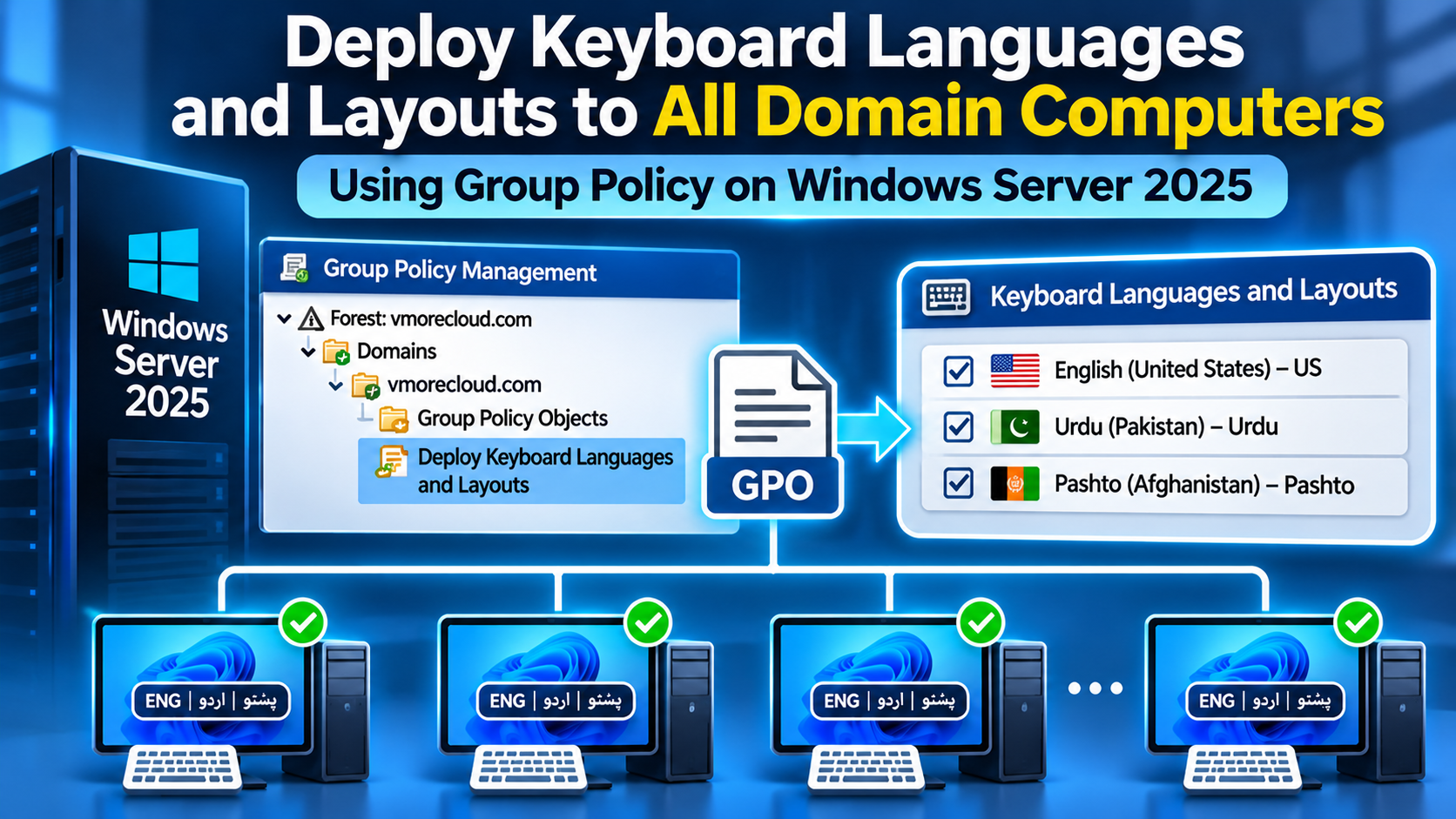
One logon script, the same keyboards everywhere
Group Policy runs a short PowerShell script at user logon. It sets the user’s language list and input methods, such as English (US) plus Urdu and Arabic keyboards, so every domain computer gives staff the layouts they need.
Layouts belong to languages
In Windows 10 and 11, a keyboard layout is attached to an input language, so you deploy both together.
Script plus GPO
A logon script using Set-WinUserLanguageList sets the list, and Group Policy delivers it to every computer.
Plan for language packs
Computers need access to Windows Update or another source to install language components.
Introduction
In a multilingual workplace, staff may need English plus another language such as Urdu or Arabic on the same keyboard. Configuring this by hand means opening Settings on every computer and adding each language and layout for each user, which does not scale and drifts over time.
Group Policy cannot deploy keyboard layouts through a single built-in checkbox on modern Windows. The practical, supported approach is to let Group Policy run a script that uses the Windows International PowerShell module to set the user’s language list and input methods. That is what this guide builds.
How It Works
| Piece | Role |
|---|---|
| Language tag | Identifies the language, such as en-US, ur-PK or ar-SA |
| Input method tip | Identifies a language plus keyboard layout in the form LANGID:KLID, such as 0409:00000409 |
Get-WinUserLanguageList / Set-WinUserLanguageList | Read and set the user’s language and input method list |
Set-WinDefaultInputMethodOverride | Sets which input method is the default |
| Group Policy logon script | Runs the PowerShell script in the user’s context at sign-in |
| Loopback processing | Lets user settings apply based on the computer, so every user on covered computers gets the policy |
Requirements
- A Windows Server 2025 domain controller (lab example:
server.vmorecloud.com) with the Group Policy Management Console - Domain Admin or equivalent rights to create GPOs and write to the NETLOGON share
- Domain-joined computers running Windows 10 or Windows 11
- Access to Windows Update, WSUS or another source for language components, since extra languages may need to be downloaded
- A test OU with one computer and one test user
Get-WinUserLanguageList on a computer set up the way you want to see the exact language tags and input method codes, then reuse them in the script.
Step 1: Choose Your Languages and Input Method Codes
Decide the final list and order. The first language is the user’s primary preferred language. Common examples:
| Language | Tag | Input method tip |
|---|---|---|
| English (United States), US keyboard | en-US | 0409:00000409 |
| Urdu (Pakistan) | ur-PK | 0420:00000420 |
| Arabic (Saudi Arabia) | ar-SA | 0401:00000401 |
To read the codes from a computer that already has the layouts you want, run this in PowerShell:
Get-WinUserLanguageList | Select-Object LanguageTag, InputMethodTipsMicrosoft also publishes a reference table of default input locales for each Windows language pack. Use it to confirm codes for any language not shown above.
Step 2: Create the PowerShell Script
Save the following as Set-KeyboardLayouts.ps1. It builds the language list, assigns one input method per language, applies it only when the current list differs, sets the default input method and writes a small log.
# Set-KeyboardLayouts.ps1 - runs at user logon through Group Policy
$wanted = @(
    @{ Tag = 'en-US'; Tip = '0409:00000409' },
    @{ Tag = 'ur-PK'; Tip = '0420:00000420' },
    @{ Tag = 'ar-SA'; Tip = '0401:00000401' }
)
$defaultTip = '0409:00000409'
$log = Join-Path $env:LOCALAPPDATA 'KeyboardLayoutGPO.log'

try {
    # Skip if the language list already matches
    $current = (Get-WinUserLanguageList).LanguageTag -join ','
    $target  = ($wanted | ForEach-Object { $_.Tag }) -join ','

    if ($current -ne $target) {
        $list = New-WinUserLanguageList -Language $wanted[0].Tag
        $list[0].InputMethodTips.Clear()
        $list[0].InputMethodTips.Add($wanted[0].Tip)

        foreach ($w in $wanted[1..($wanted.Count - 1)]) {
            $l = New-WinUserLanguageList -Language $w.Tag
            $l[0].InputMethodTips.Clear()
            $l[0].InputMethodTips.Add($w.Tip)
            $list.Add($l[0])
        }

        Set-WinUserLanguageList -LanguageList $list -Force
        Set-WinDefaultInputMethodOverride -InputTip $defaultTip
        "$(Get-Date -Format s) Applied: $target" | Add-Content $log
    } else {
        "$(Get-Date -Format s) Already set: $current" | Add-Content $log
    }
}
catch {
    "$(Get-Date -Format s) ERROR: $($_.Exception.Message)" | Add-Content $log
}Get-WinUserLanguageList and add to it instead of building a new one.
Step 3: Publish the Script to NETLOGON
Copy the script to a location every domain user can read. The NETLOGON share on the domain controller is a common choice:
\\vmorecloud.com\NETLOGON\Set-KeyboardLayouts.ps1Make sure Authenticated Users have read access, and restrict write access to administrators so nobody can alter the script.
Step 4: Create the GPO and Add the Logon Script
Open Group Policy Management, create a new GPO (for example Keyboard Layouts – Deploy) and edit it:
User Configuration → Policies → Windows Settings → Scripts (Logon/Logoff) → LogonOn the Scripts tab, click Add and enter:
- Script Name:
powershell.exe - Script Parameters:
-NoProfile -ExecutionPolicy Bypass -File "\\vmorecloud.com\NETLOGON\Set-KeyboardLayouts.ps1"
Calling powershell.exe with an explicit -ExecutionPolicy Bypass for this one script means the logon behavior does not depend on the client’s execution policy setting.
Step 5: Apply It to All Domain Computers with Loopback
The logon script is a User Configuration setting, so it normally follows the user. To apply it to every user who signs in to a set of computers, link the GPO to the OU that contains those computers and enable loopback processing in the same GPO:
Computer Configuration → Policies → Administrative Templates → System → Group Policy → Configure user Group Policy loopback processing modeSet it to Enabled and choose the mode:
- Merge: applies the user’s normal GPOs plus this one. This is usually the right choice here.
- Replace: applies only this GPO’s user settings.
Step 6: Test and Verify
On a test computer in the target OU, refresh policy and then sign out and sign back in as the test user, since a logon script runs at sign-in:
gpupdate /forceAfter signing in, check the results:
- Run
Get-WinUserLanguageListand confirm the language tags and input methods match your list. - Open Settings → Time & language → Language & region and confirm the languages and keyboards appear.
- Press
Win+Spaceto cycle between the keyboards. - Read the log file at
%LOCALAPPDATA%\KeyboardLayoutGPO.logfor the “Applied” or “Already set” entry.
To confirm the GPO applied to the user, run:
gpresult /r /scope userSome changes may only appear fully after the next sign-in, so test again after signing out and back in.
Other Methods and Where They Fit
| Method | Best for | Notes |
|---|---|---|
| GPO logon script with International cmdlets (this guide) | Domain computers that need a standard set of layouts | Runs in the user’s context and can be changed centrally |
Group Policy Preferences registry items for Keyboard Layout\Preload | Older environments | A legacy approach. Test carefully on Windows 10 and 11, because modern Windows keeps language settings in other places too |
| Group Policy Preferences Regional Options | Regional formats such as dates and numbers | Does not replace a script for deploying keyboard layouts |
| Intune or other MDM scripts | Cloud-managed devices | Same cmdlets, delivered as a script; may need system and user context |
| Imaging or unattended setup | New builds | Sets defaults at deployment but does not fix existing computers |
Troubleshooting
The script does not run
Check the path, that Authenticated Users can read NETLOGON, and that the GPO is linked to the right OU. Look at gpresult /r /scope user and sign out and in again.
Nothing changes for users
If you linked the GPO to a computer OU, loopback processing must be enabled. Otherwise link it to the user OU.
A language fails to install
Language components may need Windows Update, WSUS content or another source. Offline computers cannot download them, so plan how language packs reach those machines.
Duplicate or extra keyboards appear
Windows can add keyboards automatically when a language is added. The script clears and sets the input methods per language to control that. Review the language list in the script.
Users change it back
The script runs at each logon and corrects the list. If you want users to keep their own changes, run it only once by recording a marker value and skipping when it exists.
Check the log
The script writes to %LOCALAPPDATA%\KeyboardLayoutGPO.log. An error entry shows the exception message.
Best Practices
- Pilot on a test OU before domain-wide deployment
- Keep the script in a protected location with write access limited to administrators
- Use a dedicated GPO so you can disable or change it without affecting other policies
- Decide whether the script should enforce the list every logon or run once
- Test on both Windows 10 and Windows 11 if you support both
- Document the list of languages and why each is included
- Make sure language components are available through Windows Update or WSUS
Frequently Asked Questions
Can Group Policy deploy keyboard layouts without a script?
Not through a single dedicated setting on modern Windows. The practical approach is a Group Policy logon script that uses the International PowerShell cmdlets.
What is an input method tip?
A code in the form LANGID:KLID that identifies a language and keyboard layout, such as 0409:00000409 for English (US) with the US keyboard.
How do I find the code for a keyboard layout?
Run Get-WinUserLanguageList on a computer that has it, or check Microsoft’s table of default input locales for Windows language packs.
Why use loopback processing?
A logon script is a user setting. Loopback lets it apply to everyone who signs in to the computers in the OU you linked the GPO to.
Do users need to sign out?
The script runs at logon, so users get the layouts when they sign in. Some changes may need another sign-in to appear fully.
Will this change the Windows display language?
It sets the language list and input methods. Because the first language in the list is the preferred language, check the display language behavior on your Windows build in a test before rollout.
Conclusion
Want more Group Policy tutorials?
Explore practical Windows Server, Active Directory and Group Policy guides on VMoreCloud.
Explore more tutorials →Sources & Further Reading
- MSEndpointMgr: Managing Windows 11 languages and region settings, Part 2 (keyboard layout)
- MSEndpointMgr: Managing Windows 11 languages and region settings
- Microsoft Learn: Default input locales for Windows language packs
- TechNet Wiki archive: How to set the keyboard layout through Group Policy (legacy Preload method)

Technical note: Steps were written for a Windows Server 2025 domain controller managing Windows 10 and 11 clients. Behavior of language cmdlets can vary between Windows builds, so test on a reference computer and a pilot OU before wide deployment.