
Create a Tool to Remotely Force Group Policy Updates on All Domain Computers on Windows Server 2025
After you change a GPO, you usually do not want to wait for the normal refresh cycle. This guide builds a small PowerShell GUI tool that lists your domain computers, checks which ones are online and schedules a Group Policy update on the ones you select, with a results log you can export.
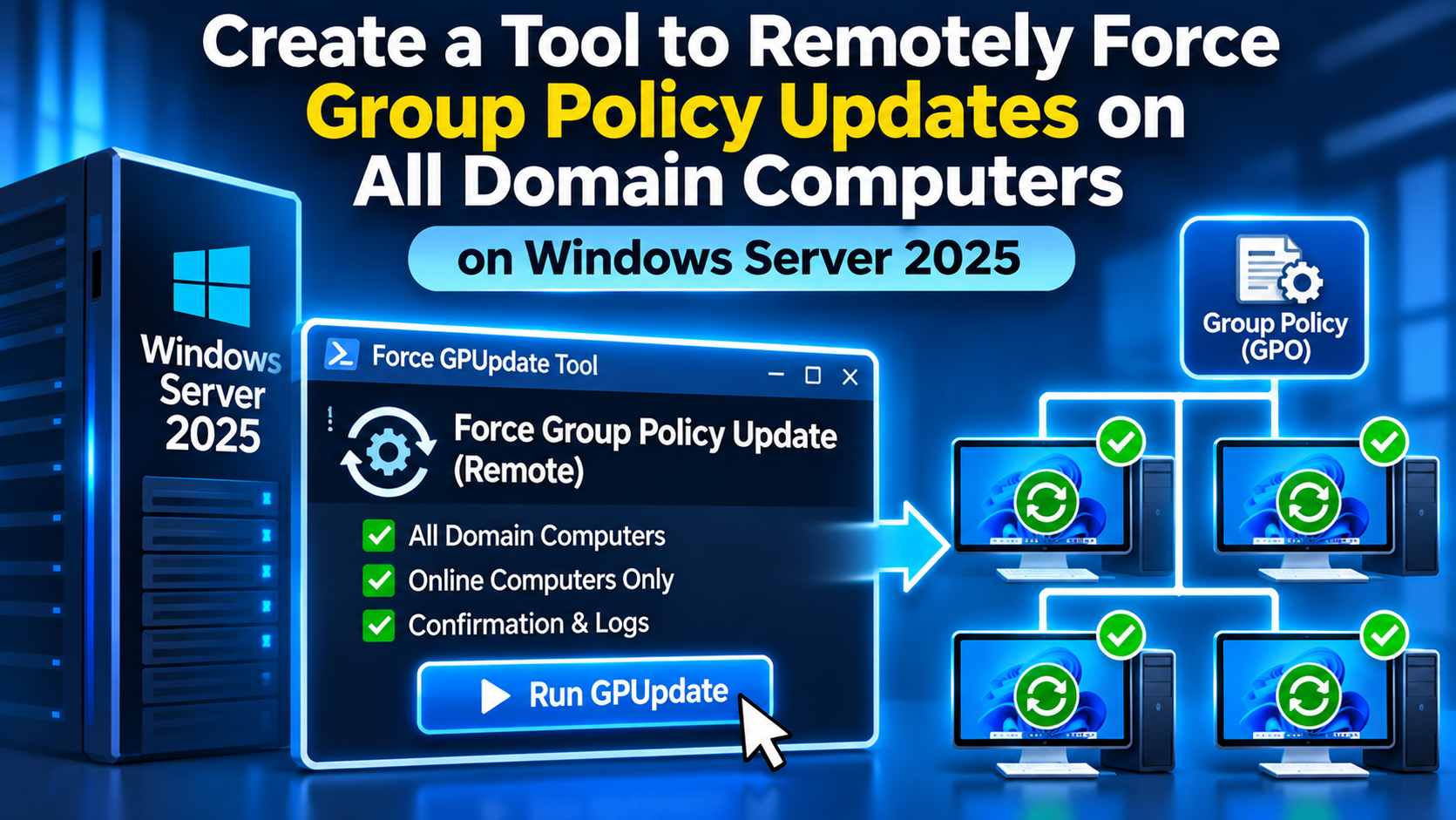
Refresh Group Policy across the domain from one window
The tool reads computers from Active Directory, pings them, and calls Invoke-GPUpdate for each one you choose. It reports Scheduled, Failed or Skipped per computer, so you can see exactly where a refresh did not go through.
It schedules, not waits
Invoke-GPUpdate schedules a gpupdate task on the remote computer, so “Scheduled” means the request was accepted.
Open the firewall first
Clients need the Remote Scheduled Tasks Management and WMI inbound rules enabled.
Control the load
For many computers, use the random delay so they do not all hit your domain controllers at once.
Introduction
Group Policy normally refreshes on its own schedule, so a new setting can take a while to reach every computer. When you are testing a GPO, fixing a problem or rolling out something urgent, you want to push the refresh now instead of walking to each machine and running gpupdate /force.
PowerShell’s Invoke-GPUpdate cmdlet does this remotely. This guide wraps it in a simple Windows Forms tool so that you can load computers from Active Directory, filter them, check who is online and run the update with a few clicks.
server.vmorecloud.com, load all enabled computers, select the online ones and click Force GPUpdate. The log shows which computers accepted the request and which did not.
How Remote Group Policy Refresh Works
| Piece | Detail |
|---|---|
Invoke-GPUpdate | Part of the GroupPolicy PowerShell module. It schedules the gpupdate command on a remote computer |
| Scheduled task | The cmdlet creates a task on the remote computer that runs the refresh, so it does not return policy results itself |
| Random delay | By default the refresh starts after a random delay of up to about 10 minutes to protect the network. -RandomDelayInMinutes 0 runs it as soon as the task is scheduled |
-Force | Reapplies all policy settings instead of only the ones that changed |
-Target | Refresh only Computer or only User policy. Leave it out to refresh both |
| Client firewall | Remote Scheduled Tasks Management (RPC), (RPC-ERMAP) and Windows Management Instrumentation (WMI-In) must be allowed |
gpupdate. It does not prove that every policy applied successfully. Use the verification step to confirm results.
Requirements
- A Windows Server 2025 domain controller or management server (lab example:
server.vmorecloud.com) - The Group Policy Management feature and the Active Directory PowerShell module installed
- A domain account that is a local administrator on the target computers (Domain Admins is local administrator on domain-joined computers by default)
- Client computers running Windows Vista or later, since earlier systems are not supported by the cmdlet
- The firewall rules listed above enabled on the clients
- Windows PowerShell 5.1 to run the Windows Forms tool
Step 1: Install the Required Tools
On Windows Server 2025, install the Group Policy Management feature and the Active Directory module for PowerShell:
Install-WindowsFeature -Name GPMC, RSAT-AD-PowerShellIf you plan to run the tool from a Windows 10 or 11 admin workstation instead, install the matching RSAT capabilities:
Add-WindowsCapability -Online -Name Rsat.GroupPolicy.Management.Tools~~~~0.0.1.0
Add-WindowsCapability -Online -Name Rsat.ActiveDirectory.DS-LDS.Tools~~~~0.0.1.0
Confirm the cmdlet is available:
Get-Command Invoke-GPUpdateStep 2: Open the Firewall on Client Computers
Remote refresh fails with an RPC error if the client’s firewall blocks the connection. Allow the required inbound rules with a GPO that you link to your computers:
Computer Configuration → Policies → Windows Settings → Security Settings → Windows Defender Firewall with Advanced Security → Inbound Rules → New Rule → Predefined- Create a predefined rule for Remote Scheduled Tasks Management
- Create a predefined rule for Windows Management Instrumentation (WMI)
- Scope the rules to the Domain profile and, if possible, to your management server addresses
To test on a single computer first, you can enable the rule groups locally from an elevated PowerShell prompt:
Enable-NetFirewallRule -DisplayGroup "Remote Scheduled Tasks Management"
Enable-NetFirewallRule -DisplayGroup "Windows Management Instrumentation (WMI)"Step 3: Save the Tool Script
Save the following script as GPUpdate-Tool.ps1, for example in C:\Tools. The script builds the window, loads computers from Active Directory, checks them with a ping and calls Invoke-GPUpdate for the ones you choose.
__SCRIPT__-Boot or -LogOff switches, so it will not restart computers or sign users out.
Step 4: Run the Tool
Open Windows PowerShell as the account that has administrator rights on the target computers and run:
powershell.exe -ExecutionPolicy Bypass -File C:\Tools\GPUpdate-Tool.ps1If you start it with a different account, use “Run as different user” or Start-Process with -Credential, because the remote calls use the identity that launched the tool.
Step 5: Use the Tool
- Load Computers. The search base defaults to your domain. Enter an OU distinguished name, such as
OU=Workstations,DC=vmorecloud,DC=com, to limit the list. - Filter if needed. Type part of a computer name to narrow the list.
- Check Online. The tool pings each visible computer and marks it Online or Offline.
- Select computers. Use Select All, Select Online or tick individual computers.
- Choose options. Refresh Computer, User or both, Force on or off, and run immediately or with a random delay.
- Force GPUpdate. Confirm the prompt. Each row updates to Scheduled, Failed or Skipped, and the log records the details.
- Export Results. Save the status list as a CSV file for your records.
| Status | Meaning |
|---|---|
| Online / Offline | Result of the ping check |
| Scheduled | The remote computer accepted the Group Policy refresh task |
| Failed | The call returned an error. See the log for the message |
| Skipped (offline) | The computer was marked Offline and the skip option was on |
Step 6: Verify the Refresh
To confirm a computer actually applied policy, check it directly. On the client:
gpresult /rLook at the last-applied time and the list of applied GPOs. You can also read the Group Policy operational log, locally or remotely, if the remote event log firewall rule is enabled:
Get-WinEvent -ComputerName PC01 -LogName 'Microsoft-Windows-GroupPolicy/Operational' -MaxEvents 10 |
    Select-Object TimeCreated, Id, Message
Remember that with the default random delay, the refresh can start several minutes after the task is scheduled, so wait before you check.
Command-Line Alternative
If you only need a quick refresh and do not want a window, the same cmdlet works in a short script. This schedules an immediate forced refresh on every enabled domain computer that is not a domain controller:
Get-ADComputer -Filter 'Enabled -eq $true' -Properties PrimaryGroupID |
    Where-Object { $_.PrimaryGroupID -ne 516 } |
    ForEach-Object {
        try {
            Invoke-GPUpdate -Computer $_.Name -RandomDelayInMinutes 0 -Force -ErrorAction Stop
            "OK    $($_.Name)"
        } catch {
            "FAIL  $($_.Name) : $($_.Exception.Message)"
        }
    }
You can also use Group Policy Management on the server. Right-click an OU and choose Group Policy Update to push a refresh to the computers in that OU.
Troubleshooting
“The remote procedure call was canceled” (8007071a)
The computer is off, unreachable or its firewall blocks the connection. Check power, network and the firewall rules from Step 2.
Access denied
The account you launched the tool with is not a local administrator on the target. Run the tool as an account that has administrator rights on the clients.
Invoke-GPUpdate is not recognized
Install the Group Policy Management feature or RSAT tools from Step 1 and reopen PowerShell.
The list is empty
Check the search base, and that the Enabled-only option is not hiding what you expect. Confirm the Active Directory module works with Get-ADComputer -Filter *.
Scheduled but nothing changed
The refresh may still be waiting on the random delay, or policy did not apply. Wait, then run gpresult /r on the client and check the GPO scope and security filtering.
The window freezes briefly
The tool processes computers one at a time, and an unreachable computer can take a while to time out. Use Check Online first and keep the skip option on.
Best Practices
- Test on a small OU before running against the whole domain
- Keep the random delay on for large batches to protect the domain controllers
- Run the tool only from a secured admin server or workstation
- Use a dedicated admin account and keep an export of the results
- Verify results with
gpresultor the Group Policy event log, not only the Scheduled status - Leave offline computers for later, since they refresh when they next connect
- Store the script in a protected folder and review changes to it
Comparison of Methods
| Method | Best for | Notes |
|---|---|---|
| This GUI tool | Choosing computers visually and keeping a log | Uses Invoke-GPUpdate; needs RSAT and firewall rules |
| Invoke-GPUpdate in a script | Automation and scheduled tasks | Same requirements; no interface |
| Group Policy Management, right-click OU | Quick refresh of one OU | Built in; less control and no exportable log |
gpupdate /force through PowerShell remoting or PsExec | Single computers or environments that already use remoting | Runs in a remote session; needs WinRM or PsExec |
| Wait for the normal refresh | Non-urgent changes | No effort, but not immediate |
Frequently Asked Questions
Which cmdlet forces a remote Group Policy update?
Invoke-GPUpdate, from the GroupPolicy module. It schedules gpupdate on the remote computer.
Why does the update not run immediately?
By default Invoke-GPUpdate adds a random delay of up to about 10 minutes. Use -RandomDelayInMinutes 0 to run as soon as the task is scheduled. The tool has a “Run immediately” option for this.
Which firewall rules do the clients need?
Remote Scheduled Tasks Management (RPC), Remote Scheduled Tasks Management (RPC-ERMAP) and Windows Management Instrumentation (WMI-In).
Does it work on offline computers?
No. An offline computer cannot receive the request. It will refresh the next time it connects to the domain.
Will this restart or sign out users?
Not in this tool. It does not use the -Boot or -LogOff switches.
Can I limit it to one OU?
Yes. Enter the OU’s distinguished name as the search base before you click Load Computers.
Conclusion
Want more Group Policy tutorials?
Explore practical Windows Server, Active Directory and Group Policy guides on VMoreCloud.
Explore more tutorials →Sources & Further Reading

Technical note: The tool was written for a Windows Server 2025 domain controller or management server managing Windows clients. Test it on a small group of computers first, and confirm cmdlet behavior against Microsoft’s documentation for your Windows version.