Physical Address
304 North Cardinal St.
Dorchester Center, MA 02124
Physical Address
304 North Cardinal St.
Dorchester Center, MA 02124

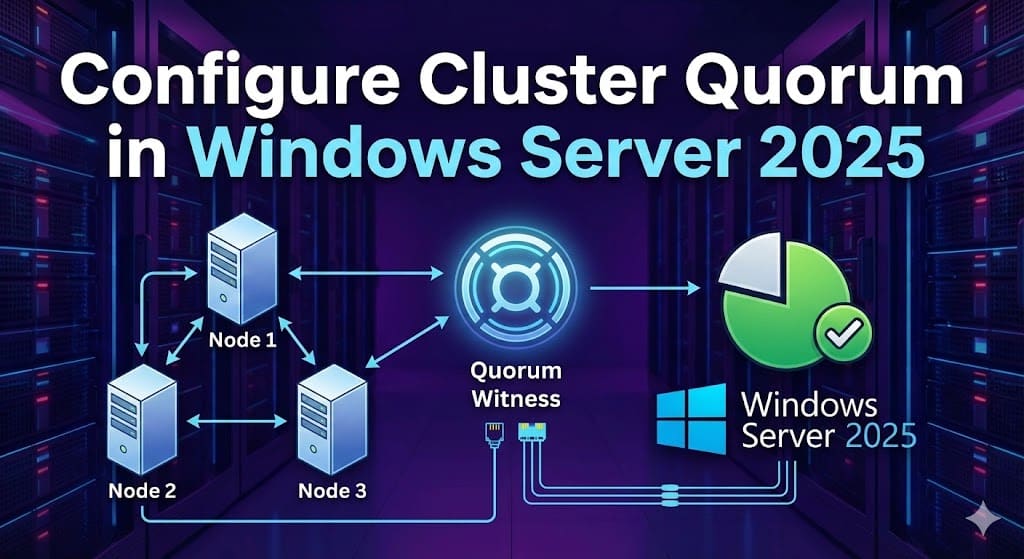
Cluster quorum configuration represents one of the most critical architectural decisions in Windows Server 2025 failover clustering deployments. This comprehensive guide delivers expert-level instruction on configuring all three witness types—cloud witness (Azure Storage), disk witness (shared storage), and file share witness (SMB)—complete with PowerShell automation, troubleshooting procedures, and production-tested best practices.
Whether you’re implementing a two-node Hyper-V cluster, a multi-site stretched cluster, or a Storage Spaces Direct deployment, proper quorum configuration prevents split-brain scenarios that could cause catastrophic data corruption. This tutorial equips IT professionals with the knowledge to design, implement, and maintain highly available Windows Server 2025 clusters that deliver genuine business value through maximized uptime.

In Windows Server failover clustering, quorum is a voting mechanism that determines how many failures a cluster can sustain while remaining operational. Each node in the cluster receives one vote, and the quorum witness (if configured) provides an additional vote. For the cluster to continue running, more than half of the total votes must be available—calculated as floor(TotalVotes / 2) + 1.
This majority-based voting system prevents “split-brain” scenarios where isolated cluster partitions each believe they represent the authoritative cluster state. Without proper quorum, such scenarios could lead to data corruption when multiple partitions simultaneously attempt to modify the same resources.
Consider these examples:
3-node cluster (no witness)
4-node cluster with witness
2-node cluster with witness
For clusters with even numbers of nodes, configuring a witness is recommended to avoid tie scenarios during failures. The witness provides the deciding vote that enables one partition to achieve majority while the other shuts down gracefully.
Without a witness, a two-node cluster losing one node would have only 1 of 2 votes (50%), failing to meet the >50% requirement. Adding a witness creates 3 total votes, allowing the surviving node plus witness (2 of 3 votes, 67%) to maintain quorum.
Windows Server 2025 supports three witness implementations, each optimized for specific deployment scenarios.
Cloud witness uses Azure Blob Storage to store a small blob file that acts as the quorum witness, eliminating the need for a third physical datacenter.
Advantages:
Best For:
Requirements:
A disk witness uses a small shared disk accessible by all cluster nodes to maintain cluster configuration information.
Advantages:
Best For:
Requirements:
A file share witness uses an SMB file share hosted on a separate server to maintain cluster information in a log file.
Advantages:
Best For:
Requirements:
Operating System:
Network Requirements:
Active Directory (domain-joined clusters):
For 2-node clusters: Witness is essential—without it, losing one node causes cluster failure.
For odd-numbered clusters (3, 5, 7): Node Majority without witness works well, but adding a witness provides one additional failure tolerance.
For even-numbered clusters (4, 6, 8): Configure a witness to maintain an odd total vote count and avoid tie scenarios.
Geographic considerations:
Cloud witness requires an Azure Storage account where the cluster writes configuration information.
Using Azure Portal:
Using PowerShell:
powershell
# Connect to Azure
Connect-AzAccount

# Define variables
$resourceGroupName = "ClusterWitness-RG"
$location = "East US"
$storageAccountName = "cluster01witness2025"

# Create storage account
New-AzStorageAccount `
    -ResourceGroupName $resourceGroupName `
    -Name $storageAccountName `
    -Location $location `
    -SkuName Standard_LRS `
-Kind StorageV2In the Azure Portal:
Using Failover Cluster Manager:
Using PowerShell:
powershell
# Configure cloud witness
$clusterName = "CLUSTER01"
$storageAccountName = "cluster01witness2025"
$storageAccountKey = "PASTE_YOUR_PRIMARY_KEY_HERE"

Set-ClusterQuorum -Cluster $clusterName `
    -CloudWitness `
    -AccountName $storageAccountName `
    -AccessKey $storageAccountKey

# Verify configuration
Get-ClusterQuorum -Cluster $clusterName
Expected output:
Cluster        : CLUSTER01
QuorumResource : Cloud Witness
QuorumType : NodeAndCloudMajoritypowershell
# Check witness resource status
Get-ClusterResource | Where-Object {$_.ResourceType -eq "Cloud Witness"}

# Verify blob creation in Azure Portal
# Navigate to storage account → Containers → msft-cloud-witness

# Test connectivity
Test-NetConnection -ComputerName "$storageAccountName.blob.core.windows.net" -Port 443Requirements:
For Azure Shared Disks:
Initialize disk (one node):
powershell
# List new disks
Get-Disk | Where-Object {$_.PartitionStyle -eq "RAW"}

# Initialize and format
$disk = Get-Disk -Number 2  # Replace with actual disk number
Initialize-Disk -Number $disk.Number -PartitionStyle GPT
New-Partition -DiskNumber $disk.Number -UseMaximumSize -AssignDriveLetter
Format-Volume -DriveLetter E -FileSystem NTFS -NewFileSystemLabel "WitnessDisk"Using Failover Cluster Manager:
Using PowerShell:
powershell
# Add disk to cluster
Get-ClusterAvailableDisk | Where-Object {$_.Size -eq 1GB} | Add-ClusterDisk

# Rename
Get-ClusterResource | Where-Object {$_.ResourceType -eq "Physical Disk"} |
Rename-ClusterResource -NewName "Witness Disk"Using Failover Cluster Manager:
Using PowerShell:
powershell
# Configure disk witness
Set-ClusterQuorum -NodeAndDiskMajority "Witness Disk"

# Verify
Get-ClusterQuorumWindows Server 2025 has a known timing issue where gracefully shutting down the node owning the disk witness can cause quorum loss in two-node clusters.
Workaround:
powershell
# Before restarting node owning cluster group
Move-ClusterGroup -Name "Cluster Group" -Node "NODE02"

# Now safe to restart NODE01
Restart-Computer -ComputerName "NODE01"
Alternative: Switch to cloud witness if internet connectivity is available.
On file share server:
powershell
# Create folder
$witnessPath = "C:\ClusterWitness"
New-Item -Path $witnessPath -ItemType Directory

# Create SMB share
$shareName = "FSW-Cluster01"
$clusterCNO = "DOMAIN\Cluster01$"

New-SmbShare -Name $shareName `
    -Path $witnessPath `
    -FullAccess $clusterCNO

# Configure NTFS permissions
$acl = Get-Acl -Path $witnessPath
$identity = New-Object System.Security.Principal.NTAccount($clusterCNO)
$accessRule = New-Object System.Security.AccessControl.FileSystemAccessRule(
    $identity, "FullControl", "ContainerInherit,ObjectInherit", "None", "Allow"
)
$acl.AddAccessRule($accessRule)
Set-Acl -Path $witnessPath -AclObject $aclUsing Failover Cluster Manager:
\\FileServer01\FSW-Cluster01Using PowerShell:
powershell
# Configure file share witness
$fileSharePath = "\\FileServer01\FSW-Cluster01"
Set-ClusterQuorum -NodeAndFileShareMajority $fileSharePath

# Verify
Get-ClusterQuorumFor workgroup clusters or non-domain file servers:
powershell
# Create local account on file server
$username = "ClusterWitness"
$password = ConvertTo-SecureString "P@ssw0rd!Complex" -AsPlainText -Force
New-LocalUser -Name $username -Password $password -PasswordNeverExpires

# Create share with local account permissions
New-SmbShare -Name "FSW-Cluster01" -Path "C:\ClusterWitness" -FullAccess $username

# On cluster, configure with credentials
Set-ClusterQuorum -FileShareWitness "\\FileServer01\FSW-Cluster01" `
    -Credential (Get-Credential)
# When prompted, enter the local account credentialsDynamic Quorum automatically adjusts node votes to preserve majority during sequential failures, enabling “last man standing” behavior.
When enabled (default), Windows Server 2025:
Dynamic Witness automatically adjusts whether the witness has a vote based on whether there’s an even or odd number of voting nodes.
Logic:
Example (4-node cluster with witness):
powershell
# Check Dynamic Quorum and Dynamic Witness status
Get-Cluster | Format-List *Dynamic*

# Should show:
# DynamicQuorum : 1 (enabled)
# DynamicWitness : 1 (enabled)

# View per-node vote status
Get-ClusterNode | Format-Table NodeName, State, DynamicWeight, NodeWeightFor specific scenarios (e.g., DR site nodes):
powershell
# Disable vote on DR node
(Get-ClusterNode -Name "NODE-DR").NodeWeight = 0

# Re-enable vote
(Get-ClusterNode -Name "NODE-DR").NodeWeight = 1powershell
# Display quorum configuration
Get-ClusterQuorum | Format-List

# Check witness resource status
Get-ClusterResource | Where-Object {$_.ResourceType -like "*Witness*"} |
    Format-List Name, State, ResourceType

# Verify node votes
Get-ClusterNode | Format-Table NodeName, State, DynamicWeight, NodeWeight

# Calculate current votes
$activeVotes = (Get-ClusterNode | Where-Object {$_.State -eq "Up" -and $_.DynamicWeight -eq 1}).Count
$witnessVote = (Get-ClusterResource | Where-Object {$_.ResourceType -like "*Witness*" -and $_.State -eq "Online"}).Count
$totalVotes = $activeVotes + $witnessVote
$requiredVotes = [Math]::Floor($totalVotes / 2) + 1

Write-Host "Active votes: $activeVotes"
Write-Host "Witness vote: $witnessVote"
Write-Host "Total votes: $totalVotes"
Write-Host "Required for quorum: $requiredVotes"powershell
# Test single node failure
$testNode = "NODE02"
Suspend-ClusterNode -Name $testNode
Start-Sleep -Seconds 10

# Verify cluster remains online
Get-Cluster | Format-List State  # Should show "Up"

# Resume node
Resume-ClusterNode -Name $testNodepowershell
function Test-ClusterQuorumHealth {
    $issues = @()
    $cluster = Get-Cluster

    # Check cluster state
    if ($cluster.State -ne "Up") {
        $issues += "CRITICAL: Cluster state is $($cluster.State)"
    }

    # Check witness
    $witness = Get-ClusterResource | Where-Object {$_.ResourceType -like "*Witness*"}
    if ($witness -and $witness.State -ne "Online") {
        $issues += "WARNING: Witness is $($witness.State)"
    }

    # Check votes
    $activeVotes = (Get-ClusterNode | Where-Object {$_.State -eq "Up" -and $_.DynamicWeight -eq 1}).Count
    $witnessVote = if ($witness -and $witness.State -eq "Online") {1} else {0}
    $totalVotes = $activeVotes + $witnessVote
    $required = [Math]::Floor($totalVotes / 2) + 1

    if ($activeVotes -le $required) {
        $issues += "CRITICAL: Only $activeVotes votes available, $required required"
    }

    # Display results
    if ($issues.Count -eq 0) {
        Write-Host "OK: Cluster quorum is healthy" -ForegroundColor Green
    } else {
        Write-Host "ISSUES DETECTED:" -ForegroundColor Red
        $issues | ForEach-Object { Write-Host "  $_" -ForegroundColor Yellow }
    }
}

# Run check
Test-ClusterQuorumHealthpowershell
# Query quorum-related events
$eventIDs = @(1564, 1569, 1570, 1177, 1135)

Get-WinEvent -FilterHashtable @{
    LogName = 'Microsoft-Windows-FailoverClustering/Operational'
    ID = $eventIDs
    StartTime = (Get-Date).AddHours(-24)
} | Format-Table TimeCreated, Id, Message -WrapProper cluster quorum configuration is fundamental to achieving true high availability in Windows Server 2025 environments. This comprehensive guide has equipped you with expert knowledge spanning foundational concepts, detailed configuration procedures for all three witness types, advanced troubleshooting techniques, and production-tested best practices.

We have detected that you are using extensions to block ads. Please support us by disabling these ads blocker.





