



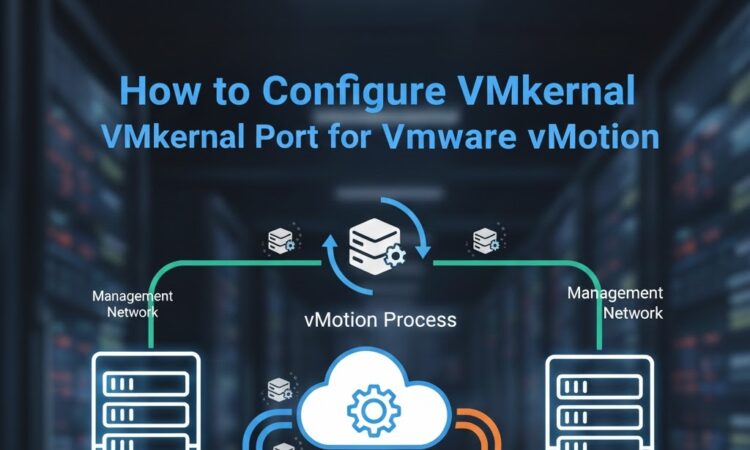
How to Configure VMkernel Port for VMware vMotion
365views
Virtualization has become the core of modern datacenters, and VMware vSphere remains the industry leader for enterprise-grade virtualization management. One of the most powerful and widely used features in the VMware ecosystem is vMotion—a technology that allows you to migrate running virtual machines between ESXi hosts without shutting them down, ensuring zero service interruption.
To make vMotion work, the ESXi host requires a specialized network interface known as a VMkernel port. A VMkernel port—also called a VMkernel adapter—is responsible for handling critical ESXi system services such as vMotion, Fault Tolerance logging, vSAN, NFS/iSCSI storage, and more. Unlike standard port groups that handle VM traffic, the VMkernel port enables ESXi hosts to communicate using system-level protocols.
In this guide, you’ll learn how to configure a VMkernel port specifically for VMware vMotion on your ESXi host with the IP 192.168.91.128. Whether you’re running a home lab, preparing for VMware certifications, or deploying a production environment, this step-by-step tutorial give you clear instructions, best practices.
By the end of this guide, you’ll understand:
✔ Why a VMkernel port is essential for vMotion
✔ How vMotion transfers a running VM between hosts
✔ Recommended network designs for high-performance vMotion
✔ How to configure the VMkernel adapter for seamless migrations
What Is a VMkernel Port?
A VMkernel port (also known as VMkernel network adapter) is a logical interface on ESXi that handles:
- vMotion
- NFS/iSCSI storage
- Fault Tolerance
- vSAN
- Management traffic (optional)
For vMotion specifically, ESXi uses the VMkernel interface to transfer running VM memory and CPU states from one host to another.
Prerequisites
Before configuring vMotion, ensure you have:
ESXi Host Requirements
Same or Compatible ESXi Versions
- Both hosts must run compatible VMware ESXi versions (preferably identical).
- Both must be connected to the same vCenter Server instance.
Shared Storage (Recommended for Classic vMotion)
- Both hosts must have access to the same shared datastore:
- NFS
- iSCSI
- Fibre Channel SAN
- vSAN
- The datastore must be mounted on both hosts.
CPU Compatibility
- Hosts must use same CPU vendor (Intel → Intel, AMD → AMD).
- CPU features should match (EVC recommended for mixed generations).
- Cross-vendor migration (Intel ↔ AMD) is not supported.
VM Requirements
Virtual machines must:
- Be powered on
- Not use unsupported devices such as:
- Local ISO files mounted from a host
- USB passthrough
- Non-supported RDMs
Step 1: Login to ESXi Host
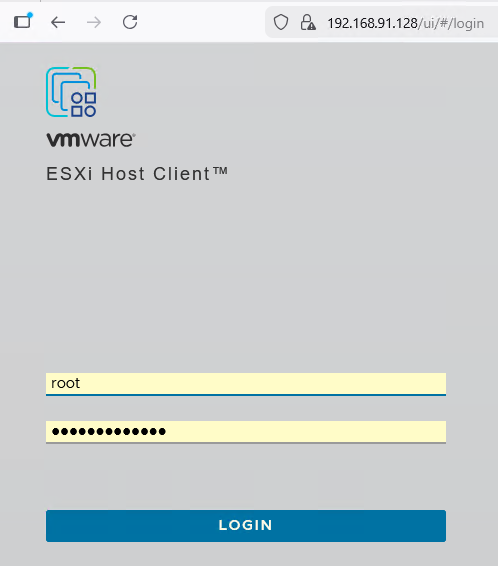
I haved installed VMware ESXi and assinged IP address 192.168.91.128. Open your browser and enter the IP address of ESXi.type the root credentials and hit enter.
Step 2: Navigate to Networking Settings
From ESXi dashboard → Click Networking in the left menu. Select the Virtual Switches tab.
If you are using the default vSwitch0, you may choose to create a new vSwitch for isolation. For this guide, we’ll use vSwitch0.
Read also How to Configure NFS Storage for VMware ESXi Using Windows Server 2022
Step 3: Add a New VMkernel Adapter
Go to VMkernel NICs tab. Click Add VMkernel NIC.
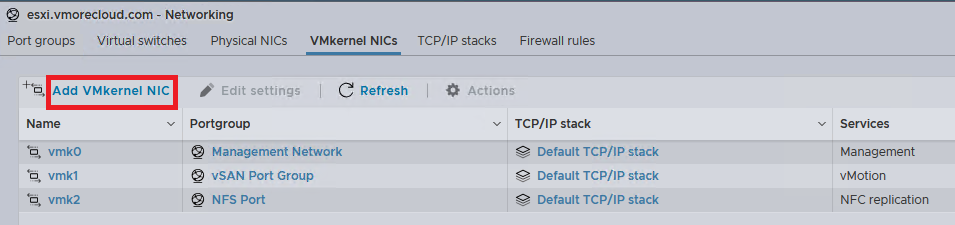
A new wizard will open.
Step 4: Select the Port Group or Create a New One
You have two options:
Option A: Use Existing Port Group (e.g., Management Network)
Not recommended for production.
Option B: Create a New Port Group (Recommended)
Click New port group and Enter name vMotion Port. In the services option check vMotion and click on create button.
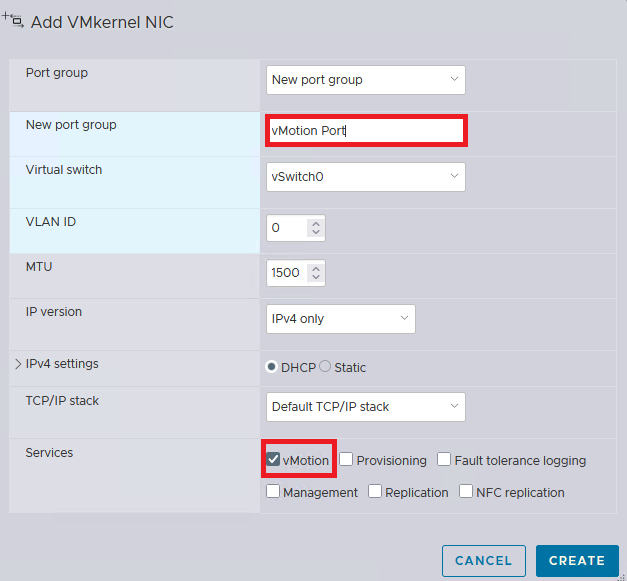
Select virtual switch: vSwitch0. Click Next. Assign IP Settings. Fill in the VMkernel IP configuration. In our case we have enable DHCP so, it will assigned IP address automatically.
Also Read Comprehensive Guide to vCenter High Availability (vCenter HA)
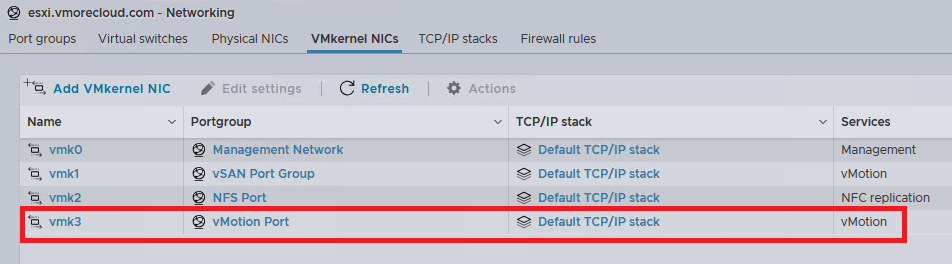
Step 7: Verify VMkernel Adapter Configuration
Go to Networking → VMkernel NICs. You should now see:
| Name | Portgroup | IP | Services Enabled |
|---|---|---|---|
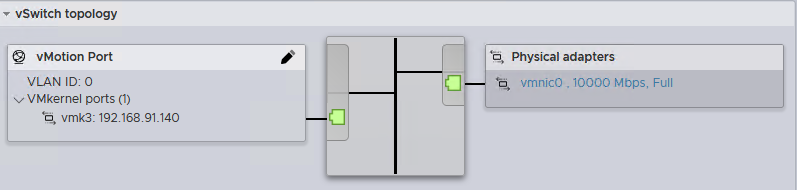
| vmk1 | vMotion-Port | 192.168.91.140 | vMotion |
Step 8: Test vMotion (If vCenter Installed)
Log in to your vCenter Server. Right-click any VM → Migrate. Choose Change Compute Resource.
Select another ESXi host. If the VM moves successfully, vMotion is configured correctly.
Conclusion
Configuring a VMkernel port for VMware vMotion is essential for high availability, seamless workload balancing, and zero-downtime migrations. Using the steps above, you’ve successfully created a dedicated VMkernel adapter for vMotion migration.
1 Comment
Leave a Response


Proxmox Finally Has a Real RVTools-Style Report (This is What Was Missing)
Introduction If you spent any meaningful time in VMware environments, RVTools was likely one of the first utilities you installed...

Download Virtuozzo 9 ISO
Virtuozzo 9 is a powerful enterprise-grade virtualization and cloud platform designed for service providers, hosting companies, and enterprises. It combines...

Check Point R81.20 T634 for VMware
If you're running Check Point environments in production, staying updated with the latest Jumbo Hotfix is critical for security, performance,...

VMware Cloud Director 10.3.3 OVA Download
The VMware Cloud Director-10.3.3 appliance is a ready-to-deploy OVA package that allows users to quickly set up VMware Cloud Director...




[…] Read also How to Configure VMkernel Port for VMware vMotion […]