Physical Address
304 North Cardinal St.
Dorchester Center, MA 02124
Physical Address
304 North Cardinal St.
Dorchester Center, MA 02124

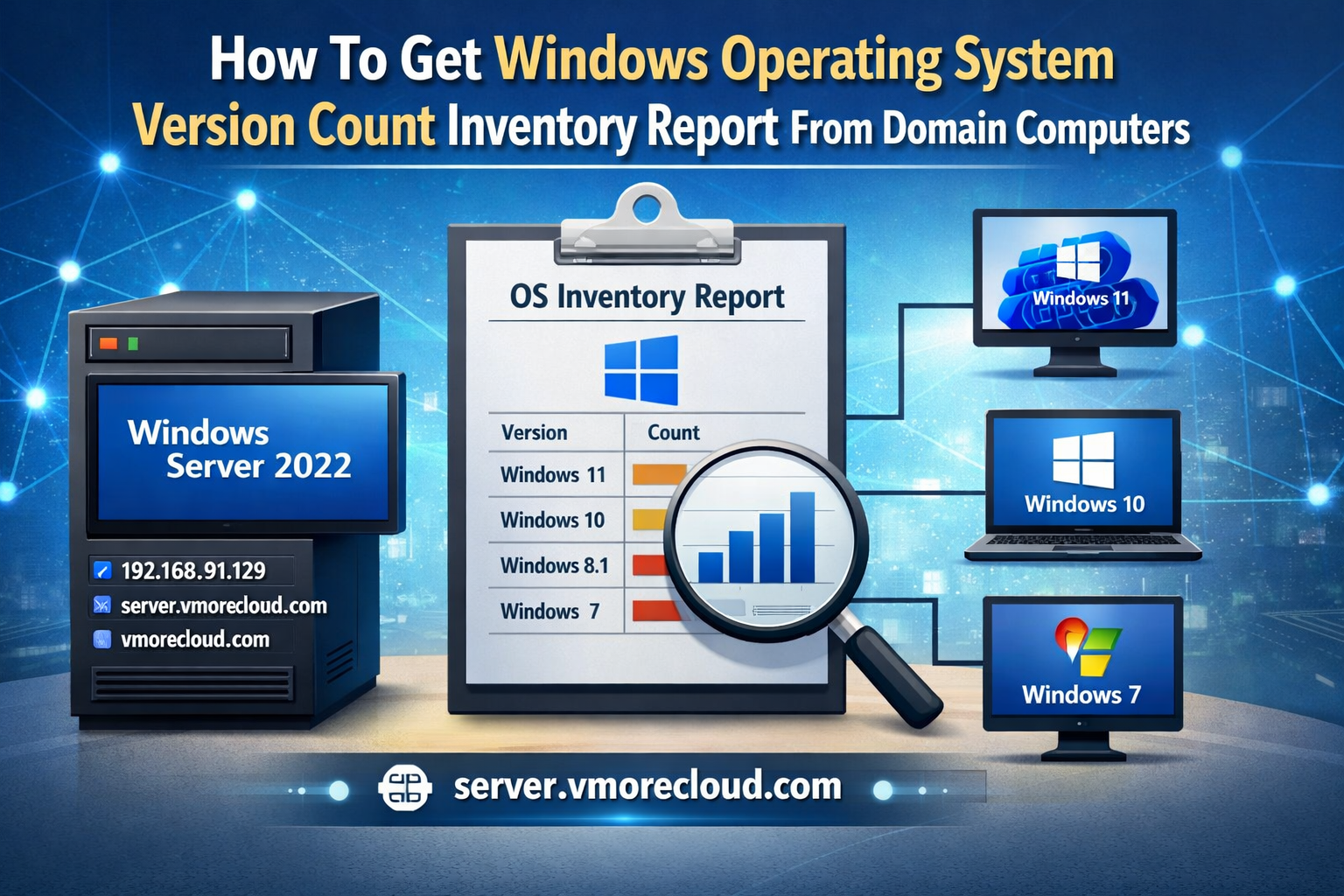
In enterprise environments, keeping track of the operating system versions deployed across domain-joined machines is a fundamental IT hygiene and security requirement. Whether you are preparing for patch management, compliance auditing, hardware refresh planning, or end-of-life remediation, knowing exactly how many machines run each Windows version is essential.
This lab tutorial walks you through multiple methods to generate a Windows OS Version Count Inventory Report using your Windows Server 2022 domain controller — from built-in PowerShell cmdlets to Active Directory queries and CSV exports.

| Parameter | Value |
| Server OS | Windows Server 2022 |
| IP Address | 192.168.91.129 |
| DNS Domain | vmorecloud.com |
| FQDN | server.vmorecloud.com |
| Role | Active Directory Domain Controller |
| Tools Used | PowerShell, Active Directory Module, RSAT |
Your Windows Server 2022 must be configured as an Active Directory Domain Controller with computers joined to the vmorecloud.com domain.
The Active Directory PowerShell module must be installed. It is part of the Remote Server Administration Tools (RSAT). Verify with the command below:
# Check if AD module is available
Get-Module -Name ActiveDirectory -ListAvailable
If not installed, run the following on Windows Server 2022:
# Install RSAT Active Directory Tools
Install-WindowsFeature -Name RSAT-AD-PowerShell
Note All commands in this tutorial should be executed on the Domain Controller (server.vmorecloud.com) or a machine with the AD PowerShell module and appropriate permissions.
The fastest way to get an OS version count is to query Active Directory directly using Get-ADComputer and group the results by OperatingSystem.
On your domain controller server.vmorecloud.com, right-click the Start Menu and select Windows PowerShell (Admin) or Terminal (Admin).
Import-Module ActiveDirectory
# Get all domain computers and group by OS
Get-ADComputer -Filter * `
    -Properties OperatingSystem, OperatingSystemVersion `
    | Group-Object -Property OperatingSystem `
    | Select-Object Count, Name `
    | Sort-Object Count -Descending

Count Name
----- ----
    2 Windows Server 2025 Datacenter Evaluation
    1 Windows 11 Enterprise Evaluation
Tip — Spot Outdated OS Versions Any Windows 7, Windows XP, or Windows Server 2008 machines appearing in this output should be flagged for immediate remediation as they are end-of-life and no longer receive security updates.
This method gives you granular detail including the exact build number alongside the OS name, which is critical for patch compliance.
# Detailed OS inventory including build version
Get-ADComputer -Filter * -Properties `
    Name,
    OperatingSystem,
    OperatingSystemVersion,
    OperatingSystemServicePack,LastLogonDate,
    IPv4Address `
| Select-Object `
    Name,
    OperatingSystem,
    OperatingSystemVersion,
    LastLogonDate,
    IPv4Address `
| Sort-Object OperatingSystem, OperatingSystemVersion `
| Format-Table -AutoSize

Count Name
----- ----
    2 Windows Server 2025 Datacenter Evaluation
    1 Windows 11 Enterprise Evaluation
Exporting to CSV allows you to open the data in Excel or import it into reporting tools for management dashboards.
================================
$ReportPath = “C:\Reports”
$CsvFile = “$ReportPath\OS_Inventory_Report.csv”
$SummaryPath = “$ReportPath\OS_Count_Summary.csv”
$HtmlFile = “$ReportPath\OS_Inventory_Report.html”
if (!(Test-Path $ReportPath)) {
New-Item -ItemType Directory -Path $ReportPath | Out-Null
}
$Computers = Get-ADComputer -Filter * -Properties OperatingSystem, OperatingSystemVersion,
LastLogonDate, IPv4Address, Description
$Computers | Select-Object @{N='ComputerName';E={$_.Name}},
@{N=’OperatingSystem’;E={$_.OperatingSystem}}, @{N='Version';E={$_.OperatingSystemVersion}},
@{N=’LastLogon’;E={$_.LastLogonDate}}, @{N='IPAddress';E={$_.IPv4Address}},
@{N=’Description’;E={$_.Description}} |
Sort-Object OperatingSystem, ComputerName |
Export-Csv -Path $CsvFile -NoTypeInformation
Write-Host “Detailed report exported to: $CsvFile” -ForegroundColor Green
$Summary = $Computers |
Group-Object OperatingSystem |
Select-Object @{N='OS';E={$_.Name}},
@{N=’Count’;E={$_.Count}}
$Total = ($Summary | Measure-Object Count -Sum).Sum
$Summary = $Summary | ForEach-Object {
[PSCustomObject]@{
OS = $_.OS
Count = $_.Count
Percent = “{0:P1}” -f ($_.Count / $Total)
}
}
$Summary |
Sort-Object Count -Descending |
Export-Csv -Path $SummaryPath -NoTypeInformation
Write-Host “Summary exported to: $SummaryPath” -ForegroundColor Green
$TableRows = $Summary | ForEach-Object {
“$($_.OS)$($_.Count)$($_.Percent)”
}
$Html = @”
Windows OS Inventory – vmorecloud.com
Domain: vmorecloud.com
Generated: $(Get-Date)
Total Computers: $Total $($TableRows -join “`n”)
| Operating System | Count | Percentage |
|---|
“@
$Html | Out-File -FilePath $HtmlFile -Encoding UTF8
Write-Host "HTML Report generated: $HtmlFile" -ForegroundColor Green
Write-Host "`nAll reports saved in: $ReportPath" -ForegroundColor Cyan
Execute the script:
Output Files Created
The script will generate three reports:
📁 C:\Reports\OS_Inventory_Report.csv
➡ Detailed computer inventory
📁 C:\Reports\OS_Count_Summary.csv
➡ OS count summary
📁 C:\Reports\OS_Inventory_Report.html
➡ Professional dashboard report


For administrators who prefer a GUI approach, Active Directory Users and Computers provides a basic view, though PowerShell is recommended for accurate counts.
Open Server Manager on server.vmorecloud.com
Click Tools → Active Directory Users and Computers

In the left pane, navigate to your domain vmorecloud.com
Select the Computers container or relevant OU

Right-click any column header in the right pane → select OperatingSystem
You can now see the OS column — click the column header to sort by OS
To get counts, use Find/Filter:
Right-click on Computers → Find

In the Find box, select Computers and use the Advanced tab

Enter OperatingSystem as the field and filter as needed
| i | Recommendation The GUI method is good for quick visual browsing but does not provide accurate counts or CSV export. Always use PowerShell (Methods 1-4) for inventory reporting and compliance documentation. |
If you want to retrieve live OS data directly from each computer (rather than from AD attributes which may be stale), use PowerShell remoting.
Enable WinRM via Group Policy (Recommended)
# Run on Domain Controller to enable WinRM domain-wide via GPO
# (Or use Group Policy: Computer Config > Windows Settings >
#  Security Settings > Windows Firewall > Allow WinRM)

# Enable WinRM locally first
Enable-PSRemoting -Force
# Get live OS info from all domain computers
$Computers = Get-ADComputer -Filter 'Enabled -eq $true' |
Select-Object -ExpandProperty Name

$Results = Invoke-Command -ComputerName $Computers `
    -ErrorAction SilentlyContinue `
    -ScriptBlock {
        $OS = Get-CimInstance Win32_OperatingSystem
        [PSCustomObject]@{
            ComputerName = $env:COMPUTERNAME
            OS           = $OS.Caption
            Build        = $OS.BuildNumber
            Architecture = $OS.OSArchitecture
            LastBoot     = $OS.LastBootUpTime
        }
    }

# Show count summary
$Results | Group-Object OS |
    Select-Object @{N='OS';E={$_.Name}}, Count |
    Sort-Object Count -Descending |
    Format-Table -AutoSize

Use this reference table to decode the OperatingSystemVersion field returned by Active Directory queries.
| Operating System | Build Number | Release Date | Support Status |
| Windows 11 23H2 | 10.0.22631 | Oct 2023 | Supported |
| Windows 11 22H2 | 10.0.22621 | Sep 2022 | Supported |
| Windows 11 21H2 | 10.0.22000 | Oct 2021 | Supported |
| Windows 10 22H2 | 10.0.19045 | Oct 2022 | Supported |
| Windows 10 21H2 | 10.0.19044 | Nov 2021 | Limited |
| Windows 10 1909 | 10.0.18363 | Nov 2019 | EOL |
| Windows Server 2022 | 10.0.20348 | Aug 2021 | Supported |
| Windows Server 2019 | 10.0.17763 | Oct 2018 | Supported |
| Windows Server 2016 | 10.0.14393 | Oct 2016 | Limited |
| Windows Server 2012 R2 | 6.3.9600 | Nov 2013 | EOL |
Run the inventory script on a schedule using Windows Task Scheduler so your reports stay current without manual intervention.
# Schedule weekly OS inventory report
$Action = New-ScheduledTaskAction `
    -Execute 'powershell.exe' `
    -Argument '-NonInteractive -ExecutionPolicy Bypass -File C:\Scripts\Get-OSInventory.ps1'

$Trigger = New-ScheduledTaskTrigger `
    -Weekly -DaysOfWeek Monday -At '06:00AM'

$Settings = New-ScheduledTaskSettingsSet `
    -ExecutionTimeLimit (New-TimeSpan -Hours 1) `
    -MultipleInstances IgnoreNew

Register-ScheduledTask `
    -TaskName 'Weekly-OS-Inventory' `
    -Action $Action `
    -Trigger $Trigger `
    -Settings $Settings `
    -RunLevel Highest `
    -User 'vmorecloud\Administrator' `
    -Description 'Weekly Windows OS Inventory for vmorecloud.com'

Write-Host 'Scheduled task created successfully.' -ForegroundColor Green


We have detected that you are using extensions to block ads. Please support us by disabling these ads blocker.





