




170views
Containers — especially Docker — have fundamentally reshaped modern infrastructure. They make deploying and scaling applications easier than ever. However, despite its power, Docker doesn’t provide a built-in way to monitor the images you’re running or alert you when updates become available.
If you’re managing just a handful of containers, that’s usually not a problem. You can stop them, remove the old images, pull the latest versions, and bring everything back online manually — simple and manageable.
But the story changes quickly if you’re running a home lab with dozens of containers, or managing hundreds in a production environment. Keeping track of image updates manually becomes time-consuming, error-prone, and unsustainable.
This is where a centralized monitoring solution becomes essential — a tool that tracks all your containers, alerts you when new image versions are released, and optionally updates them automatically in the background.
For years, I depended on Watchtower for this purpose, and it performed reliably. However, with no updates since November 2023, I began searching for a more actively maintained alternative. That’s when I came across What’s Up Docker (WUD).
In this guide, I’ll show you how to install and configure WUD so you can reliably monitor the Docker images running in your environment. But first, let’s briefly explore what WUD is and how it works.
A Brief Introduction to What’s Up Docker (WUD)
What’s Up Docker (WUD) is a free, open-source, self-hostable tool designed to simplify Docker container maintenance by monitoring image updates.
Here’s how it works: What’s Up Docker (WUD) continuously checks your running containers against their respective Docker registries to see whether newer image versions are available. It does this by periodically retrieving metadata about the latest tags and comparing that information with the images currently deployed in your environment.
When an update is detected, WUD can send notifications through a variety of channels, including email, Slack, Discord, webhooks, and other integrations.
One of WUD’s biggest strengths is its flexibility. It can operate in two distinct modes, depending on how much control you want.
The first is notification-only mode. In this setup, WUD simply alerts you when a new image version becomes available. You remain fully in control of when and how updates are applied.
The second option is a fully automated mode. When a new version is detected, WUD automatically stops the running container, pulls the updated image, and restarts the container with the new version. The entire process runs quietly in the background and typically completes within seconds.
In addition, WUD can automatically update your docker-compose.yml file to reference the new image version — a particularly useful feature for maintaining consistency.
Perhaps the most compelling aspect is the granular control it offers. You can configure update behavior on a per-container basis. For example, mission-critical containers can be set to notification-only mode, ensuring no changes happen without your approval, while less critical services can update automatically with no manual intervention required.
Which mode you use is totally up to you. All of this is controlled through environment variables in the WUD container itself and by assigning specific labels to the containers you want it to watch. I’ll walk you through exactly how to set this up a bit further down. But now, let’s do some work.
Install What’s Up Docker with Docker Compose
The first step is to create the project directory in which our Docker Compose deployment file will be placed. Then switch to it.
mkdir wud
cd wud
Next, open your favorite terminal text editor, create a “docker-compose.yml” file, paste the content below into it, save the file, and then exit the editor.
services:
  whatsupdocker:
    image: getwud/wud
    container_name: wud
    environment:
      - WUD_WATCHER_LOCAL_CRON=0 6 * * *
      - WUD_AUTH_BASIC_MY_USER=<YOUR_USERNAME>
      - WUD_AUTH_BASIC_MY_HASH=<YOUR_PASSWORD>
    ports:
      - 3000:3000
    volumes:
      - /var/run/docker.sock:/var/run/docker.sock
As you can see, the deployment setup is pretty simple. The key part is the “environment” section. The “WUD_WATCHER_LOCAL_CRON” variable uses standard CRON syntax to define how often WUD should check your Docker containers for updates. In this example, it’s set to run every day at 6:00 AM—but of course, you can adjust that to fit your own schedule.
But before we go any further, let’s take a moment to talk about one of the WUD’s core pieces — the so-called “watchers.” In simple terms, watchers define how WUD scans containers.
They follow this pattern (for CRON, specifically): “WUD_WATCHER_{watcher_name}_CRON,” where “{watcher_name}” can be any name you like. For example, I used “LOCAL” in my setup, but feel free to choose something else—it’s totally up to you.
WUD actually supports several types of watchers, which you can check out at this link. I highly recommend taking a look since understanding these is important for the next steps, where I’ll walk you through specific examples using them. Now, back to our deployment.
The next two variables, “WUD_AUTH_BASIC_MY_USER” and “WUD_AUTH_BASIC_MY_HASH,” are used to set a username and password for accessing the WUD web interface. After all, we don’t want just anyone poking around and seeing which containers we’re running, right?
You can use whatever you like for the username—totally up to you. The fun begins when it comes to setting the password. The “WUD_AUTH_BASIC_MY_HASH” environment variable expects a value using the Apache-style MD5 hashing algorithm, so we must generate that first.
Now, if your system already has the “apache” package installed (which includes the htpasswd tool), this is super easy. But installing the whole Apache just to create a password hash? Yeah… that’s overkill, to put it mildly. Luckily, there’s another way to do it.
We will use the command below, which generates a hashed password using the Apache MD5-based password algorithm, also known as APR1.
openssl passwd -apr1
You’ll be prompted to enter a password, then repeat it, and finally, the command will output a string like this:
$apr1$zv6vdUFS$g0mH9DjK7ON4FGtps1Xpt0
Now here’s the tricky part: you need to take this string and, every time you see a “$” symbol (which usually shows up in three spots), add another “$” right next to it. So, the original string:
$apr1$zv6vdUFS$g0mH9DjK7ON4FGtps1Xpt0
Turns into this:
$$apr1$$zv6vdUFS$$g0mH9DjK7ON4FGtps1Xpt0
Now that we’ve got our password, let’s update the “docker-compose.yml” file by replacing “<YOUR_USERNAME>” and “<YOUR_PASSWORD>” with the actual username and the password we just created. In the end, it should look something like this:
- WUD_AUTH_BASIC_MY_USER=bobby
- WUD_AUTH_BASIC_MY_HASH=$$apr1$$zv6vdUFS$$g0mH9DjK7ON4FGtps1Xpt0
Finally, save the changes and run the container in the background (detached mode):
docker compose up -d
If, for some reason, something goes wrong, you can easily figure out what happened by checking the container log with this simple Docker command:
docker logs wud -f
Open the WUD Web UI
Just a quick heads-up: As you can see below, I’m using an unencrypted HTTP connection here—this is only for the sake of the demo. In a real production setup, always put WUD behind a reverse proxy (like Nginx, Nginx Proxy Manager, Caddy, Traefik, HAProxy, or any other option you prefer) and serve it over a secure HTTPS connection. Now, back to the guide.
Open your browser and navigate to “http://localhost:3000” (if you access WUD from the same host) or “http://<server-ip-address>:3000“ (if you access it remotely). Of course, replace the “<server-ip-address>” part with your actual server’s IP address. The WUD login page will welcome you.
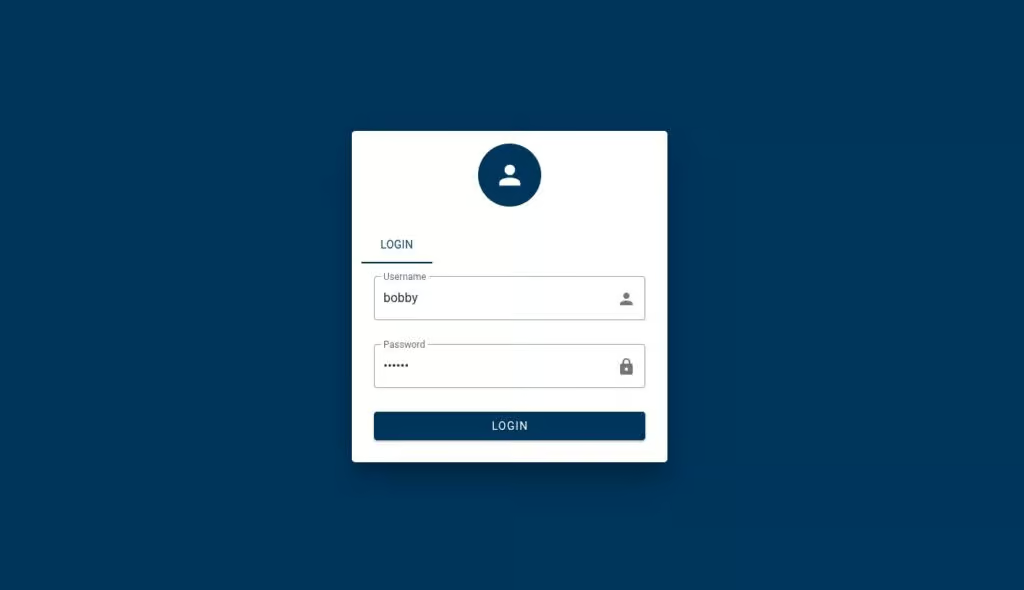
Enter your username and password and hit the “LOGIN” button.
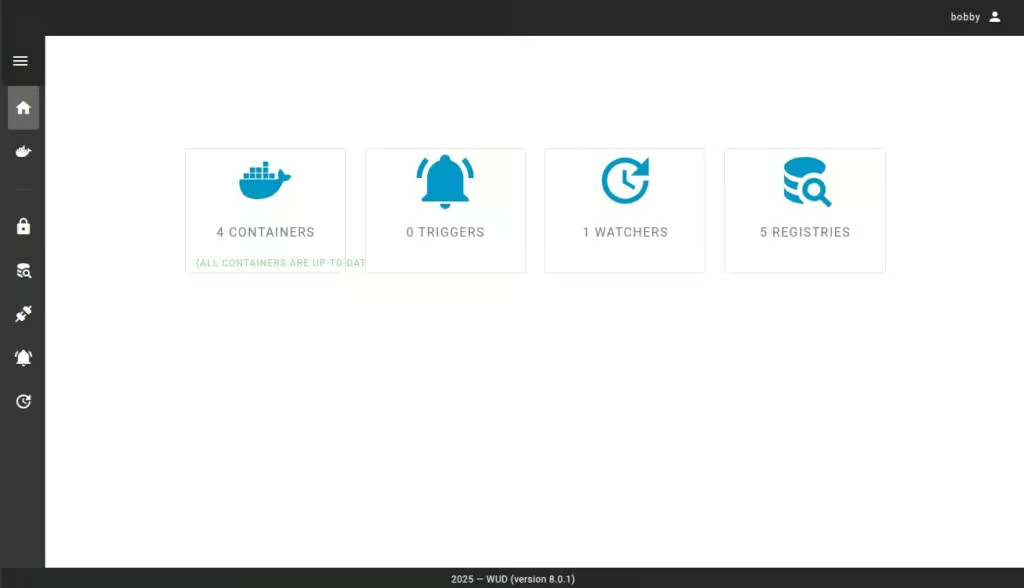
And before you get too excited, let me pump the brakes a little. Honestly, we haven’t really done much yet—the real work is just getting started.
Configure WUD
As I mentioned, we’ve successfully set up WUD, and it’s running fine in the background. But here’s the thing—we haven’t actually told it how we want it to do its job yet. Most importantly, we haven’t set up any way to get notified when there are container updates, which is the main reason we installed it in the first place.
Before we move on, there’s one important detail to keep in mind: the settings we’re about to configure aren’t managed through the WUD web interface. The UI is designed primarily as a dashboard for visibility, not as a full control panel.
All configuration is handled either by defining the appropriate environment variables on the WUD container itself or by applying labels to the containers it monitors.
With that in mind, let’s explore the available configuration strategies so you can decide which approach best fits your setup.
WUD Notification Setup
Naturally, the first thing we’ll want to configure is notifications so we’re alerted whenever a container update becomes available. In WUD terminology, this is handled through triggers — mechanisms that activate and perform specific actions when a new image version is detected.
WUD supports a wide range of notification services, including Apprise, Discord, Gotify, Ntfy, Pushover, Slack, SMTP, Telegram, and many others. In this example, I’ll demonstrate how to set up notifications the classic way — via email using SMTP. If you prefer a different method, simply refer to the documentation for the trigger that matches your preferred service.
If you plan to use Gmail for SMTP, there’s one extra step. You’ll need to generate an app-specific password. This is not your regular Gmail password, but a separate 16-character password created specifically for third-party applications like WUD. Google provides this feature to enhance security, and generating one only takes a minute through your Google account’s security settings.
Now that you’ve generated the application password, open your “docker-compose.yml” file. Then, add the following under the “environment” section:
services:
  whatsupdocker:
    image: getwud/wud
    ...
    environment:
      - WUD_TRIGGER_SMTP_GMAIL_HOST=smtp.gmail.com
      - WUD_TRIGGER_SMTP_GMAIL_PORT=465
      - WUD_TRIGGER_SMTP_GMAIL_USER=<YOUR-GMAIL-ACCOUNT>
      - WUD_TRIGGER_SMTP_GMAIL_PASS=<THE-APP-PASSWORD>
      - WUD_TRIGGER_SMTP_GMAIL_FROM=<YOUR-GMAIL-ACCOUNT>
      - WUD_TRIGGER_SMTP_GMAIL_TO=<YOUR-GMAIL-ACCOUNT>
      - WUD_TRIGGER_SMTP_GMAIL_TLS_ENABLED=true
Just make sure to replace “<YOUR-GMAIL-ACCOUNT>” with your actual Gmail address in all three spots, and swap out “<THE-APP-PASSWORD>” with the app password you just generated.
Finally, if the WUD container is already running, run the two commands below to redeploy it and apply the changes:
docker compose down
docker compose up -d
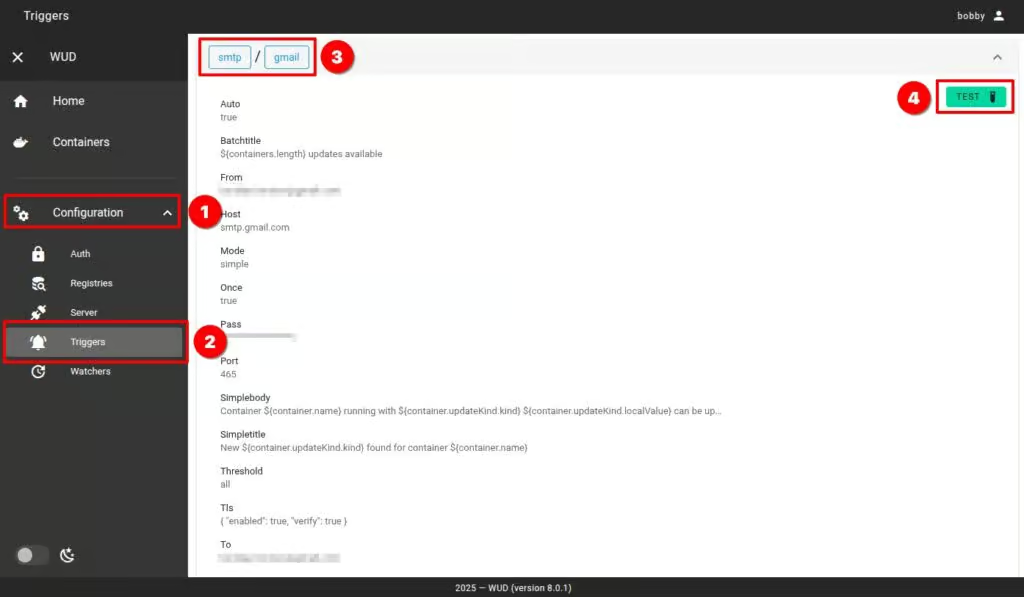
Head back to the WUD web interface to check if notifications are working properly. In the left-hand menu, go to “Configuration” > “Triggers.” Next, click on the “smtp/gmail” trigger, click the “TEST” button, and then confirm by selecting “RUN TRIGGER.” You should receive a test email confirming that your SMTP notification settings are all set up correctly.
Container Update or Just Notifications?
The next big decision you need to make is how you want WUD to behave—should it just notify you when updates are available for your Docker containers, or should it automatically update them, too?
This is where the “WUD_TRIGGER_DOCKER_{trigger_name}_PRUNE” setting, whose default value is “false,” comes into play, and it’s crucial to understand how it works.
If you don’t include “WUD_TRIGGER_DOCKER_{trigger_name}_PRUNE=true” in the “environment” section of your “docker-compose.yml” file, WUD will run in notification-only mode.
But if you do include it with the “true” value set, WUD will not only notify you—it’ll take care of the entire update process: it will pull the new Docker image, stop the running container, remove the old image, and start the container again with the updated image—full automatic updates mode.
So, if you only want to be notified, you can skip adding that line—there’s nothing more to say here. But if you’d like to enable automatic updates, add “WUD_TRIGGER_DOCKER_{trigger_name}_PRUNE=true” under the “environment” section in your “docker-compose.yml” file.
For example, if you want to name this trigger “LOCAL,” the line you need to include would look like this:
environment:
  ...
  - WUD_TRIGGER_DOCKER_LOCAL_PRUNE=true
  ...
And just like that, you’re all set for a fully automated process that keeps your containers running the latest Docker images.
Dealing with Docker Compose Files
But what if your Docker Compose deployments use hardcoded image versions and you have instructed WUD to update your containers automatically? Let me show you a really simple example to illustrate the point:
rvices:
  web:
    image: nginx:1.27
    ports:
      - "80:80"
Let’s say, Nginx version 1.28 just dropped. WUD will detect the update, pull the new image, and automatically restart the container using it. But here’s where things can get a little tricky: the next time you manually reload your deployment using something like:
docker compose down
docker compose up -d
Docker will proceed with your “docker-compose.yml” file, pointing to image version 1.27, and spin up the container with the older version. Not exactly what we want, right?
Thankfully, WUD has a smart way to handle this. The Docker Compose trigger can automatically update your “docker-compose.yml” file on the fly, simply by swapping out the image tag with the latest WUD discovered. That way, when you redeploy, everything’s in sync and your setup ends up looking just like this:
services:
  web:
    image: nginx:1.28
    ports:
      - "80:80"
To make this work, you’ll need to mount the correct “docker-compose.yml” file into your WUD deployment and use the “WUD_TRIGGER_DOCKERCOMPOSE_{trigger_name}_FILE” trigger. For example, if you name your trigger “NGINX,” here’s what that would look like in practice.
services:
  whatsupdocker:
    image: getwud/wud
    ...
    environment:
      ...
      - WUD_TRIGGER_DOCKERCOMPOSE_NGINX_FILE=/wud/nginx/docker-compose.yml
      - WUD_TRIGGER_DOCKERCOMPOSE_NGINX_PRUNE=true
      ...
    volumes:
      ...
      - /compose/file/location/docker-compose.yml:/wud/nginx/docker-compose.yml
      ...
As you can see, in the “volumes” section, we’re mounting our actual “docker-compose.yml” file into the WUD container at our chosen location. Then, in the “environment” section, we tell WUD where to look for that file by setting the “WUD_TRIGGER_DOCKERCOMPOSE_NGINX_FILE” variable to its path inside the container.
I can already hear your next question: What if I have two, three, or ten Docker Compose deployments? No worries—just create a separate trigger for each one, following the pattern below.
services:
  whatsupdocker:
    image: getwud/wud
    ...
    environment:
      ...
      - WUD_TRIGGER_DOCKERCOMPOSE_ONE_FILE=/wud/one/docker-compose.yml
      - WUD_TRIGGER_DOCKERCOMPOSE_ONE_PRUNE=true
      - WUD_TRIGGER_DOCKERCOMPOSE_TWO_FILE=/wud/two/docker-compose.yml
      - WUD_TRIGGER_DOCKERCOMPOSE_TWO_PRUNE=true
      - WUD_TRIGGER_DOCKERCOMPOSE_THREE_FILE=/wud/three/docker-compose.yml
      - WUD_TRIGGER_DOCKERCOMPOSE_THREE_PRUNE=true
      ...
    volumes:
      ...
      - /compose/file/location/one/docker-compose.yml:/wud/one/docker-compose.yml
      - /compose/file/location/two/docker-compose.yml:/wud/two/docker-compose.yml
      - /compose/file/location/three/docker-compose.yml:/wud/three/docker-compose.yml
      ...
Of course, none of the above needs to be applied if you’re using the “latest” image tag for your Compose deployments. In that case, there’s no need to modify the “docker-compose.yml” file since you’re always pulling the most current version of the image anyway.
However, once again, here’s the moment where things get a little tricky. If you open up the WUD UI and look at the triggers for each container, you might be unpleasantly surprised—they’ve all been automatically applied to every container.
Yep, the Nginx trigger we created earlier shows up across the board, which definitely isn’t what we had in mind.
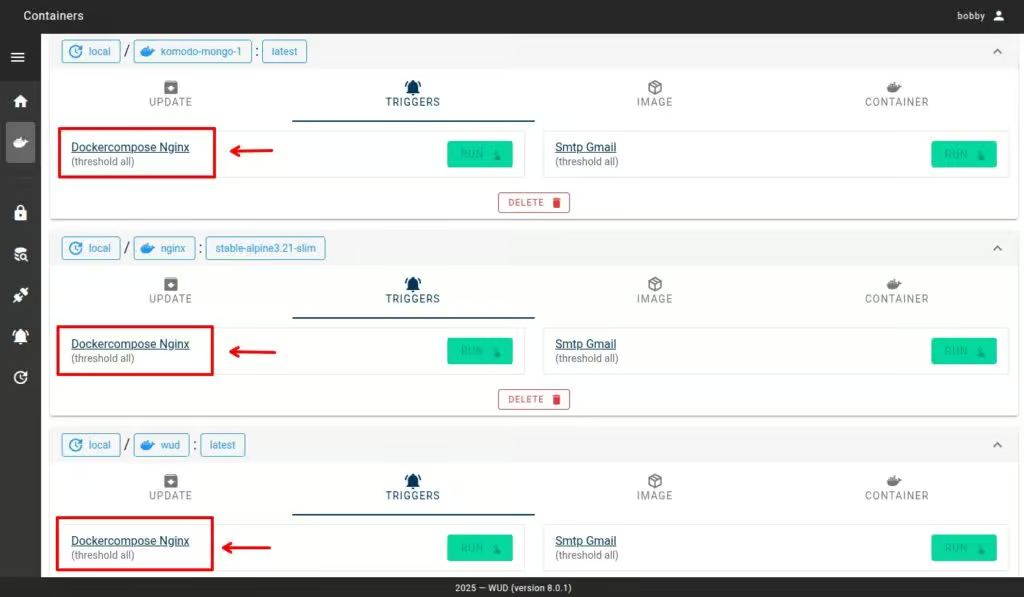
This brings us to an important concept in WUD: by default, all triggers are global. That means any trigger you create gets applied to all containers, unless you explicitly tell WUD otherwise.
Thankfully, there is a way to control this, and that’s where WUD watcher’s labels come into play. Keep reading, I’ll walk you through the solution in the next section.
Include & Exclude Triggers
The solution to the problem above lies in using labels in your containers—something WUD understands and uses to let you fine-tune watchers’ actions more precisely on a per-container basis. Around a dozen labels are available, but we’re mostly interested in “wud.trigger.include” and “wud.trigger.exclude.”
When neither of the two above-mentioned is explicitly defined to a container, all triggers apply to every container by default. This is important to understand.
So, what are we trying to do? We want our notification trigger to stay active for all containers, but we only want the Nginx-specific trigger to run for the Nginx container. The best way to handle this is by using the “wud.trigger.include” label. This tells WUD to apply only the triggers you explicitly list for that particular container, and nothing else.
So, we will open the deployment file (“docker-compose.yml“) for the Nginx container, add the label we need, and list the triggers as values to this label we want to apply to it.
services:
  web:
    labels:
      wud.trigger.include: smtp.gmail,dockercompose.nginx
    image: nginx:stable-alpine3.21-slim
    container_name: nginx
    ports:
      - "80:80"
Of course, you’ll need to do the same for all your other containers. But the difference is that in each one, the line should include only “wud.trigger.include: smtp.gmail” along with any container-specific triggers you’ve set up in WUD—if there are any.
Remember to restart your containers after making any changes. There’s no need to restart WUD itself—it automatically picks up changes to the containers it’s watching on the fly.
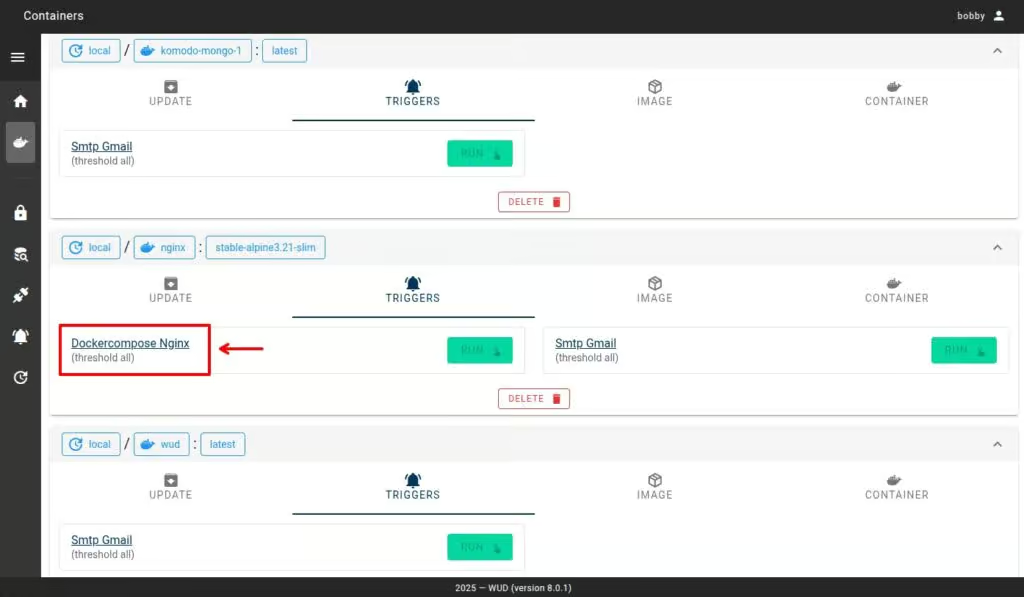
Now, if we head back to the WUD UI and take a quick look, we’ll see that the Nginx trigger (“dockercompose.nginx“) is now applied only to that specific container, while our Gmail (“smtp.gmail“) notification trigger is available to all others.
Launching Triggers from the WUD Dashboard
By default, WUD runs quietly in the background unless you tell it otherwise. But in many cases, I’ve found it most convenient to let WUD notify me when there’s a new version of a container, have it set to auto-update, but only apply the update after I give the green light through the UI.
This way, you get the best of both worlds: first, you can check out what’s new in the updated image before applying it, so you don’t get hit with any unexpected changes. And second, you skip the hassle of jumping into the terminal to stop and redeploy the container manually.
To do this, just set the “WUD_TRIGGER_{trigger_type}_{trigger_name}_AUTO” option to “false” (it’s “true” by default). This turns off the automatic execution of the corresponding trigger.
To clarify, let’s use our Nginx deployment as an example. In your WUD “docker-compose.yml” file, add the following line to disable the automatic trigger execution—so you can run it manually through the WUD web UI whenever you see fit:
services:
  whatsupdocker:
    image: getwud/wud
    ...
    environment:
      ...
      - WUD_TRIGGER_DOCKERCOMPOSE_NGINX_FILE=/wud/nginx/docker-compose.yml
      - WUD_TRIGGER_DOCKERCOMPOSE_NGINX_PRUNE=true
      - WUD_TRIGGER_DOCKERCOMPOSE_NGINX_AUTO=false
      ...
    volumes:
      ...
      - /compose/file/location/docker-compose.yml:/wud/nginx/docker-compose.yml
      ...
From now on, if updates are available, the WUD dashboard will show them, and the “RUN” button will be active. Just click it, and WUD will update the Docker image and automatically start the container with the new version.
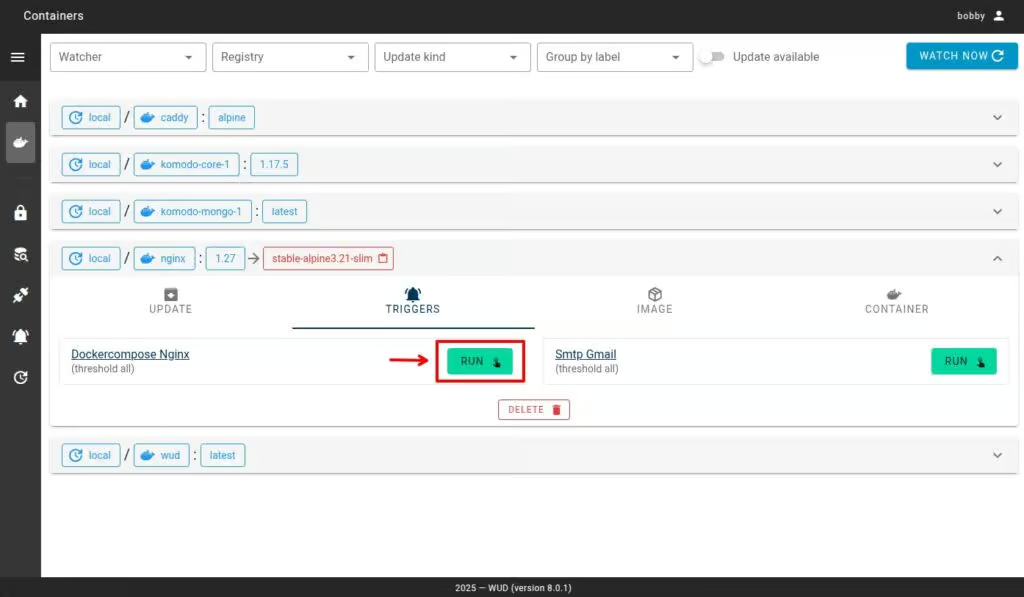
Then, click the blue “WATCH NOW” button in the top-right corner to refresh the screen and see the changes take effect.
Exclude Container from Monitoring
WUD lets you exclude specific containers from monitoring, meaning it will completely ignore them and take no action. It’s super easy to set up—add the label “wud.watch: false” to the container’s deployment. For example, if you’re using Nginx, it would look like this:
services:
  web:
    labels:
      wud.watch: false
    image: nginx:1.27
    container_name: nginx
    ports:
      - "80:80"
The opposite setup is also possible — you can tell WUD not to monitor any containers by default. Just set “WUD_WATCHER_LOCAL_WATCHBYDEFAULT=false” in the WUD’s “docker-compose.yml” file. Then, for each container you do want WUD to keep an eye on, add the label “wud.watch=true.”
Docker Images Tag Handling in WUD
The last — but definitely one of the most important — cases I want to cover when setting up WUD is how to handle Docker image tags. Chances are, many of you use deployments that look something like this:
services:
  web:
    image: nginx:latest
    container_name: nginx
    ...
In this case, when you’re using the “latest” tag, WUD checks Docker images based on their digest. The problem is that it does this by sending an extensive number of requests to Docker Hub, which can quickly hit their rate limits.
Beyond that, though, it’s generally a better idea to monitor a specific image version for updates. WUD makes this easier by offering two tags—”wud.tag.include” and “wud.tag.exclude“—that you can apply directly to your deployment to control which tags WUD should consider or ignore.
The values these labels take are regular expressions. The key thing to keep in mind is that different software projects use different versioning schemes for their images. So, you’ll need to tailor each deployment to match the specific versioning style used by that image.
For instance, you might see the classic “major.minor.patch” (semver) format, like “1.27.2.” But in other cases, it could be something like “2025.04.2,” or “1.27.2-alpine“—there’s a lot of variation out there.
The point is, you’ll need to write a regex that matches the format used in your specific case. I highly recommend testing your expression with an online regex validator, like Regex101, to ensure it works as expected before adding it to your deployments.
Here’s a real-world example. Let’s say we’re watching Nginx Docker images that follow the “major.minor.patch” (“1.27.2,” for example) version pattern. In that case, the regular expression in our Docker deployment would look something like this:
services:
  web:
    image: nginx:latest
    container_name: nginx
    labels:
      'wud.tag.include=^\d+\.\d+\.\d+$'
    ...
In simple words, this regex means: only watching tags that look like semantic versions (e.g., “1.27.2“). However, if the image we want to monitor is something like “1.27.2-alpine,” then our regex should already look like this:
services:
  web:
    image: nginx:latest
    container_name: nginx
    labels:
      'wud.tag.include=^\d+\.\d+\.\d+-alpine$'
    ...
You get the idea—the same goes for the “wud.tag.exclude” label. It lets you clearly list specific image versions WUD should skip when checking for updates.
Conclusion
Yeah, I know—configuring WUD can seem a little confusing at first. But once you get the hang of how it all works, it starts to make sense, and everything clicks into place pretty quickly. It is a great piece of software, probably the best in its class at the moment.
Of course, WUD offers plenty of other features, such as monitoring remote Docker instances via “WUD_WATCHER_{watcher_name}_HOST” watcher. Remember that if you decide to use this capability, you should expose the Docker daemon to the outside world only over a secure VPN connection. Otherwise, you could leave your containers wide open to unauthorized access.
WUD’s configuration options give you a ton of flexibility when monitoring updates for your Docker images. In this guide, I’ve walked through the main use cases, but if you’re looking for more in-depth details, check out the official WUD documentation.
Thanks for your time and for using this tutorial. As always, your feedback and comments are most welcome. Happy monitoring!
add a comment

Ventoy 1.1.11 Improves Windows UEFI Booting
Ventoy, a popular multi-boot tool that lets you create bootable USB drives from ISO files without reformatting, has been updated...

Wine 11.6 Brings Android Driver Work, Game Mod Fixes
The Wine Project—a compatibility layer that enables Linux and macOS users to run Windows applications—has released Wine 11.6, the sixth...
How to Remotely Remove (Disjoin) a Client Computer from Domain in Windows Server 2025
Introduction Managing Active Directory environments often means handling machines you cannot physically reach — a remote office workstation, a laptop across the country, or a decommissioned VM sitting in a data center rack. Knowing how to remotely disjoin a computer from a Windows Server 2025 domain is an essential sysadmin skill that saves time, reduces travel overhead, and keeps your AD environment clean and secure. In this guide, you will learn multiple methods to remotely remove a client computer from your domain — without ever touching the machine — using...
How to Update AlmaLinux 9 to AlmaLinux 10 (Complete Guide Using ELevate)
AlmaLinux has become one of the most popular enterprise Linux distributions, widely used for servers, virtualization environments, and production workloads. If you already run AlmaLinux 9, upgrading to AlmaLinux 10 is now possible using the official ELevate migration framework. Whether you are managing servers used for development tools like Visual Studio, editing code with Notepad++ on Linux, experimenting with lightweight desktops such as Xubuntu or Lubuntu, or simply managing systems through common utilities like the pwd command or applications like Pinta, keeping the underlying operating system updated remains critical for...




