Physical Address
304 North Cardinal St.
Dorchester Center, MA 02124
Physical Address
304 North Cardinal St.
Dorchester Center, MA 02124

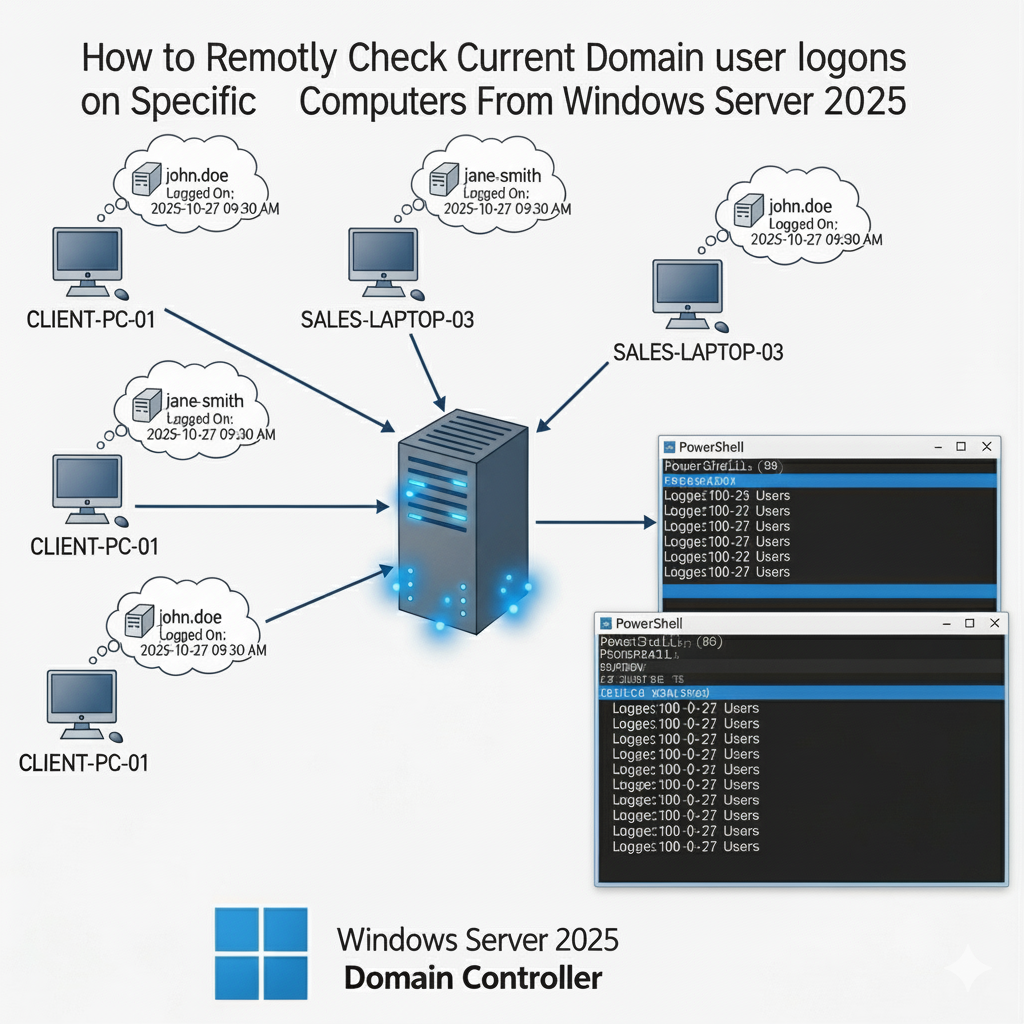
Managing user sessions across a Windows domain environment is a critical administrative task. As system administrators, we often need to identify which users are currently logged into specific computers within our domain. Windows Server 2025 provides several robust methods to accomplish this remotely from the domain controller. This comprehensive guide explores the most effective techniques and tools available.
Before implementing these methods, ensure you have:
PowerShell remains one of the most versatile tools for remote system administration. The Get-WmiObject cmdlet can query Win32_ComputerSystem class to retrieve current user information.
Get-WmiObject -Class Win32_ComputerSystem -ComputerName "TARGET-PC" | Select-Object UserName
function Get-CurrentDomainUser {
    param(
        [Parameter(Mandatory=$true)]
        [string]$ComputerName
    )

    try {
        $computerSystem = Get-WmiObject -Class Win32_ComputerSystem -ComputerName $ComputerName -ErrorAction Stop
        if ($computerSystem.UserName) {
            Write-Host "Current user on $ComputerName : $($computerSystem.UserName)" -ForegroundColor Green
        } else {
            Write-Host "No user currently logged in to $ComputerName" -ForegroundColor Yellow
        }
    }
    catch {
        Write-Host "Failed to connect to $ComputerName : $($_.Exception.Message)" -ForegroundColor Red
    }
}

# Usage example
Get-CurrentDomainUser -ComputerName "WORKSTATION-01"
CIM (Common Information Model) cmdlets are the modern replacement for WMI cmdlets, offering better performance and reliability.
Get-CimInstance -ClassName Win32_ComputerSystem -ComputerName "TARGET-PC" | Select-Object UserName, Name
function Get-DomainUserLogon {
    param(
        [Parameter(Mandatory=$true, ValueFromPipeline=$true)]
        [string[]]$ComputerName,
        [PSCredential]$Credential
    )

    process {
        foreach ($Computer in $ComputerName) {
            try {
                $sessionParams = @{
                    ComputerName = $Computer
                    ErrorAction = 'Stop'
                }

                if ($Credential) {
                    $sessionParams.Credential = $Credential
                }

                $session = New-CimSession @sessionParams
                $computerInfo = Get-CimInstance -CimSession $session -ClassName Win32_ComputerSystem

                [PSCustomObject]@{
                    ComputerName = $Computer
                    CurrentUser = $computerInfo.UserName
                    Domain = $computerInfo.Domain
                    Status = 'Online'
                    Timestamp = Get-Date
                }

                Remove-CimSession $session
            }
            catch {
                [PSCustomObject]@{
                    ComputerName = $Computer
                    CurrentUser = 'N/A'
                    Domain = 'N/A'
                    Status = 'Offline/Error'
                    Timestamp = Get-Date
                    Error = $_.Exception.Message
                }
            }
        }
    }
}

# Usage with multiple computers
$computers = @("PC-01", "PC-02", "PC-03")
$results = $computers | Get-DomainUserLogon
$results | Format-Table -AutoSize
The traditional query user command can be executed remotely to show all active user sessions.
query user /server:TARGET-PC
function Get-UserSessions {
    param(
        [Parameter(Mandatory=$true)]
        [string]$ComputerName
    )

    try {
        $sessions = query user /server:$ComputerName 2>$null
        if ($sessions) {
            Write-Host "Active sessions on $ComputerName :" -ForegroundColor Cyan
            $sessions | ForEach-Object { Write-Host $_ }
        } else {
            Write-Host "No active sessions found on $ComputerName" -ForegroundColor Yellow
        }
    }
    catch {
        Write-Host "Unable to query $ComputerName : $($_.Exception.Message)" -ForegroundColor Red
    }
}
For historical logon data and detailed session information, Windows Event Logs provide comprehensive insights.
function Get-LogonEvents {
    param(
        [Parameter(Mandatory=$true)]
        [string]$ComputerName,
        [int]$Hours = 24
    )

    $startTime = (Get-Date).AddHours(-$Hours)

    try {
        $events = Get-WinEvent -ComputerName $ComputerName -FilterHashtable @{
            LogName = 'Security'
            ID = 4624  # Successful logon
            StartTime = $startTime
        } -ErrorAction Stop

        $events | ForEach-Object {
            $eventXml = [xml]$_.ToXml()
            $userData = $eventXml.Event.EventData.Data

            [PSCustomObject]@{
                TimeCreated = $_.TimeCreated
                UserName = ($userData | Where-Object {$_.Name -eq 'TargetUserName'}).'#text'
                Domain = ($userData | Where-Object {$_.Name -eq 'TargetDomainName'}).'#text'
                LogonType = ($userData | Where-Object {$_.Name -eq 'LogonType'}).'#text'
                SourceIP = ($userData | Where-Object {$_.Name -eq 'IpAddress'}).'#text'
            }
        }
    }
    catch {
        Write-Error "Failed to retrieve events from $ComputerName : $($_.Exception.Message)"
    }
}
Leverage the Active Directory module for domain-wide queries and computer management.
Import-Module ActiveDirectory

function Get-DomainComputerUsers {
    param(
        [string]$SearchBase = (Get-ADDomain).DistinguishedName,
        [string]$Filter = "*"
    )

    $computers = Get-ADComputer -Filter $Filter -SearchBase $SearchBase

    foreach ($computer in $computers) {
        try {
            $currentUser = Get-CimInstance -ComputerName $computer.Name -ClassName Win32_ComputerSystem -ErrorAction Stop

            [PSCustomObject]@{
                ComputerName = $computer.Name
                CurrentUser = $currentUser.UserName
                LastLogon = $computer.LastLogonDate
                OperatingSystem = $computer.OperatingSystem
                Enabled = $computer.Enabled
            }
        }
        catch {
            [PSCustomObject]@{
                ComputerName = $computer.Name
                CurrentUser = "Unable to connect"
                LastLogon = $computer.LastLogonDate
                OperatingSystem = $computer.OperatingSystem
                Enabled = $computer.Enabled
            }
        }
    }
}
Here’s a complete solution that combines multiple methods for robust monitoring:
function Start-DomainUserMonitoring {
    param(
        [Parameter(Mandatory=$true)]
        [string[]]$ComputerNames,
        [int]$RefreshInterval = 300,  # 5 minutes
        [string]$LogPath = "C:\Admin\UserLogons.csv"
    )

    Write-Host "Starting domain user monitoring..." -ForegroundColor Green
    Write-Host "Monitoring computers: $($ComputerNames -join ', ')" -ForegroundColor Cyan
    Write-Host "Refresh interval: $RefreshInterval seconds" -ForegroundColor Cyan

    while ($true) {
        $results = @()

        foreach ($computer in $ComputerNames) {
            try {
                # Primary method: CIM
                $computerInfo = Get-CimInstance -ComputerName $computer -ClassName Win32_ComputerSystem -ErrorAction Stop

                $result = [PSCustomObject]@{
                    Timestamp = Get-Date -Format "yyyy-MM-dd HH:mm:ss"
                    ComputerName = $computer
                    CurrentUser = $computerInfo.UserName
                    Domain = $computerInfo.Domain
                    Status = 'Online'
                    Method = 'CIM'
                }
            }
            catch {
                # Fallback method: Query User
                try {
                    $queryResult = query user /server:$computer 2>$null
                    $status = if ($queryResult) { 'Online-QueryUser' } else { 'No Sessions' }

                    $result = [PSCustomObject]@{
                        Timestamp = Get-Date -Format "yyyy-MM-dd HH:mm:ss"
                        ComputerName = $computer
                        CurrentUser = if ($queryResult) { "Multiple/Console" } else { "None" }
                        Domain = "Unknown"
                        Status = $status
                        Method = 'QueryUser'
                    }
                }
                catch {
                    $result = [PSCustomObject]@{
                        Timestamp = Get-Date -Format "yyyy-MM-dd HH:mm:ss"
                        ComputerName = $computer
                        CurrentUser = "N/A"
                        Domain = "N/A"
                        Status = 'Offline/Error'
                        Method = 'Failed'
                    }
                }
            }

            $results += $result
            Write-Host "$($result.Timestamp) - $($result.ComputerName): $($result.CurrentUser)" -ForegroundColor $(
                switch ($result.Status) {
                    'Online' { 'Green' }
                    'No Sessions' { 'Yellow' }
                    default { 'Red' }
                }
            )
        }

        # Log results
        $results | Export-Csv -Path $LogPath -Append -NoTypeInformation

        Start-Sleep -Seconds $RefreshInterval
    }
}

# Usage
$targetComputers = @("WORKSTATION-01", "WORKSTATION-02", "SERVER-01")
Start-DomainUserMonitoring -ComputerNames $targetComputers -RefreshInterval 180
Windows Server 2025 provides multiple robust methods for remotely checking domain user logons. The CIM cmdlets offer the best combination of performance and reliability, while PowerShell scripting enables automation and comprehensive monitoring solutions. By implementing these techniques with proper error handling and security considerations, administrators can maintain effective oversight of user sessions across their domain environment.
Remember to test these methods in your specific environment and adjust the scripts according to your security policies and network configuration. Regular monitoring of user logons not only aids in troubleshooting but also enhances security by providing visibility into user activity across your domain infrastructure.

We have detected that you are using extensions to block ads. Please support us by disabling these ads blocker.





