Physical Address
304 North Cardinal St.
Dorchester Center, MA 02124
Physical Address
304 North Cardinal St.
Dorchester Center, MA 02124

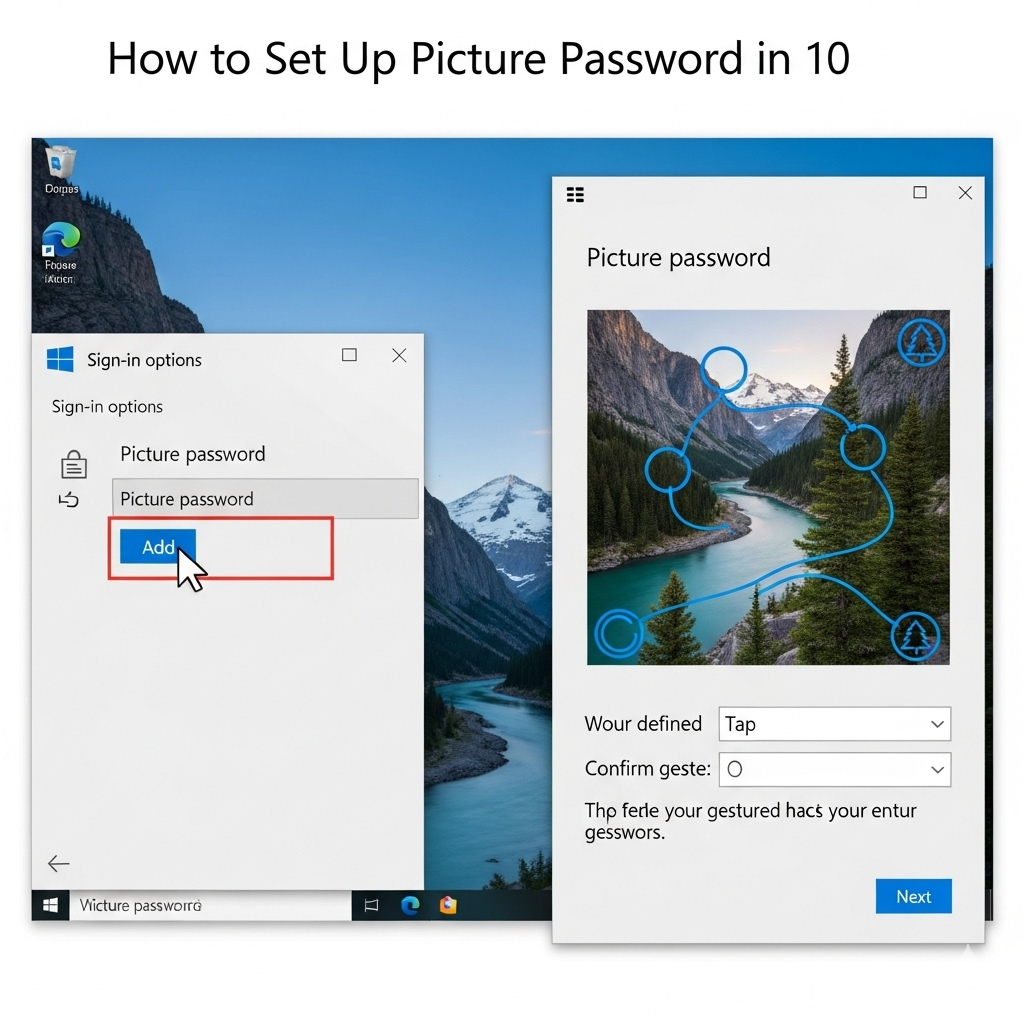
We’ve all been there – typing in complex passwords dozens of times a day, struggling to remember that perfect combination of letters, numbers, and symbols. What if I told you there’s a more intuitive way to secure your Windows 10 machine? Enter Picture Password, a feature that transforms any image into your personal login key.
Picture Password isn’t just about convenience; it’s about creating a security method that feels natural and personal. Instead of memorizing another string of characters, you’ll draw simple gestures on a photo that means something to you. It’s surprisingly secure and, dare I say, actually enjoyable to use.

Picture Password is a Windows 10 authentication method that combines something you know (the gestures) with something you see (your chosen image). You select any image and create three gestures – combinations of circles, straight lines, and taps – that serve as your login credentials.
The beauty lies in its simplicity. Your gestures don’t need to be perfect recreations; Windows 10 is smart enough to recognize variations in size, direction, and position. This flexibility makes it practical for daily use while maintaining robust security standards.
Enhanced Security Through Obscurity: Unlike traditional passwords that can be guessed or brute-forced, Picture Password requires knowledge of both your image and the specific gestures you’ve created. Even if someone knows your photo, they’d need to guess the exact combination and sequence of your three gestures.
Faster Login Experience: Once you’ve practiced your gestures a few times, Picture Password can be significantly faster than typing a complex password, especially on touch-enabled devices.
Reduced Password Fatigue: We’re constantly bombarded with password requirements. Picture Password offers a refreshing alternative that doesn’t add to your mental password database.
Touch-Friendly Design: If you’re using a tablet or 2-in-1 device, Picture Password shines. It’s designed with touch interfaces in mind, making it perfect for modern hybrid devices.
Before we begin, ensure you have:
Pro tip: You can also access this quickly by typing “sign-in options” in the Windows search bar.
Before setting up Picture Password, Windows requires you to have a traditional password configured. If you haven’t set one up yet:
This is where personality meets security. Consider these factors when selecting your image:
Complexity is Key: Choose images with multiple distinct elements – landscapes, group photos, or detailed artwork work well. Avoid simple images with large solid colour areas.
Personal Connection: Select something meaningful to you. The more familiar you are with the image, the easier it’ll be to remember your gesture locations.
Avoid Obvious Choices: Resist using images that others might easily guess, like your profile picture or widely-shared family photos.
Click Choose picture and browse to your selected image. Windows will automatically resize it if needed.
Here’s where the magic happens. You’ll create three gestures in sequence:
Gesture Types:
Best Practices:
Draw each gesture deliberately. Windows will show your progress and ask you to confirm each one. Take your time – accuracy here saves frustration later.
Windows will ask you to repeat your three gestures to confirm. Don’t worry if you’re not pixel-perfect; the system accounts for natural variation. If Windows doesn’t recognize your repetition, try adjusting the size or position slightly.
Once confirmed, Windows will show a “Congratulations!” message. Your Picture Password is now active and will appear as an option on your login screen.
Picture Password represents Microsoft’s thoughtful approach to balancing security with usability. It’s not just about replacing your password; it’s about creating a more personal, intuitive relationship with your device security.
While it won’t replace all your security needs, Picture Password serves as an excellent primary authentication method for personal devices. It’s particularly valuable for users who find traditional passwords cumbersome or for devices primarily used in trusted environments.
The setup process takes just a few minutes, but the daily convenience and personal touch it adds to your Windows 10 experience can be substantial. In our increasingly digital world, finding ways to make technology feel more human and personal isn’t just nice to have – it’s essential.

We have detected that you are using extensions to block ads. Please support us by disabling these ads blocker.





