Physical Address
304 North Cardinal St.
Dorchester Center, MA 02124
Physical Address
304 North Cardinal St.
Dorchester Center, MA 02124

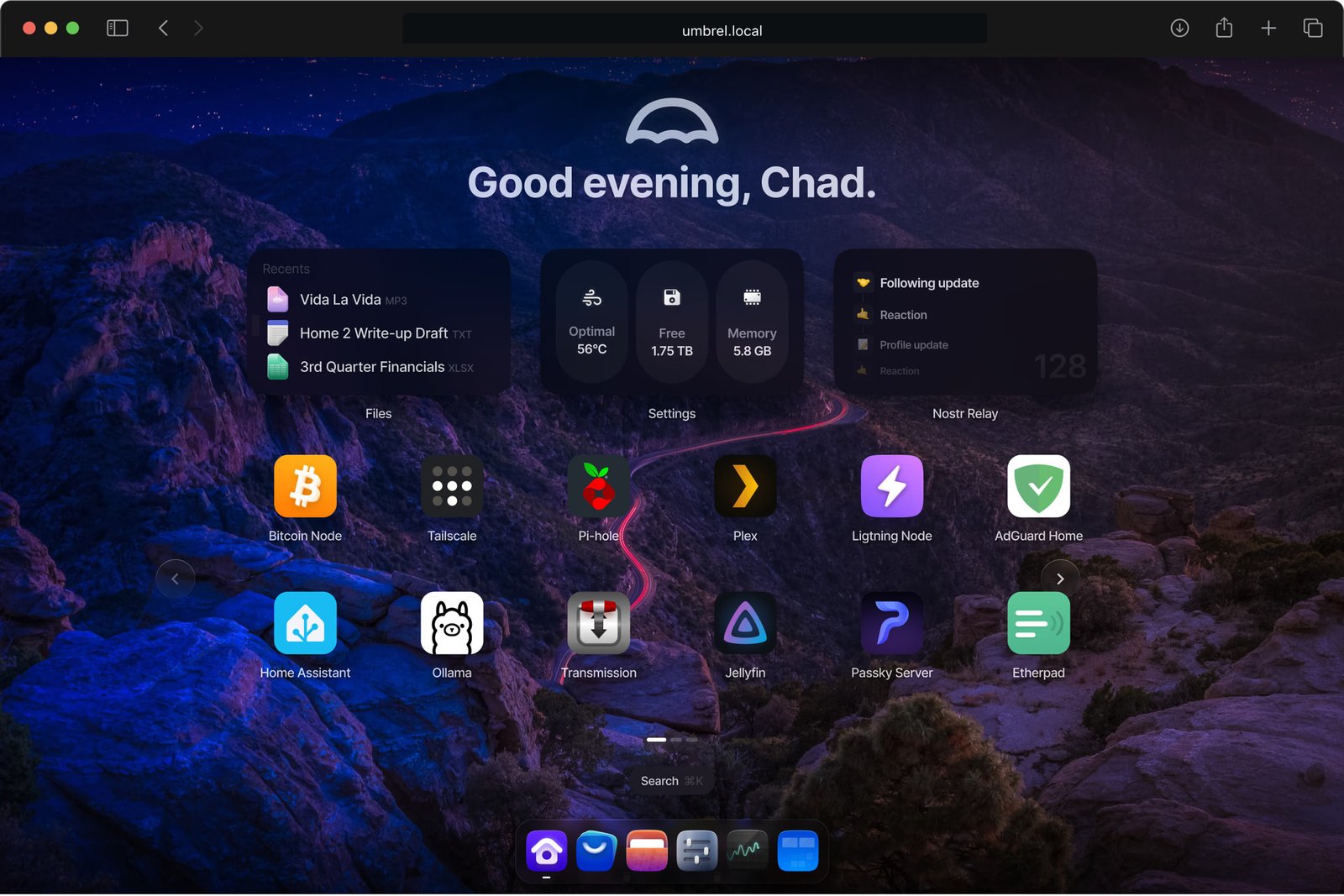
The Community Scripts Umbrel OS VM helper creates a Proxmox virtual machine that boots the official umbrelOS installer, giving you a straightforward path to run a personal home-cloud platform inside a Proxmox lab.

Personal cloud • Self-hosting • Virtualization
Community Scripts VMThe Community Scripts project provides ready-to-run helper scripts for Proxmox VE and other supported infrastructure. Its Umbrel OS entry is categorized as a virtual machine and creates a VM that boots the official umbrelOS installer image.
The script page specifically notes that this is an installer-image workflow: after the VM is created, open its console and complete the umbrelOS installation there. This distinction matters because the helper is not simply a preinstalled Umbrel appliance image.
| Item | Community Scripts profile |
|---|---|
| Platform | Proxmox VE virtual machine |
| Category | Operating Systems & Appliances |
| VM type | VM |
| CPU | 2 cores |
| Memory | 4096 MB / 4 GB |
| Disk | 32 GB |
| Port | TCP 80 |
| Installation | Boot installer image, then finish installation through the VM console |
| Current script page version | v0.5.4-patch-1 |
| Last script-page change | September 27, 2026 |
v0.5.4-patch-1, and its “What’s new” section describes upstream Umbrel releases. The page itself warns that the newest upstream release shown may differ from the version the script actually installs. Current Umbrel documentation now describes umbrelOS 2.0, so these numbers should not be conflated.Umbrel’s current virtual-machine documentation recommends a minimum of 4 GB RAM and a 32 GB virtual hard drive, with 8 GB or more RAM recommended. The VM must use EFI firmware rather than legacy BIOS.
Umbrel also recommends a bridged network adapter so the VM receives its own address on the local network. This helps umbrel.local resolve from the computer used to access the dashboard.
| Resource | Umbrel current VM guidance |
|---|---|
| RAM | 4 GB minimum; 8 GB+ recommended |
| Storage | 32 GB virtual disk minimum; increase according to applications and data |
| Firmware | EFI — legacy BIOS is not supported for the installer |
| Network | Bridged adapter recommended |
| First boot | Allow approximately five minutes, then open http://umbrel.local |
Sign in to the Proxmox VE node where you want to create the Umbrel VM and open the node’s shell. The Community Scripts page provides the following command for creating a new Umbrel OS VM:
Run this in the Proxmox VE Shell. The command retrieves the current Umbrel OS VM helper from the Community Scripts repository.
bash -c "$(curl -fsSL https://raw.githubusercontent.com/community-scripts/ProxmoxVE/main/vm/umbrel-os-vm.sh)"
Follow the script prompts to create the VM. The current profile displayed by Community Scripts allocates 2 CPU cores, 4 GB RAM and a 32 GB disk. These values satisfy Umbrel’s current minimum VM requirements, but they may be too small for a heavily used personal cloud with media, AI or other resource-intensive applications.
After the helper creates the VM, open its Proxmox console. Community Scripts states that the VM boots an installer image and that the Umbrel OS installation must be completed from the console.
Umbrel’s official VM procedure is to boot the installer in EFI mode, select the virtual disk, confirm the installation, then shut the VM down and detach the installer ISO from the virtual CD drive.
Start the VM again and give the first boot time to complete. Umbrel’s documentation says to allow about five minutes before opening http://umbrel.local.
For a normal home-lab deployment, the Umbrel VM should have network connectivity that lets it obtain its own address on the LAN. Umbrel specifically recommends a bridged network adapter for its VM installation.
Without suitable LAN connectivity, the VM may boot successfully while umbrel.local fails to resolve from the host. In that situation, identify the VM’s assigned IP address in Proxmox or from your network infrastructure and use the IP address to reach the web interface.
The Community Scripts profile starts with a 32 GB virtual disk, which matches Umbrel’s current minimum VM guidance. That does not mean 32 GB is sufficient for every deployment.
Umbrel is designed to host self-hosted applications and user data. Current umbrelOS includes applications for files, photos, media, AI, Bitcoin, automation and other workloads. Storage requirements can therefore grow substantially beyond the operating-system disk.
A 32 GB VM disk can be a reasonable starting point for evaluating Umbrel and learning the platform. Increase storage before installing applications that will retain large datasets.
Plan storage around the data rather than only the OS requirement. Media libraries, photo backups and application data can quickly exceed the initial virtual disk.
Current Umbrel documentation lists umbrelOS 2.0 as the latest generation. The platform now includes features such as Files, Photos, Machines, multiple household accounts, FailSafe storage, local AI capabilities and a larger application ecosystem.
Umbrel’s current site also describes running complete operating systems such as Ubuntu, Windows 11 and Android through its Machines feature. These workloads use virtualization and require hardware virtualization support for best performance.
Running Umbrel itself inside Proxmox adds another virtualization layer to the infrastructure. If you subsequently run virtual machines through Umbrel’s Machines feature, nested virtualization may become relevant.
For basic Umbrel applications, this may not be a concern. For nested VM workloads, verify that the underlying Proxmox CPU configuration and nested virtualization settings are appropriate before building the environment around them.
| Consideration | Umbrel on Proxmox VM | Direct umbrelOS install |
|---|---|---|
| Isolation | Guest OS is separated from the Proxmox host by the VM boundary. | Umbrel runs directly on the physical machine. |
| Snapshots | Proxmox can provide VM-level snapshot/backup workflows depending on storage and configuration. | Uses Umbrel’s own backup and storage capabilities. |
| Resource overhead | Includes virtualization overhead and resources allocated to the VM. | No hypervisor layer on the Umbrel machine. |
| Lab flexibility | Useful when the same Proxmox host runs multiple services and test VMs. | Better suited to a dedicated Umbrel machine. |
| Networking | Requires correct Proxmox virtual NIC and bridge configuration. | Uses the host’s physical network directly. |
The Community Scripts Umbrel OS VM page records its latest change as September 27, 2026, linked to pull request #17505. The change was a refactor intended to improve the structure and readability of the Umbrel OS VM script, including function calls and variable handling.
This is useful context for administrators following the script itself: the helper is actively maintained even though the page’s displayed upstream Umbrel release information is much older. The Community Scripts page separately warns that the upstream release shown in its release section may differ from the version the script actually installs.
The Community Scripts Umbrel OS VM provides a convenient Proxmox VE starting point: it creates the VM, boots the official umbrelOS installer and leaves the final OS installation to the administrator through the VM console.
The most important technical details are straightforward—4 GB RAM and 32 GB storage meet Umbrel’s current VM minimums, EFI firmware is required, and bridged networking is recommended. For real workloads, allocate additional CPU, memory and storage according to the applications and data you intend to run.
Hybrid Cloud & Virtualization Engineer specializing in VMware, Azure, AWS, Windows Server, Microsoft 365, Linux, networking, backup & disaster recovery. I share practical guides, technical projects and insights into modern IT infrastructure through VMoreCloud.

We have detected that you are using extensions to block ads. Please support us by disabling these ads blocker.