Physical Address
304 North Cardinal St.
Dorchester Center, MA 02124
Physical Address
304 North Cardinal St.
Dorchester Center, MA 02124

Veeam recently released the new Veeam Backup for Microsoft 365 v8.3 with includes enhancements and bug fixes.After the installation, the Veeam Backup for Microsoft 365 build number will be 8.3.0.2201.
If you already have Veeam Backup for Microsoft 365 installed in your infrastructure, a direct upgrade is supported if you are running version v7, v8, v8.1, or v8.2.The provided ISO can also be used for a fresh installation of version 8.3.
.NET componentsThe following components have been updated to version 8.0.21:
Microsoft ASP.NET Core Runtime
Microsoft .NET Desktop Runtime
Microsoft .NET Runtime
Monthly Usage Report for rental licenses now automatically submits on the third day of each month.
Optimized wait times between requests during SharePoint restore affected by throttling.Added a mechanism to identify and repair items with Microsoft Purview Sensitivity Labels affected by the issue in KB4754.
This release addresses several issues from previous versions.
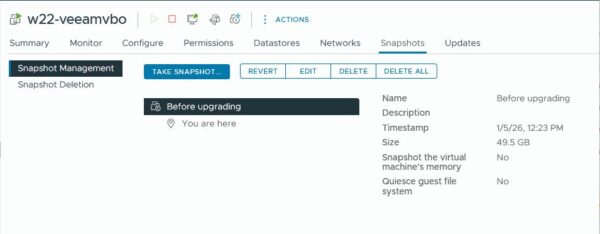
Before upgrading, take a VM snapshot of your Veeam Backup for Microsoft 365 server to ensure you can quickly revert in case of a failure.
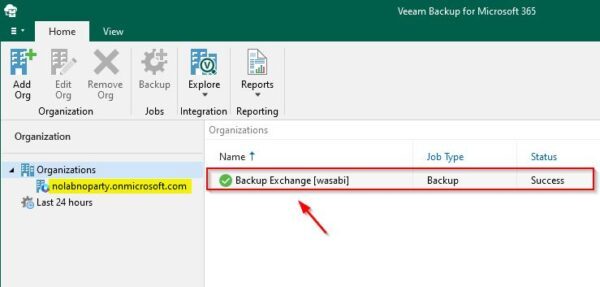
Ensure no jobs are running and close the application.
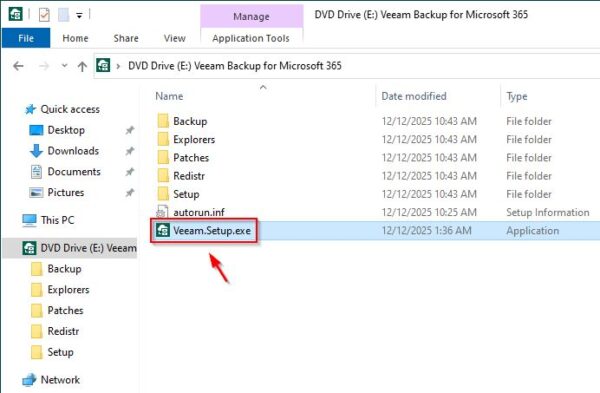
Mount the downloaded Veeam Backup for Microsoft 365 .ISO file and run the installer.
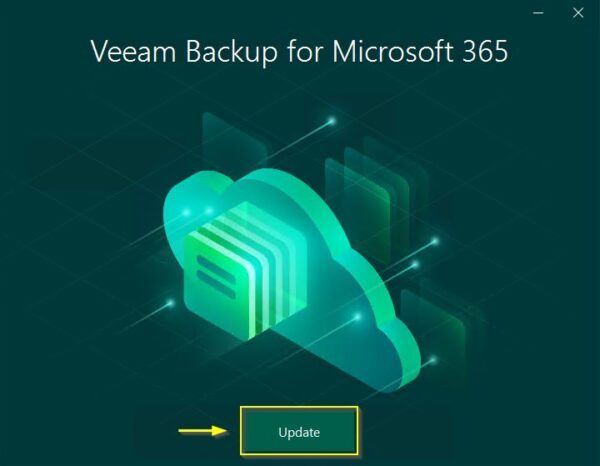
Click Update
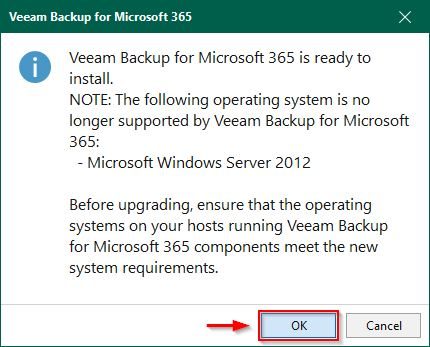
Acknowledge that Windows Server 2012 is no longer supported. Click OK.
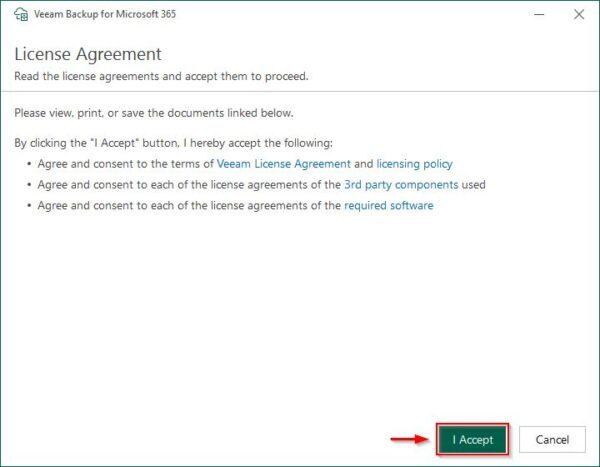
Click I Accept to accept the EULA.
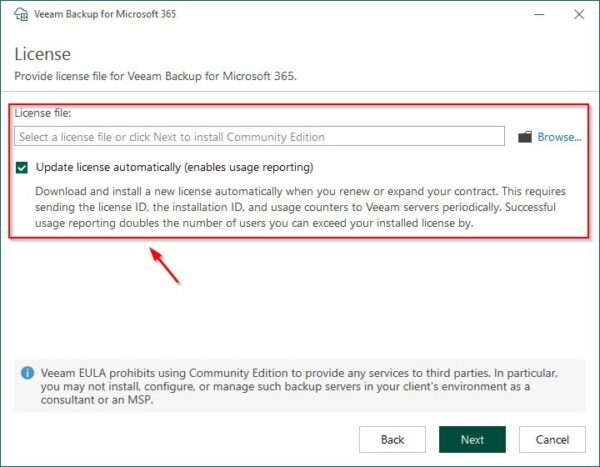
For a production installation, a valid license should already be installed. Click Next.
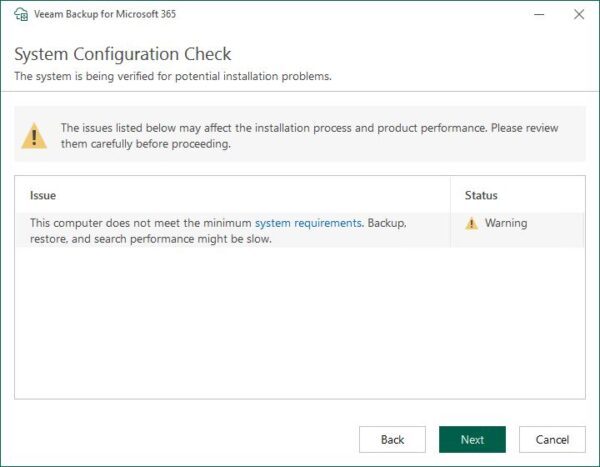
IIf the system doesn’t meet the system requirements (vCPU, RAM, disk space) a warning will appear. Click Next.
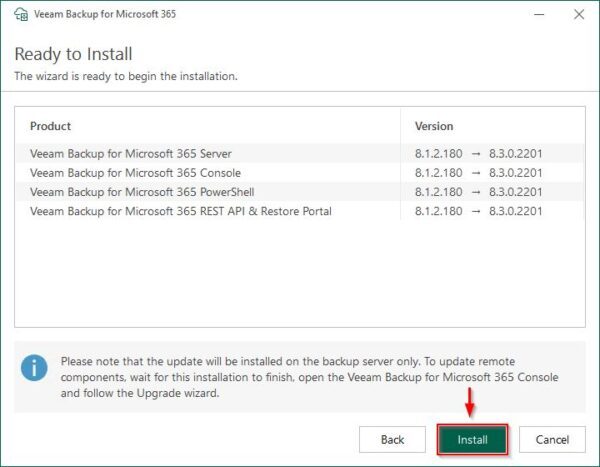
Click Install to begin the installation.
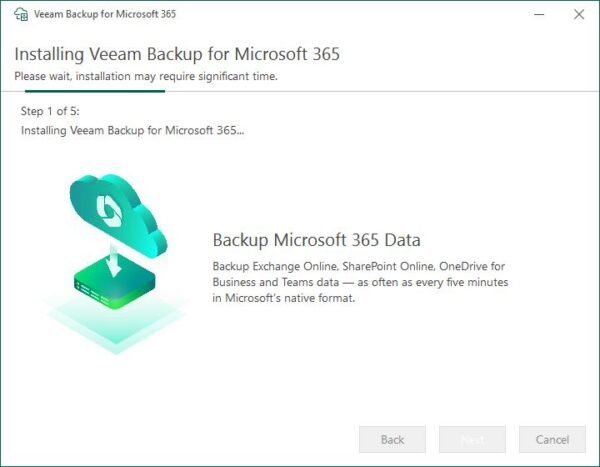
Wait for the five installation steps to completed.
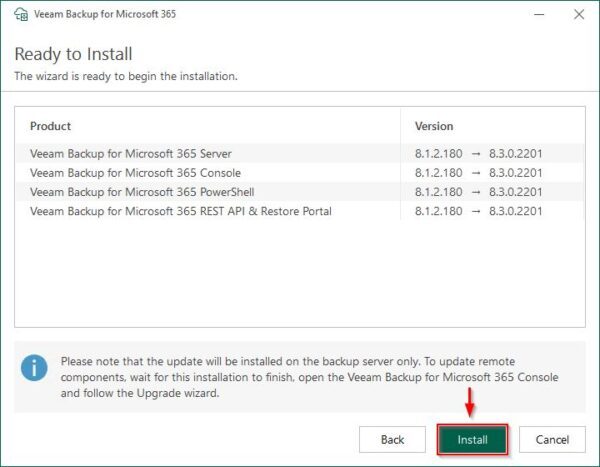
Wait for the five installation steps to completed.
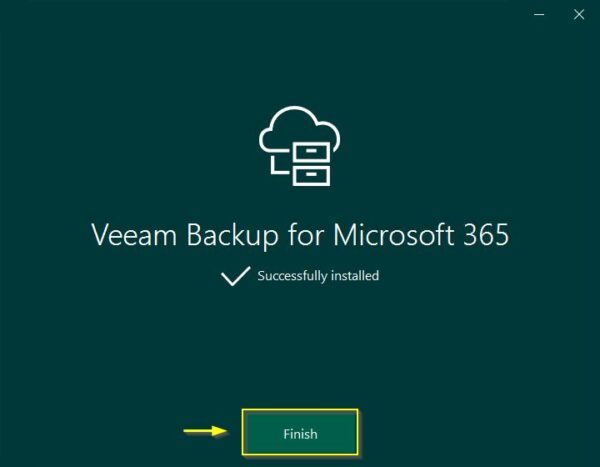
Once the update is installed successfully, click Finish to exit the wizard.
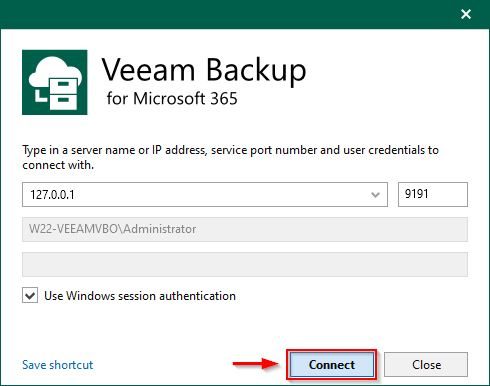
To access the Veeam Backup for Microsoft 365 console, enter the correct credentials and click Connect.
Remote components, such as Proxies, are not upgraded automatically. This must be done manually after the installation is complete.
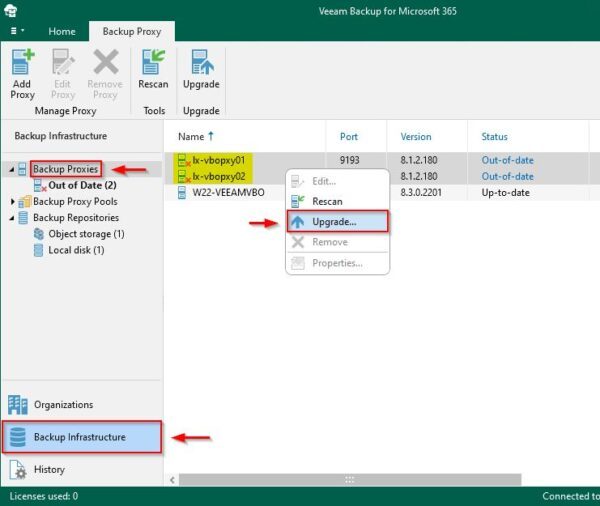
Go to the Backup Infrastructure area and expand Backup Proxies section. Select the Proxies to upgrade, right click and choose Upgrade.
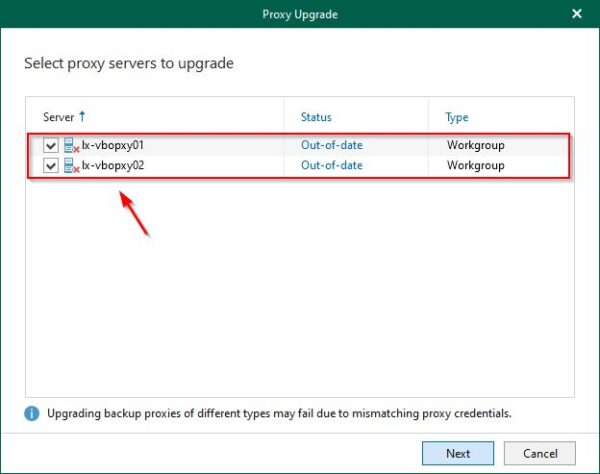
Ensure the selected proxies use the same credentials. In this example both Backup Proxies are Linux-based. Click Next.
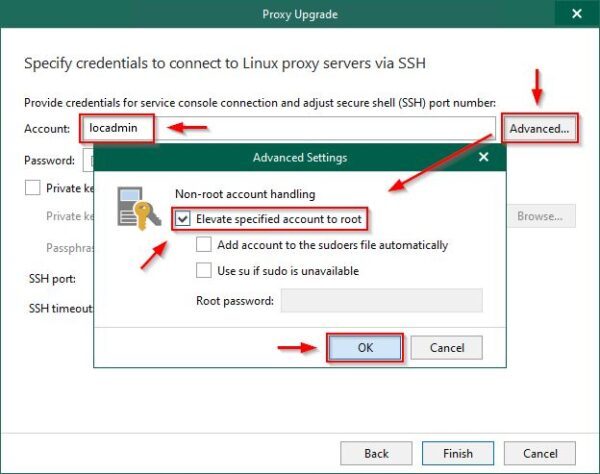
Enter the Account name and click Advanced. Select Elevate specified account to root option and click OK.
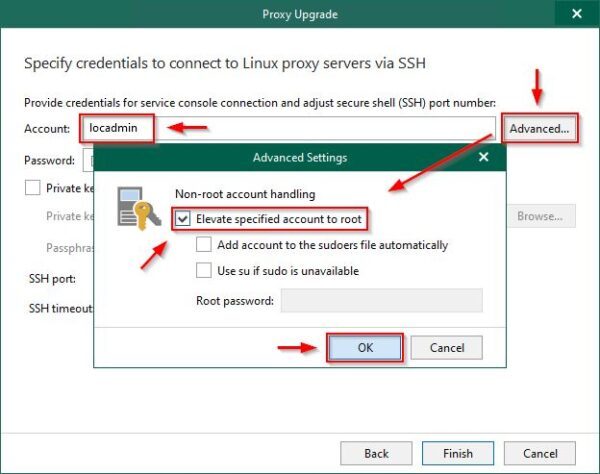
Enter the Password and click Finish.
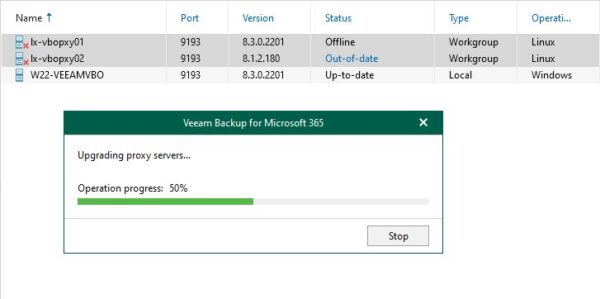
Proxies are being updated.
When the update completes successfully, click OK to exit the wizard.
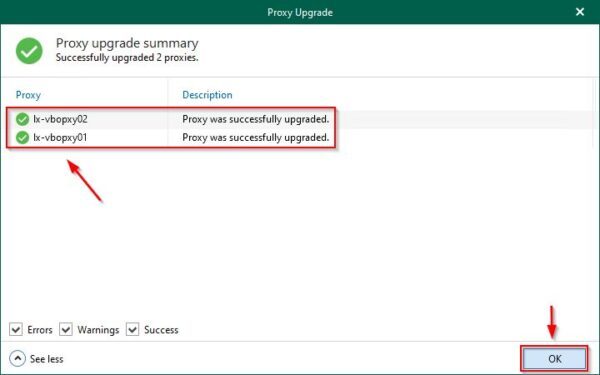
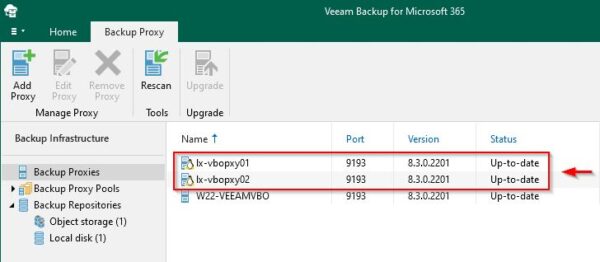
The selected Backup Proxies are now up to date.
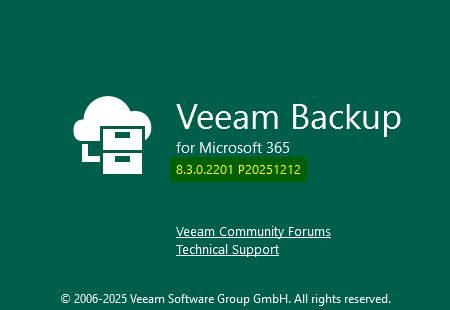
After the upgrade, the new build number will be 8.3.0.2201 P20251212.
Paolo Valsecchi 13/01/2026 No Comments Reading Time: 2 minutes
https://googleads.g.doubleclick.net/pagead/ads?client=ca-pub-0937585939058205&output=html&h=90&slotname=5648133641&adk=1266076318&adf=2438094545&pi=t.ma~as.5648133641&w=680&lmt=1770268327&rafmt=12&format=680×90&url=https%3A%2F%2Fnolabnoparty.com%2Fen%2Fveeam-backup-for-microsoft-365-v8-3-available%2F&uach=WyJXaW5kb3dzIiwiMTAuMC4wIiwieDg2IiwiIiwiMTQ0LjAuNzU1OS4xMTAiLG51bGwsMCxudWxsLCI2NCIsW1siTm90KEE6QnJhbmQiLCI4LjAuMC4wIl0sWyJDaHJvbWl1bSIsIjE0NC4wLjc1NTkuMTEwIl0sWyJHb29nbGUgQ2hyb21lIiwiMTQ0LjAuNzU1OS4xMTAiXV0sMF0.&abgtt=6&dt=1770268327293&bpp=1&bdt=177&idt=1&shv=r20260204&mjsv=m202602020101&ptt=9&saldr=aa&abxe=1&cookie=ID%3Da913b0a485f9f151%3AT%3D1770268151%3ART%3D1770268151%3AS%3DALNI_Mb7iKPV946mdYYfJ1XfuXzJtLTlUw&gpic=UID%3D000012eeda2c1159%3AT%3D1770268151%3ART%3D1770268151%3AS%3DALNI_MYYnSfIpZRGrc9BquG9oINBMdkwhQ&eo_id_str=ID%3D9b9e05e23b79dcd9%3AT%3D1770268151%3ART%3D1770268151%3AS%3DAA-AfjYKcuSIw3UyShLxx3Hmlfyd&prev_fmts=0x0&nras=1&correlator=1226696110858&frm=20&pv=1&u_tz=300&u_his=4&u_h=768&u_w=1360&u_ah=728&u_aw=1360&u_cd=24&u_sd=1&dmc=4&adx=150&ady=375&biw=1360&bih=641&scr_x=0&scr_y=0&eid=95378429%2C95380961%2C95381032%2C95381248%2C95382075%2C95344791%2C95381360&oid=2&pvsid=2864382268038678&tmod=90949943&uas=1&nvt=1&ref=https%3A%2F%2Fnolabnoparty.com%2Fen%2F&fc=1920&brdim=0%2C0%2C0%2C0%2C1360%2C0%2C1360%2C728%2C1360%2C641&vis=1&rsz=%7C%7CleE%7C&abl=CS&pfx=0&fu=256&bc=31&bz=1&pgls=CAA.~CAA.&ifi=2&uci=a!2&fsb=1&dtd=9

Veeam recently released the new Veeam Backup for Microsoft 365 v8.3 with includes enhancements and bug fixes.
After the installation, the Veeam Backup for Microsoft 365 build number will be 8.3.0.2201.
If you already have Veeam Backup for Microsoft 365 installed in your infrastructure, a direct upgrade is supported if you are running version v7, v8, v8.1, or v8.2.
The provided ISO can also be used for a fresh installation of version 8.3.
The following components have been updated to version 8.0.21:
The Monthly Usage Report for rental licenses now automatically submits on the third day of each month.
Optimized wait times between requests during SharePoint restore affected by throttling.
Added a mechanism to identify and repair items with Microsoft Purview Sensitivity Labels affected by the issue in KB4754.
This release addresses several issues from previous versions.
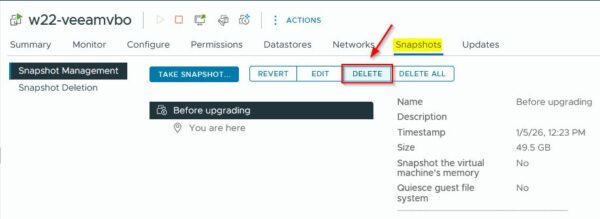
Before upgrading, take a VM snapshot of your Veeam Backup for Microsoft 365 server to ensure you can quickly revert in case of a failure.
Ensure no jobs are running and close the application.
Mount the downloaded Veeam Backup for Microsoft 365 .ISO file and run the installer.
Click Update.
Acknowledge that Windows Server 2012 is no longer supported. Click OK.
Click I Accept to accept the EULA.
For a production installation, a valid license should already be installed. Click Next.

If the system doesn’t meet the system requirements (vCPU, RAM, disk space) a warning will appear. Click Next.

Click Install to begin the installation.

Wait for the five installation steps to completed.

Once the update is installed successfully, click Finish to exit the wizard.

To access the Veeam Backup for Microsoft 365 console, enter the correct credentials and click Connect.

Remote components, such as Proxies, are not upgraded automatically. This must be done manually after the installation is complete.
Go to the Backup Infrastructure area and expand Backup Proxies section. Select the Proxies to upgrade, right click and choose Upgrade.

Ensure the selected proxies use the same credentials. In this example both Backup Proxies are Linux-based. Click Next.

Enter the Account name and click Advanced. Select Elevate specified account to root option and click OK.

Enter the Password and click Finish.

Proxies are being updated.

When the update completes successfully, click OK to exit the wizard.

The selected Backup Proxies are now up to date.

After the upgrade, the new build number will be 8.3.0.2201 P20251212.

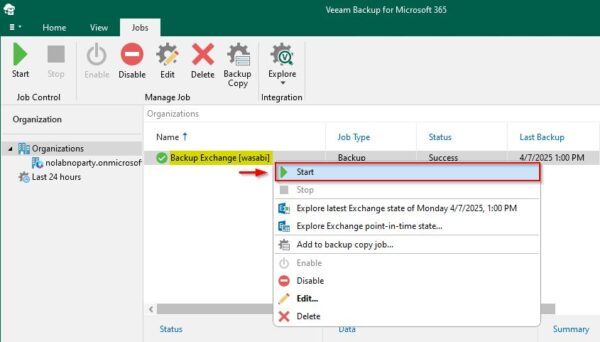
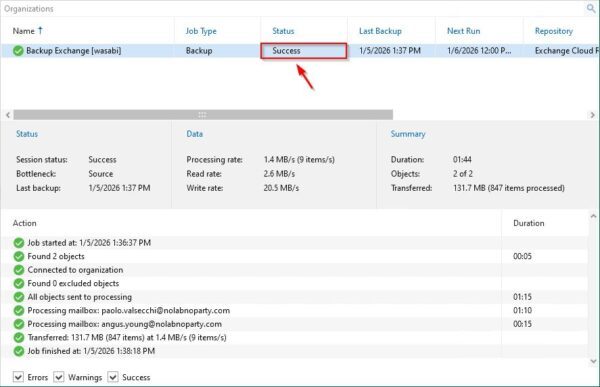
To verify a successful upgrade, right click a configured Backup Job and select Start.
The configured Microsoft 365 objects are processed.
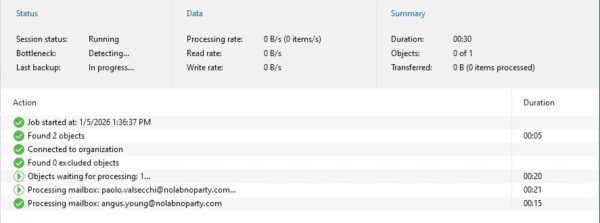
After few minutes, the backup should complete with no errors, confirming a successful upgrade.
The final step is to remove the snapshot that was created earlier.
Additional information about Veeam Backup for Microsoft 365 v8.3 can be found in the Release Notes.

We have detected that you are using extensions to block ads. Please support us by disabling these ads blocker.





