Physical Address
304 North Cardinal St.
Dorchester Center, MA 02124
Physical Address
304 North Cardinal St.
Dorchester Center, MA 02124

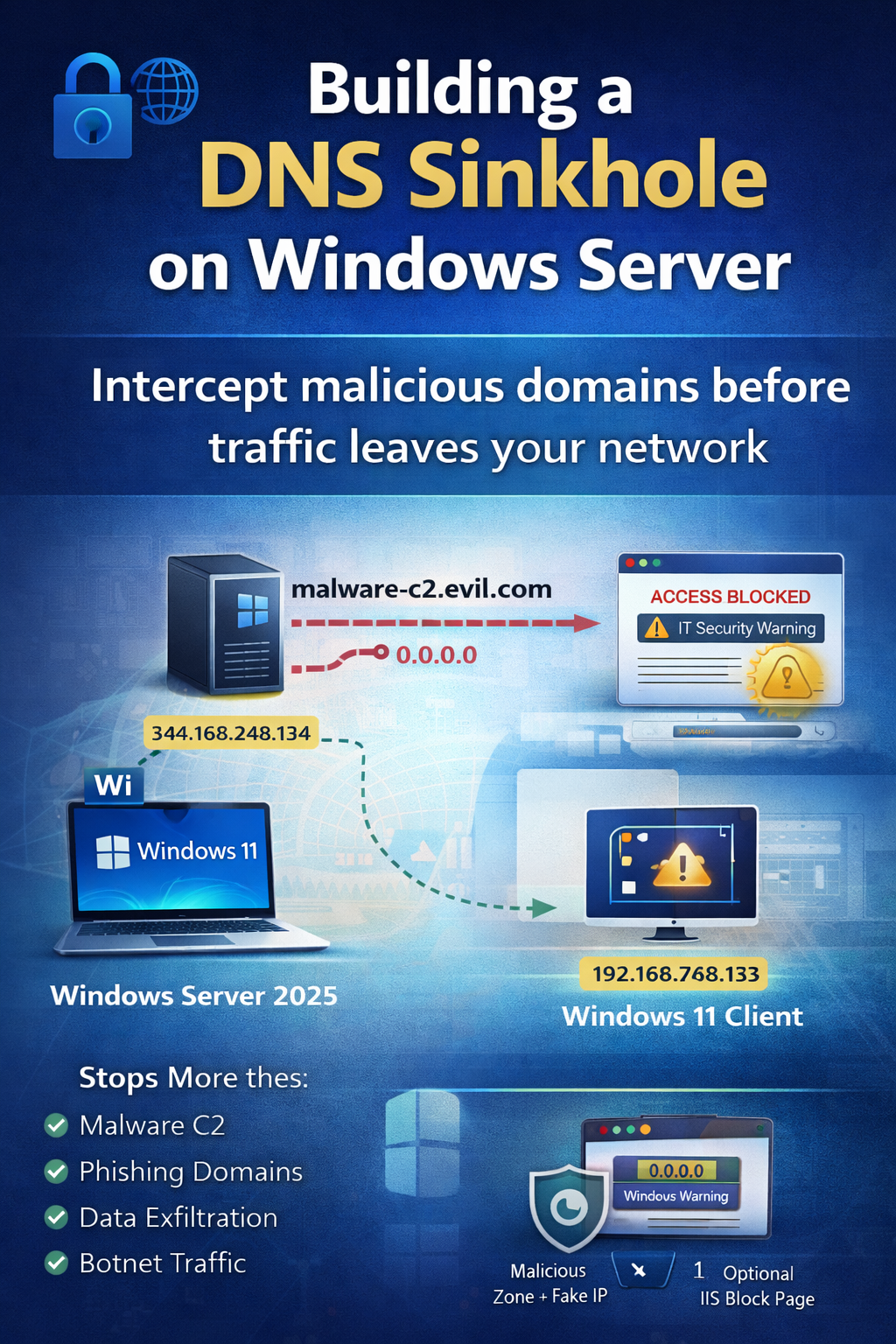
A DNS Sinkhole (also called a DNS blackhole or DNS blacklist) is a cybersecurity mechanism that intercepts DNS queries for known malicious, unwanted, or restricted domain names and redirects them to a controlled IP address — instead of resolving them to the actual malicious server.
When a client machine requests the IP address of a malicious domain (e.g., malware-c2.evil.com), the DNS sinkhole catches that query and responds with either a fake IP address (such as 0.0.0.0 or 127.0.0.1) or an internal warning page effectively blocking the connection before it ever leaves the network.
Under normal circumstances, when a client wants to access a website, it starts by entering a domain name, such as malware.evil.com. The client then sends a DNS query to its configured DNS server—in our lab, that’s the server at 192.168.248.134. The DNS server looks up the domain and resolves it to the real IP address of the target server. Once the client receives this IP address, it connects directly to that server, which, in this example, could be a malicious site. This process illustrates why DNS by itself does not block access to harmful domains, allowing clients to potentially reach unsafe servers.
With a DNS sinkhole in place, the resolution process is altered to prevent access to malicious sites. When a client queries the DNS server for a known-malicious domain, the server first checks its sinkhole zone or records. Instead of looking up the real IP on the internet, the DNS server returns a “fake” IP address—this could be 0.0.0.0, 127.0.0.1, or the IP of an internal safe server. The client then receives this address and either fails to connect or is directed to a block or warning page. As a result, the connection to the malicious server is never established, effectively protecting the client and the network.
✔ TIP: The DNS Sinkhole works entirely at the DNS layer — no firewall rule changes or endpoint agents are needed. It is one of the most lightweight and effective network-level defenses.
DNS sinkholes are effective against a wide range of threats:
There are several technical approaches to implementing a DNS sinkhole:
| Approach | How It Works | Best For |
| DNS Zone with A Record | Create a zone for the bad domain, add an A record pointing to 0.0.0.0 or internal IP | Single or few domains — our lab method |
| Response Policy Zone (RPZ) | Advanced DNS feature (BIND); block/rewrite entire lists of domains using policy rules | Large-scale enterprise deployments |
| Pi-hole / AdGuard | Dedicated sinkhole appliance/VM using curated blocklists updated automatically | Home labs, SMB, privacy-focused networks |
| Third-Party DNS (e.g., Cisco Umbrella) | Cloud DNS that sinkholes known threats before the query reaches your network | Enterprises using cloud-managed DNS |
In this lab, we use Windows Server 2025’s built-in DNS Server role to implement a DNS sinkhole. We will create a Primary DNS Zone for a simulated malicious domain and configure an A record that resolves all queries for that domain to 0.0.0.0 — effectively dropping the connection. We then verify from the Windows 11 Enterprise client that the domain is blocked.
✔ TIP: No additional software is needed. Windows Server DNS is fully capable of acting as a sinkhole for lab and production environments.
| Role | Operating System | IP Address | Function |
| Domain Controller / DNS Server | Windows Server 2025 | 192.168.248.134 | Hosts AD DS, DNS, implements sinkhole |
| Client Machine | Windows 11 Enterprise | 192.168.248.130 | Test machine; DNS uses DC |
| Default Gateway | Router/Firewall | 192.168.248.2 | Network gateway |
NOTE: Verify the client DNS: On the Windows 11 machine, run ipconfig /all and confirm the DNS Server shows 192.168.248.134.
We will walk through the complete DNS sinkhole implementation step by step. Each step includes both a GUI method (using DNS Manager) and a PowerShell equivalent for automation
Verify DNS Server is Running on the Domain Controller Log in to the DC at 192.168.248.134
Press Windows + R, type servermanager, and press Enter.
In Server Manager, click Tools → DNS to open DNS Manager.
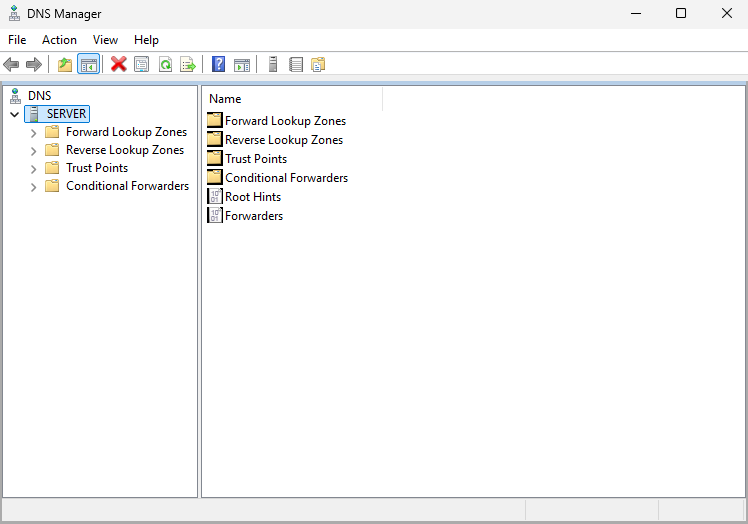
Confirm your server (WIN-SERVER2025 or the DC hostname) is listed and green.
Get-Service DNS
Expected output should show Status: Running. If not running, start it:
Start-Service DNS
⚠ WARNING: You should run all PowerShell commands as Administrator on the Domain Controller.
Open DNS Manager This is where you create and manage DNS zones
On the Domain Controller, open Server Manager. Click Tools in the top-right menu bar.
Click DNS from the dropdown. In DNS Manager, expand your server node in the left pane.
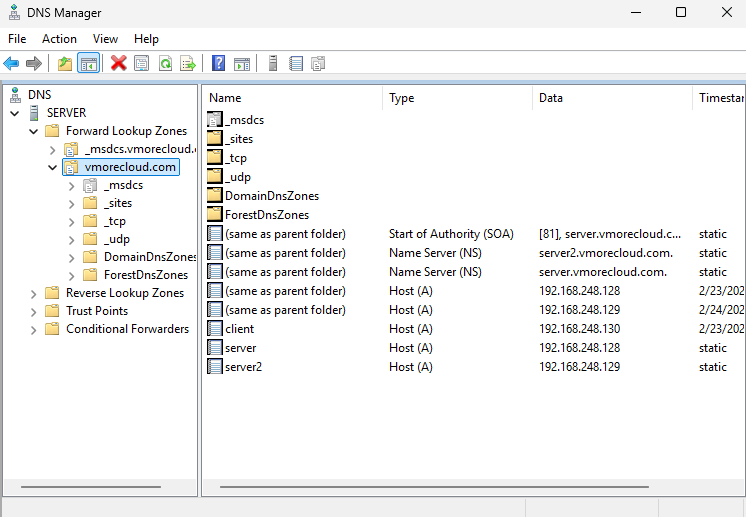
You will see: Forward Lookup Zones, Reverse Lookup Zones, Conditional Forwarders, and Root Hints.
Create a New Forward Lookup Zone for the Malicious Domain We will block the simulated malicious domain: evil-malware.com
NOTE: In a real-world scenario, replace evil-malware.com with actual malicious domains from threat intelligence feeds (e.g., CISA, abuse.ch, MalwareBazaar)
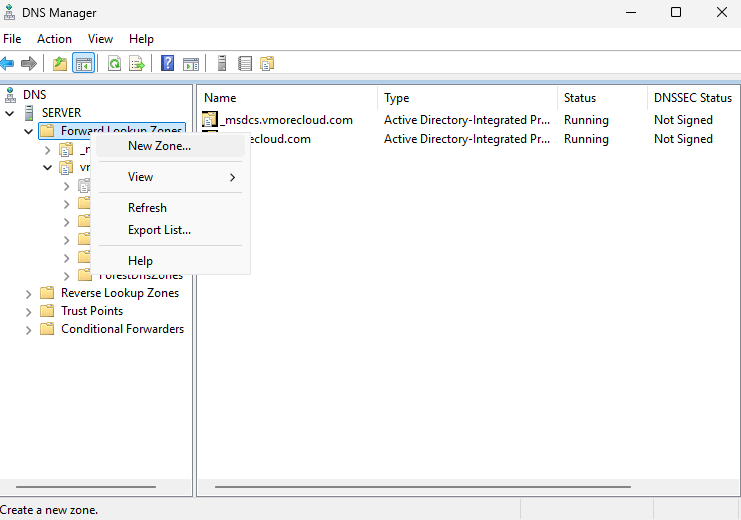
In DNS Manager, right-click Forward Lookup Zones.
Select New Zone…
The New Zone Wizard will open. Click Next.
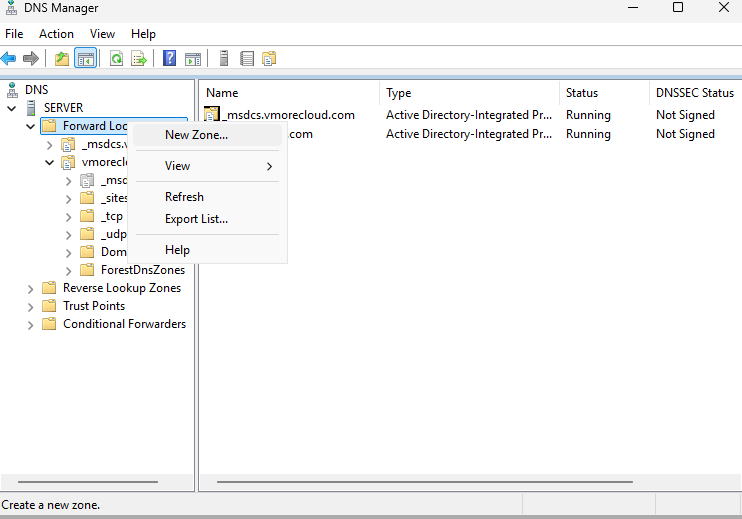
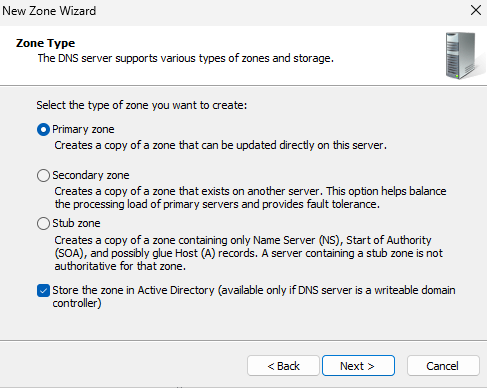
On Zone Type, select Primary Zone. Ensure Store the zone in Active Directory is checked. Click Next.
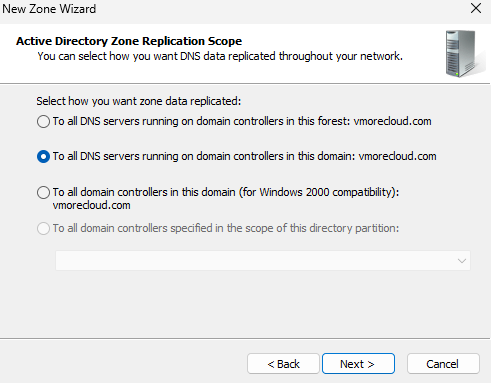
On Active Directory Zone Replication Scope, select To all DNS servers running on domain controllers in this domain: vmorecloud.com. Click Next.
On Zone Name, type the malicious domain name:
evil-malware.com
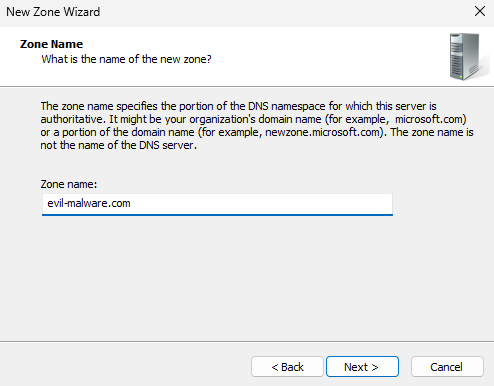
Click Next.
On Dynamic Update, select Do not allow dynamic updates (sinkhole zones should be static). Click Next.
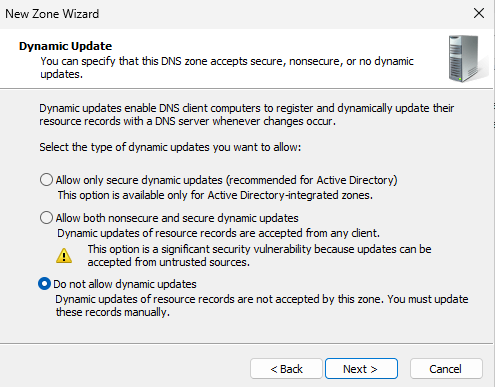
Click Finish.
✔ TIP: The zone evil-malware.com now appears in your Forward Lookup Zones. However, it has no records yet — we need to add the sinkhole A record next.
Add-DnsServerPrimaryZone -Name "evil-malware.com" -ReplicationScope "Domain" -PassThru
Add a Wildcard A Record (SOA + NS are auto-created, but we need the sinkhole A record) Point all queries to 0.0.0.0 to black-hole them
The sinkhole works by returning a fake/black-hole IP for every hostname in the domain. We need two records:
In DNS Manager, click on the evil-malware.com zone.
Right-click in the right pane → New Host (A or AAAA)…
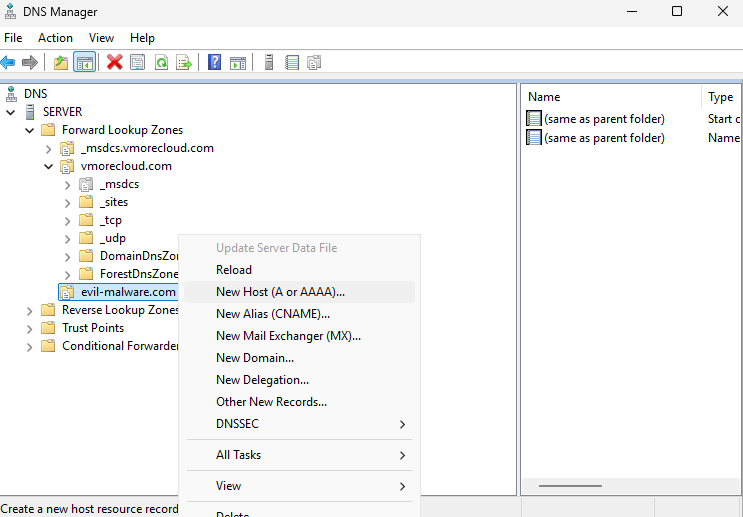
Leave the Name field completely blank (this creates the @ apex record).
In the IP Address field, type: 0.0.0.0
Click Add Host. Click OK on the confirmation.
Right-click in the right pane again → New Host (A or AAAA)…
In the Name field, type: *
In the IP Address field, type: 0.0.0.0
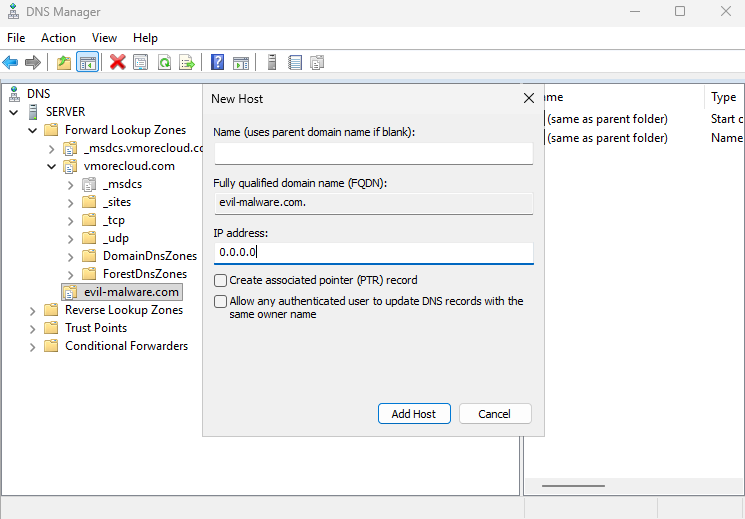
Click Add Host. Click OK.
PowerShell (add both records):
Add-DnsServerResourceRecordA -ZoneName "evil-malware.com" -Name "@" -IPv4Address "0.0.0.0"
Add-DnsServerResourceRecordA -ZoneName "evil-malware.com" -Name "*" -IPv4Address "0.0.0.0"

NOTE: Using 0.0.0.0 (null route) means the connection will fail immediately. Alternatively, you can redirect to an internal web server IP (e.g., 192.168.248.134) to serve a custom block page
Confirm the zone is configured correctly before testing
Click on evil-malware.com in the left pane.
In the right pane, you should see: Start of Authority (SOA), Name Server (NS), and two A records — one for @ and one for *.
PowerShell — List the Zone:
Get-DnsServerZone -Name "evil-malware.com"
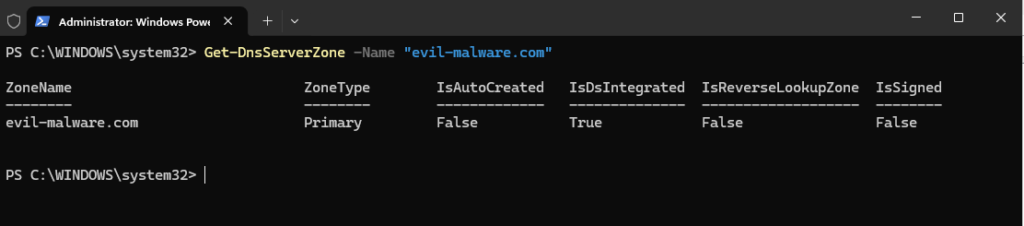
PowerShell — List the Records:
Get-DnsServerResourceRecord -ZoneName "evil-malware.com"
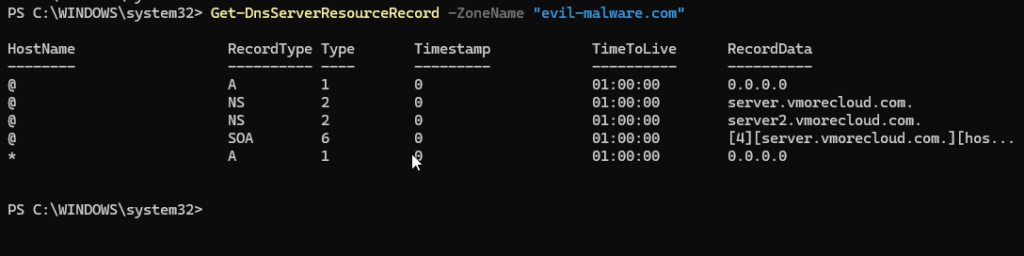
Expected output includes records with HostName @ and * both pointing to RecordData: 0.0.0.0.
Test Resolution from the DC Itself
Resolve-DnsName evil-malware.com -Server 127.0.0.1
Resolve-DnsName www.evil-malware.com -Server 127.0.0.1
Resolve-DnsName anything.evil-malware.com -Server 127.0.0.1
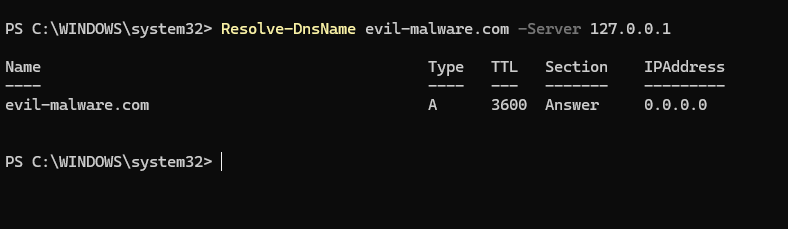
All three should return IPAddress: 0.0.0.0, confirming the sinkhole is active.
Test the DNS Sinkhole from the Windows 11 Client
ipconfig /all
Find the DNS Servers line. It should show: 192.168.248.134
⚠ WARNING: If the DNS is not pointing to 192.168.248.134, update the network adapter settings to set Preferred DNS Server to 192.168.248.134.
Before testing, clear the DNS resolver cache on the client to ensure you get fresh results:
ipconfig /flushdns
Test DNS Resolution of the Sinkholes Domain:
nslookup evil-malware.com
Expected output:
Server:  WIN-DC.vmorecloud.com
Address:  192.168.248.134

Name:    evil-malware.com
Address:  0.0.0.0
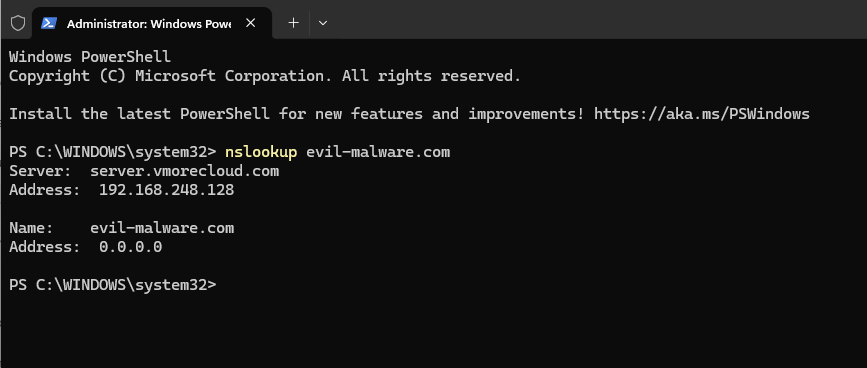
The domain resolves to 0.0.0.0 — the sinkhole is working. Test with a subdomain:
nslookup www.evil-malware.com
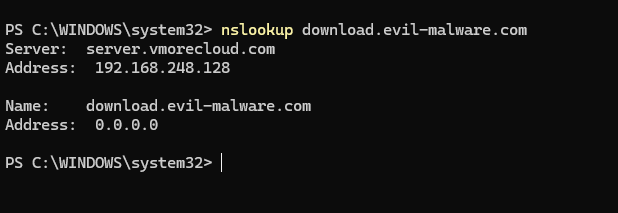
nslookup download.evil-malware.com
nslookup c2.evil-malware.com
The domain resolves to 0.0.0.0 — the sinkhole is working. Test with a subdomain:
nslookup www.evil-malware.com
nslookup download.evil-malware.com
nslookup c2.evil-malware.com
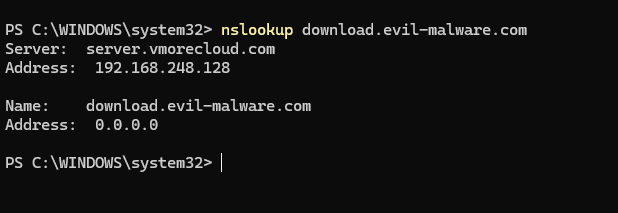
All subdomains should also return 0.0.0.0
Test with PowerShell Resolve-DnsName
Resolve-DnsName evil-malware.com
Resolve-DnsName update.evil-malware.com
Test Ping (Connection Should Fail
ping evil-malware.com
Expected: General failure or Transmit failed — because 0.0.0.0 is not a routable address and no real server exists at that address. The malicious connection has been successfully blocked.
✔ TIP: If you want to serve a custom block page instead of silently dropping connections, redirect the sinkhole A records to point to 192.168.248.134 (the DC) and configure IIS on the DC to host a block page.
In a real-world scenario, you may need to sinkhole dozens or hundreds of malicious domains from threat intelligence feeds. Use the following PowerShell script to bulk-create sinkhole zones:
PowerShell Bulk Sinkhole Script:
# Define list of malicious domains to sinkhole
$maliciousDomains = @(
    "evil-malware.com",
    "phishing-site.net",
    "botnet-c2.org",
    "ransomware-payment.io",
    "data-exfil.xyz"
)

# Loop through each domain and create a sinkhole zone
foreach ($domain in $maliciousDomains) {
    # Check if zone already exists
    $exists = Get-DnsServerZone -Name $domain -ErrorAction SilentlyContinue
    if (-not $exists) {
        # Create the primary zone
        Add-DnsServerPrimaryZone -Name $domain -ReplicationScope "Domain" -PassThru
        # Add apex A record → 0.0.0.0
        Add-DnsServerResourceRecordA -ZoneName $domain -Name "@" -IPv4Address "0.0.0.0"
        # Add wildcard A record → 0.0.0.0
        Add-DnsServerResourceRecordA -ZoneName $domain -Name "*" -IPv4Address "0.0.0.0"
        Write-Host "[SINKHOLES] $domain blocked successfully" -ForegroundColor Green
    } else {
        Write-Host "[EXISTS] $domain already sinkholes" -ForegroundColor Yellow
    }
}
Run this script on the Domain Controller with Administrator privileges. It will create sinkhole zones for all listed domains, skipping any that already exist.
Instead of 0.0.0.0, redirect to an internal warning server. For a more professional DNS sinkhole, redirect blocked domains to an internal web server that displays a custom block page. This improves user awareness and helps the security team identify which users triggered the block.
Install-WindowsFeature -Name Web-Server -IncludeManagementTools
$html = @'
<!DOCTYPE html><html><head><title>Access Blocked</title>
<style>body{font-family:Arial;text-align:center;padding:60px;background:#1e1e2e;color:#fff;}
h1{color:#ff4444;}p{font-size:18px;}</style></head>
<body><h1>⚠ Access Blocked by IT Security</h1>
<p>This domain has been identified as malicious and is blocked by the DNS Sinkhole.</p>
<p>If you believe this is an error, contact: it-security@vmorecloud.com</p></body></html>
'@
Set-Content -Path "C:\inetpub\wwwroot\index.html" -Value $html
Change 0.0.0.0 to 192.168.248.134 in your sinkhole zones
# Remove old record and add new one pointing to block page server
Remove-DnsServerResourceRecord -ZoneName "evil-malware.com" -Name "@" -RRType "A" -Force
Add-DnsServerResourceRecordA -ZoneName "evil-malware.com" -Name "@" -IPv4Address "192.168.248.134"
Remove-DnsServerResourceRecord -ZoneName "evil-malware.com" -Name "*" -RRType "A" -Force
Add-DnsServerResourceRecordA -ZoneName "evil-malware.com" -Name "*" -IPv4Address "192.168.248.134"
Now when a user tries to access evil-malware.com, they are redirected to the DC at 192.168.248.134, which serves the custom block page via IIS.
⚠ WARNING: Ensure IIS on the DC is listening on port 80 and the Windows Firewall allows inbound HTTP (port 80) traffic. Also ensure the sinkhole does not interfere with legitimate vmorecloud.com resources.
| # | Verification Task | Expected Result |
| 1 | DNS zone evil-malware.com exists in DNS Manager | Zone visible in Forward Lookup Zones |
| 2 | @ A record in zone points to 0.0.0.0 or 192.168.248.134 | Record visible in zone details |
| 3 | Wildcard * A record in zone points to 0.0.0.0 or 192.168.248.134 | Record visible in zone details |
| 4 | nslookup evil-malware.com from DC returns sinkhole IP | Returns 0.0.0.0 or redirect IP |
| 5 | nslookup www.evil-malware.com from DC returns sinkhole IP | Returns 0.0.0.0 (wildcard works) |
| 6 | nslookup evil-malware.com from Win11 client returns sinkhole IP | Returns 0.0.0.0 |
| 7 | ping evil-malware.com from client fails | General failure / Transmit failed |
| 8 | Browser on client cannot load http://evil-malware.com | ERR_CONNECTION_REFUSED or custom block page |
| 9 | Legitimate domains (e.g., google.com) still resolve normally | Normal public IP returned |
| 10 | DNS debug log shows queries for evil-malware.com being served sinkhole response | Log entries visible |
Congratulations! You have successfully implemented a DNS Sinkhole on Windows Server 2025 for the vmorecloud.com domain environment

We have detected that you are using extensions to block ads. Please support us by disabling these ads blocker.





