Physical Address
304 North Cardinal St.
Dorchester Center, MA 02124
Physical Address
304 North Cardinal St.
Dorchester Center, MA 02124

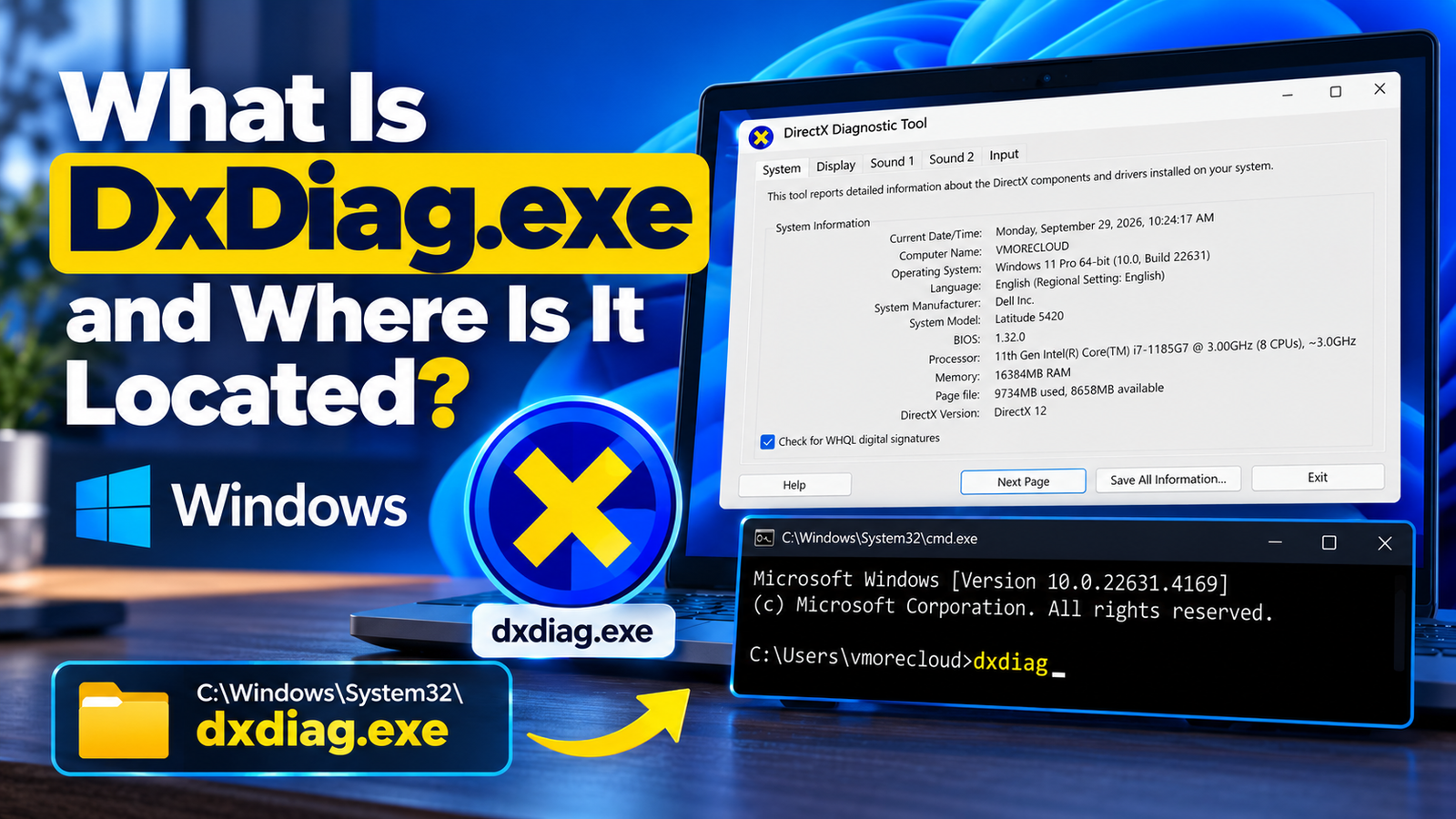
DxDiag.exe is the Windows executable behind the DirectX Diagnostic Tool. Learn what it does, where Windows stores it, how to launch it, and how to verify its location from Command Prompt or PowerShell.
The standard Windows location is represented by %WINDIR%\System32\dxdiag.exe. On a typical Windows installation, this resolves to C:\Windows\System32\dxdiag.exe.
%windir%\system32\dxdiag.exe.C:\Windows\System32\dxdiag.exe.dxdiag in Windows Search, Run, Command Prompt, or PowerShell.DxDiag.exe is the Windows executable that launches the DirectX Diagnostic Tool, commonly called DxDiag. Microsoft describes DxDiag as a diagnostic utility that gathers information about the system and installed DirectX components and can perform checks to help determine whether related components are working correctly.
It is particularly useful when troubleshooting games, graphics problems, display-driver issues, audio problems, or when a support technician asks for a system diagnostic report.
dxdiag.exe from an unofficial website.Microsoft documents the executable location as:
On a typical Windows installation where Windows is installed on the C: drive, this becomes:
The %WINDIR% environment variable represents the Windows installation directory. Using the environment-variable form is safer than assuming that Windows is always installed in C:\Windows.
If Windows is installed in another directory, use the actual Windows folder instead of assuming C:\Windows.
Press Windows + R, type dxdiag, and press Enter. Windows launches the executable without requiring you to browse to the System32 folder.
Open Command Prompt and run:
You can also ask Windows to show the executable’s location:
On a normal Windows installation, the result should resolve to the Windows system directory containing dxdiag.exe.
PowerShell can resolve the command and show the executable path:
To inspect the standard path directly, use:
If you want to verify the file without opening the graphical tool, Command Prompt can check the documented path:
You can also use a simple directory query:
When DxDiag opens, it presents diagnostic information across several tabs. The exact information displayed can vary with Windows version, installed hardware and drivers.
| Area | What You Can Inspect |
|---|---|
| System | Windows system information and the DirectX version reported by DxDiag. |
| Display | Graphics adapter information, display details and graphics-driver information. |
| Sound | Audio device and driver information. |
| Input | Information about connected input devices detected by the tool. |
| Report | DxDiag can save its collected information with Save All Information… for troubleshooting or support. |
These terms are related, but they are not the same thing:
| Term | Meaning |
|---|---|
| DirectX | A collection of Windows components and APIs used by software, especially games, to work with graphics, audio and other hardware capabilities. |
| DxDiag | The DirectX Diagnostic Tool that gathers and presents diagnostic information. |
| DxDiag.exe | The executable file used to launch the DirectX Diagnostic Tool. |
The Microsoft-documented system executable is located at %windir%\System32\dxdiag.exe. If you find a file named dxdiag.exe somewhere unexpected, do not assume that it is the Windows diagnostic utility simply because it has the same filename.
dxdiag.exe from random websites. If the expected Windows executable is missing or damaged, use Windows repair and servicing tools or Microsoft support guidance rather than replacing a system file with an unverified copy.If searching for dxdiag.exe in File Explorer does not immediately show the file, first try launching dxdiag from Run, Command Prompt or Windows Search. Then verify the documented location using the commands above.
Also check that you are looking under the actual Windows installation directory represented by %windir%. The standard location is not necessarily C:\Windows on systems where Windows was installed to a different drive or directory.
Yes. The simplest command is:
For troubleshooting, DxDiag can also save a text report. A practical command is:
This creates a text report on the current user’s desktop when the command completes. The report can be useful when a technician or support forum asks for DxDiag information.
| Task | Command / Location |
|---|---|
| Open DxDiag | dxdiag |
| Executable | dxdiag.exe |
| Microsoft-documented path | %windir%\System32\dxdiag.exe |
| Typical full path | C:\Windows\System32\dxdiag.exe |
| Find command location | where dxdiag |
| PowerShell lookup | Get-Command dxdiag.exe |
| Check standard path | dir "%windir%\System32\dxdiag.exe" |
| Save text report | dxdiag /t "%USERPROFILE%\Desktop\DxDiag.txt" |
DxDiag.exe is the executable for Windows’ DirectX Diagnostic Tool. Microsoft documents its system location as %windir%\System32\dxdiag.exe, which normally resolves to C:\Windows\System32\dxdiag.exe. You do not need to browse to that folder to use the tool: typing dxdiag in Windows Search, Run, Command Prompt or PowerShell is usually the quickest way to launch it.
For technical troubleshooting, knowing the executable path is useful because it lets you verify that you are launching the Windows system tool rather than an unrelated copy, and it provides a reliable starting point when diagnosing DirectX, graphics-driver or audio issues.
%windir%\system32\dxdiag.exe and describes the diagnostic API.
We have detected that you are using extensions to block ads. Please support us by disabling these ads blocker.