




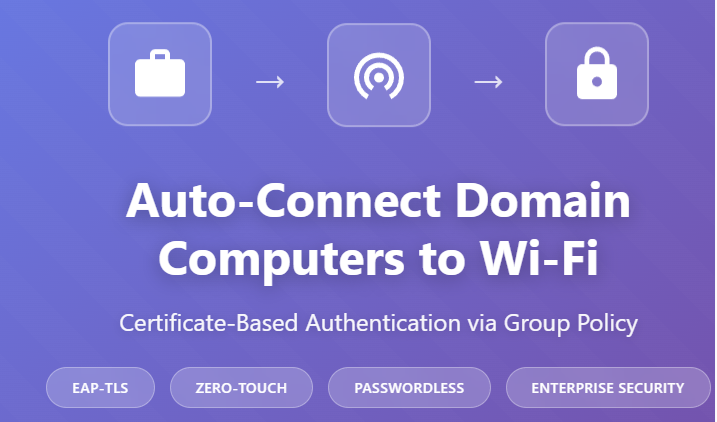
How to Auto-Connect Domain Computers to Enterprise Wi-Fi Without Passwords Using EAP-TLS Certificates and Group Policy
236views
Manually configuring wireless network settings on every domain computer is time-consuming and error-prone. As a system administrator managing dozens or hundreds of devices, I’ve learned that automating wireless authentication using EAP-TLS certificates through Group Policy not only saves countless hours but also significantly improves network security.
In this comprehensive guide, I’ll walk you through the entire process of deploying certificate-based wireless authentication to your domain computers, eliminating the need for manual configuration or shared passwords.
What You’ll Learn
- How to configure automatic certificate enrollment for domain computers
- Step-by-step Group Policy configuration for wireless networks
- EAP-TLS authentication setup using computer certificates
- Troubleshooting common deployment issues
- Best practices for enterprise wireless security
Why EAP-TLS Certificate Authentication Matters
Traditional wireless networks rely on Pre-Shared Keys (PSK) — essentially a single password shared by all users. This approach has serious security limitations:
- Single point of failure: One compromised password exposes your entire network
- Password fatigue: Users must remember and enter complex passwords
- No individual accountability: You can’t track which device accessed what
- Manual reconfiguration: Password changes require updating every device
EAP-TLS (Extensible Authentication Protocol – Transport Layer Security) solves these problems by using digital certificates instead of passwords. Each computer receives its own unique certificate, providing:
- Passwordless authentication: Computers connect automatically without user interaction
- Strong encryption: Certificate-based mutual authentication between client and server
- Individual device tracking: Each certificate is unique to a specific computer
- Automated management: Group Policy handles configuration and certificate deployment
Prerequisites
Before starting, ensure you have:
- Active Directory Domain Services (AD DS) running on Windows Server
- Active Directory Certificate Services (AD CS) configured as an Enterprise Certificate Authority
- Network Policy Server (NPS) or another RADIUS server for 802.1X authentication
- 802.1X-capable wireless access points configured for WPA2/WPA3-Enterprise
- Administrative credentials with permissions to create Group Policy Objects
- Domain-joined computers running Windows 10/11 or Windows Server
Click here to download Microsoft Windows Server 2025 iso.
Architecture Overview
The certificate-based wireless authentication system involves four key components:
- Certificate Authority (CA): Issues certificates to computers automatically
- Group Policy: Deploys wireless profiles and configures certificate settings
- RADIUS Server (NPS): Validates computer certificates and authorizes network access
- Wireless Access Points: Forward authentication requests to the RADIUS server
When a domain computer boots up, it automatically requests a certificate from the CA, applies the wireless profile from Group Policy, and authenticates to the network using its certificate — all without user intervention.
Step 1: Configure Certificate Auto-Enrollment
First, we need to ensure domain computers automatically receive certificates suitable for network authentication.
Create a Computer Certificate Template
- Open Certificate Authority console on your CA server
- Right-click Certificate Templates and select Manage
- Right-click the Computer template and choose Duplicate Template
- In the General tab:
- Name:
Domain Computer Authentication - Validity period: 2 years (or per your policy)
- Renewal period: 6 weeks
- Name:
- In the Request Handling tab:
- Select Allow private key to be exported (only if needed for backup)
- In the Security tab:
- Add Domain Computers group
- Grant Read and Autoenroll permissions
- In the Subject Name tab:
- Select Supply in the request or Build from Active Directory information
- In the Extensions tab:
- Edit Application Policies
- Ensure Client Authentication (OID 1.3.6.1.5.5.7.3.2) is present
- Click OK to create the template
Publish the Certificate Template
- In the Certificate Authority console, right-click Certificate Templates
- Select New → Certificate Template to Issue
- Select Domain Computer Authentication template
- Click OK
Configure Group Policy for Certificate Auto-Enrollment
- Open Group Policy Management Console (gpmc.msc)
- Create a new GPO or edit an existing one linked to your domain computers OU
- Navigate to:
   Computer Configuration → Policies → Windows Settings →
Security Settings → Public Key Policies- Right-click Automatic Certificate Request Settings and select New → Automatic Certificate Request
- Click Next on the wizard welcome screen
- Select Computer certificate template (or your custom template)
- Click Next, then Finish
Verify Certificate Enrollment Configuration
- In the same Group Policy path, double-click Certificate Services Client – Auto-Enrollment
- Set Configuration Model to Enabled
- Check these options:
- ✓ Renew expired certificates, update pending certificates, and remove revoked certificates
- ✓ Update certificates that use certificate templates
- Click OK
Now domain computers will automatically request and receive certificates during startup and every 8 hours thereafter.
Step 2: Configure the RADIUS Server (NPS)
Your RADIUS server authenticates computers presenting valid certificates. Here’s how to configure Microsoft Network Policy Server:
Add Wireless Access Points as RADIUS Clients
- Open Network Policy Server console
- Right-click RADIUS Clients under RADIUS Clients and Servers
- Select New RADIUS Client
- Enter:
- Friendly name: Your AP name (e.g., “Building-A-APs”)
- Address: IP address or DNS name of your access point
- Shared secret: Create a strong password (save this for AP configuration)
- Click OK
Repeat for each access point or use a subnet if your APs support it.
Configure Network Policy for Computer Authentication
- In NPS, right-click Network Policies and select New
- Policy name:
Wireless Computer Authentication - EAP-TLS - Type of network access server: Select Unspecified
- Click Next
Specify Conditions
Add the following conditions:
- NAS Port Type:
- Add condition
- Select Wireless – IEEE 802.11
- Windows Groups:
- Add condition
- Click Add Groups
- Add Domain Computers group
- Authentication Types (optional but recommended):
- Add condition
- Select EAP
Click Next
Specify Access Permission
- Select Access granted
- Click Next
Configure Authentication Methods
- Uncheck all less secure authentication methods
- Check only:
- ✓ Microsoft: Smart Card or other certificate (EAP-TLS)
- Click Edit next to EAP Types
- In Smart Card or other Certificate Properties:
- Under Certificate issued to, select your CA root certificate
- This validates that client certificates are issued by your trusted CA
- Click OK, then Next
Configure Constraints
- Click NAS Port Type
- Verify Wireless – IEEE 802.11 is checked
- Click Next
Settings
Leave default RADIUS attributes or customize based on your VLAN strategy:
- To assign a specific VLAN, add:
- Tunnel-Type: Virtual LANs (VLAN)
- Tunnel-Medium-Type: 802 (includes all 802 media)
- Tunnel-Pvt-Group-ID: Your VLAN ID (e.g., 100)
Click Next, then Finish
Restart NPS Service
After configuration, restart the NPS service:
powershell
Restart-Service IASStep 3: Configure Wireless Access Points
The exact steps vary by manufacturer, but the general configuration is:
- Create a new SSID (e.g., “CorpSecure”)
- Security Type: WPA2-Enterprise or WPA3-Enterprise
- Authentication: 802.1X with RADIUS
- RADIUS Server Settings:
- Primary server IP: Your NPS server IP
- Authentication port: 1812
- Shared secret: The password configured in NPS
- Encryption: AES (CCMP)
Save and apply the configuration. Your access points will now forward authentication requests to NPS.
Step 4: Create Wireless Network Policy via Group Policy
Now we’ll deploy the wireless network profile to all domain computers automatically.
Create Wireless Network Policy
- Open Group Policy Management Console
- Navigate to or create a GPO for your domain computers
- Go to:
   Computer Configuration → Policies → Windows Settings →
Security Settings → Wireless Network (IEEE 802.11) Policies- Right-click in the right pane and select Create a New Wireless Network Policy for Windows Vista and Later Releases
- Policy Name:
Corporate Wireless - EAP-TLS - Click Add and select Infrastructure
Configure Wireless Network Profile
- General Tab:
- Profile Name:
Corporate Secure Wireless - Network Name (SSID): Enter your SSID (e.g., “CorpSecure”)
- ✓ Connect automatically when this network is in range
- ✓ Connect even if the network is not broadcasting
- Network type: Infrastructure
- Profile Name:
- Security Tab:
- Authentication: WPA2-Enterprise or WPA3-Enterprise
- Encryption: AES
- Select a network authentication method: Microsoft: Protected EAP (PEAP)
- Note: We’re using PEAP-EAP-TLS, which wraps EAP-TLS in PEAP for additional security
- Click Properties button
Configure PEAP Properties
- In Protected EAP Properties:
- Verify the server’s identity by validating the certificate: ✓ (checked)
- Trusted Root Certification Authorities: Check your CA’s root certificate
- This ensures computers trust the RADIUS server’s certificate
- Do not prompt user to authorize new servers or trusted CAs: ✓ (recommended for automation)
- Select Authentication Method:
- Choose Smart Card or other certificate (EAP-TLS)
- Click Configure button
Configure EAP-TLS (Inner Method)
- In Smart Card or other Certificate Properties: Certificate Issued To:
- Check your CA root certificate
- This ensures computers use certificates issued by your CA
- Under Certificate Issuer, select your CA
- This filters which certificate the computer presents
- Click OK to close all dialogs
Configure Advanced 802.1X Settings (Optional)
- Back in the Network Properties, click Advanced button
- Advanced 802.1X Settings:
- Max Eap Start Msgs: 3 (default)
- Held Period: 1 (seconds)
- Start Period: 5 (seconds)
- Auth Period: 18 (seconds)
- Single Sign On tab:
- ✓ Enable Single Sign On for this network
- Perform immediately before user logon: Selected
- ✓ This network uses different VLAN for machine and user authentication
- Click OK
Finalize the Policy
- Click OK to close the network properties
- In the Wireless Network Policy Properties, verify your network appears in the list
- Click OK
- Close the Group Policy Editor
Step 5: Deploy and Test
Link the Group Policy
- In Group Policy Management Console, right-click your domain or appropriate OU
- Select Link an Existing GPO
- Choose the GPO containing your wireless configuration
- Right-click the linked GPO and select Enforced
Force Group Policy Update on Test Computer
On a domain-joined test computer, open Command Prompt as Administrator:
cmd
gpupdate /forceWait for the update to complete.
Verify Certificate Installation
- Press Win + R, type
certmgr.msc, press Enter - Navigate to Personal → Certificates
- You should see a certificate issued to your computer name by your CA
- Double-click the certificate:
- Issued to: Your computer name
- Issued by: Your CA name
- Enhanced Key Usage: Client Authentication should be listed
Test Wireless Connection
- Restart the computer or disconnect/reconnect the wireless adapter
- The computer should automatically connect to your corporate SSID
- No user interaction or password prompt should appear
- Open Command Prompt and run:
cmd
netsh wlan show interfaces- Verify:
- SSID: Your corporate network
- Authentication: WPA2-Enterprise or WPA3-Enterprise
- Cipher: CCMP (AES)
Verify on RADIUS Server
- Open Network Policy Server console
- Check Accounting or Event Viewer
- Look for successful authentication events showing:
- Computer name
- Certificate authentication (EAP-TLS)
- Accept decision
Troubleshooting Common Issues
Issue 1: Computer Not Receiving Certificate
Symptoms: No certificate appears in certmgr.msc
Solutions:
- Verify computer account has Read and Autoenroll permissions on certificate template
- Check Group Policy is applied:
gpresult /r /scope:computer - Ensure Certificate Authority is online and reachable
- Review Event Viewer → Windows Logs → Application for certificate enrollment errors (Event ID 13, 19)
- Force certificate enrollment manually:
cmd
certutil -pulseIssue 2: Computer Cannot Connect to Wireless Network
Symptoms: Wireless profile appears but connection fails
Solutions:
- Verify SSID name matches exactly (case-sensitive)
- Check the wireless profile was deployed:
netsh wlan show profiles - Ensure access point RADIUS settings match NPS configuration (IP, shared secret)
- Verify NPS policy includes Domain Computers group
- Check certificate has Client Authentication in Enhanced Key Usage
- Review wireless adapter event logs in Event Viewer
Issue 3: Certificate Validation Errors
Symptoms: Error messages about certificate trust or validation
Solutions:
- Ensure CA root certificate is in Trusted Root Certification Authorities
- Verify RADIUS server certificate is valid and issued by trusted CA
- Check certificate expiration dates
- In wireless profile, confirm correct CA is selected under “Trusted Root Certification Authorities”
- Verify server certificate Subject Alternative Name matches RADIUS server FQDN
Issue 4: Authentication Fails at RADIUS Server
Symptoms: Computer appears to attempt authentication but is rejected
Solutions:
- Check NPS logs: Event Viewer → Custom Views → Server Roles → Network Policy and Access Services
- Common rejection reasons:
- Certificate expired or not yet valid
- Computer not in Domain Computers group
- Certificate not issued by trusted CA specified in NPS policy
- Wrong authentication method selected
- Temporarily enable detailed logging in NPS:
  NPS Console → Accounting → Change Log File Properties →
  Check "Authentication requests and Accounting requests"
Issue 5: Connection Works but Requires User Interaction
Symptoms: Users are prompted to select certificate or approve connection
Solutions:
- Enable Single Sign On in Advanced 802.1X settings
- Ensure Use simple certificate selection is enabled in EAP-TLS properties
- Verify only one valid computer certificate exists (multiple certificates cause selection prompts)
- Set Do not prompt user to authorize new servers or trusted CAs in PEAP properties
- Configure certificate selection criteria in Advanced settings to filter specific CA
Best Practices and Security Considerations
Certificate Lifecycle Management
- Set appropriate validity periods: 1-2 years for computer certificates
- Configure automatic renewal: Set renewal period to 6 weeks before expiration
- Monitor certificate expiration: Use scripts or tools to alert on expiring certificates
- Plan for certificate revocation: Have a process to revoke certificates for decommissioned computers
Network Segmentation
Consider implementing VLAN assignment through RADIUS attributes to segment network traffic:
- Corporate computers: VLAN 100
- Guest devices: VLAN 200
- IoT devices: VLAN 300
This is configured in NPS policy settings under RADIUS attributes.
Monitoring and Auditing
- Enable NPS accounting: Track all authentication attempts
- Set up alerts: Monitor failed authentication patterns
- Regular audits: Review which computers have valid certificates
- Compliance reporting: Generate reports on certificate distribution
Backup and Disaster Recovery
- Export RADIUS shared secrets: Securely document AP configurations
- Backup GPOs: Regularly export Group Policy Objects
- CA backup: Follow Microsoft best practices for CA backup and restore
- Document configuration: Maintain detailed documentation of settings
Mixed Environment Considerations
If you have non-domain computers or BYOD devices:
- Create separate SSIDs: One for domain computers (EAP-TLS), another for user devices (PEAP-MSCHAPv2)
- Use different VLANs: Segment corporate and personal devices
- Consider MDM solutions: For mobile device certificate distribution
- Implement NAC: Network Access Control for additional device validation
Scaling to Large Deployments
For organizations with hundreds or thousands of computers:
Regional CA Distribution
- Deploy subordinate CAs in branch offices
- Reduces WAN traffic for certificate operations
- Improves certificate enrollment performance
Load Balancing RADIUS
- Deploy multiple NPS servers
- Configure access points to use primary and secondary RADIUS servers
- Implement load balancing for high-availability
Staged Rollout Strategy
- Pilot group: Test with IT department computers (1 week)
- Early adopters: Expand to willing volunteers (2 weeks)
- Department rollout: Deploy by department (4-8 weeks)
- Full deployment: Roll out organization-wide
Performance Optimization
- Use Group Policy loopback processing if needed
- Configure appropriate GPO scope and filtering
- Minimize unnecessary policy refreshes
- Use slow link detection settings
Advanced Configuration Options
Computer vs. User Authentication
While this guide focuses on computer authentication, you can also configure user authentication:
Computer Authentication:
- Connects before user login
- Ideal for startup scripts, policies, and updates
- Used for our guide
User Authentication:
- Connects after user login
- Uses user certificates instead of computer certificates
- Better for shared computers
Dual Authentication:
- Some environments use both
- Computer authenticates at startup
- Reauthenticates with user certificate after login
WPA3-Enterprise 192-bit Mode
For maximum security in sensitive environments Requires EAP-TLS with specific cipher suites, Uses P-384 elliptic curve and AES-256, Complies with Commercial National Security Algorithm (CNSA) requirements
and Supported in Windows 10/11 and Windows Server 2019+.
Configuration requires specific certificate parameters and is beyond this basic guide’s scope.
Comparing with Alternative Solutions
Alternative 1: PEAP-MSCHAPv2 (Password-Based)
Advantages:
- No certificate infrastructure required
- Simpler initial setup
- Familiar to users (username/password)
Disadvantages:
- Passwords can be compromised
- Requires user interaction at login
- Susceptible to credential theft
- Password management overhead
Alternative 2: Pre-Shared Key (WPA2-PSK)
Advantages:
- Very simple to configure
- No infrastructure requirements
- Works with any device
Disadvantages:
- Single password for all users
- No individual accountability
- Password sharing risks
- Difficult to change password
- Not suitable for enterprise environments
Why EAP-TLS with Certificates Wins
For enterprise environments, EAP-TLS certificate authentication provides:
- Zero-touch deployment: Fully automated for domain computers
- Maximum security: Strong mutual authentication
- No password fatigue: Completely passwordless
- Individual accountability: Unique certificate per computer
- Seamless roaming: Automatic reconnection
- Compliance-ready: Meets most regulatory requirements
Conclusion
Implementing certificate-based wireless authentication using EAP-TLS and Group Policy transforms network management from a constant maintenance burden into a fully automated system. While the initial setup requires careful configuration, the long-term benefits are substantial:
- Time savings: Eliminate manual wireless configuration on every computer
- Enhanced security: Replace shared passwords with unique certificates
- Improved user experience: Automatic, passwordless wireless connectivity
- Reduced support burden: Fewer password-related help desk tickets
- Better compliance: Audit trails and individual device accountability
The combination of Active Directory Certificate Services, Group Policy, and EAP-TLS provides an enterprise-grade wireless solution that scales from small offices to large organizations.
add a comment


Azure DevOps Server 2022.2 Downloads
Azure DevOps Server allows you to self host the same modern dev services available in Azure DevOps, including Boards (planning and...

Microsoft DevOps Server 2022 ISO
If you're looking to build a powerful on-premises DevOps environment, Microsoft DevOps Server 2022 (formerly Azure DevOps Server / TFS)...
Block Program Installations from USB Drives Using Group Policy in Windows Server 2025
In Windows Server environments, blocking program installations from USB drives is an important security measure. This helps prevent the installation of unauthorized software and the spread of malware through removable storage devices. With Group Policy, administrators can enforce specific rules and restrictions on USB drives and other removable media. Below is an overview of how you can block program installations from USB drives using Group Policy in Windows Server 2025. In this lab tutorial we will configure a layered Group Policy Object (GPO) in our domain Active Directory environment to...