
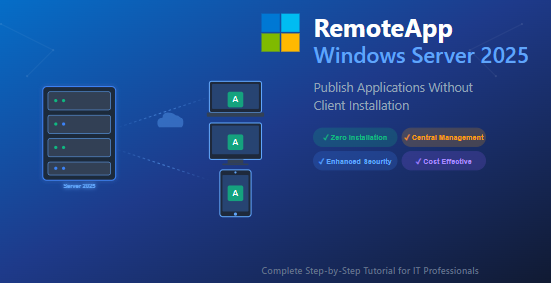
Deploy and Publish Applications Using RemoteApp on Windows Server 2025
288views
In today’s rapidly evolving IT landscape, organizations face mounting pressure to deliver applications efficiently while maintaining security and reducing operational overhead. Whether you’re managing a small business network or an enterprise infrastructure, the challenge remains the same: how do you provide users with seamless access to applications without the nightmare of managing installations across hundreds of client machines?
Enter RemoteApp – Microsoft’s powerful solution that transforms how we think about application deployment. Unlike traditional methods that require installing software on every workstation, RemoteApp allows users to run applications directly from a centralized Windows Server 2025 host, appearing as if they’re installed locally on their devices.
This comprehensive guide walks you through everything you need to know about configuring and deploying RemoteApp in a domain environment. From initial setup to advanced security configurations, you’ll discover how to revolutionize your application management strategy.
What is RemoteApp and Why Should You Care?
RemoteApp is a feature of Microsoft’s Remote Desktop Services (RDS) that enables organizations to publish individual applications to users without exposing the entire server desktop. When properly configured, these applications integrate seamlessly with the user’s local environment, appearing in their taskbar and Start menu as if they were installed natively.
The Game-Changing Benefits
Centralized Management: Install, update, and patch applications in one location instead of managing hundreds of endpoints. This alone can reduce IT workload by up to 70%.
Zero Client Installation: Users access applications without any local installation, eliminating compatibility issues and reducing helpdesk tickets.
Enhanced Security: Applications and data remain on the server. Even if a client device is compromised, your critical data stays protected within your secure server environment.
Resource Optimization: Leverage powerful server hardware to run demanding applications, enabling older client machines to run resource-intensive software smoothly.
Simplified Licensing: Manage application licenses centrally rather than tracking installations across multiple devices.
Flexible Access: Users can access applications from any Windows device, including thin clients, enabling true mobility without VPN complexity.
Understanding the Remote Desktop Services Architecture
Before diving into configuration, it’s crucial to understand the RDS ecosystem and how RemoteApp fits within it.
Core RDS Components
Remote Desktop Session Host (RD Session Host): This is where your applications actually run. It hosts the user sessions and executes the published applications.
Remote Desktop Connection Broker (RD Connection Broker): Acts as the traffic controller, managing session distribution across multiple session hosts and ensuring users connect to their existing sessions.
Remote Desktop Web Access (RD Web Access): Provides the web portal where users discover and launch published RemoteApp programs through their browser.
Remote Desktop Gateway (RD Gateway): Enables secure external access by tunneling RDP traffic over HTTPS, essential for remote workers.
Remote Desktop Licensing Server: Manages Client Access Licenses (CALs) required for RDS deployments.
For smaller deployments, all these roles can reside on a single server (called an “All-in-One” deployment). Enterprise environments typically distribute these roles across multiple servers for high availability and load balancing.
Prerequisites: Preparing Your Environment
Server Requirements
- Windows Server 2025 (Standard or Datacenter edition)
- Minimum 8GB RAM (16GB or more recommended for production)
- 4 CPU cores (8 or more for multiple concurrent users)
- Active Directory Domain with the server joined to the domain
- Administrative credentials with rights to install server roles
- Static IP address assigned to the server
- Proper DNS configuration with A records pointing to your server
Network Configuration
Ensure the following firewall ports are open:
- Port 3389 (RDP traffic)
- Port 443 (HTTPS for RD Web Access and RD Gateway)
- Port 80 (HTTP, typically redirects to HTTPS)
- Ports 139, 445 (SMB for file sharing, if using profile disks)
Domain Setup
Your environment should include:
- A functioning Active Directory domain
- User accounts that will access RemoteApp
- Security groups for managing RemoteApp access (recommended)
- File share for User Profile Disks (UPD) with appropriate permissions
Step-by-Step: Installing Remote Desktop Services
Phase 1: Adding the RDS Role
- Open Server Manager by clicking the icon in the taskbar or pressing Windows Key + X and selecting “Server Manager”
- Navigate to the Add Roles and Features Wizard
- Click “Manage” in the top-right corner
- Select “Add Roles and Features”
- Click “Next” through the introduction screen
- Choose Installation Type
- Select “Remote Desktop Services installation”
- Click “Next”
- Select Deployment Type
- For initial deployments, choose “Quick Start”
- This installs all necessary RDS roles on a single server
- For production environments with multiple servers, choose “Standard Deployment”
- Choose Deployment Scenario
- Select “Session-based desktop deployment”
- This option is specifically designed for RemoteApp programs
- Click “Next”
- Select Destination Server
- Choose your Windows Server 2025 machine from the server pool
- Verify the server name and IP address
- Click “Next”
- Confirm and Deploy
- Review your selections carefully
- Check the box “Restart the destination server automatically if required”
- Click “Deploy”
The installation process takes approximately 10-15 minutes. The server will restart automatically during installation.
Phase 2: Post-Installation Configuration
After the server restarts and you log back in:
- Verify Installation
- Open Server Manager
- You should see “Remote Desktop Services” in the left navigation pane
- Click on it to view the RDS dashboard
- Review the Deployment Overview
- Check that all three core services are listed:
- RD Connection Broker
- RD Web Access
- RD Session Host
- All services should show a green checkmark indicating they’re running
- Check that all three core services are listed:
Creating and Configuring Session Collections
Session collections are logical groupings that define which applications users can access and which servers host those applications.
Creating Your First Collection
- Navigate to Collections
- In Server Manager, click “Remote Desktop Services”
- Click “Collections” in the left navigation pane
- Start the Collection Wizard
- Click “Tasks” in the upper right
- Select “Create Session Collection”
- Name Your Collection
- Enter a descriptive name like “Office Applications” or “Corporate Apps”
- Click “Next”
- Select RD Session Host Servers
- Check the box next to your server name
- Click the right arrow to add it to the selected servers list
- Click “Next”
- Specify User Groups
- Click “Add” to add domain user groups or specific users
- For testing, you can add “Domain Users” for broad access
- For production, create specific security groups like “RemoteApp-Users”
- Click “Next”
- Configure User Profile Disks
- Check “Enable user profile disks”
- Enter the UNC path to your file share (e.g.,
\\FileServer\UPD$) - Set the maximum size per disk (typically 20-50 GB)
- User Profile Disks store user settings and data between sessions
- Click “Next”
- Review and Create
- Verify all settings
- Click “Create”
- The collection creation takes 2-3 minutes
Publishing Applications with RemoteApp
Now comes the exciting part – making applications available to your users!
Method 1: Publishing from the Server Manager GUI
This is the most straightforward method for IT administrators.
- Access RemoteApp Programs
- In Server Manager, go to “Remote Desktop Services”
- Click on your collection name (e.g., “QuickSessionCollection”)
- Locate the “RemoteApp Programs” section in the center pane
- Launch the Publishing Wizard
- Click “Tasks” next to “RemoteApp Programs”
- Select “Publish RemoteApp Programs”
- Select Applications to Publish
- The wizard scans your system and displays available applications
- Check the boxes next to applications you want to publish
- Common selections include:
- Microsoft Office applications (Word, Excel, PowerPoint, Outlook)
- Accounting software (QuickBooks, Sage, etc.)
- Custom line-of-business applications
- Database management tools
- Add Custom Applications
- If your desired application isn’t listed, click “Add”
- Browse to the application’s .exe file
- Important: Use the full UNC path for applications on network shares
- Example:
\\ServerName\C$\Program Files\MyApp\MyApp.exe - For local applications, use the local path:
C:\Program Files\MyApp\MyApp.exe
- Complete the Wizard
- Click “Next” after selecting all applications
- Review the summary of applications to be published
- Click “Publish”
- Wait for the confirmation message
- Click “Close”
Method 2: Publishing with PowerShell (Advanced)
For automation and scripting enthusiasts, PowerShell offers powerful control over RemoteApp publishing.
powershell
# Import the RemoteDesktop module
Import-Module RemoteDesktop

# Publish Microsoft Word
New-RDRemoteApp -Alias "Word" `
    -DisplayName "Microsoft Word 2021" `
    -FilePath "C:\Program Files\Microsoft Office\root\Office16\WINWORD.EXE" `
    -ShowInWebAccess $true `
    -CollectionName "Office Applications" `
    -ConnectionBroker "Server2025.yourdomain.local"

# Publish a custom application from a network share
New-RDRemoteApp -Alias "CustomERP" `
    -DisplayName "Enterprise ERP System" `
    -FilePath "\\FileServer\Apps$\ERP\ERPClient.exe" `
    -FolderName "Business Applications" `
    -ShowInWebAccess $true `
    -IconPath "\\FileServer\Apps$\ERP\icon.ico" `
    -IconIndex 0 `
    -CollectionName "Business Apps" `
    -ConnectionBroker "Server2025.yourdomain.local"
PowerShell Parameters Explained:
- -Alias: Short name used internally (no spaces)
- -DisplayName: User-friendly name shown to users
- -FilePath: Full path to the executable
- -ShowInWebAccess: Makes the app visible in RD Web Access
- -CollectionName: Which collection to add this app to
- -ConnectionBroker: FQDN of your RD Connection Broker
- -FolderName: Organizes apps into folders in the web portal
- -IconPath: Custom icon for the application
- -IconIndex: Index of the icon if the file contains multiple icons
Customizing Published Applications
After publishing, you can fine-tune each application’s behavior:
- Access Application Properties
- In the RemoteApp Programs section, right-click the published application
- Select “Edit Properties”
- Configure Display Settings
- Display Name: Change how users see the application name
- Icon: Upload a custom icon file (.ico) for better branding
- Folder Name: Organize apps into categories in RD Web Access
- Set Command-Line Parameters
- Command-Line Settings: Control whether users can pass parameters
- Allow: Users can add custom arguments
- Do Not Allow: No arguments accepted
- Require: Specific arguments must be provided
- Required Command Line: Specify mandatory parameters
- Command-Line Settings: Control whether users can pass parameters
- Configure User Assignment
- Click the “User Assignment” tab
- By default, all collection users can access the app
- To restrict access:
- Add specific user groups
- Only listed users/groups can launch the application
- Save Changes
- Click “OK” to apply your customizations
Configuring Secure Access with SSL Certificates
Security is paramount when exposing applications over a network. Properly configured SSL certificates encrypt all traffic between clients and your RDS infrastructure.
Understanding Certificate Requirements
RDS uses certificates in three key areas:
- RD Connection Broker: For session connections and load balancing
- RD Web Access: For the web portal (HTTPS)
- RD Gateway: For external access (HTTPS)
Obtaining SSL Certificates
Option 1: Public Certificate Authority (Recommended for External Access)
- Purchase from providers like DigiCert, Sectigo, or Let’s Encrypt
- Ensures automatic trust from all client devices
- Required if users connect from outside your network
Option 2: Internal Certificate Authority (For Domain-Joined Devices)
- Free if you have Active Directory Certificate Services
- Automatically trusted by domain computers
- Ideal for internal-only deployments
Option 3: Self-Signed Certificate (Testing Only)
- Generated directly on the server
- Causes browser warnings
- Not recommended for production
Installing and Configuring SSL Certificates
- Generate Certificate Request
- Open IIS Manager on your RDS server
- Click the server name in the left pane
- Double-click “Server Certificates”
- Click “Create Certificate Request” in the right pane
- Fill in the required information:
- Common Name: Your server’s FQDN (e.g., rdweb.yourdomain.com)
- Organization: Your company name
- Organizational Unit: IT Department
- City/State: Your location
- Save the request file
- Submit Request to CA
- Submit the .txt file to your certificate authority
- Wait for the signed certificate (usually arrives via email)
- Download the certificate and any intermediate certificates
- Install the Certificate
- Return to IIS Manager > Server Certificates
- Click “Complete Certificate Request”
- Browse to your certificate file
- Enter a friendly name
- Click “OK”
- Configure RDS to Use Certificates
- In Server Manager, go to Remote Desktop Services
- Click on “Deployment Overview”
- Click “Tasks” > “Edit Deployment Properties”
- Click “Certificates” in the left navigation
- For each role (Broker, Web Access, Gateway):
- Click “Select existing certificate”
- Browse and select your installed certificate
- Click “OK”
- Click “Apply” then “OK”
- Bind Certificate to IIS
- Open IIS Manager
- Expand “Sites” > “Default Web Site”
- Click “Bindings” in the right pane
- Edit the HTTPS binding
- Select your certificate from the dropdown
- Click “OK”
Accessing RemoteApp: User Experience
Method 1: Web Access (Most Popular)
Users access applications through a clean, modern web interface:
- Navigate to the RD Web Access URL
- In a web browser, go to:
https://YourServerName/RDWeb - Example:
https://rdweb.contoso.com/RDWeb
- In a web browser, go to:
- Authenticate
- Enter domain credentials (domain\username)
- Password
- Click “Sign In”
- View Available Applications
- Users see only the apps they’re authorized to access
- Applications appear as large, clickable icons
- Organized by folders if you configured them
- Launch an Application
- Click on any application icon
- Browser downloads a small .rdp file
- File automatically launches, connecting to the RemoteApp
- Application window appears, looking like a local program
Method 2: RemoteApp and Desktop Connections
For a more integrated experience, users can subscribe to RemoteApp feeds:
- Configure the Connection
- Open Control Panel on the client computer
- Search for “RemoteApp and Desktop Connections”
- Click “Access RemoteApp and desktops”
- Enter Connection URL
- Input:
https://YourServerName/RDWeb/Feed/webfeed.aspx - Click “Next”
- Input:
- Authenticate
- Enter domain credentials
- Click “Next”
- Complete Setup
- The wizard automatically discovers available applications
- Shortcuts are created in the Start Menu
- Applications appear as if locally installed
- Launch Applications
- Users simply click shortcuts from their Start Menu
- No need to visit the web portal each time
- Seamless integration with the local desktop
Method 3: RDP File Distribution
For controlled deployments, you can create .rdp files:
- Create Custom .rdp Files
- Use PowerShell or manually configure
- Specify application path, server, and connection settings
- Distribute to Users
- Email .rdp files
- Place on network shares
- Deploy via Group Policy
- Users Double-Click to Connect
- .rdp file launches the RemoteApp
- Credentials may be cached for subsequent connections
Advanced Configuration and Optimization
Optimizing User Experience
1. Configure Session Settings
powershell
# Set session timeout (15 minutes idle, 8 hours max)
Set-RDSessionCollectionConfiguration -CollectionName "Office Applications" `
    -ConnectionBroker "Server2025.yourdomain.local" `
    -IdleSessionLimitMin 15 `
    -MaxSessionLimitMin 480
2. Enable RemoteFX for Better Graphics
- Improves multimedia and graphics performance
- In collection properties, enable “RemoteFX graphics”
- Requires compatible hardware
3. Implement Printer Redirection
- Allows printing from RemoteApp to local printers
- Enabled by default, but verify in collection properties
- Configure printer drivers on the RDS server
4. Optimize Network Performance
powershell
# Set appropriate bandwidth allocation
Set-RDSessionCollectionConfiguration -CollectionName "Office Applications" `
    -ConnectionBroker "Server2025.yourdomain.local" `
    -VideoPlaybackVirtualizationEnabled $true
Security Hardening
1. Implement Network Level Authentication (NLA)
- Already enabled by default in Windows Server 2025
- Requires authentication before establishing a session
- Reduces exposure to brute-force attacks
2. Deploy Multi-Factor Authentication (MFA)
- Integrate with Azure AD or third-party MFA providers
- Requires additional configuration beyond base RDS setup
- Dramatically improves security posture
3. Configure Account Lockout Policies
powershell
# Set account lockout after 5 failed attempts
net accounts /lockoutthreshold:5 /lockoutduration:30 /lockoutwindow:30
4. Enable RD Gateway for External Access
- Essential for remote workers
- Tunnels RDP over HTTPS (port 443)
- Bypasses most firewalls and provides additional security layer
5. Implement IP Restrictions
- In IIS, configure IP Address and Domain Restrictions
- Limit RD Web Access to known IP ranges
- Particularly important for internet-facing deployments
Monitoring and Maintenance
1. Performance Monitoring
- Use Performance Monitor to track:
- CPU usage per session
- Memory consumption
- Network bandwidth
- Disk I/O
- Set up alerts for threshold violations
2. Session Monitoring
powershell
# View active sessions
Get-RDUserSession -ConnectionBroker "Server2025.yourdomain.local"

# Disconnect idle sessions
Get-RDUserSession | Where-Object {$_.IdleTime -gt 30} | Disconnect-RDUser
3. Regular Backups
- Back up RDS configuration:
powershell
  Export-RDDeploymentConfiguration -Path "C:\Backups\RDS-Config.xml" `
-ConnectionBroker "Server2025.yourdomain.local"- Back up certificates
- Back up User Profile Disks location
4. Update Management
- Schedule Windows Updates during off-hours
- Test updates in a separate environment first
- Maintain update documentation
Conclusion
Implementing RemoteApp on Windows Server 2025 represents a fundamental shift in how modern organizations deliver applications to their users. By centralizing application management, enhancing security, and eliminating the complexity of traditional desktop deployments, RemoteApp empowers IT teams to focus on strategic initiatives rather than routine maintenance.
Throughout this guide, you’ve learned the complete process – from initial planning and role installation to publishing applications and implementing advanced security measures. Whether you’re supporting a small business or managing enterprise infrastructure, these principles and techniques provide a solid foundation for success.
add a comment

How to Block Control Panel & PC Settings for Domain Users Using Group Policy on Windows Server 2025
Introduction One of the most overlooked — yet critically important — aspects of managing a Windows domain environment is controlling what end users can actually access on their own machines. Left unconfigured, any domain user can wander into Control Panel or PC Settings and make changes that can break network configurations, modify security baselines, or simply waste IT support hours chasing self-inflicted problems. With Group Policy in Windows Server 2025, you can lock this down in minutes. By pushing a single GPO to your domain users, you can completely hide...
How to Remotely Remove (Disjoin) a Client Computer from Domain in Windows Server 2025
Introduction Managing Active Directory environments often means handling machines you cannot physically reach — a remote office workstation, a laptop across the country, or a decommissioned VM sitting in a data center rack. Knowing how to remotely disjoin a computer from a Windows Server 2025 domain is an essential sysadmin skill that saves time, reduces travel overhead, and keeps your AD environment clean and secure. In this guide, you will learn multiple methods to remotely remove a client computer from your domain — without ever touching the machine — using...
How To Block Domain Users From Access Folder Options Using Group Policy in Windows Server 2025
Introduction If you manage a Windows Server 2025 environment, you already know how quickly things can go sideways when users start tinkering with settings they shouldn't touch. Folder Options in File Explorer is one of those deceptively simple menu items that lets users reveal hidden files, change file associations, and toggle system-critical display settings — changes that can expose sensitive data or break standardized desktop configurations across your entire domain. The good news? You don't need third-party tools or complex scripts to handle this. Windows Server 2025 Group Policy gives...
How To Get Windows Operating System Version Count Inventory Report From Domain Computers
In enterprise environments, keeping track of the operating system versions deployed across domain-joined machines is a fundamental IT hygiene and...



