Physical Address
304 North Cardinal St.
Dorchester Center, MA 02124
Physical Address
304 North Cardinal St.
Dorchester Center, MA 02124

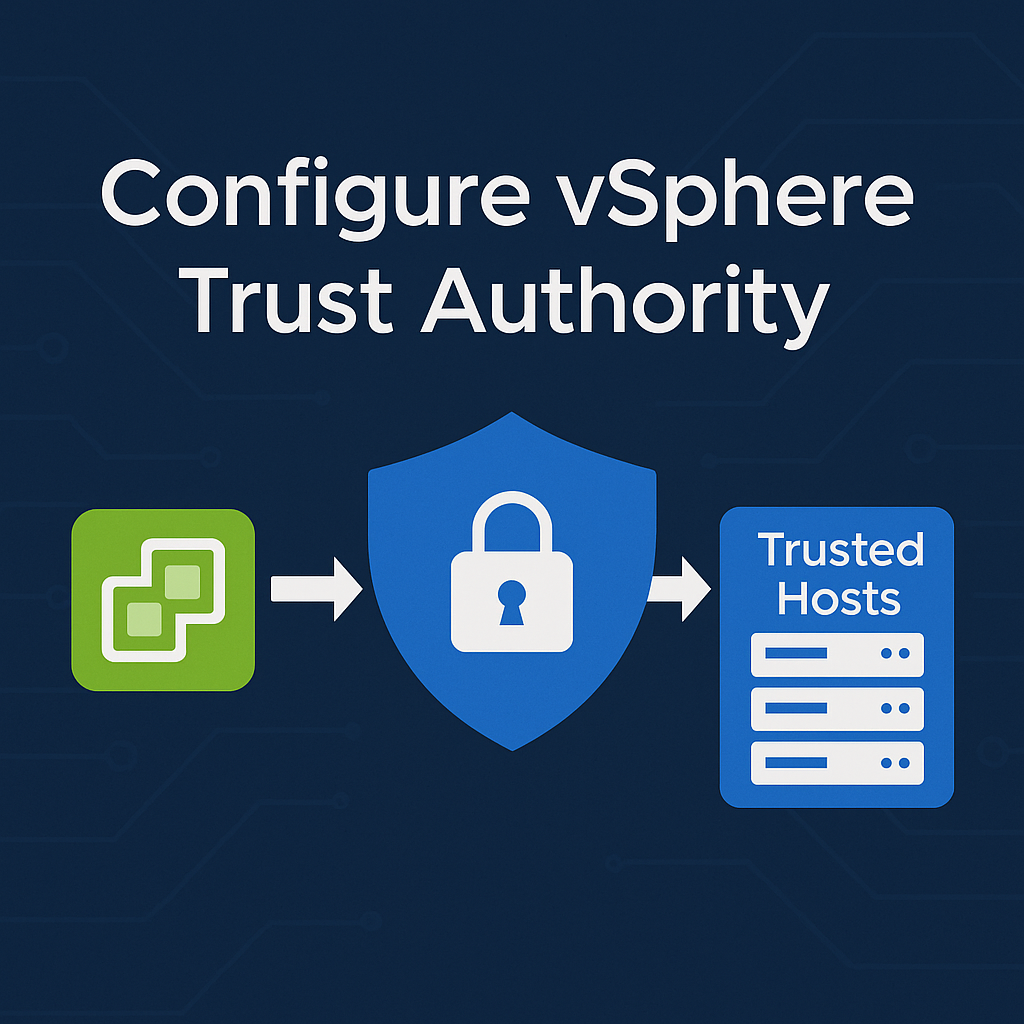
vSphere Trust Authority (vTA) is a feature introduced by VMware to ensure secure workloads run only on trusted infrastructure. As cyber threats evolve, organizations must take a zero-trust approach to virtualization security. This guide explains how to configure vSphere Trust Authority and protect vSphere environments from compromised infrastructure.
vSphere Trust Authority is a hardware-rooted trust solution that enables a vSphere environment to validate the integrity of hosts before allowing them to run secure workloads. It’s a crucial component of Trusted Infrastructure in VMware’s vision of confidential computing.

Organizations use vTA to:
🔒 It helps build a zero-trust model where workloads are only placed on verified, trusted hosts.
vTA consists of:
Make sure the following are ready:
| Requirement | Details |
|---|---|
| vSphere Version | vSphere 7.0 U1 or later |
| TPM 2.0 | Required on ESXi hosts |
| UEFI Secure Boot | Must be enabled |
| vCenter Server | Single instance or linked mode |
| Network Access | Between Trust Authority and Trusted Hosts |
| Permissions | Administrator role required |
✅ Optional: Use vSphere Lifecycle Manager for consistent ESXi configuration across clusters.
📢 Read also: VMware vCenter File-Based Backup Guide
| Issue | Cause | Fix |
|---|---|---|
| Host not attested | TPM misconfigured or missing | Check BIOS/UEFI settings |
| Trust Authority failed to communicate | Network/Firewall issues | Verify TCP 443 open |
| Key Provider not available | vCenter disconnected | Reconnect vCenter and re-authenticate |
| Trusted Hosts show as untrusted | ESXi patch level mismatch | Use vSphere Lifecycle Manager |
vSphere Trust Authority is an advanced security feature for organizations running critical workloads. By following this guide, you can configure vTA to ensure that only hardware-verified, secure hosts are allowed to run VMs. Whether you’re deploying confidential VMs or building a trusted infrastructure, vTA helps strengthen your security posture.

We have detected that you are using extensions to block ads. Please support us by disabling these ads blocker.






Thanks for great article on VMware.