Physical Address
304 North Cardinal St.
Dorchester Center, MA 02124
Physical Address
304 North Cardinal St.
Dorchester Center, MA 02124

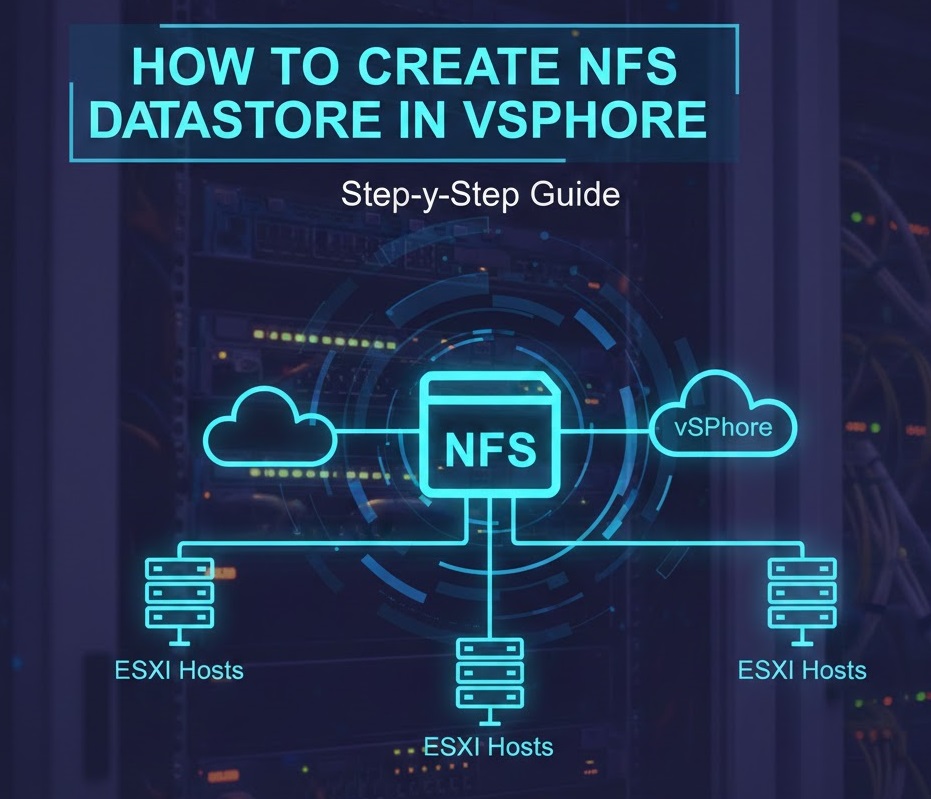
Network File System (NFS) datastores provide a flexible and cost-effective storage solution for VMware vSphere environments. This comprehensive guide demonstrates how to create an NFS datastore in vSphere, walking you through the entire configuration process from setting up your NFS server to mounting the datastore on ESXi hosts.
Whether you’re building a home lab or managing production infrastructure, understanding NFS datastore configuration is essential for VMware administrators. This tutorial uses real-world lab scenarios to illustrate best practices and common troubleshooting steps.
An NFS datastore is a network-based storage repository that allows ESXi hosts to store virtual machine files, templates, and ISOs on a remote NFS server. Unlike block-based storage protocols like iSCSI or Fibre Channel, NFS operates at the file level, making it simpler to configure and manage.
Cost-Effective Storage: NFS eliminates the need for expensive SAN infrastructure, making it ideal for small to medium environments and home labs.
Simplified Management: File-level access means easier provisioning, snapshots, and quota management compared to block-based storage.
Flexibility: NFS datastores can be shared across multiple ESXi hosts, enabling features like vMotion and High Availability without complex storage configurations.
Scalability: Adding storage capacity is straightforward—simply expand the NFS share on your storage server.
VMware vSphere supports both NFS version 3 and version 4.1. NFS v3 has been the traditional choice for VMware environments, offering broad compatibility and proven reliability. NFS v4.1 introduces enhanced security features like Kerberos authentication, improved performance through session trunking, and better handling of network failures.
For most production environments, NFS v4.1 is recommended due to its security enhancements and performance improvements. However, NFS v3 remains a solid choice for lab environments and situations where simplicity is prioritized.
Before configuring your NFS datastore, ensure you have the following components ready:
This tutorial uses the following lab configuration:
For optimal performance and security, consider these networking recommendations:
Dedicated Storage Network: Use a separate VLAN or physical network for storage traffic to prevent contention with VM traffic.
Jumbo Frames: Enable jumbo frames (MTU 9000) on storage networks to improve throughput for large data transfers.
Multiple NICs: Configure multiple network adapters for redundancy and increased bandwidth using NIC teaming.
Windows Server 2022 can function as an NFS server, making it convenient for lab environments. Follow these steps to set up your NFS server.
C:\NFSDatastore)ESXi_Datastore)192.168.91.129showmount -e localhost
Before adding the NFS datastore, ensure your ESXi host has proper network connectivity to the NFS server.
https://192.168.91.129192.168.91.0/24 networkesxcli network diag ping -H 192.168.91.131
Verify successful ping responses Test NFS mount availability:
showmount -e 192.168.91.131
Now that your NFS server is configured and network connectivity is verified, you can add the NFS datastore through vCenter Server.
https://192.168.91.130Follow the New Datastore wizard:
Step 1: Select Type
Step 2: Select NFS Version
Step 3: Configure NFS Settings
NFS_Datastore_01)/ESXi_Datastore (the share name created earlier)192.168.91.131Step 4: Select Hosts
192.168.91.129Step 5: Review Configuration
test_folderFor advanced verification, SSH into your ESXi host and run:
esxcli storage nfs list
This command displays all mounted NFS datastores, including:
To ensure adequate performance, create a test virtual machine on the NFS datastore:
For enhanced security in production environments, configure NFS v4.1 with Kerberos:
This configuration encrypts NFS traffic and provides mutual authentication between ESXi and storage servers.
While NFS doesn’t support traditional multipathing like iSCSI, you can achieve similar benefits:
Enable Storage I/O Control (SIOC) on NFS datastores to prevent VM storage contention:
Creating an NFS datastore in vSphere provides a practical and economical storage solution for virtualized environments. This tutorial demonstrated the complete process, from configuring a Windows Server 2022 NFS server to mounting the datastore in vCenter and performing verification tests.
NFS datastores offer significant advantages including simplified management, cost-effectiveness, and flexibility. By following the best practices outlined in this guide—such as network segmentation, performance optimization, and proper security controls—you can deploy NFS storage that meets production requirements.
Whether you’re setting up a home lab or managing enterprise infrastructure, understanding NFS datastore configuration is a valuable skill for VMware administrators. The hands-on lab approach used in this tutorial provides practical experience that translates directly to real-world scenarios.

We have detected that you are using extensions to block ads. Please support us by disabling these ads blocker.