Physical Address
304 North Cardinal St.
Dorchester Center, MA 02124
Physical Address
304 North Cardinal St.
Dorchester Center, MA 02124

Ubuntu 26.04 LTS “Resolute Raccoon” has officially arrived, and users currently running Ubuntu 24.04 LTS “Noble Numbat” will likely be considering an upgrade to this latest long-term support release.
This guide explains how to upgrade from Ubuntu 24.04 LTS to 26.04 LTS using the standard command-line upgrade tool. While the process is generally simple, it’s important to ensure your data is properly backed up before proceeding, as with any major system upgrade.
Although it is optional, this step is highly recommended. Take a system snapshot before proceeding using one of the system snapshot tools you’re familiar with.
However, if you do not feel like taking the above approach, you can instead use a command like the one shown below, which will archive all of the more critical directories and their contents in a tar.gz archive.
sudo tar czf /2404lts.tar.gz \
     --exclude=/2404lts.tar.gz \
     --exclude=/dev \
     --exclude=/run \
     --exclude=/mnt \
     --exclude=/proc \
     --exclude=/sys \
     --exclude=/tmp \
     --exclude=/media \
     --exclude=/lost+found \
     /
Code language: Bash (bash)
Feel free to add more –exclude= parameters if needed. The command creates a compressed archive named 2404lts.tar.gz in the root directory. After that, move it to another drive, another computer, or a remote machine. Keeping the backup on the same disk is not real protection.
Next, make sure the current Ubuntu 24.04 LTS installation is fully updated before starting the release upgrade. Open a terminal and run:
sudo apt update
sudo apt upgrade
If there are pending Snap updates, apply them too:
sudo snap refresh
Then remove packages that are no longer needed:
sudo apt autoremove --purge
At this point, the system should have no pending package updates. Reboot before continuing:
sudo reboot
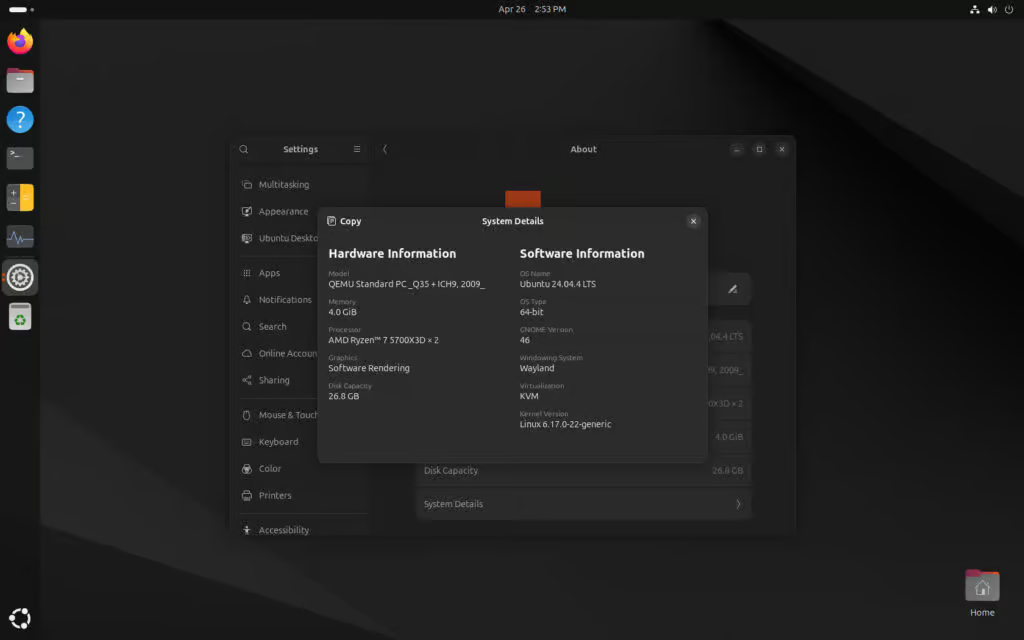
Here is our fully updated Ubuntu 24.04 LTS installation before upgrading to Ubuntu 26.04 LTS.
Ubuntu LTS systems should be configured to look for new LTS releases. Check the current setting with:
cat /etc/update-manager/release-upgrades
Look for this line:
Prompt=lts
If it says something else, such as Prompt=normal, change it with:
sudo sed -i 's/Prompt=.*/Prompt=lts/' /etc/update-manager/release-upgrades
This tells Ubuntu to follow the LTS upgrade path from 24.04 LTS to 26.04 LTS, rather than offering interim releases.
Now start the release upgrade:
sudo do-release-upgrade
If Ubuntu does not offer the upgrade yet, you can run:
sudo do-release-upgrade -d
This is commonly needed before the first 26.04 point release appears in the regular LTS upgrade channel. Canonical’s release notes list Ubuntu 24.04 LTS as the direct LTS upgrade base for Ubuntu 26.04 LTS, while older releases must first move to 24.04 LTS or 25.10 before upgrading to 26.04 LTS.
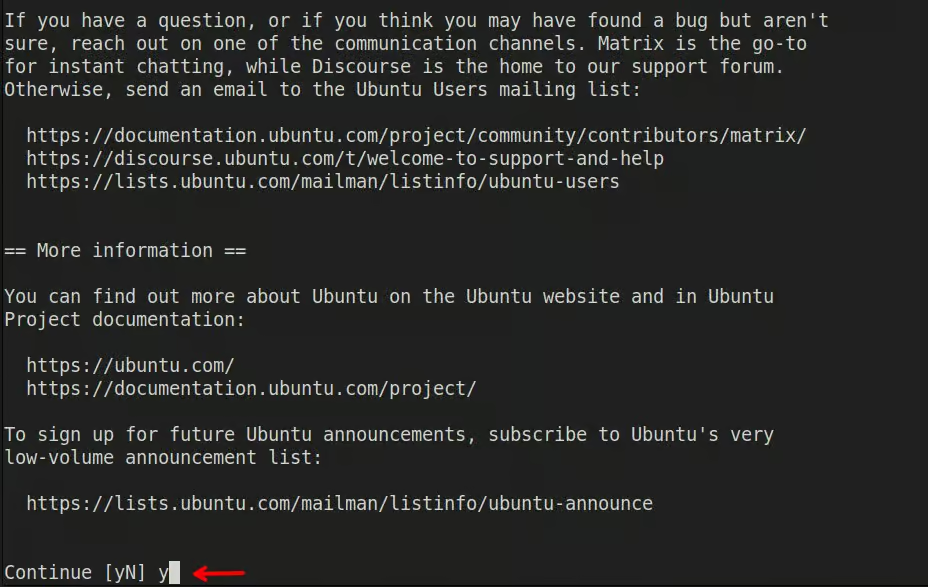
When the upgrade tool asks you to continue, confirm with y.
The tool will check your system, switch the software sources to the Ubuntu 26.04 repositories, and show a summary of what will be installed, upgraded, or removed. Confirm when asked.
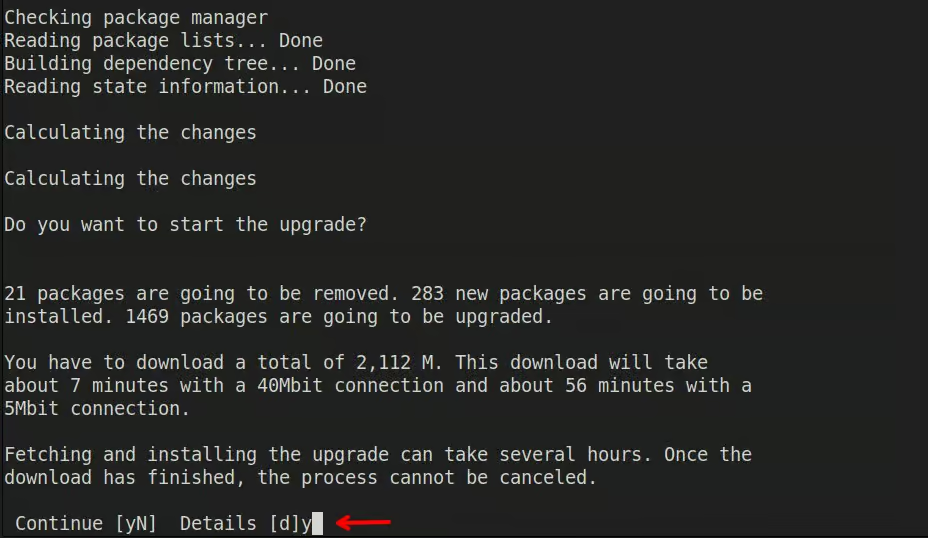
Finally, you will be asked for one last confirmation. Just hit Enter.
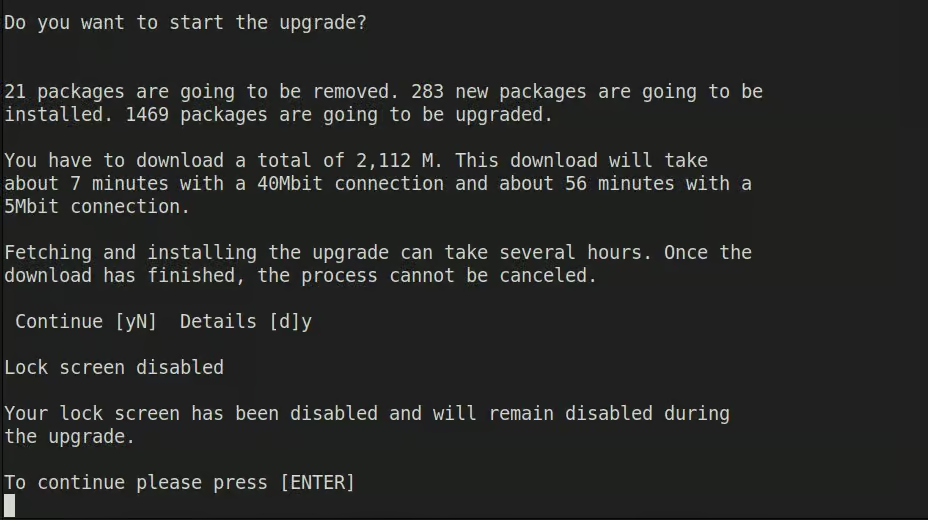
The package download and installation will take some time, depending on your connection speed and hardware.
Ubuntu may show a package configuration screen asking whether services should be restarted automatically. Select Yes here. This lets the system automatically restart the affected services during the upgrade, instead of asking about each one separately, keeping the process smoother and reducing the number of manual prompts.
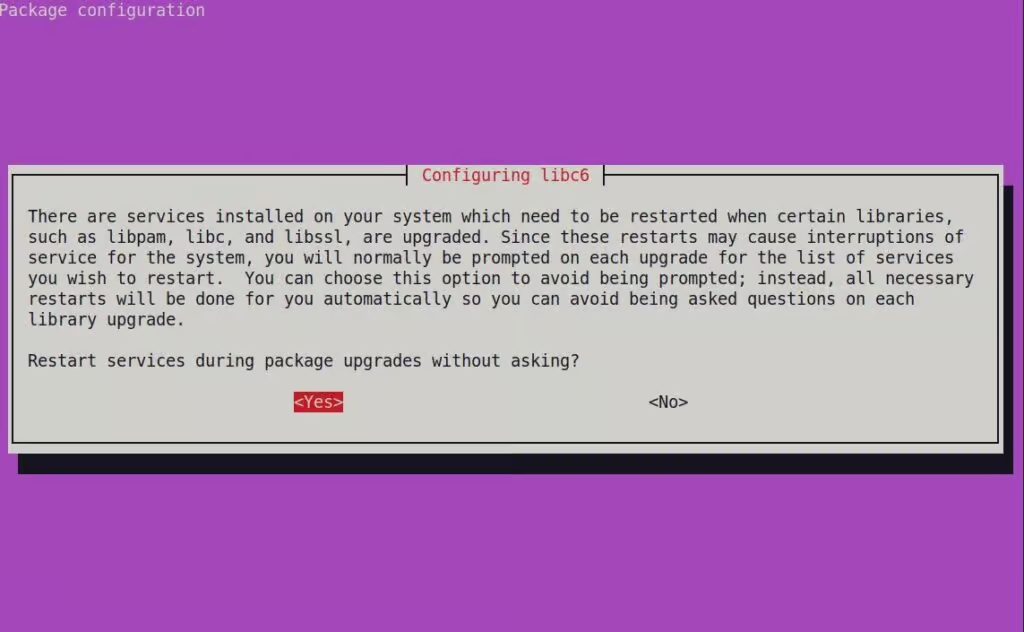
Moreover, the tool may ask you what to do with locally modified configuration files. If you are not sure, keeping the currently installed version is usually the safer choice on a desktop system.
During the process, your desktop will automatically refresh with the new Ubuntu 24.04 visual identity.
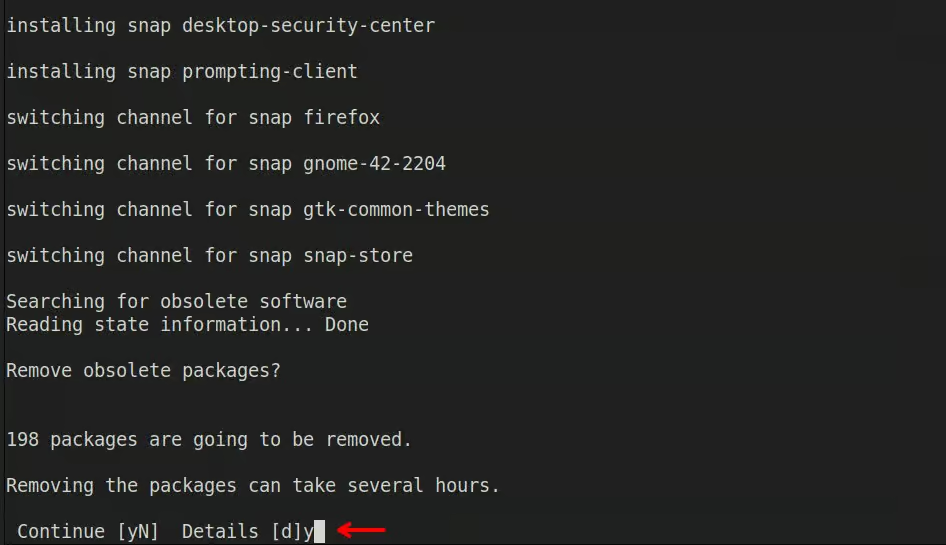
Near the end of the upgrade, Ubuntu checks for obsolete packages that are no longer needed on the new release. When prompted with “Remove obsolete packages?”, press y and hit Enter to continue. This removes old packages left behind from Ubuntu 24.04 LTS and helps keep the upgraded Ubuntu 26.04 LTS system cleaner.
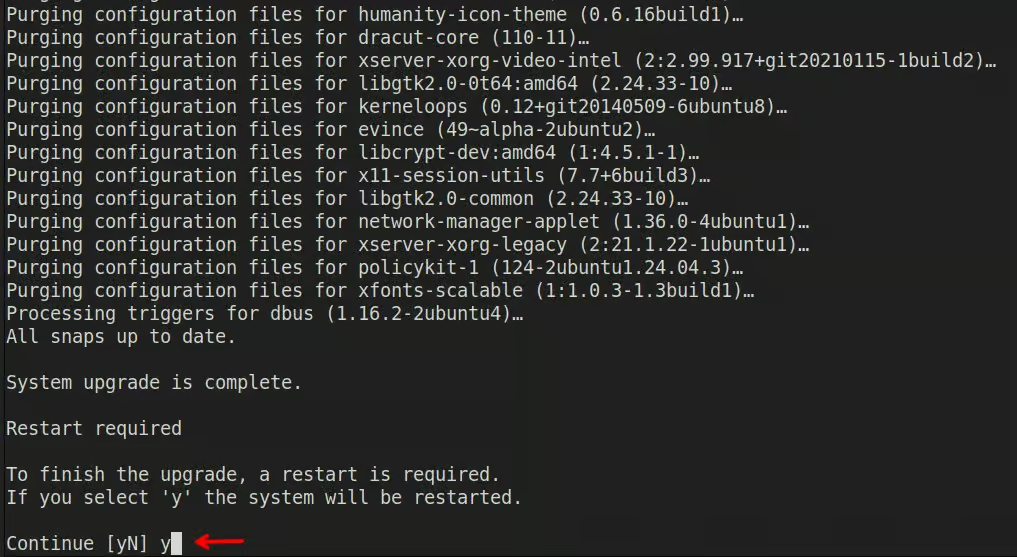
When the upgrade finishes, Ubuntu will ask to restart the system. Confirm the reboot.
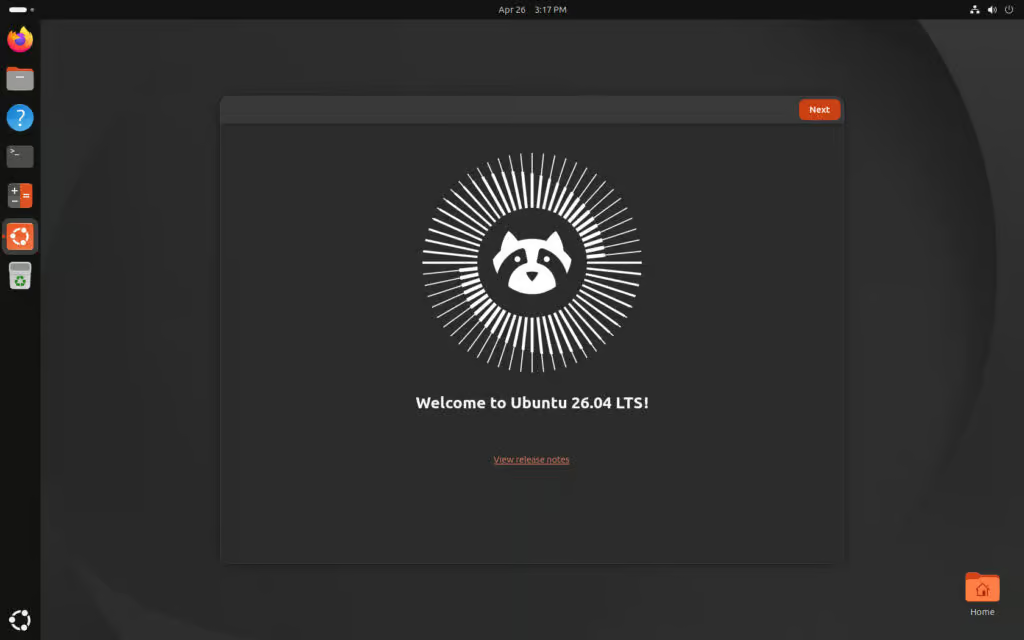
After the restart, log in to the upgraded Ubuntu 26.04 LTS (Resolute Raccoon) system, where you’ll be greeted by Raccoon’s welcome screen.
After logging in, refresh Snap packages once more:
sudo snap refresh
Then check whether any packages are still pending:
sudo apt update
sudo apt upgrade
Finally, remove leftover packages again if needed:
sudo apt autoremove --purge
That’s it. Your Ubuntu 24.04 LTS (Noble Numbat) system should now be upgraded to Ubuntu 26.04 LTS (Resolute Raccoon).
Before relying on the upgraded system for daily work, however, check that your main applications, drivers, extensions, and external repositories behave as expected. Ubuntu 26.04 LTS is supported until April 2031, with extended coverage available through Ubuntu Pro.
Finally, I recommend users review the official release notes. Let me know if you have any questions in the comments section below.

We have detected that you are using extensions to block ads. Please support us by disabling these ads blocker.



