Physical Address
304 North Cardinal St.
Dorchester Center, MA 02124
Physical Address
304 North Cardinal St.
Dorchester Center, MA 02124

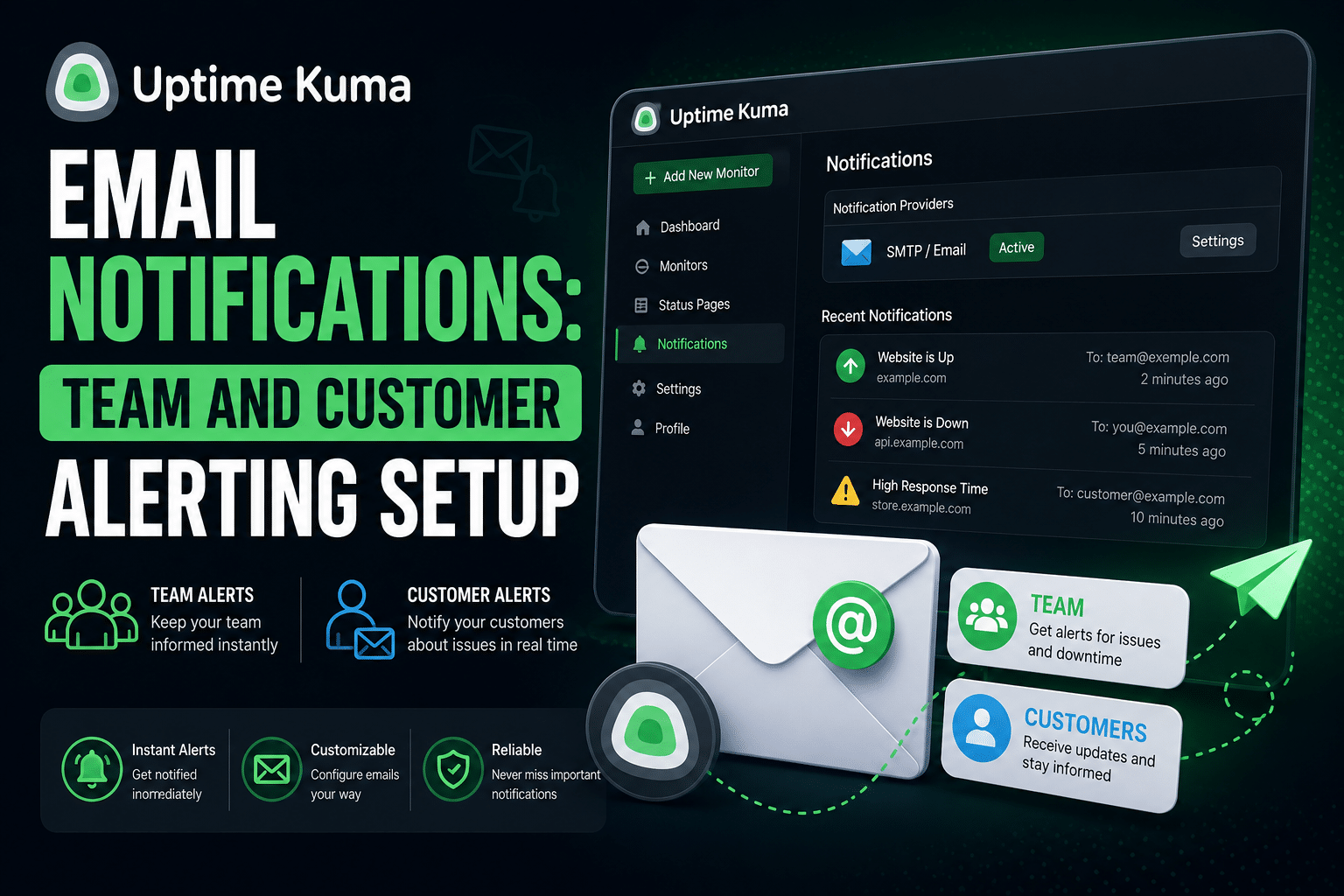
This covers setting up email notifications in Uptime Kuma for two distinct audiences your internal team (managers, ops) and your customers with separate channels, appropriate detail levels for each, and the alert types you asked about (outages, recovery, and other status changes). A few things about what Uptime Kuma can and can’t do natively are called out directly rather than glossed over, since two of your requirements (per-audience alert-type filtering, and “degraded performance” as a distinct alert) run into real platform limitations worth knowing before you build around them.
One clarifying assumption made up front: since you didn’t specify, this guide assumes your customer notifications should be a lighter-detail version of the same down/recovery events your team gets not a fully separate approval workflow. If you actually need customer communications to be manually reviewed before sending (common for regulated or contractual environments), that’s a different architecture flag it and I’ll adjust.

Before configuring anything in Uptime Kuma, you need:
alerts@yourdomain.com for team notifications and, if you want a visibly different sender identity, status@yourdomain.com for customer-facing ones. A dedicated mailbox survives staff turnover, is easier to audit, and makes it obvious to recipients what the email is from.| Provider | Host | Port | Security | Auth notes |
|---|---|---|---|---|
| Gmail / Google Workspace | smtp.gmail.com | 587 | STARTTLS | Requires an App Password — regular account passwords are rejected. Enable 2FA first, then generate one under Google Account → Security → App Passwords |
| Microsoft 365 / Outlook | smtp.office365.com | 587 | STARTTLS | Requires SMTP AUTH enabled for the mailbox (may need a Microsoft 365 admin to enable this tenant-wide) |
| Transactional providers (Mailgun, SendGrid, Postmark, SparkPost) | Provider-specific | Usually 587 | STARTTLS | Recommended once you’re sending to customers at any real volume — better deliverability reputation and delivery analytics than a general-purpose mailbox |
| Self-hosted mail server | Your server’s hostname | Provider-specific | Varies | Same fields, values specific to your setup |
For customer-facing email specifically, a transactional provider (Mailgun, SendGrid, Postmark) is worth the extra setup step over a plain Gmail/Workspace account these are built for exactly this use case, offer better inbox placement, and give you bounce/complaint visibility that a personal mailbox doesn’t. If you’re only alerting a handful of internal team members, Gmail/Workspace via App Password is perfectly adequate and faster to set up.
This channel handles the full-detail technical alerts for managers and ops.
| Field | Value |
|---|---|
| Friendly Name | “Team — Ops Alerts” (or similar — this is just your own label) |
| Mail Address (From) | alerts@yourdomain.com |
| Hostname | Your SMTP host from the table above |
| Port | 587 (or 465 for implicit SSL — see troubleshooting if one doesn’t work) |
| Security | STARTTLS (matches port 587 in most setups) |
| Username | Usually the same as the From address |
| Password | Your SMTP password or App Password |
| To Email | Manager and ops team addresses, comma-separated: manager@yourdomain.com,ops@yourdomain.com |
| CC / BCC (optional) | Use BCC to include additional stakeholders who want visibility without appearing in a visible recipient list |
| Custom Subject (optional) | Leave blank initially — some self-hosted/relay setups don’t reliably render subject placeholders; confirm with a test before relying on a custom template |
If different team members should only hear about different services (your web developer doesn’t need database alerts, your DBA doesn’t need frontend alerts), don’t rely on a single shared channel with everyone in the To field create a separate Email (SMTP) notification per person or sub-team instead, and attach each one only to the relevant monitors. This is more setup work up front but gives you real routing control, which a single comma-separated list can’t do.
Repeat the same Setup Notification → Email (SMTP) process, but as a distinct channel:
| Field | Value |
|---|---|
| Friendly Name | “Customer — Status Updates” |
| Mail Address (From) | status@yourdomain.com (a visibly different, more customer-friendly sender than your internal alerts address) |
| To Email | Your customer distribution list |
| Custom Subject | If your setup supports it reliably (test first): something like “Service Status Update — {{NAME}}” rather than the raw technical default |
Two things worth deciding deliberately here, not by default:
First — do customers actually want raw down/recovery emails, or a status page? Uptime Kuma’s built-in Status Pages feature (Settings → Status Pages, or the dedicated menu item) is purpose-built for external communication a clean, public URL showing current and historical status for whichever monitors you choose to expose, without leaking internal monitor names, URLs, or technical error messages. For many teams, the better customer-facing pattern is: send customers a link to a status page once, and only use direct email for major incidents rather than emailing them every single down/recovery event, which for a fast-recovering blip can look worse than the outage itself. Uptime Kuma’s status pages don’t currently include their own visitor email-subscription/digest system, so if you want customers to get emails automatically rather than checking a page, the Email (SMTP) notification channel above is still the right mechanism just be intentional about whether every event needs to reach their inbox.
Second — customer emails need less technical detail than team emails. Uptime Kuma’s default email template includes the monitor’s name, URL, and the specific check failure message, which is useful for your ops team and potentially confusing or overly technical for customers. If your SMTP relay supports custom subject/body templates reliably (test this explicitly some self-hosted mail configurations have had inconsistent placeholder support), simplify the customer-facing template to something like “We’re currently investigating an issue with [service]. We’ll update you when it’s resolved,” rather than passing through Uptime Kuma’s raw technical message. If custom templates aren’t reliable in your setup, that’s a further argument for routing customers to a status page rather than raw emails you get full control over customer-facing language there.
Click Test, confirm delivery, Save.
Open each monitor you want covered, scroll to Notifications, and toggle on the channel(s) that should fire for it:
This per-monitor attachment is how you control which services trigger customer emails it’s the main lever Uptime Kuma gives you for audience separation, and it works well for that purpose.
You asked for three categories. Here’s how each actually maps onto what Uptime Kuma supports:
Both fire automatically through any notification channel attached to a monitor. One important limitation to understand: Uptime Kuma doesn’t let you attach a channel to only the “down” event and suppress the “recovery” event, or vice versa, at the channel level a channel attached to a monitor receives both. In practice this is usually fine for customers too (they generally want to know when something’s fixed, not just when it breaks), but if you specifically need to suppress recovery emails to one audience while keeping them for another, the only way to do that is via a separate channel not attached to that monitor at all, or by moving to the webhook notification type with custom filtering logic (covered in our Home Assistant integration guide, if that level of control matters enough to build).
Reduce false-positive down alerts before they reach customers: set Retries to 2–3 on customer-facing monitors specifically. This means Uptime Kuma waits for multiple consecutive failed checks before declaring the monitor down and notifying a single transient network blip won’t generate a customer-facing “we’re investigating an issue” email for something that self-resolved in 60 seconds.
Uptime Kuma has a built-in Maintenance feature (its own section in the left menu) where you schedule a window, assign it to specific monitors and/or status pages, and set a schedule (one-time, recurring, or cron-based). During an active maintenance window, affected monitors show a “Maintenance” state instead of “Down” on status pages, and critically — down alerts are suppressed for those monitors during the window. This is the feature to use so planned work doesn’t trigger a flood of “service down” emails to your team or customers.
What it does not do is proactively send an email announcing “maintenance is starting” or “maintenance has ended” it’s a suppression mechanism, not a notification type. If you want customers or your team to receive an actual “we’re doing scheduled maintenance tonight” email, that’s a manual send (or a separate automation you build outside Uptime Kuma) not something the Maintenance feature generates on its own.
This is the one place your requirements run ahead of what Uptime Kuma actually tracks. Uptime Kuma’s monitor states are Up, Down, Pending, and Maintenance there’s no built-in “degraded” or “slow but technically responding” state, and no native “alert if response time exceeds X ms” trigger separate from the up/down check itself.
Two practical workarounds if degraded-performance alerting matters to you:
Neither of these is as clean as a native “degraded” state would be flagging this clearly rather than presenting a workaround as if it were built-in functionality.
Use a dedicated sending mailbox, never a personal account. Covered above, worth repeating as the single highest-impact best practice this is also what keeps alerts flowing when a team member leaves the company.
Match the From address to the authenticated account where possible. Some SMTP providers reject or spam-flag messages where the From address doesn’t match the authenticated sending account. If you must send From a different address than you authenticate with, check your provider’s specific policy on this first.
Set up SPF, DKIM, and ideally DMARC for your sending domain, especially for the customer-facing channel. Without these DNS records, alert emails are meaningfully more likely to land in spam — this matters far more for customer trust than for internal team emails, where people are more likely to check a spam folder proactively.
Always click Test before trusting a channel in production, and test again after any credential change (a rotated password, a provider migration). A channel that worked at setup can silently start failing after an unrelated change elsewhere.
Keep customer-facing volume genuinely low. Retries/thresholds tuned to avoid noise (see above) matter more for the customer channel than the team channel — your ops team can tolerate the occasional false alarm as the cost of fast detection; customers forming an impression of your reliability from your alert frequency cannot.
| Symptom | Likely Cause | Fix |
|---|---|---|
| “Authentication failed” on Test | Wrong username/password, or using a normal account password instead of an App Password (Gmail/Microsoft 365) | Regenerate the App Password, re-paste carefully — a stray leading/trailing space is a common, easy-to-miss cause |
| “TLS handshake failed” / “SSL error” | Port and security setting mismatched | Confirm the pairing: port 587 with STARTTLS, or port 465 with implicit SSL/TLS — mixing these up is the most common cause of this specific error |
| “Connection timed out” | Outbound SMTP blocked at the network/firewall level (common on some VPS/cloud providers, which block port 25 and sometimes 587 by default) | Check your host/provider’s outbound port policy; many cloud providers require a support request to unblock outbound SMTP ports |
| Test succeeds but real alerts never arrive | The notification channel isn’t actually toggled on for the specific monitor | Open the monitor, confirm the channel is enabled under its Notifications section — attaching a channel doesn’t retroactively apply to monitors unless you used “Apply on all existing monitors” |
| Emails land in spam/junk | Missing SPF/DKIM/DMARC records, or a sending reputation issue with a general-purpose mailbox | Set up the DNS records above; consider migrating the customer-facing channel to a transactional provider with better deliverability infrastructure |
Custom subject/body placeholders show up literally (e.g. {{STATUS}} in the actual email) instead of being replaced | Some self-hosted mail relay configurations don’t reliably process Uptime Kuma’s template placeholders | Clear the custom subject/body fields and retest with the defaults to isolate whether the issue is Uptime Kuma’s template engine or the relay; if defaults work but custom templates don’t, that’s a known inconsistency worth working around rather than fighting |
| Works for internal Gmail test address, fails for customer domain | The customer’s mail server is rejecting or greylisting the message, independent of your SMTP configuration being correct | Check your SMTP provider’s bounce/delivery logs (transactional providers make this visible; personal Gmail/Workspace accounts often don’t) to see whether the message was accepted and then rejected downstream |
| Notification worked previously, stopped without any config change | Credential expired or was rotated elsewhere (a password change on the mailbox itself, an App Password revoked) | Regenerate credentials and update them in the Uptime Kuma notification config — this is a common, easy-to-overlook cause of a channel silently going dark |
Once both channels are configured and tested, the ongoing maintenance is light: attach new monitors to the right channel(s) as you add them, and periodically re-test both channels after any credential rotation. The one decision worth revisiting as your customer base grows is whether direct email is still the right customer-facing mechanism at all, or whether a status page with email reserved for major incidents only better matches how customers actually want to hear from you.
Read also uptime kuma ssl certificate monitoring setup guide

We have detected that you are using extensions to block ads. Please support us by disabling these ads blocker.