Physical Address
304 North Cardinal St.
Dorchester Center, MA 02124
Physical Address
304 North Cardinal St.
Dorchester Center, MA 02124

An expired SSL certificate is one of the most preventable outages in existence the failure is predictable to the day, weeks in advance, and yet it still takes down production services regularly because nobody was watching the expiry date. Uptime Kuma tracks this automatically on every HTTPS monitor you create. This guide walks through configuring it properly: not just adding a monitor, but tuning the thresholds, alerts, and edge cases so the warning actually reaches you in time to act on it.
What you need before starting: a running Uptime Kuma instance (any current 1.x or 2.x release the certificate monitoring behavior described here is stable across both) and at least one HTTPS endpoint you want to track.

In Uptime Kuma, click Add New Monitor.
https://api.yourdomain.comThere’s no separate “SSL monitor” type to select certificate monitoring is a built-in behavior of every HTTP(s) monitor, active automatically the moment you point one at an https:// URL. You don’t opt into it separately.
Scroll down to the Certificate Expiry Notification field (in the main monitor form, not buried under Advanced). This is a single numeric field the number of days before expiry at which Uptime Kuma should treat the certificate as “expiring soon” and notify you.
Set it explicitly rather than trusting whatever value is pre-filled. Reported defaults vary depending on version (commonly 14 days, sometimes shown as 30 in older builds) don’t rely on memory or documentation for this number; open the field and set it to a value you’ve deliberately chosen. A reasonable starting point:
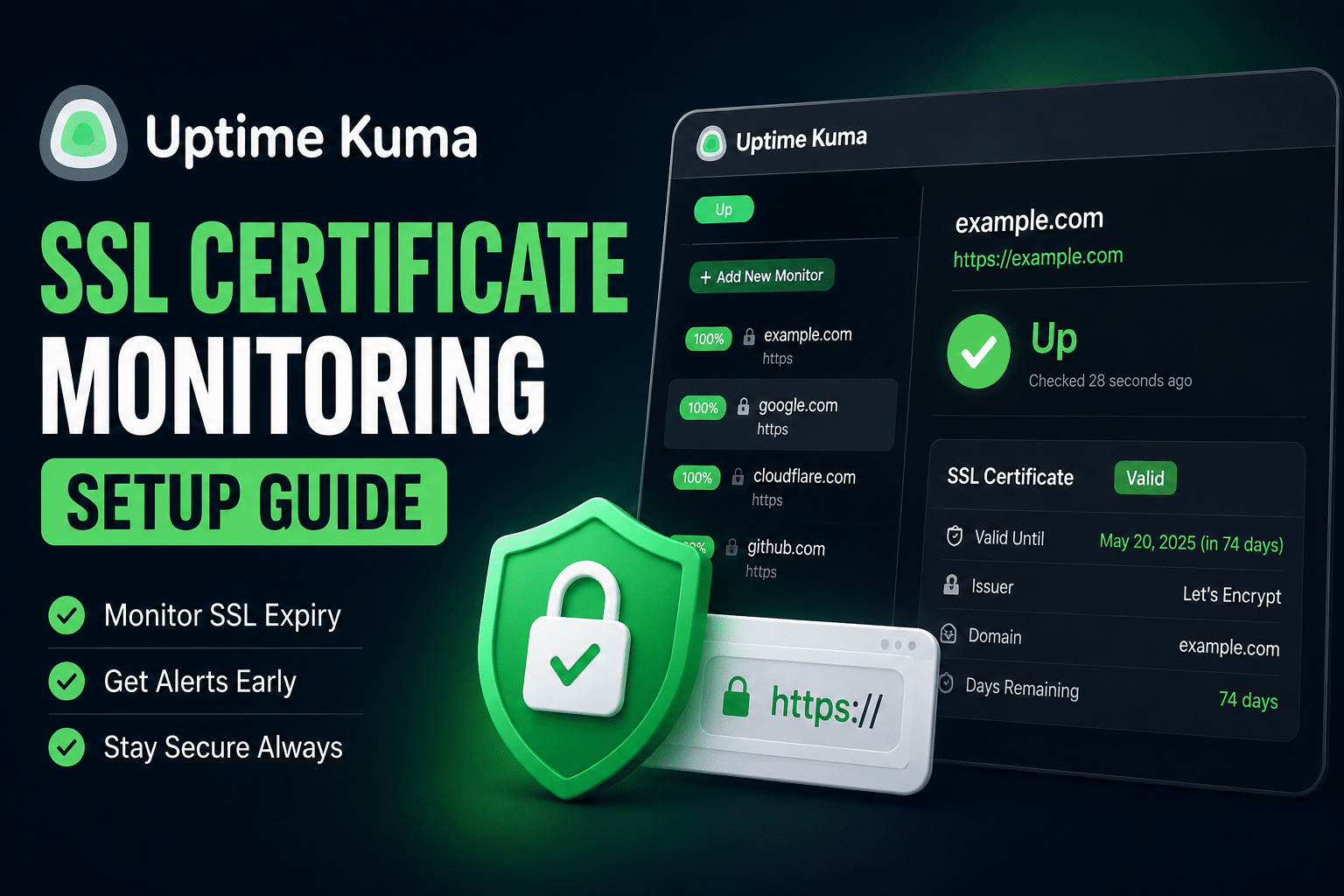
Click Save. Uptime Kuma runs an immediate check. Open the monitor’s detail page you should see the certificate’s expiry date, issuer, and days-remaining count displayed alongside the normal uptime heartbeat history. If that information is populated, certificate tracking is live and working.
A certificate expiry warning that fires with no notification channel attached is invisible. On the same monitor form, under Notifications, enable at least one configured channel (Discord, Telegram, Gotify, email whatever you already have set up; see our dedicated notifications guide if you haven’t configured one yet). If you want certificate warnings to reach a different channel than routine downtime alerts reasonable, since one is urgent and the other is a heads-up configure a second, lower-urgency notification channel specifically for this purpose and attach both.
That’s the complete working setup. Everything below is tuning, edge cases, and production hardening.
Click here to read more about Uptime Kuma + Prometheus + Grafana: A Unified Monitoring Stack
These live under the monitor’s Advanced section unless noted otherwise.
Ignore TLS/SSL Error — when enabled, Uptime Kuma completes the check even if the certificate is invalid, self-signed, or issued by an untrusted authority, rather than immediately marking the monitor down. Use this for internal services with self-signed certs (a Proxmox host’s web UI, an internal dashboard) where you don’t control the CA. Important: certificate expiry notification still functions with this enabled — you’re only suppressing the trust-validation failure, not the expiry check itself.
Port selection — if the URL doesn’t specify a port, Uptime Kuma checks the default (443 for HTTPS). For services running HTTPS on a non-standard port, include it directly in the URL (https://internal-app.local:8443) rather than looking for a separate port field HTTP(s) monitors take the port from the URL itself.
Custom Headers — under Advanced, add headers as JSON if the endpoint requires something specific to respond correctly (an API key header, a Host header for a service behind a proxy that routes by hostname). This doesn’t affect certificate checking directly, but a monitor that can’t get a valid response at all won’t reliably report certificate data either if you’re troubleshooting a monitor that shows no certificate info, confirm the basic HTTP response is working first.
Timeout — the default is generally sufficient, but if you’re monitoring something behind a slow upstream (a service that’s healthy but has high latency), a short timeout can cause the check to fail before the TLS handshake even completes, which shows up looking like a certificate problem but isn’t one. Extend the timeout if you’re seeing intermittent failures on an endpoint you’ve independently confirmed is healthy.
Max Redirects / Accepted Status Codes — if your endpoint redirects HTTP to HTTPS or issues a 301/302 for another reason, make sure Uptime Kuma is either following the redirect (Max Redirects > 0) or has 301/302 added to accepted status codes. This is unrelated to certificate monitoring directly but is a common reason a monitor shows as down on a site that’s actually fine worth ruling out early since a “down” monitor won’t have current certificate data either.
Resend Notification / Retries — these govern the down/up detection for the service check itself, not the certificate expiry alert. Certificate expiry warnings fire once the threshold is crossed and don’t follow the same retry logic see the alerting section below for how repeat notification actually behaves.
On each check, Uptime Kuma reads the certificate the server presents, calculates days remaining until expiry, and compares that against your configured Certificate Expiry Notification threshold. Once the remaining days drop below that threshold, the next check triggers a notification through whatever channel(s) you’ve attached to the monitor.
This is a single threshold, not automatically escalating. If you want a tiered warning pattern — an early heads-up at 30 days, a more urgent one at 14, a final warning at 7 Uptime Kuma doesn’t provide this as a single built-in “multiple thresholds” feature per monitor. The practical workaround some teams use is running the certificate check against the same URL twice cloning the monitor with two different threshold values feeding two different notification channels (a low-priority “heads up” channel at 30 days, and a high-priority “act now” channel at 7). This duplicates the underlying HTTP check, so weigh that against just picking one threshold that matches your actual response time and moving on for most home labs and small teams, a single well-chosen threshold (14–30 days) is simpler and sufficient.
A certificate expiry notification tells you the certificate is approaching its expiry date — it does not mean the service is currently down. The monitor can show “Up” (service responding normally) while simultaneously carrying an active certificate warning. Don’t confuse the two states: a service that’s up with an expiring certificate is a scheduled maintenance task, not an incident. A service that’s actually down because a certificate already expired is a different, more urgent signal — Uptime Kuma will show that as a failed check with a TLS/certificate-related error message in the monitor’s event log, distinct from the proactive expiry warning.
There is currently no dedicated “certificate-only” monitor type in Uptime Kuma — certificate tracking is bundled into the HTTP(s) monitor, which means you’re also monitoring the service’s actual availability at the same time. For most setups this is exactly what you want (you generally do want both), but it means you can’t cleanly separate “alert me only about the certificate” from “alert me about the service being reachable” on a single monitor — an HTTP error, redirect issue, or content mismatch will also mark the monitor down alongside any certificate concern. If you specifically need certificate-only tracking independent of service uptime (for example, checking a certificate on an IP/port combination that doesn’t correspond to a service you want uptime-monitored), this is a known gap — worth checking the project’s current release notes, since it’s an actively requested feature.
| Symptom | Likely Cause | Fix |
|---|---|---|
| Monitor shows Down immediately, certificate info never populates | Self-signed or untrusted certificate, and Ignore TLS/SSL Error isn’t enabled | Enable Ignore TLS/SSL Error under Advanced — expiry tracking still works with this on |
| Certificate expiry notification never fires even though the cert is genuinely close to expiring | Threshold set lower than expected, or notification channel not attached to this specific monitor | Re-check the Certificate Expiry Notification field’s actual saved value, and confirm a notification channel is toggled on for this monitor specifically — attaching a channel to one monitor doesn’t apply it to others unless you used “Apply on all existing monitors” when creating it |
| Monitor down, error mentions certificate chain rather than expiry | The server is presenting an incomplete certificate chain — valid leaf certificate, but missing an intermediate certificate needed to build trust up to a root CA | This is a server-side misconfiguration, not an Uptime Kuma issue — check the web server’s certificate bundle includes the full intermediate chain, not just the leaf cert (a very common Nginx/Apache misconfiguration after switching CAs) |
| Certificate looks fine in a browser but Uptime Kuma reports it invalid | Hostname mismatch — the certificate is valid for a different hostname than the one in the monitor’s URL (common with wildcard cert edge cases or SNI misconfiguration) | Confirm the exact hostname in the monitor’s URL matches what the certificate was actually issued for; test independently with openssl s_client -connect host:443 -servername host to see exactly what the server presents for that specific hostname |
| Intermittent down/up flapping tied to certificate errors | Load balancer or CDN serving different certificates from different backend nodes, one misconfigured | Check whether the flapping correlates with which backend node responded — a rolling certificate deployment across a cluster is a common transient cause |
| Certificate expiry warning fires but the certificate was actually already renewed | Renewal deployed to the server but the web server process wasn’t reloaded/restarted to pick up the new certificate file | Restart or reload the web server (nginx -s reload, systemctl reload apache2) after certificate renewal — a common gap in automated renewal scripts that update the file but forget the reload step |
| Timeout errors that look like certificate failures | Timeout set too short for a slow TLS handshake or a genuinely slow upstream | Increase the monitor’s Timeout value under Advanced, and independently verify response time with curl -w "%{time_connect} %{time_appconnect}\n" -o /dev/null -s https://yourdomain.com |
Set the threshold to match your actual renewal process, not a generic default. A 7-day warning is nearly useless if your certificate requires a change-management ticket and a scheduled maintenance window to renew. Match the threshold to how much lead time you genuinely need, not the smallest number that feels responsible.
Don’t rely on certificate monitoring as your only signal for automated renewal health. If you’re using Let’s Encrypt with certbot or acme.sh, monitor the renewal process itself where possible (a cron job’s exit code, a log check) in addition to the expiry date Uptime Kuma’s expiry warning is a valuable backstop, not a substitute for knowing your automated renewal actually succeeded each cycle.
Route certificate warnings differently from downtime alerts. A certificate expiring in 14 days is a scheduled task; a service returning 500s right now is an incident. Mixing both into the same urgent notification channel trains you to treat every alert with the same (misplaced) urgency. A quieter channel — even just a dedicated Discord channel or a lower-priority Gotify stream — for expiry warnings keeps the signal distinct from actual outages.
Monitor the certificate chain, not just the leaf certificate’s expiry. Uptime Kuma’s HTTPS check performs full chain verification on every request by default (when Ignore TLS/SSL Error is off), which catches broken intermediate chains as a failure don’t disable this check globally just to suppress noise from one self-signed internal service; scope Ignore TLS/SSL Error to that specific monitor instead of treating it as a default setting across your instance.
Reconcile Uptime Kuma’s expiry data with your certificate issuer’s own notifications. Let’s Encrypt, for instance, sends its own expiry emails as a backstop. Treat Uptime Kuma as your primary, immediate signal (it’s checking the certificate actually being served, which catches deployment failures a CA’s own reminder email can’t) and the issuer’s email as a secondary confirmation not the other way around.
Revisit thresholds when certificate lifetimes change. The industry trend toward shorter-lived certificates (90-day Let’s Encrypt certs, and even shorter lifetimes proposed industry-wide) means a 30-day warning threshold that made sense for a 1-year commercial certificate eats a third of a 90-day certificate’s total lifetime. Periodically confirm your thresholds still make sense relative to the actual certificates you’re running, rather than setting them once and forgetting them.

We have detected that you are using extensions to block ads. Please support us by disabling these ads blocker.