Physical Address
304 North Cardinal St.
Dorchester Center, MA 02124
Physical Address
304 North Cardinal St.
Dorchester Center, MA 02124

Uptime Kuma is a powerful, self-hosted, and open-source uptime monitoring tool with a user-friendly GUI that enables you to track the status of your services 24/7, ensuring minimal downtime and maximizing performance.
Implementing this solution isn’t just recommended for self-hosting enthusiasts—it’s a must. First, it simply works, reducing the chance of any service going offline without you being aware.
Moreover, you maintain full control over your data by hosting Uptime Kuma on your own server. Additionally, as a free and open-source tool, it eliminates the need for costly subscription-based monitoring services.
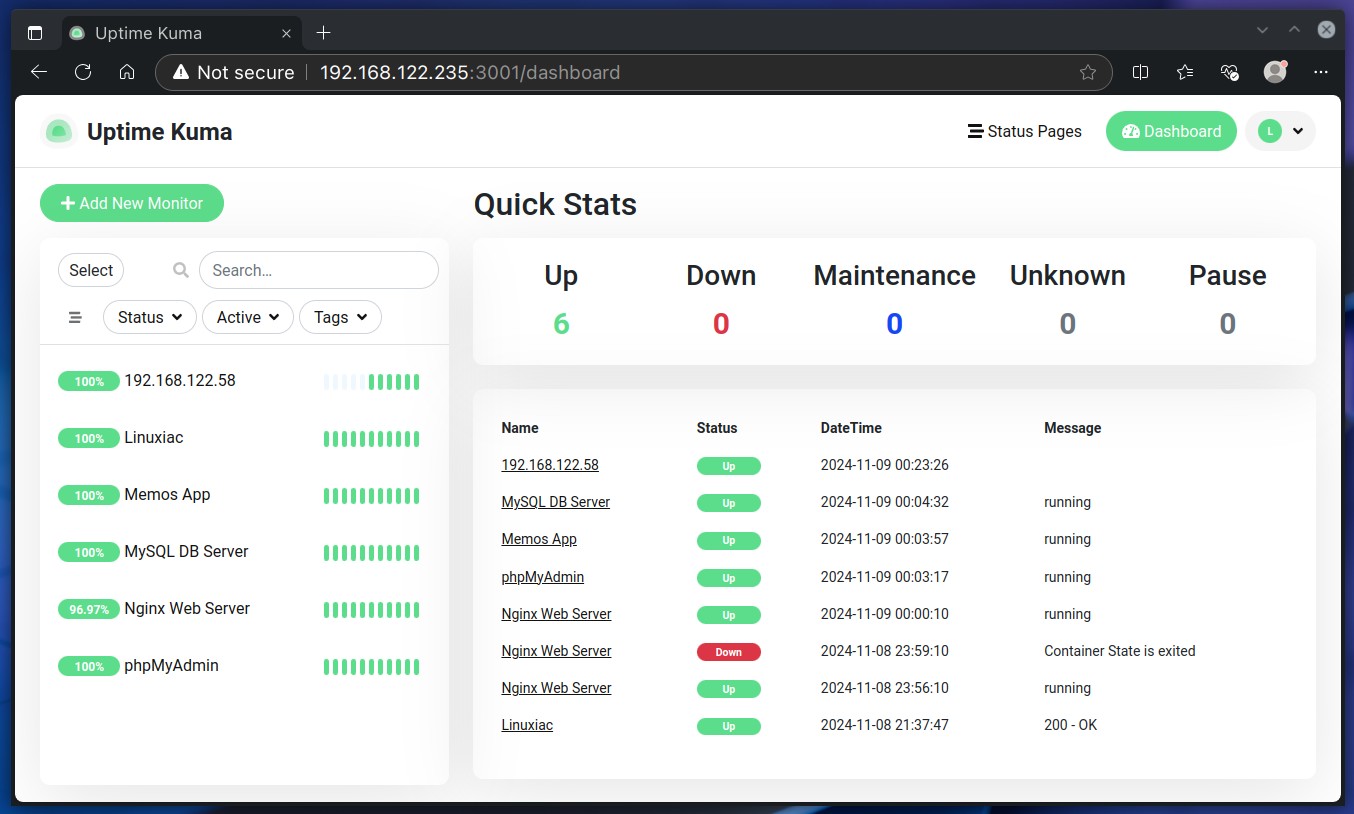
On the technical side, the software monitors a wide range of services using different protocols, such as HTTP(S), TCP, Ping, DNS, etc. Moreover, it supports a whole host of notification methods, including Email (SMTP), Slack, Telegram, Discord, Webhooks, Gotify, ntfy, Google Chat, Matrix, you name it.
In other words, the software is invaluable. That’s why, in this guide, we’ll walk you through installing and configuring Uptime Kuma using Docker Compose and help you effortlessly set up continuous monitoring. But before that, let’s shed some light on the software’s main applicability.
Uptime Kuma provides continuous real-time monitoring of your websites, APIs, and network services. The best part is that by setting up periodic checks, the software instantly alerts you if any of your services go down. With that said, here are the primary use cases where Uptime Kuma shines:
Well, I’m sure you’re impressed with the software’s capabilities—me too! Now, let me walk you through the steps to install and configure it so you can have round-the-clock monitoring for your services.
Before proceeding with the installation, ensure Docker is installed on your system. But if you don’t have it, fear not; any of the following guides will help you get it quickly. Pick the distribution you are using in one of the following links: Ubuntu 24.04, Debian 12, Arch, Alma/Rocky, Fedora, Linux Mint 22, Pop!_OS 22.04, or Raspberry Pi OS.
The other essential component is Docker Compose. Recent Docker versions include Docker Compose by default, so you can install the “docker-compose-plugin” package. So, install it if it’s not already in your setup.
However, if you prefer, you can get it separately using both commands below. In that case, remember, when running the tool, type “docker-compose” instead of “docker compose.”
sudo curl -L "https://github.com/docker/compose/releases/latest/download/docker-compose-linux-$(uname -m)" -o /usr/local/bin/docker-compose
sudo chmod +x /usr/local/bin/docker-composeCode language: Bash (bash)The first step is to create the project directory in which our Docker Compose deployment file will be placed. Then switch to it; from here on, you need to execute all commands further down in this guide from that location.
mkdir kuma
cd kumaCode language: Bash (bash)
Next, create a “docker-compose.yml” file, like a blueprint for our Docker setup. This file will define the services, volumes, ports, etc., telling Docker Compose what to do and how to set up our Uptime Kuma instance.
Open your favorite text editor and paste the following content into it:
nano docker-compose.ymlCode language: Bash (bash)services:
uptime-kuma:
image: louislam/uptime-kuma:2
container_name: kuma
volumes:
- ./data:/app/data
ports:
- 3001:3001
restart: alwaysCode language: YAML (yaml)Well, as you can see, our deployment is the simplest possible. The “volumes” option will create a “data” directory in the current one and mount it to the container’s “/app/data” directory, ensuring data persistence. We also expose the container’s port 3001 and bind it to the host’s port 3001, which we will use to access the Uptime Kuma web UI.
And that’s it! Now, execute the following command to start and run the container in the background (detached mode):
docker compose up -dCode language: Bash (bash)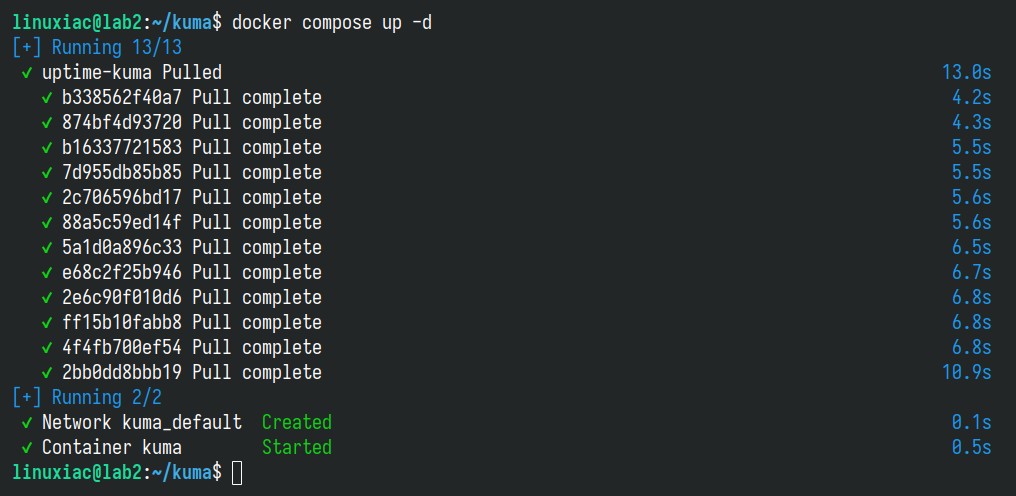
The Docker image will start downloading. At the end, you should see a screen similar to the one above confirming that your Uptime Kuma installation has been successfully deployed and that the container is up and running. It was easy, right?
Now, let’s move to the most exciting part. Open your browser and navigate to “http://localhost:3001” or “http://<server-ip-address>:3001“. Of course, replace the “<server-ip-address>” part with your actual server’s IP address.
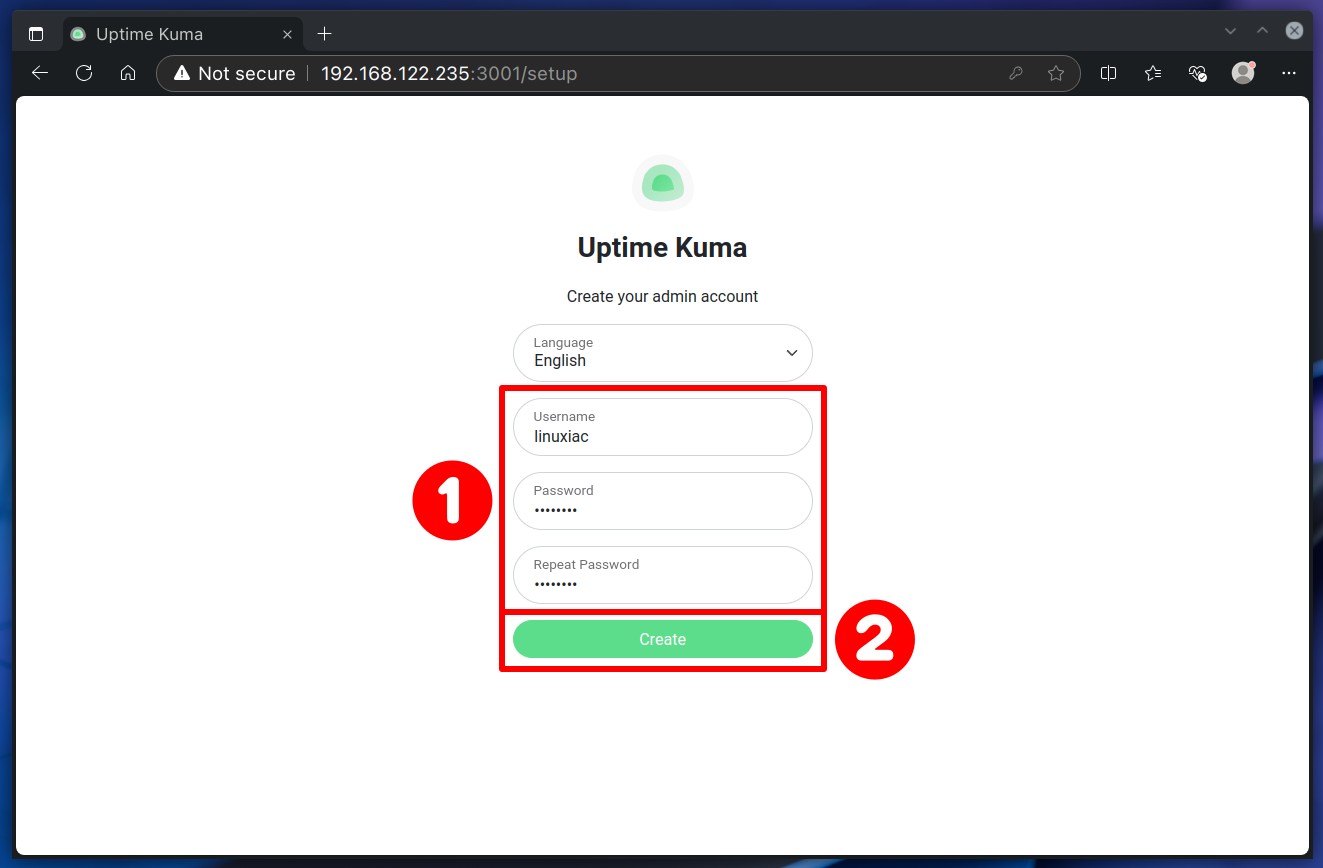
When you first access Uptime Kuma, you’ll be prompted to create an admin account. Fill in the username and password fields and click “Create.”
Just like that, you’re logged into your brand new Uptime Kuma instance. But before adding your first monitoring configuration, it’s a good idea to set up notifications.
Doing this lets you easily add a notification to each new monitor with a single click, instead of configuring them individually each time. Think of it as creating a reusable template for notifications.
Running Uptime Kuma on host-ip:3001 is fine for local testing, but if you want to reach your dashboard or status page at a proper domain like status.yourdomain.com with HTTPS, you need a reverse proxy in front of it.
⚠️ Why this trips people upUptime Kuma’s dashboard runs over WebSocket, not plain HTTP. If your reverse proxy doesn’t explicitly forward the Upgrade and Connection headers, the page will load but the dashboard will hang on a spinner or show “WebSocket connection failed” instead of live status updates.
If you’re already running Nginx (or Nginx Proxy Manager) on the host, this is the config block that matters:
server {
    listen 443 ssl;
    server_name status.yourdomain.com;

    ssl_certificate     /etc/letsencrypt/live/status.yourdomain.com/fullchain.pem;
    ssl_certificate_key /etc/letsencrypt/live/status.yourdomain.com/privkey.pem;

    location / {
        proxy_pass http://127.0.0.1:3001;
        proxy_http_version 1.1;

        # Required for WebSocket support
        proxy_set_header Upgrade $http_upgrade;
        proxy_set_header Connection "upgrade";

        proxy_set_header Host $host;
        proxy_set_header X-Real-IP $remote_addr;
        proxy_set_header X-Forwarded-For $proxy_add_x_forwarded_for;
        proxy_set_header X-Forwarded-Proto $scheme;
    }
}
If you’re using Nginx Proxy Manager instead of raw Nginx, the equivalent is: create a proxy host pointing at uptime-kuma:3001, then toggle Websockets Support on under the Details tab — that single switch handles the headers above for you.
Caddy forwards WebSocket upgrade headers automatically, which is why a lot of homelabbers prefer it here no extra directives needed:
status.yourdomain.com {
    reverse_proxy uptime-kuma:3001
}
That’s the entire config. Caddy also handles the Let’s Encrypt certificate issuance and renewal automatically no separate Certbot step.
  labels:
      - "traefik.enable=true"
      - "traefik.http.routers.uptime-kuma.rule=Host(`status.yourdomain.com`)"
      - "traefik.http.routers.uptime-kuma.entrypoints=https"
      - "traefik.http.routers.uptime-kuma.tls.certresolver=myresolver"
      - "traefik.http.services.uptime-kuma.loadbalancer.server.port=3001"
If Uptime Kuma sits fully behind a reverse proxy (no direct access), go to Settings → Reverse Proxy → HTTP Headers and set Trust Proxy to Yes. This makes Kuma trust the X-Forwarded-* headers from your proxy so the real visitor IP shows up correctly in logs instead of your proxy’s internal IP.
Uptime Kuma notifications are alerts that notify you when the status of the services, websites, or systems you’re monitoring changes—like when they go down, experience errors, or come back online. These notifications can be set up to keep you informed in real-time, helping you respond quickly to issues.
Click on the dropdown menu at the top right corner, choose “Settings,” then select the “Notifications” option from the page that will load, and hit the “Setup Notification” button.
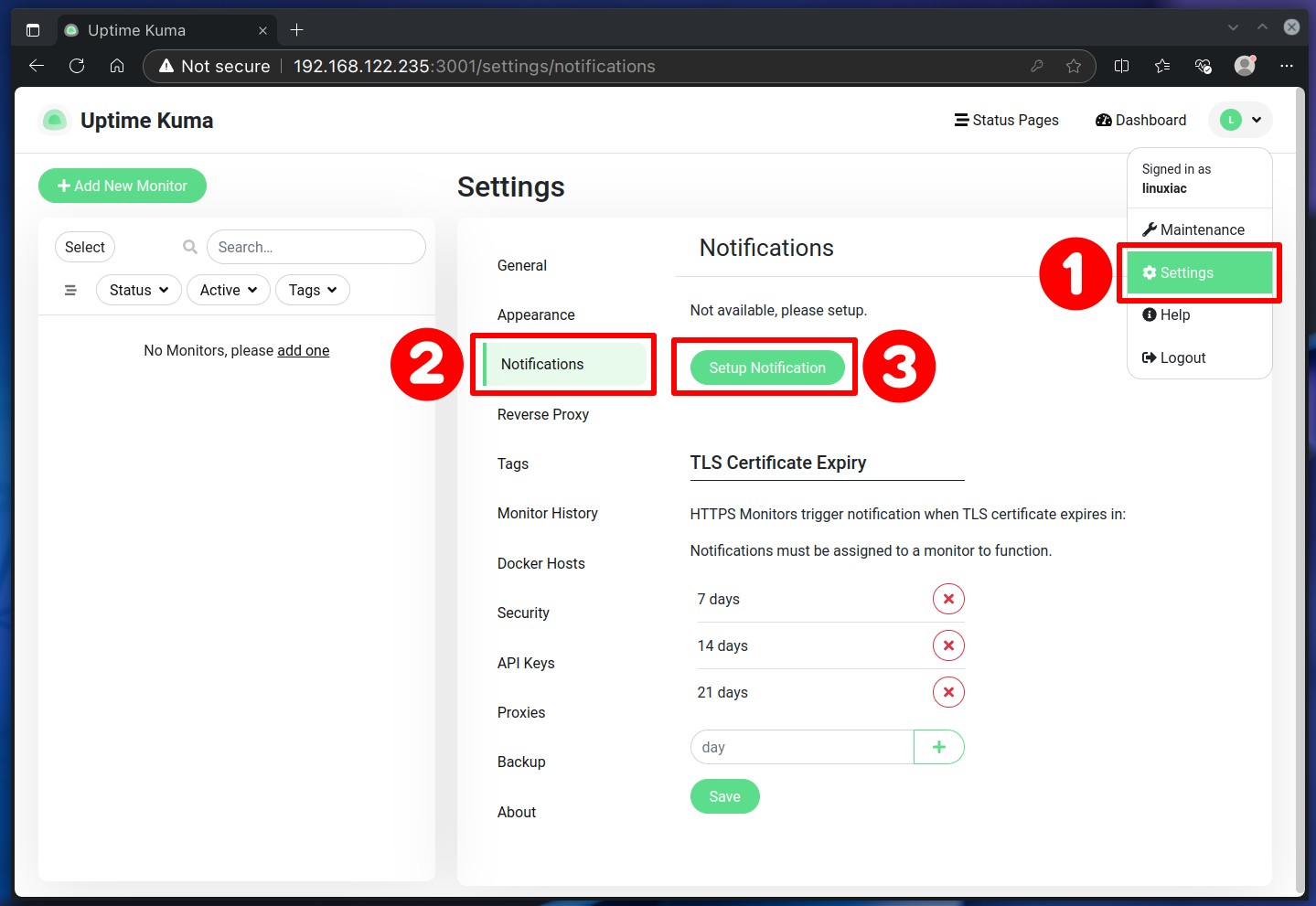
This is where Uptime Kuma truly shines—it supports nearly any notification service you can imagine (and probably even a few you haven’t heard of). Below, I’ve provided a quick overview of some main ones.
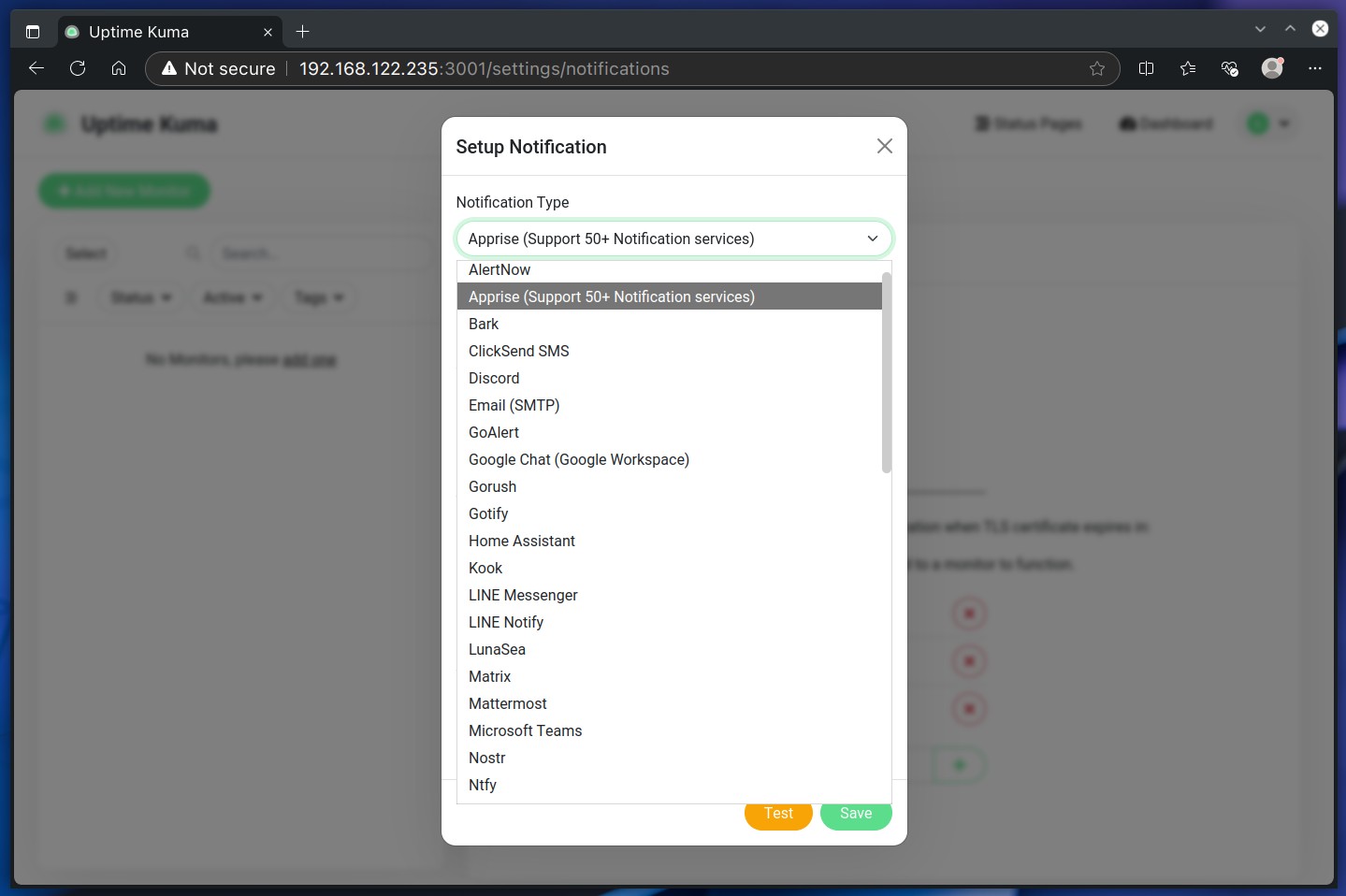
However, I can’t tell you which specific service to choose here since it really depends on your personal preferences and, most importantly, which platforms you use most often, are registered on, and have installed on your phone if you want to receive notifications there.
If I had to give a simple example, though, setting it up is a breeze if you’re using Discord. You just need to paste Discord’s webhook URL into Uptime Kuma’s notification settings for the Discord service. The official app’s documentation contains good instructions on how to generate a Discord webhook URL.
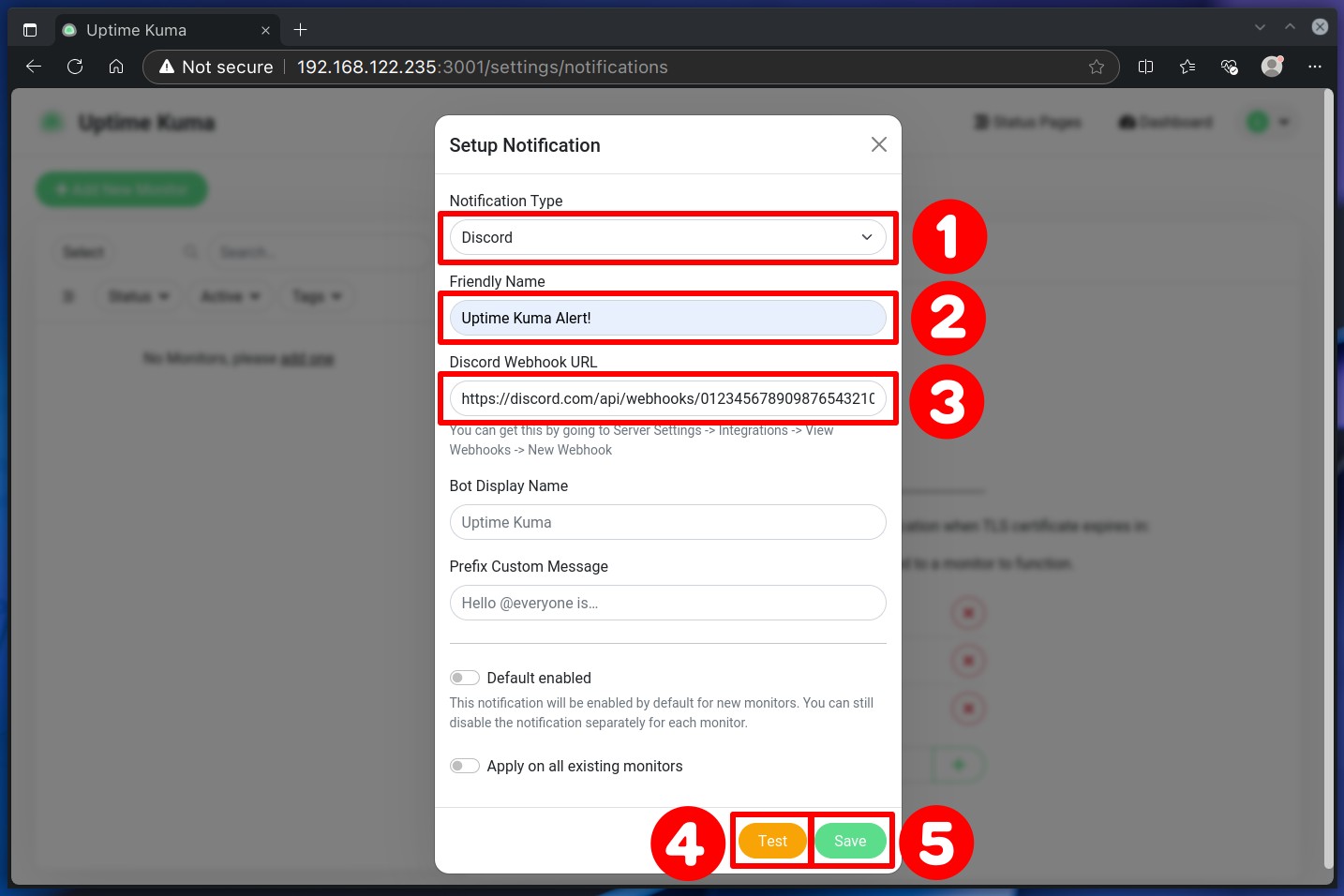
Once you’ve entered the correct information, simply click the “Test” button. You’ll instantly receive a test message in Discord confirming a smooth integration with Uptime Kuma. After that, just click “Save” to apply your settings.
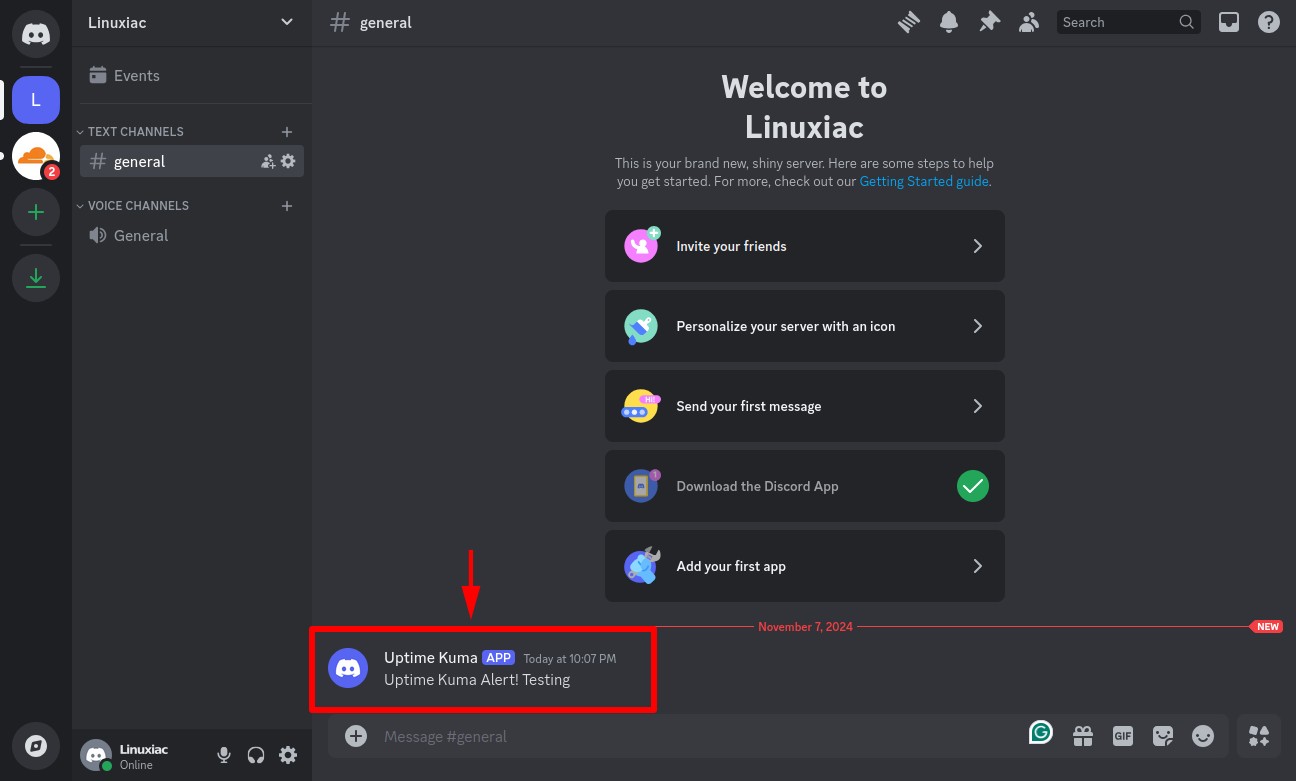
Once again, the Discord notification example above is only that—an example. If you’re reading this guide, you likely have experience with self-hosted solutions you want to monitor. I mean, it would be easy for you to set up a service that serves as a notification provider for Uptime Kuma.
On a related note, if you’re curious about my personal preference, I lean heavily toward using a self-hosted Gotify or ntfy instance – they are free and open source, which matters to me. So, I use both and find them incredibly reliable and easy to tailor to my specific needs, giving me complete control over the setup.
So much for that. Now, let’s dive into the real focus: setting up monitoring.
Now, we’re at the most exciting part of the guide—adding your very first monitor! Luckily, this is a breeze, thanks to Uptime Kuma’s user-friendly web interface. Simply click the “Add New Monitor” button in the top left corner, and you’ll be taken to a setup page.
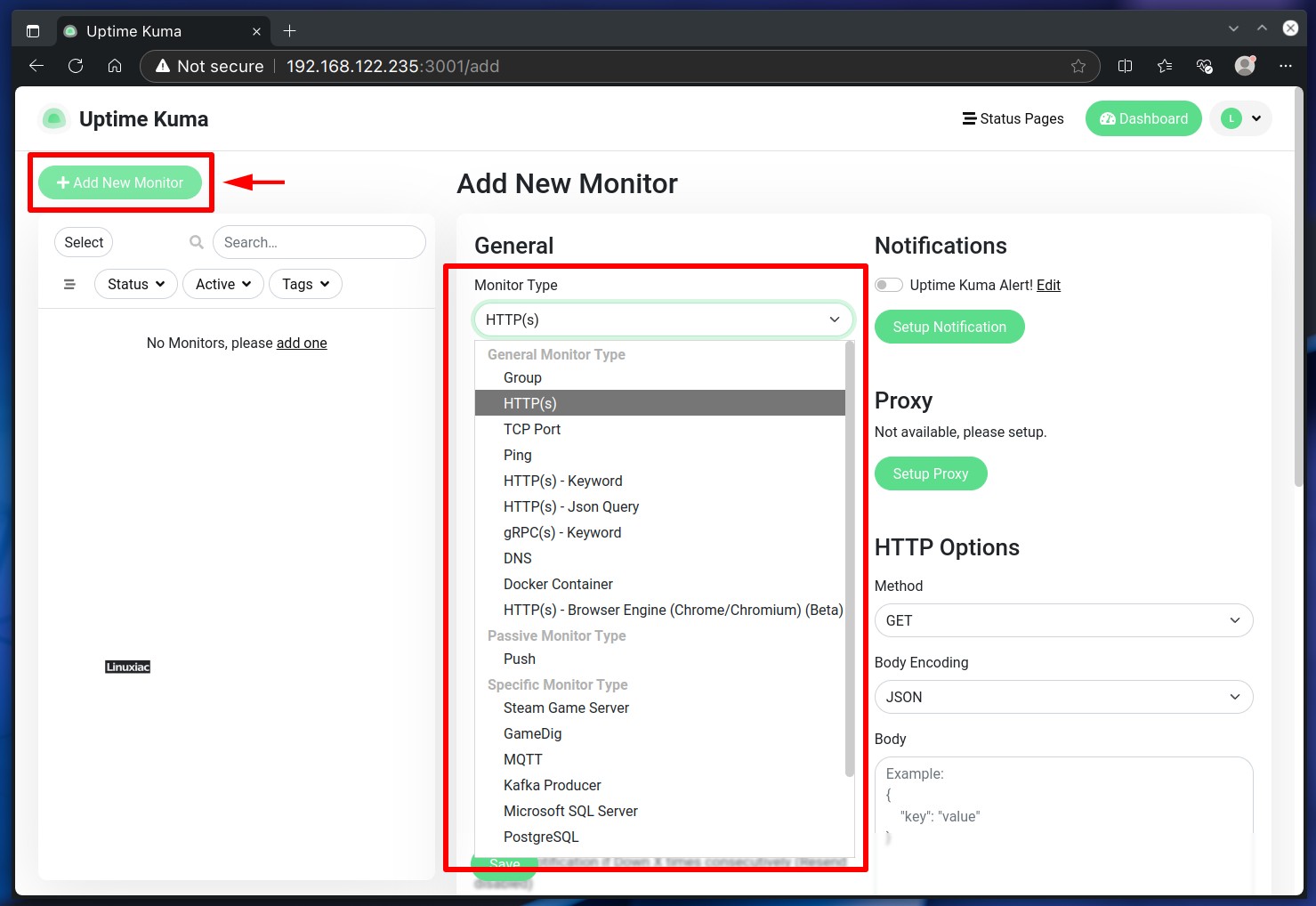
Under “Monitor Type,” you’ll find several monitoring options. Here are the main and most commonly used ones:
Let’s set up one of the most popular monitoring tools: checking if a website is accessible. Start by selecting “HTTP(s)” under “Monitoring Type,” then enter a name that will be easy for you to recognize in the “Friendly Name” field. In the “URL,” input the site’s address. Leave the “Heartbeat Interval” at the default 60 seconds, which means it will be checked for availability every minute.
Next, switch on the notifications toggle (I hope you created one earlier, as mentioned above in this guide) so you’ll receive alerts when the site’s status changes – if it goes offline and when it’s back online. Finally, hit “Save” to confirm and start monitoring.
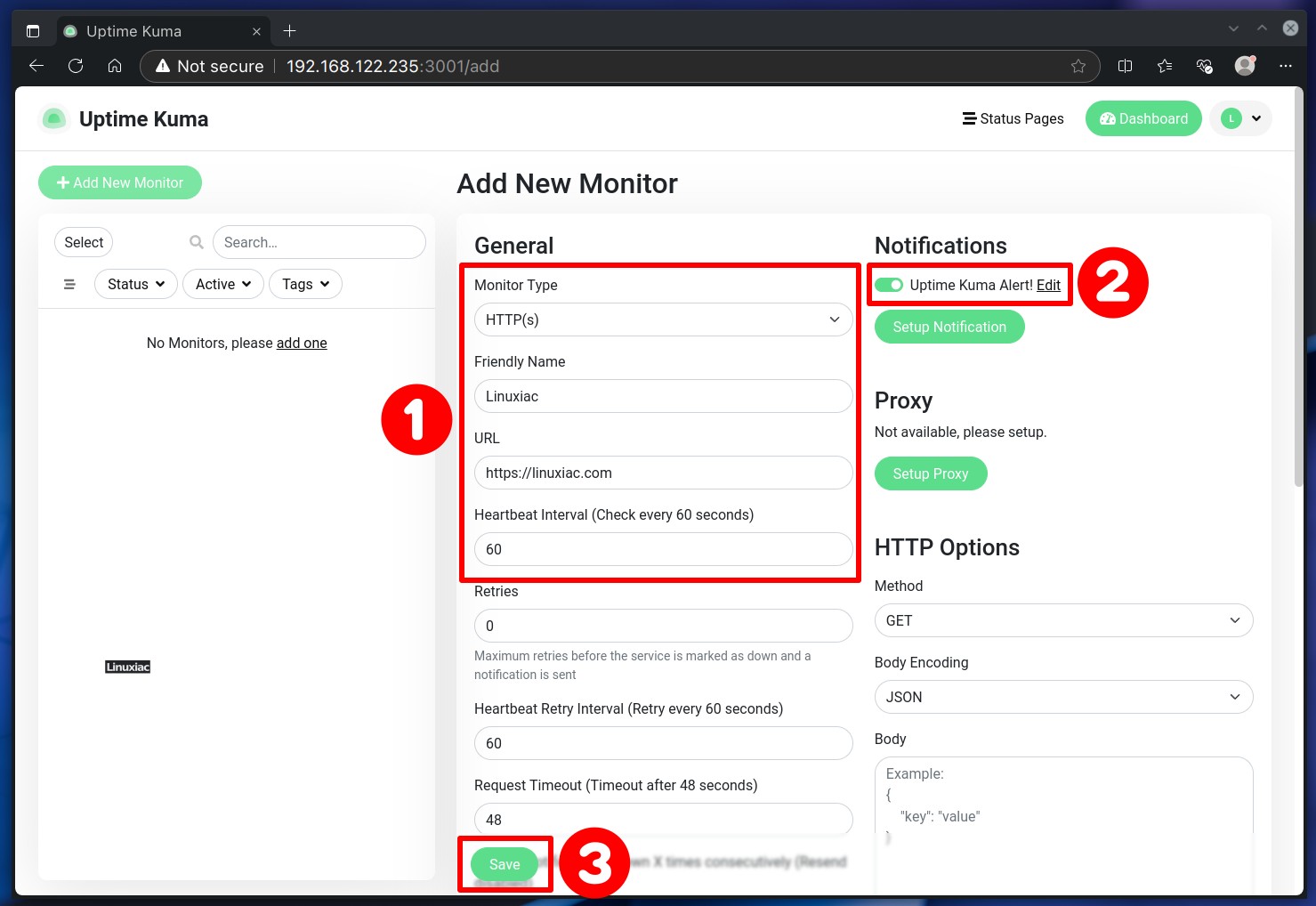
And just like that, now you’ve got reliable monitoring set up, so if anything happens to disrupt your website, you’ll be ready to respond instantly.
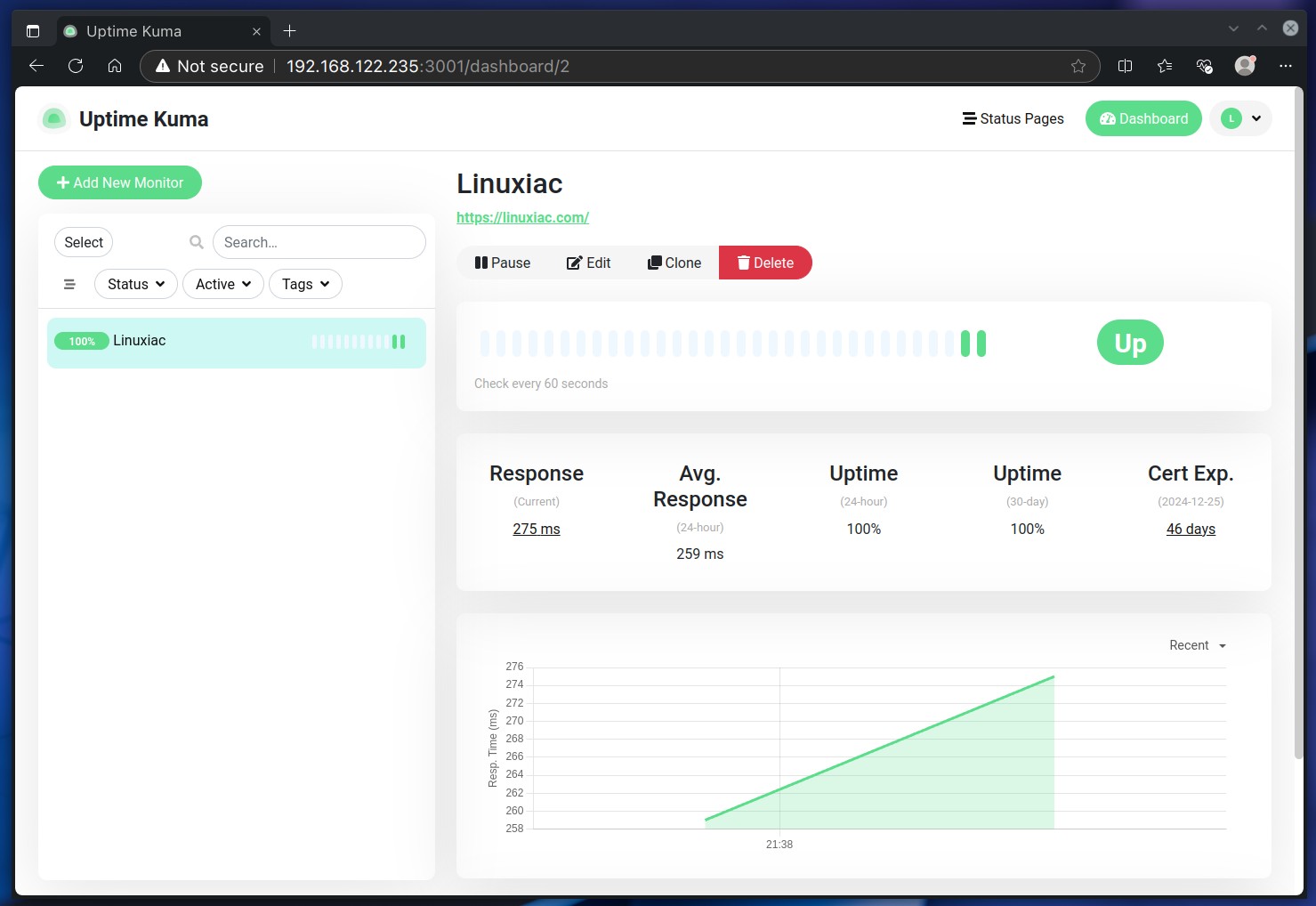
You should have a solid understanding of setting up Uptime Kuma monitors by now. I bet you’re excited to start adding these to your key services—so go for it! But we’re not done yet—I want to show you another useful functionality to make the most of your Kuma instance.
Yes, keeping an eye on your servers and websites is essential. But how do you monitor those if you’re like many these days and rely on Docker containers for your various services? That’s where Uptime Kuma shines once again.
It lets you keep tabs on any container to ensure it’s running smoothly. Here’s how to make the most of this great Kuma feature.
Add the following mount point in the “docker-compose.yml” file to connect the local “/var/run/docker.sock” with the same location into the Uptime Kuma container. This will allow Kuma to see and monitor the Docker containers running on the host system.
To do so, first stop Uptime Kuma (if it is running):
docker compose downCode language: Bash (bash)Then open the “docker-compose.yml” file and add the required mount point so that the final version looks like this:
nano docker-compose.ymlCode language: Bash (bash)services:
uptime-kuma:
image: louislam/uptime-kuma:1
container_name: kuma
volumes:
- ./data:/app/data
- /var/run/docker.sock:/var/run/docker.sock
ports:
- 3001:3001
restart: always
Code language: YAML (yaml)Finally, start the deployment again.
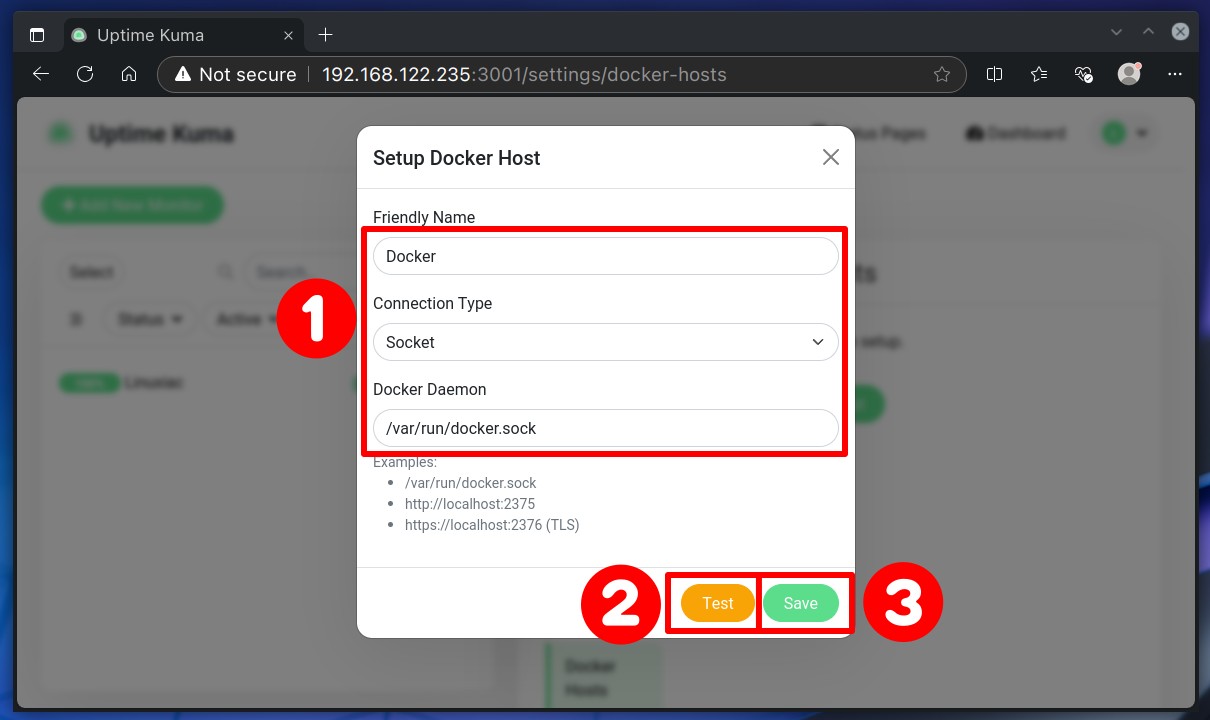
docker compose up -dCode language: Bash (bash)Next, go to the web interface, click on “Settings,” then select “Docker Hosts,” and hit the “Setup Docker Host” button.
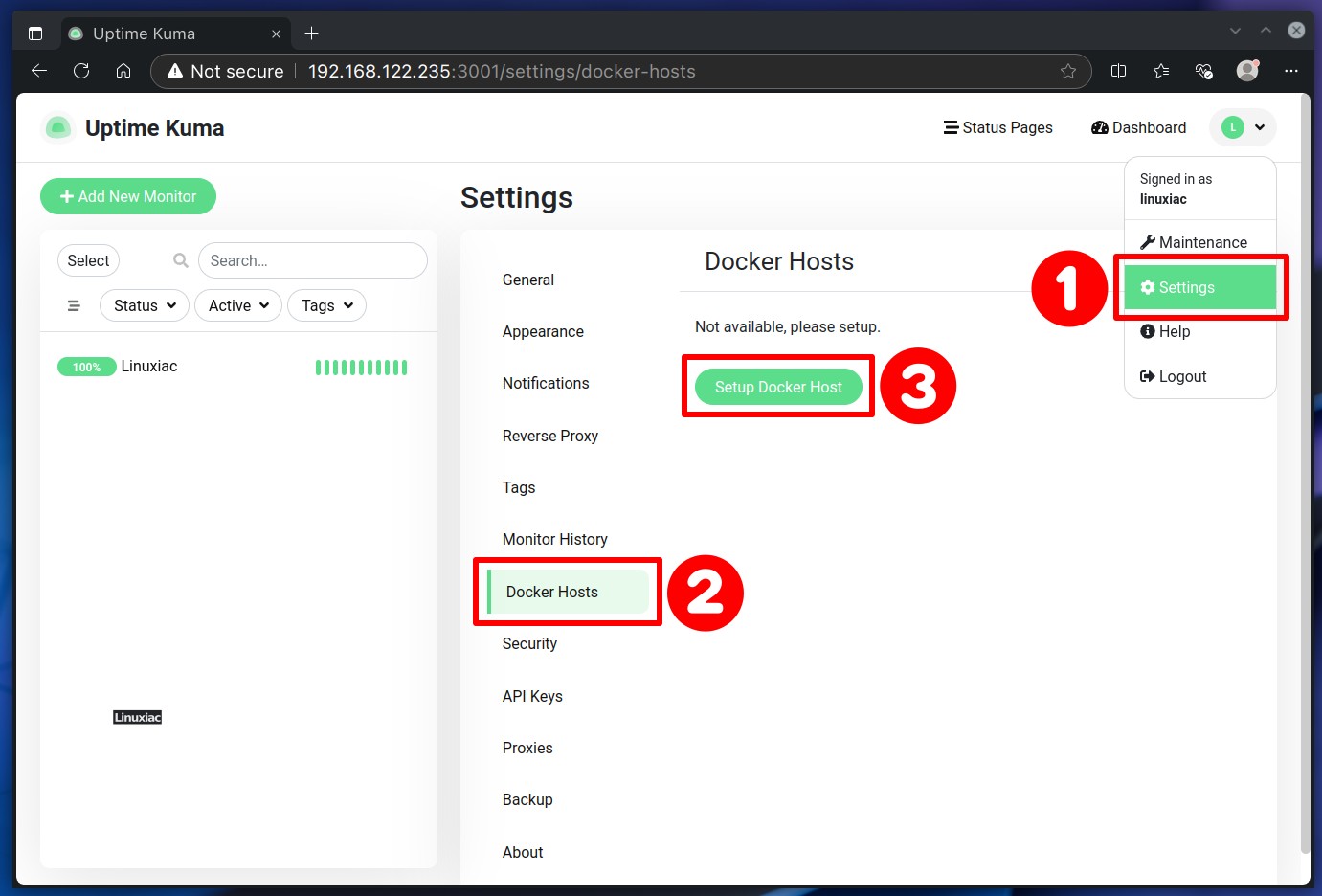
Feel free to pick any name you like for the “Friendly Name” field. I’m not the most creative person when it comes to naming, so I usually just go with something straightforward like “Docker.”
For “Connection Type,” choose “Socket,” and for “Docker Daemon,” select “/var/run/docker.sock.” Once you’ve got that setup, test the connection to ensure everything’s working, then hit “Save” to finalize it.
Alright, let’s head back to the admin interface. Click on “Add New Monitor,” then choose “Docker Container” as the monitor type. Name it to help you easily identify which container you’re tracking.
In the “Container Name / ID” field, enter the container name you want Uptime Kuma to monitor. If you’re unsure of the name, just log in to the host and run the command below to see the IDs and names of all running containers.
docker psCode language: Bash (bash)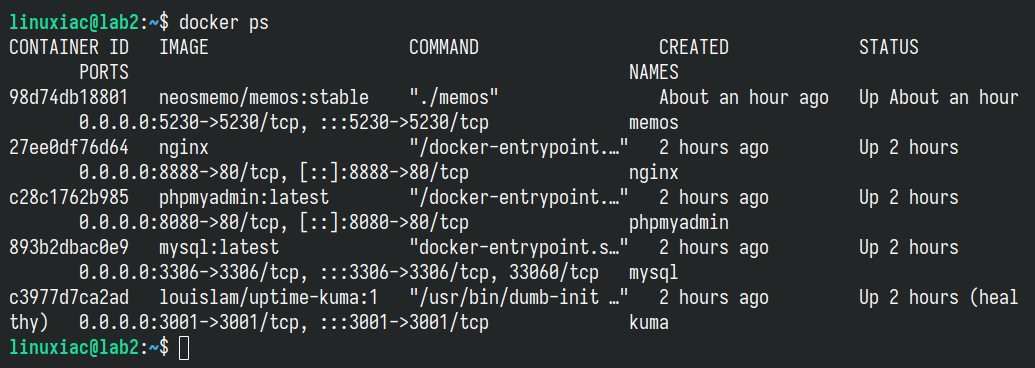
While this command works wonderfully, we can make it even easier. It’s definitely clearer this way, wouldn’t you agree?
docker ps --format "{{.ID}}: {{.Names}}"Code language: Bash (bash)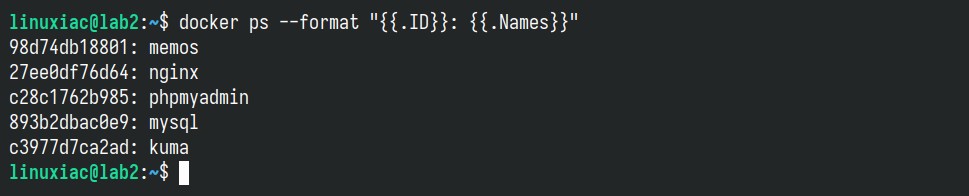
For clarity, I recommend using the container’s name rather than its ID, but it’s totally up to you. Armed with this information, enter the container’s name (or ID) you want to monitor. In our case, it is “nginx.”
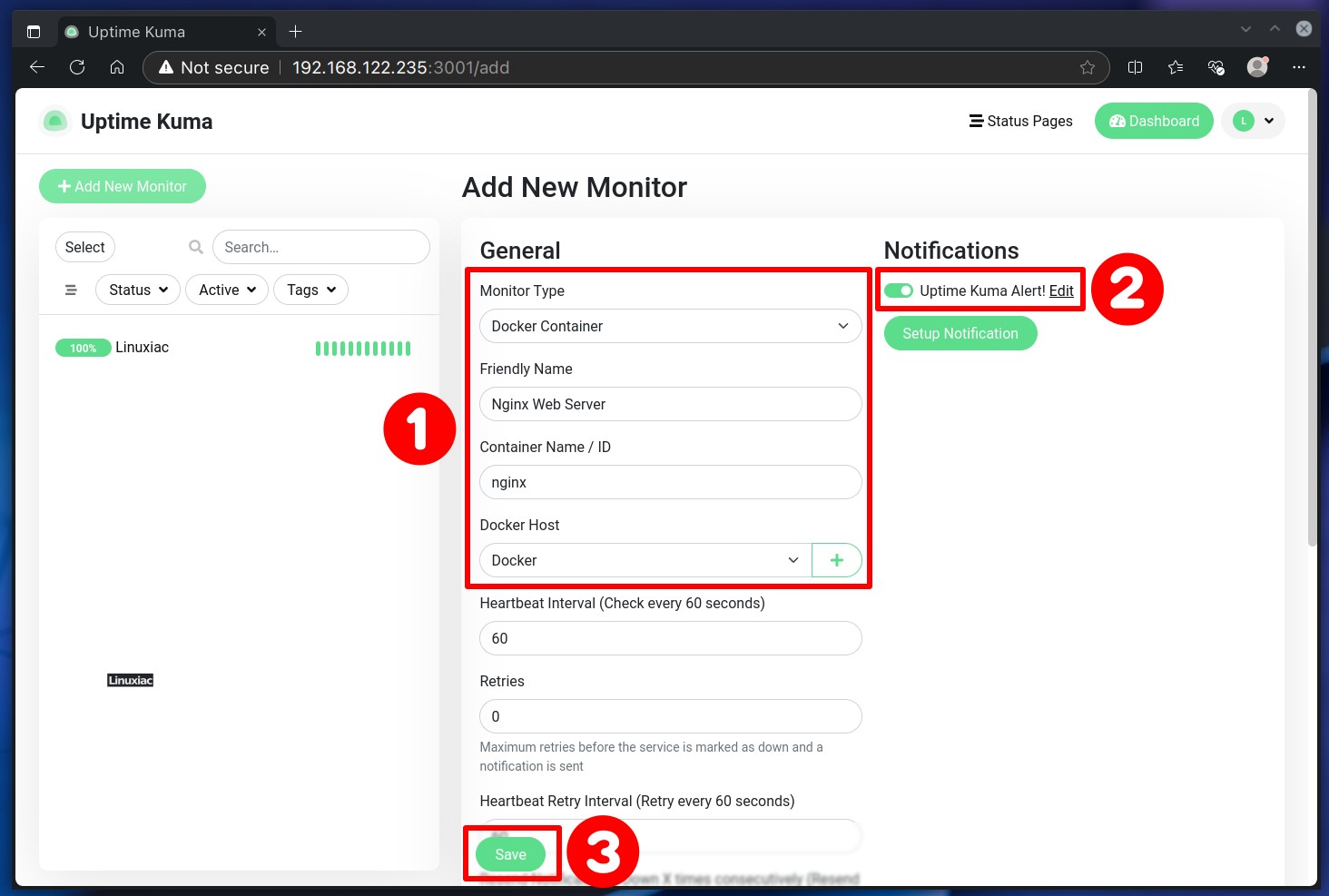
Remember to attach a notification and finally save the settings. And there you have it—reliable monitoring for your containers is all set.
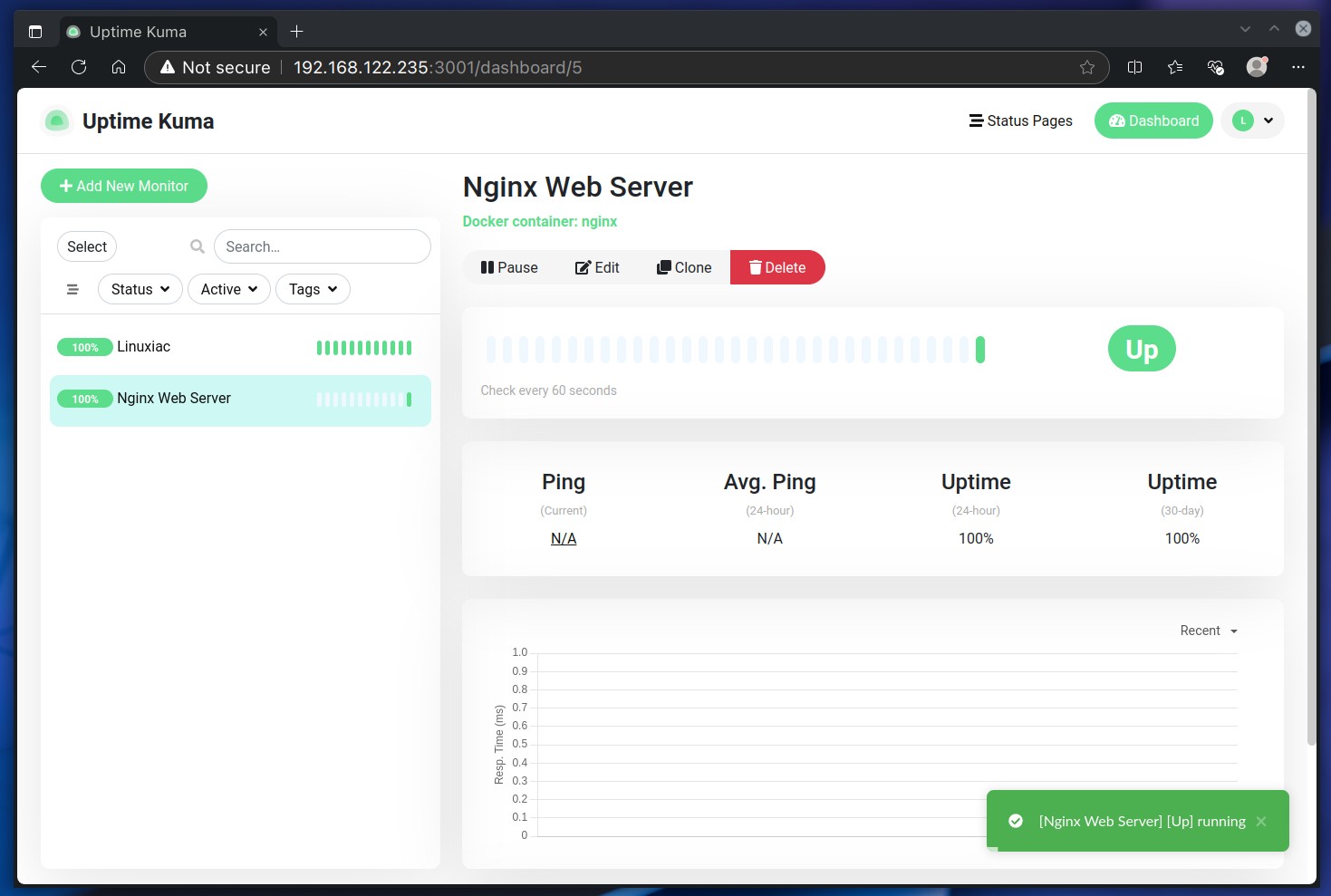
Just repeat the process for any other containers you want to monitor. For a quick and easy way to check out your container logs, I strongly suggest our guide, “Installing Dozzle: A Fantastic Real-Time Docker Log Viewer.” It’s straightforward and helpful—you won’t be disappointed.
Most Uptime Kuma problems fall into a handful of repeatable buckets. Here’s what to check before you start digging through logs line by line.
| Problem | Likely Cause | Fix |
|---|---|---|
| Dashboard shows “WebSocket connection failed” | Reverse proxy isn’t forwarding the WebSocket upgrade headers | Add proxy_set_header Upgrade $http_upgrade; and proxy_set_header Connection "upgrade"; (Nginx), or enable Websockets Support in NPM. Caddy and Traefik handle this by default. |
| Monitor shows Down, but the site works fine in a browser | Wrong URL/port in the monitor, a redirect Kuma isn’t following, or the target is returning a 403 to Kuma’s request (some apps block requests without a browser-like User-Agent) | Double-check the monitored URL includes the correct scheme (https://) and full path. Check if the service needs a custom User-Agent header, set under the monitor’s Advanced options. |
| Notifications not sending | Wrong SMTP credentials, an expired Discord/Slack webhook, or an invalid Telegram bot token | Use the Test button on the specific notification channel in Settings → Notifications. If the test fails, check logs: docker compose logs uptime-kuma. |
| Container restarts / data resets after update | No persistent volume mapped, or the volume path changed between deployments | Confirm your docker-compose.yml maps ./data:/app/data (or a named volume) and that you’re not recreating the container without that mount. |
| Docker Container monitor can’t see any containers | The Docker socket isn’t mounted into the Kuma container | Add /var/run/docker.sock:/var/run/docker.sock under volumes in your compose file, then docker compose up -d to recreate the container. |
| Status page loads but shows stale data | Expected behavior — status pages cache results and refresh periodically rather than updating second-by-second | Not a bug. If you need near-real-time status, use the main dashboard instead of the public status page. |
⚠️ Still stuck?Pull the container logs first — most notification and connectivity issues show a clear error line: docker compose logs -f uptime-kuma. If the container itself won’t start, check docker compose ps for its exit code before troubleshooting inside the app.
Thank you for following our Uptime Kuma Docker installation and configuration guide! With Uptime Kuma now set up, you’re well-equipped to keep a watchful eye on your services and ensure they stay live around the clock.
Of course, the software has plenty more to offer. For a complete look at everything it can do, we recommend checking out the project page on GitHub, especially the Wiki section.
I hope this guide was helpful and made the process straightforward for you. If you have any questions or feedback, feel free to reach out in the comment section below. Happy monitoring!
Click here to read the Complete Uptime Kuma Backup & Migration Guide

We have detected that you are using extensions to block ads. Please support us by disabling these ads blocker.





