



498views
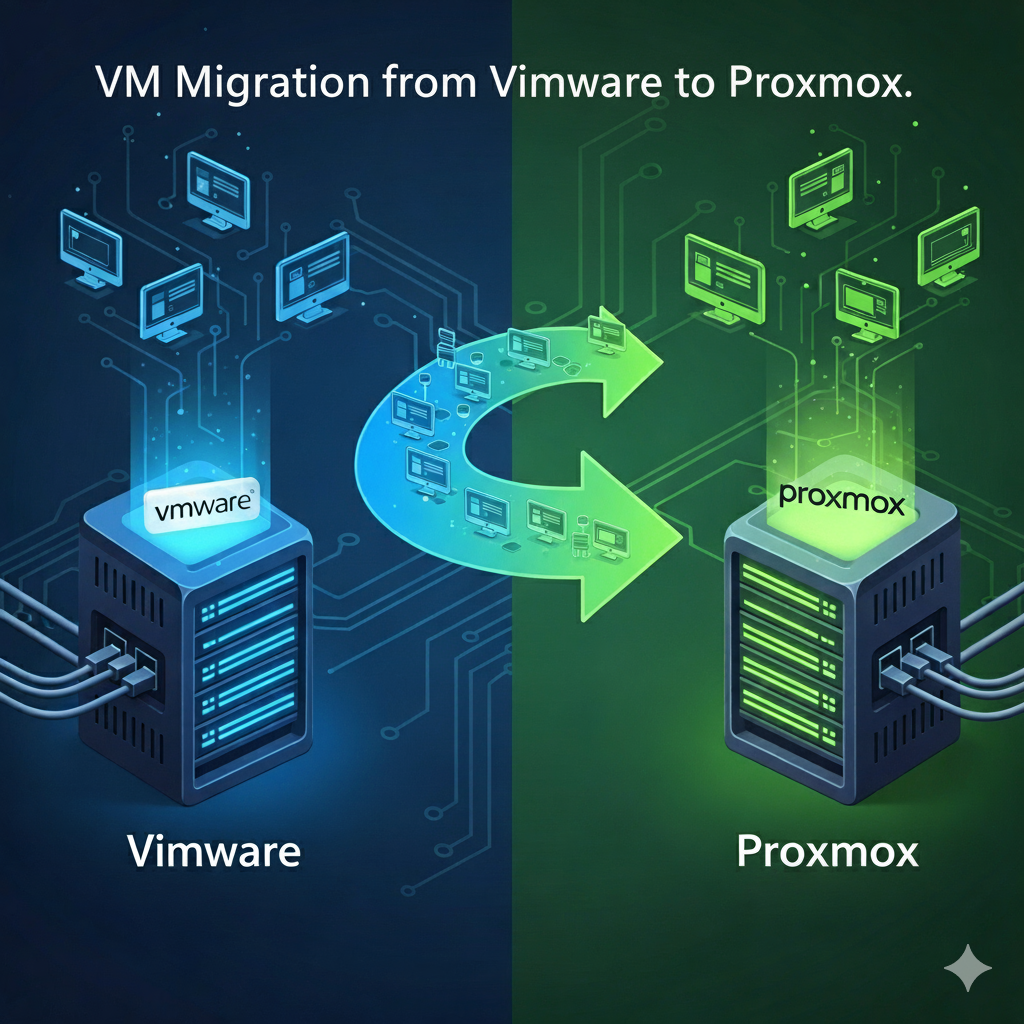
In today’s rapidly evolving IT landscape, organizations are increasingly seeking cost-effective alternatives to traditional virtualization platforms. The migration from VMware to Proxmox has emerged as a popular choice for businesses looking to reduce licensing costs while maintaining robust virtualization capabilities. However, this transition requires careful planning and expertise to ensure success.
Why Consider VMware to Proxmox Migration?
The shift from VMware to Proxmox isn’t just about cost savings, though that’s certainly a compelling factor. Proxmox Virtual Environment (PVE) offers several advantages:
Cost Efficiency: Proxmox is open-source, eliminating expensive licensing fees associated with VMware vSphere. This can result in significant savings, especially for organizations running large-scale virtualized environments.
Feature-Rich Platform: Despite being open-source, Proxmox provides enterprise-grade features including high availability, live migration, backup solutions, and comprehensive web-based management interfaces.
Flexibility and Control: Organizations gain greater control over their virtualization infrastructure without vendor lock-in, allowing for customization and optimization based on specific business needs.
The Complexity of VM Migration
Migrating virtual machines between different hypervisors is far from a simple copy-and-paste operation. The process involves multiple technical challenges that require specialized knowledge and experience:
Technical Considerations
Storage Format Conversion: VMware uses VMDK files while Proxmox typically uses QCOW2 or RAW formats. Professional migration specialists understand the nuances of converting between these formats while preserving data integrity.
Network Configuration: Network settings, including VLANs, port groups, and virtual switches, must be carefully mapped and reconfigured in the new environment.
Hardware Abstraction: Different hypervisors present virtual hardware differently to guest operating systems, potentially requiring driver updates or configuration changes.
Performance Optimization: Each platform has its own performance tuning parameters and best practices that affect VM performance post-migration.
VMware to Proxmox VM Migration Lab Tutorial
This comprehensive lab tutorial will guide you through the complete process of migrating virtual machines from VMware vSphere/ESXi to Proxmox VE. This hands-on tutorial includes preparation, conversion, and validation steps.
Lab Prerequisites
Required Software and Tools
- VMware vSphere Client or ESXi web interface access
- Proxmox VE 7.4 or later installed and configured
- Linux workstation or VM for conversion tools (Ubuntu 20.04+ recommended)
- Sufficient storage space (at least 2x the size of VMs being migrated)
- Network connectivity between all systems
Lab Environment Setup
- Source: VMware ESXi 7.0+ with sample VMs
- Destination: Proxmox VE cluster or standalone host
- Conversion Host: Ubuntu Linux system with conversion tools
- Network: All systems on same network segment for initial testing
Phase 1: Environment Assessment and Preparation
Step 1: Document VMware Environment
First, gather information about your source VMs:
# Connect to ESXi host via SSH and list VMs
vim-cmd vmsvc/getallvms

# Get detailed VM configuration
vim-cmd vmsvc/get.config [VMID]

# Check VM power state
vim-cmd vmsvc/power.getstate [VMID]
Create an inventory spreadsheet with:
- VM Name
- vCPUs
- RAM (GB)
- Disk sizes and types
- Network configuration
- Operating System
- VMware Tools status
Step 2: Prepare Proxmox Environment
Log into Proxmox web interface and verify:
# Check Proxmox version
pveversion

# Verify storage configuration
pvesm status

# Check available resources
pvesh get /nodes/[nodename]/status
Create necessary storage pools if not already configured:
# Example: Add NFS storage
pvesm add nfs storage-nfs --server 192.168.1.100 --export /mnt/nfs-storage

# Example: Add directory storage
pvesm add dir local-storage --path /var/lib/vz --content images,iso,backup
Step 3: Set Up Conversion Workstation
Install required tools on Ubuntu Linux system:
# Update system
sudo apt update && sudo apt upgrade -y

# Install virt-v2v and dependencies
sudo apt install -y virt-v2v libguestfs-tools qemu-utils

# Install additional utilities
sudo apt install -y openssh-client sshfs curl wget

# Verify virt-v2v installation
virt-v2v --version
Phase 2: VM Export from VMware
Step 4: Export VM from VMware
Method 1: Using VMware vSphere Client
- Right-click on the VM in vSphere Client
- Select “Export” → “Export OVF Template”
- Choose destination folder
- Select format: OVA (recommended for single file)
- Wait for export completion
Method 2: Using ovftool (Command Line)
# Install VMware OVF Tool first, then:
ovftool vi://username:password@esxi-host/vm-name /path/to/export/vm-name.ova

# For vCenter:
ovftool vi://username:password@vcenter-server/datacenter/vm/vm-name /path/to/export/vm-name.ova
Method 3: Direct VMDK Copy (if VM is powered off)
# Copy VMDK files from datastore
scp root@esxi-host:/vmfs/volumes/datastore/vm-folder/*.vmdk /local/path/
scp root@esxi-host:/vmfs/volumes/datastore/vm-folder/*.vmx /local/path/
Step 5: Verify Export Integrity
# Check OVA file integrity
tar -tf vm-name.ova

# Extract OVA if needed
tar -xvf vm-name.ova

# Verify VMDK files
qemu-img info vm-name-disk1.vmdk
Phase 3: VM Conversion Process
Step 6: Convert VMDK to QCOW2
Method 1: Using qemu-img (Simple conversion)
# Convert VMDK to QCOW2
qemu-img convert -f vmdk -O qcow2 vm-name-disk1.vmdk vm-name-disk1.qcow2

# Check conversion result
qemu-img info vm-name-disk1.qcow2

# Optimize the image (optional)
qemu-img convert -f qcow2 -O qcow2 -o compression=on vm-name-disk1.qcow2 vm-name-disk1-compressed.qcow2
Method 2: Using virt-v2v (Recommended for full conversion)
# Create libvirt XML from VMX (if using VMX files)
vmx-to-libvirt vm-name.vmx > vm-name.xml

# Convert using virt-v2v
virt-v2v -i libvirt -ic 'qemu:///session' vm-name -o local -of qcow2 -os /path/to/output

# For OVA files:
virt-v2v -i ova vm-name.ova -o local -of qcow2 -os /path/to/output
Step 7: Transfer Images to Proxmox
# Copy converted images to Proxmox host
scp vm-name-disk1.qcow2 root@proxmox-host:/var/lib/vz/images/

# Or use rsync for better progress indication
rsync -avh --progress vm-name-disk1.qcow2 root@proxmox-host:/var/lib/vz/images/
Phase 4: VM Creation in Proxmox
Step 8: Create New VM in Proxmox
Using Proxmox web interface:
- Click “Create VM”
- Configure basic settings:
- VM ID: Choose available ID
- Name: Match original VM name
- Resource Pool: Select appropriate pool
- OS Configuration:
- Select “Do not use any media”
- Guest OS type: Match original (Linux/Windows)
- System Settings:
- SCSI Controller: VirtIO SCSI (recommended)
- BIOS: SeaBIOS (or UEFI if original used UEFI)
- Hard Disk:
- Delete the default disk (we’ll import our converted disk)
- CPU Configuration:
- Match original vCPU count
- CPU Type: host (recommended)
- Memory:
- Match original RAM allocation
- Network:
- Bridge: vmbr0 (or appropriate bridge)
- Model: VirtIO (recommended for best performance)
Step 9: Import Converted Disk
# Import disk image to VM
qm importdisk 100 /var/lib/vz/images/vm-name-disk1.qcow2 local-storage

# Attach imported disk to VM
qm set 100 --scsi0 local-storage:vm-100-disk-0

# Make disk bootable
qm set 100 --boot c --bootdisk scsi0
Alternative: Using command line to create entire VM:
# Create VM with basic configuration
qm create 100 \
  --name "migrated-vm" \
  --memory 4096 \
  --cores 2 \
  --net0 virtio,bridge=vmbr0 \
  --ostype l26

# Import and attach disk
qm importdisk 100 /path/to/converted-disk.qcow2 local-storage
qm set 100 --scsi0 local-storage:vm-100-disk-0
qm set 100 --boot c --bootdisk scsi0
Phase 5: Post-Migration Configuration
Step 10: Initial Boot and Driver Installation
Start the VM:
qm start 100
- Connect via console to monitor boot process
- Install VirtIO drivers (for optimal performance):
For Windows VMs:
- Download VirtIO drivers ISO
- Attach ISO to VM
- Install network, storage, and balloon drivers
- Reboot and verify functionality
For Linux VMs:
- Most modern Linux distributions include VirtIO drivers
- Update initramfs if needed:
sudo update-initramfs -u
Step 11: Network Configuration Adjustment
# Check network interface names (may have changed)
ip link show

# Update network configuration files
# For Ubuntu/Debian:
sudo nano /etc/netplan/00-installer-config.yaml

# For RHEL/CentOS:
sudo nano /etc/sysconfig/network-scripts/ifcfg-ens18
Step 12: Install Proxmox Guest Agent
For Linux VMs:
# Ubuntu/Debian:
sudo apt install qemu-guest-agent
sudo systemctl enable qemu-guest-agent
sudo systemctl start qemu-guest-agent

# RHEL/CentOS:
sudo yum install qemu-guest-agent
sudo systemctl enable qemu-guest-agent
sudo systemctl start qemu-guest-agent
For Windows VMs:
- Download QEMU guest agent installer
- Install and configure service
- Restart VM
Enable guest agent in Proxmox:
qm set 100 --agent enabled=1
Phase 6: Testing and Validation
Step 13: Functionality Testing
Create a comprehensive test checklist:
Basic Functionality:
- VM boots successfully
- All disks are accessible
- Network connectivity works
- Applications start correctly
- Performance meets expectations
Advanced Testing:
# Test disk I/O performance
sudo dd if=/dev/zero of=/tmp/testfile bs=1M count=1024 conv=fdatasync

# Test network performance
iperf3 -c [target-server] -t 30

# Check system resources
htop
iostat 2 5
Step 14: Performance Optimization
CPU Settings:
# Enable CPU hotplug
qm set 100 --hotplug cpu

# Set CPU type for better performance
qm set 100 --cpu host
Memory Settings:
# Enable memory hotplug
qm set 100 --hotplug memory

# Enable balloon driver
qm set 100 --balloon 2048
Storage Optimization:
# Enable discard for SSD storage
qm set 100 --scsi0 local-storage:vm-100-disk-0,discard=on

# Enable SSD emulation if using SSD storage
qm set 100 --scsi0 local-storage:vm-100-disk-0,ssd=1
Phase 7: Backup and Documentation
Step 15: Configure Backup
Create a backup jobs. The following command is used in Proxmox VE (a virtualization platform) to back up a virtual machine (VM) using the vzdump utility.
# Create backup job
vzdump 100 --storage backup-storage --mode snapshot --compress lzo

# Schedule automatic backups via web interface or cron
# Add to /etc/cron.d/vzdump:
# 0 2 * * * root vzdump 100 --storage backup-storage --mode snapshot
Conclusion
This lab tutorial provides a comprehensive approach to migrating VMs from VMware to Proxmox. If you’re considering a VMware to Proxmox migration, start by evaluating your current environment and defining your migration goals. Look for professionals who demonstrate not just technical competency, but also strong project management skills and a track record of successful enterprise migrations. The right partnership will transform what could be a challenging technical project into a strategic advantage for your organization.
add a comment


Proxmox Finally Has a Real RVTools-Style Report (This is What Was Missing)
Introduction If you spent any meaningful time in VMware environments, RVTools was likely one of the first utilities you installed...

Download Virtuozzo 9 ISO
Virtuozzo 9 is a powerful enterprise-grade virtualization and cloud platform designed for service providers, hosting companies, and enterprises. It combines...

Check Point R81.20 T634 for VMware
If you're running Check Point environments in production, staying updated with the latest Jumbo Hotfix is critical for security, performance,...

VMware Cloud Director 10.3.3 OVA Download
The VMware Cloud Director-10.3.3 appliance is a ready-to-deploy OVA package that allows users to quickly set up VMware Cloud Director...




