



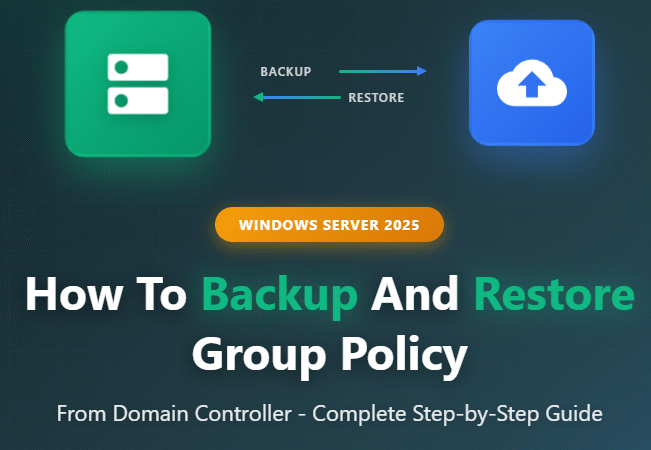
How To Backup And Restore Group Policy From Domain Controller On Windows Server 2025
165views
Group Policy is the backbone of enterprise Windows environments, controlling everything from security settings to software deployments across your domain. If you’ve ever experienced a corrupted GPO or needed to migrate policies to a new domain controller, you know how critical it is to have a solid backup strategy in place.
In this guide, I’ll walk you through the complete process of backing up and restoring Group Policy Objects (GPOs) on Windows Server 2025. Whether you’re a seasoned system administrator or just getting started with Active Directory management, this tutorial will give you the confidence to protect your domain’s configuration.
Why Backing Up Group Policy Matters
Before we dive into the how-to, let’s talk about why this is so important. Group Policies control critical aspects of your network:
- Security configurations and password policies
- Software installation and restrictions
- Network settings and drive mappings
- User desktop environments and restrictions
- Registry modifications across the domain
Losing these configurations due to hardware failure, accidental deletion, or corruption can bring your entire organization to a standstill. I’ve seen IT teams scramble for days trying to recreate policies from memory—it’s not pretty. A proper backup takes just minutes and can save you hours or even days of work.
Prerequisites
Before you begin, make sure you have:
- Administrative access to your Domain Controller running Windows Server 2025
- Group Policy Management Console (GPMC) installed
- Sufficient storage space for backups (typically a few hundred MB)
- Appropriate permissions (Domain Admin or delegated GPO management rights)
Method 1: Backup Group Policy Using GPMC (Recommended)
The Group Policy Management Console provides the most straightforward way to backup your GPOs. Here’s how to do it:
Step 1: Open Group Policy Management
Press Windows + R, type gpmc.msc, and hit Enter. This launches the Group Policy Management Console, your central hub for all GPO operations.
Step 2: Navigate to the Group Policy Objects Container
In the left pane, expand your domain, then expand the “Group Policy Objects” folder. You’ll see all the GPOs configured in your domain listed here.
Step 3: Backup Individual GPOs
To backup a specific GPO:
- Right-click on the GPO you want to backup
- Select “Back Up…” from the context menu
- Choose a location to store the backup (I recommend creating a dedicated folder like
C:\GPO_Backups) - Add a description (this is optional but extremely helpful—include the date and reason for backup)
- Click “Back Up”
The system will create a backup with a unique GUID folder name and include all policy settings, WMI filters, and links.
Step 4: Backup All GPOs at Once
If you want to backup everything in one go:
- Right-click on the “Group Policy Objects” container
- Select “Back Up All…”
- Choose your backup location
- Add a description for the entire backup set
- Click “Back Up”
This creates individual backups for each GPO in your domain. The process might take a few minutes depending on how many policies you have.
Method 2: Backup Using PowerShell
For administrators who prefer command-line tools or need to automate backups, PowerShell offers a powerful alternative:
powershell
# Backup a single GPO
Backup-GPO -Name "Your GPO Name" -Path "C:\GPO_Backups" -Comment "Scheduled backup $(Get-Date)"

# Backup all GPOs
Backup-GPO -All -Path "C:\GPO_Backups" -Comment "Full domain backup $(Get-Date)"

# Backup a specific GPO by GUID
Backup-GPO -Guid {12345678-1234-1234-1234-123456789012} -Path "C:\GPO_Backups"
I typically schedule these PowerShell commands using Task Scheduler to run weekly backups automatically. This way, I always have recent copies without having to remember to do it manually.
How To Restore Group Policy Objects
Now let’s look at the restoration process. You might need this if you’ve accidentally modified a GPO, if it’s become corrupted, or if you’re migrating to a new domain.
Restore Using GPMC
- Open Group Policy Management Console (
gpmc.msc) - Navigate to “Group Policy Objects”
- Right-click on the GPO you want to restore (or right-click “Group Policy Objects” to see all backups)
- Select “Manage Backups…”
- In the “Manage Backups” window, browse to your backup location
- Select the backup you want to restore (check the timestamp and description)
- Click “Restore”
- Confirm the restoration when prompted
The GPO will be restored to its backed-up state. Keep in mind that this overwrites the current configuration, so make sure you’re restoring the right version.
Restore Using PowerShell
powershell
# Restore a GPO by name
Restore-GPO -Name "Your GPO Name" -Path "C:\GPO_Backups"

# Restore all GPOs from a backup location
Get-ChildItem "C:\GPO_Backups" | ForEach-Object {
    Restore-GPO -BackupId $_.Name -Path "C:\GPO_Backups"
}

# Restore a specific backup by its GUID
Restore-GPO -BackupId {87654321-4321-4321-4321-210987654321} -Path "C:\GPO_Backups"
Importing GPOs to a Different Domain
Sometimes you need to move a GPO to a completely different domain or create a new GPO based on a backup. The import function handles this:
- In GPMC, create a new GPO or select an existing one
- Right-click the GPO and select “Import Settings…”
- Click “Next” through the wizard
- Choose your backup location
- Select the backup to import
- Review the settings and click “Finish”
This is particularly useful when you’re standardizing policies across multiple domains or testing changes in a separate environment before deploying to production.
Best Practices for Group Policy Backups
Based on my experience managing enterprise environments, here are some recommendations:
Create a regular backup schedule. Don’t wait for a disaster to strike. I recommend backing up GPOs weekly at minimum, and immediately after any major changes.
Use descriptive comments. When you backup a GPO, add meaningful descriptions. “Backup before security policy update” is way more helpful than “backup 1” when you’re trying to find the right version to restore.
Store backups in multiple locations. Keep copies on your domain controller, but also copy them to a network share, external drive, or cloud storage. If your DC crashes, you’ll need access to those backups.
Test your restoration process. Don’t wait until an emergency to find out your backups don’t work. Periodically test restoring a GPO in a lab environment to verify your backup integrity.
Document your GPO structure. Along with technical backups, maintain documentation about what each GPO does and where it’s linked. GPMC can generate HTML reports that are perfect for this.
Version control matters. Keep multiple generations of backups. Sometimes you don’t discover a problem immediately, and you may need to go back several weeks to find a working configuration.
Troubleshooting Common Issues
“You do not have sufficient permissions to complete this operation”
This means your account lacks the necessary rights. You need to be a member of Domain Admins or have specific delegated permissions for GPO management.
“The system cannot find the path specified”
Double-check your backup path. Make sure the folder exists and your account has write permissions to it.
GPO links not restored
Remember that backing up a GPO doesn’t backup its links to OUs. You’ll need to manually relink the GPO to the appropriate organizational units after restoration.
WMI filters not working after restore
WMI filters are backed up with GPOs, but if you’re importing to a different domain, you may need to recreate the filters separately.
Final Thoughts
Backing up Group Policy Objects is one of those tasks that seems optional until you desperately need it. Taking just a few minutes to establish a backup routine can save you from catastrophic configuration loss and hours of rebuilding work.
Windows Server 2025 makes this process straightforward with both GUI and PowerShell options, so there’s really no excuse not to implement a solid backup strategy. Whether you prefer clicking through GPMC or scripting with PowerShell, the important thing is that you’re regularly capturing your GPO configurations.
add a comment

Azure DevOps Server 2022.2 Downloads
Azure DevOps Server allows you to self host the same modern dev services available in Azure DevOps, including Boards (planning and...
Microsoft DevOps Server 2022 ISO
If you're looking to build a powerful on-premises DevOps environment, Microsoft DevOps Server 2022 (formerly Azure DevOps Server / TFS)...
Block Program Installations from USB Drives Using Group Policy in Windows Server 2025
In Windows Server environments, blocking program installations from USB drives is an important security measure. This helps prevent the installation of unauthorized software and the spread of malware through removable storage devices. With Group Policy, administrators can enforce specific rules and restrictions on USB drives and other removable media. Below is an overview of how you can block program installations from USB drives using Group Policy in Windows Server 2025. In this lab tutorial we will configure a layered Group Policy Object (GPO) in our domain Active Directory environment to...

PowerShell Advanced Cookbook
If you're looking to take your automation and scripting skills to the next level, the PowerShell Advanced Cookbook by Morten...




