Physical Address
304 North Cardinal St.
Dorchester Center, MA 02124
Physical Address
304 North Cardinal St.
Dorchester Center, MA 02124

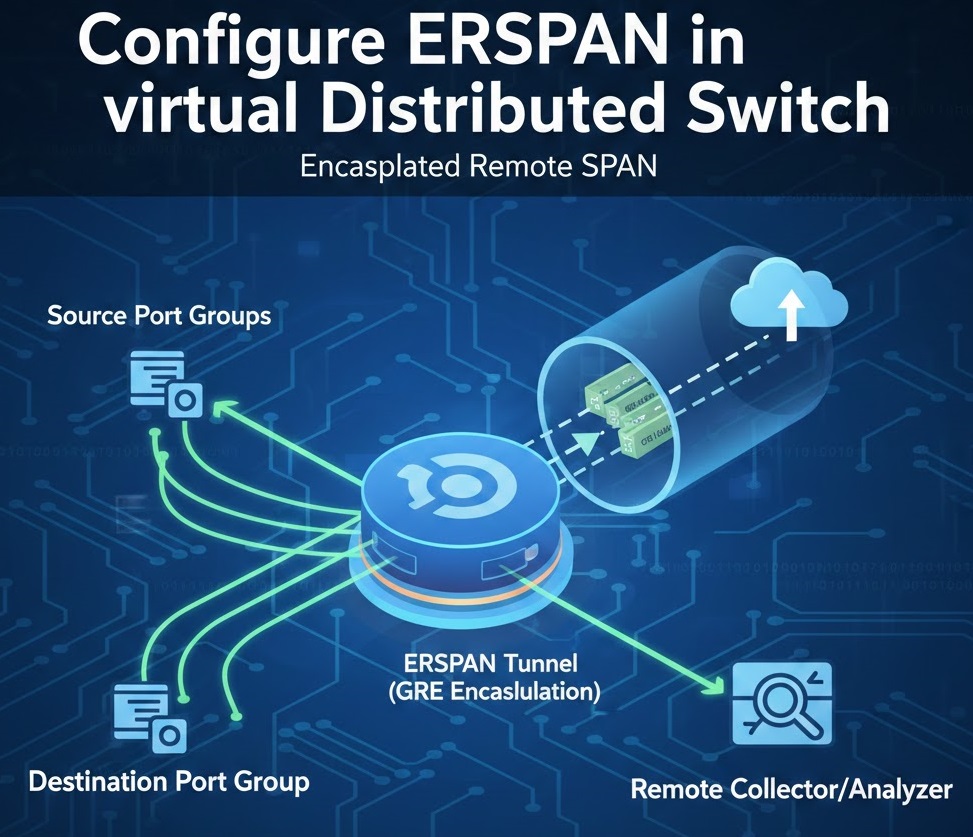
ERSPAN (Encapsulated Remote SPAN) in a vSphere Virtual Distributed Switch (VDS) is a network traffic-mirroring feature that allows you to copy VM or uplink traffic and send it to a remote system over IP for monitoring or analysis.
ERSPAN (Encapsulated Remote SPAN) mirrors VM traffic and sends it over IP (GRE) to a remote analyzer (Wireshark, IDS, SIEM, etc.).

Unlike local port mirroring, ERSPAN:
Below is a clear, step-by-step guide to configure ERSPAN on a vSphere Virtual Distributed Switch (VDS).
This works for vSphere 7.0 + and is commonly used for remote packet capture / network analysis.
Lab Infrastructure:
Lab Objectives:
Prerequisites:
Remote analyzer VM or appliance (for RSPAN/ERSPAN testing)
Administrative access to vCenter Server
At least 2-3 virtual machines for testing
Network packet analyzer (Wireshark or tcpdump)
https://192.168.91.130
administrator@vsphere.localYou’ll need at least three VMs for comprehensive testing:
Recommended VM Configuration:
VM IP Assignments:
Lab-VDS-01Lab-VDS-01-PGCreate multiple port groups for different mirroring types:
Port Group 1: Source Traffic
Lab-Source-PGPort Group 2: Local Monitor
Lab-Monitor-PGPort Group 3: RSPAN VLAN
Lab-RSPAN-PGPort Group 4: Remote Analyzer
Lab-RemoteAnalyzer-PGOn VM1 (Source):
sudo ip addr add 192.168.91.201/24 dev eth0
sudo ip link set eth0 up
sudo ip route add default via 192.168.91.1
On VM2 (Local Monitor):
sudo ip addr add 192.168.91.202/24 dev eth0
sudo ip link set eth0 up
# Install tcpdump
sudo apt-get update && sudo apt-get install -y tcpdump wireshark
On VM3 (Remote Analyzer):
sudo ip addr add 192.168.91.203/24 dev eth0
sudo ip link set eth0 up
# Install tcpdump
sudo apt-get update && sudo apt-get install -y tcpdump wireshark tshark
Test connectivity between all VMs:
ping 192.168.91.201
ping 192.168.91.202
ping 192.168.91.203
This is the most common type of port mirroring, where source and destination are on the same distributed switch.
Session Configuration:
DPM-Session-01Local distributed port mirroring - VM1 to VM2Traffic Direction:
Click Next
Lab-Source-PG-dvPort-##Pro Tip: To easily identify VM ports:
Read More about virtual standard switch
On VM2 (Monitor) – Start Capture:
# Start capturing all traffic
sudo tcpdump -i eth0 -nn -v

# Or save to file for later analysis
sudo tcpdump -i eth0 -w /tmp/dpm_capture.pcap -v
On VM1 (Source) – Generate Traffic:
# ICMP traffic
ping 8.8.8.8 -c 50

# HTTP traffic
curl http://www.google.com

# DNS queries
nslookup www.vmware.com

# TCP connections
telnet 192.168.91.130 443

# Generate continuous traffic
ping 192.168.91.1 -i 0.5
Expected Results on VM2: You should see ALL traffic from VM1, including:
15:23:10.123456 IP 192.168.91.201 > 8.8.8.8: ICMP echo request
15:23:10.145678 IP 8.8.8.8 > 192.168.91.201: ICMP echo reply
15:23:11.234567 IP 192.168.91.201.54321 > 172.217.1.46.80: Flags [S], seq 123456
15:23:11.256789 IP 192.168.91.201.54321 > 8.8.8.8.53: 12345+ A? www.vmware.com
Stop capture on VM2:
# Press Ctrl+C to stop tcpdump

# Analyze the capture file
sudo tcpdump -r /tmp/dpm_capture.pcap | head -50

# Count packets by protocol
sudo tcpdump -r /tmp/dpm_capture.pcap -n | awk '{print $3}' | sort | uniq -c

# Filter specific traffic
sudo tcpdump -r /tmp/dpm_capture.pcap 'icmp'
sudo tcpdump -r /tmp/dpm_capture.pcap 'tcp port 80'
Or use Wireshark for GUI analysis:
# Transfer file to your workstation
scp user@192.168.91.202:/tmp/dpm_capture.pcap .

# Open in Wireshark
wireshark dpm_capture.pcap
Remote port mirroring allows you to mirror traffic to a destination on a different VLAN, useful when the analyzer is on a different network segment.
RSPAN Uses:
Our Setup:
On VM3:
# Check interfaces
ip link show

# Configure second interface (usually eth1)
sudo ip addr add 192.168.100.203/24 dev eth1
sudo ip link set eth1 up
sudo ip link set eth1 promisc on

# Verify promiscuous mode
ip link show eth1
# Should show: BROADCAST,MULTICAST,PROMISC,UP
Basic Configuration:
RSPAN-Session-01RSPAN to VLAN 100Traffic Direction:
Click Next
Note: RSPAN sends traffic to an uplink tagged with the RSPAN VLAN. The physical switch would need VLAN 100 configured, but in our lab, we’re simulating this within the distributed switch.
On VM3 – Start Capture on RSPAN Interface:
# Capture on eth1 (VLAN 100 interface)
sudo tcpdump -i eth1 -nn -v

# Or save to file
sudo tcpdump -i eth1 -w /tmp/rspan_capture.pcap -v
On VM1 – Generate Traffic:
# Generate varied traffic
ping 8.8.8.8 -c 100
curl http://www.example.com
nslookup www.cisco.com
wget http://ipv4.download.thinkbroadband.com/5MB.zip

# Continuous traffic
ping 192.168.91.130 -i 0.2
Expected Results on VM3:
16:45:23.123456 IP 192.168.91.201 > 8.8.8.8: ICMP echo request
16:45:23.145678 IP 8.8.8.8 > 192.168.91.201: ICMP echo reply
16:45:24.234567 IP 192.168.91.201.52345 > 93.184.216.34.80: Flags [S]
Verification:
Compare RSPAN vs Distributed Port Mirroring:
# On VM3 - Analyze RSPAN capture
sudo tcpdump -r /tmp/rspan_capture.pcap -n | head -100

# Count total packets
sudo tcpdump -r /tmp/rspan_capture.pcap | wc -l

# Protocol distribution
sudo tcpdump -r /tmp/rspan_capture.pcap -n | \
  awk '{print $4}' | sed 's/:.*//' | sort | uniq -c
Key Differences:
ERSPAN is the most advanced mirroring type, using GRE encapsulation to send mirrored traffic across Layer 3 networks.
ERSPAN Features:
Our Setup:
On VM3 (Remote Analyzer):
# Install GRE module (if not already loaded)
sudo modprobe ip_gre

# Create GRE tunnel interface to receive ERSPAN traffic
sudo ip link add gre1 type gre remote 192.168.91.129 local 192.168.91.203
sudo ip link set gre1 up
sudo ip link set gre1 promisc on

# Verify GRE interface
ip link show gre1

# Check loaded modules
lsmod | grep gre
Alternative – Use any interface to capture ERSPAN:
# ERSPAN packets arrive as GRE-encapsulated
# You can capture on eth0 and filter for GRE
sudo tcpdump -i eth0 proto gre -w /tmp/erspan_raw.pcap
Basic Configuration:
ERSPAN-Session-01ERSPAN to remote analyzer at 192.168.91.203ERSPAN Specific Settings:
Traffic Direction:
Click Next
Note: For ERSPAN source sessions, destination is the uplink through which GRE packets exit.
SSH to ESXi host:
ssh root@192.168.91.129

# List port mirroring sessions
net-dvs -l

# Check ERSPAN configuration
esxcli network vswitch dvs vmware list

# Verify GRE traffic
esxtop
# Press 'n' for network view
# Look for GRE protocol traffic
On VM3 – Method 1: Capture GRE Traffic
# Capture GRE-encapsulated packets
sudo tcpdump -i eth0 -nn proto gre -v

# Or save to file
sudo tcpdump -i eth0 proto gre -w /tmp/erspan_gre.pcap -v
On VM3 – Method 2: Capture on GRE Tunnel Interface
# Capture decapsulated traffic on GRE interface
sudo tcpdump -i gre1 -nn -v

# Save to file
sudo tcpdump -i gre1 -w /tmp/erspan_decap.pcap -v
On VM1 – Generate Test Traffic:
# ICMP traffic
ping 8.8.8.8 -c 200

# HTTP requests
for i in {1..10}; do
  curl http://www.google.com > /dev/null 2>&1
  sleep 1
done

# DNS queries
for domain in google.com vmware.com cisco.com; do
  nslookup $domain
done

# Large file transfer
wget http://speedtest.tele2.net/1MB.zip

# Continuous ping
ping 192.168.91.1 -i 0.3
Expected Results on VM3:
If capturing on eth0 (GRE packets):
17:30:15.123456 IP 192.168.91.129 > 192.168.91.203: GREv0, length 102: IP 192.168.91.201 > 8.8.8.8: ICMP echo request
17:30:15.145678 IP 192.168.91.129 > 192.168.91.203: GREv0, length 102: IP 8.8.8.8 > 192.168.91.201: ICMP echo reply
If capturing on gre1 (decapsulated):
17:30:15.123456 IP 192.168.91.201 > 8.8.8.8: ICMP echo request
17:30:15.145678 IP 8.8.8.8 > 192.168.91.201: ICMP echo reply
Examine GRE Encapsulation:
# View GRE packet details
sudo tcpdump -i eth0 -vvv proto gre -c 10

# Extract inner (original) packets
sudo tcpdump -r /tmp/erspan_gre.pcap -vvv | grep "IP 192.168.91.201"

# Use tshark for detailed analysis
tshark -r /tmp/erspan_gre.pcap -V | grep -A 20 GRE
Wireshark Analysis:
greVerify ERSPAN Headers:
# ERSPAN packets should show:
# - Outer IP: ESXi host (192.168.91.129) to Analyzer (192.168.91.203)
# - GRE protocol: 0x88be (ERSPAN Type II) or 0x88be (ERSPAN Type III)
# - ERSPAN header: Session ID = 1
# - Inner packet: Original traffic from VM1

tshark -r /tmp/erspan_gre.pcap -T fields \
  -e ip.src -e ip.dst -e gre.proto -e erspan.sessionid
Generate High Volume Traffic:
On VM1:
# Install iperf3
sudo apt-get install iperf3

# Start iperf server on another VM
# On VM2: iperf3 -s

# Generate traffic from VM1 to VM2
iperf3 -c 192.168.91.202 -t 60 -b 100M
On VM3 – Monitor ERSPAN Performance:
# Count packets per second
sudo tcpdump -i eth0 proto gre -nn | \
  awk '{print $1}' | uniq -c

# Monitor bandwidth
sudo iftop -i eth0 -f 'proto gre'

# Check for packet drops
watch -n 1 'ifconfig eth0 | grep -E "RX|TX"'
Check ESXi Host Load:
# On ESXi host
esxtop
# Press 'n' for network
# Monitor GRE traffic on uplinks
| Feature | Distributed PM | RSPAN | ERSPAN |
|---|---|---|---|
| Scope | Same VDS | Same L2 domain | Layer 3 capable |
| Encapsulation | None | VLAN tag | GRE |
| Routing | No | No | Yes |
| Configuration | Simple | Medium | Complex |
| Overhead | Low | Low | Medium (GRE) |
| Use Case | Local monitoring | Cross-VLAN | Remote sites |
| Standard | VMware | Cisco/VMware | Industry standard |
Configure ERSPAN to mirror multiple VMs simultaneously.
Create Multi-Source Session:
Test Multi-Source:
# On VM3
sudo tcpdump -i gre1 -nn -v

# On VM1
ping 8.8.8.8 &

# On VM2
ping 8.8.4.4 &

# VM3 should show traffic from BOTH VMs
Using Sampling to Reduce Overhead:
Using Packet Length Limits:
vSphere 7 supports multiple concurrent sessions.
Create Second ERSPAN Session:
Capture Only Ingress Traffic:
Capture Only Egress Traffic:
Test Directional Filtering:
# On VM3 - capture
sudo tcpdump -i gre1 -w /tmp/ingress_test.pcap

# On VM1 - from external host, ping VM1
ping 192.168.91.201

# On VM1 - ping external
ping 8.8.8.8

# Analyze which traffic was captured
sudo tcpdump -r /tmp/ingress_test.pcap -nn
Setup ERSPAN to Security Appliance:
Example with Suricata:
# On security appliance VM
sudo apt-get install suricata

# Configure Suricata to monitor GRE interface
sudo vi /etc/suricata/suricata.yaml
# Set: af-packet: - interface: gre1

# Start Suricata
sudo systemctl start suricata

# Monitor alerts
sudo tail -f /var/log/suricata/fast.log

We have detected that you are using extensions to block ads. Please support us by disabling these ads blocker.





