




Configure NFS Storage for VMware ESXi Using Windows Server 2022
Configure NFS Storage for VMware ESXi Using Windows Server 2022
456views
Configuring NFS (Network File System) storage for VMware ESXi is one of the easiest and most flexible ways to provide shared storage for virtual machines, ISO images, templates, and backups. In this guide, you will learn how to set up NFS on Windows Server 2022, create a dedicated VMkernel port on ESXi, and successfully mount the NFS datastore.
This step-by-step tutorial is beginner-friendly and ideal for lab environments, home labs, and production setups where storage simplicity is preferred.
What You Will Learn
- Install and configure Windows Server 2022 NFS Server
- Create and share an NFS folder
- Configure Windows firewall for NFS
- Create a dedicated VMkernel port on ESXi for NFS traffic
- Mount the NFS datastore on VMware ESXi
Prerequisites
Before you begin, ensure you have:
- Windows Server 2022
- Role: Domain Controller (optional)
- IP: 192.168.91.129
- VMware ESXi Host
- Version: ESXi 6.7/7.0/8.0
- IP: 192.168.91.128
Both systems should be on the same subnet for best performance.
Step 1: Install NFS Server on Windows Server 2022
Open Server Manager
- Server Manager is the central dashboard in Windows Server for managing roles, features, storage, and networking.
- To open:
- Click the Start menu → type Server Manager → press Enter
- Or click the Server Manager icon on the taskbar.
You will see a dashboard with options like Local Server, All Servers, File and Storage Services, etc.
Click Manage → Add Roles and Features
On the top-right of Server Manager, click Manage
From the dropdown, select Add Roles and Features
This opens the Add Roles and Features Wizard, which will guide you through installing server roles or optional features.
Choose Role-based or Feature-based Installation
When prompted, select Role-based or feature-based installation. This is the standard method to install roles like NFS Server, DHCP, DNS, etc. Click Next.
Select the Target Server
You’ll see a list of available servers in your server pool. Select the Windows Server 2022 machine where you want to install NFS (your domain controller, in this case). Click Next.
File and Storage Services
   → File and iSCSI Services
        → Server for NFS

Click Install. Restart the server if required. NFS Server is now installed on Windows Server 2022.
Step 2: Create and Share an NFS Folder
Create a folder for NFS, for example:
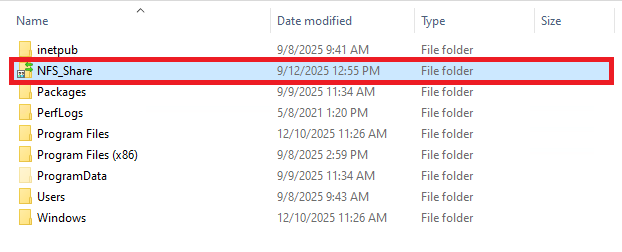
C:\NFS_Share
Right-click the folder → Properties
Go to NFS Sharing → Click Manage NFS Sharing
Enable:
✔ Share this folder
✔ Allow read-write access
✔ Allow root access
✔ No Root Squash
Click Permissions and add your ESXi host:
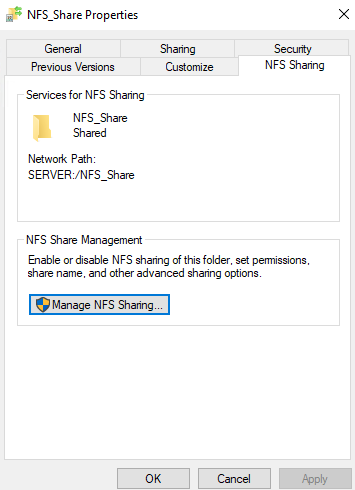
Click OK to save changes.
Configure Windows Firewall for NFS
Enable firewall rules for NFS. Open PowerShell as Administrator.
Set-NetFirewallRule -DisplayGroup "Network File System" -Enabled True
Or manually allow:
- TCP 2049
- UDP 2049
This ensures ESXi can connect to the NFS share.
Click here to download VMware Esxi 8
Step 4: Create a Dedicated VMkernel Port on ESXi for NFS Traffic
VMkernel ports are special network interfaces on your ESXi host that handle host-level traffic. Unlike virtual machine NICs, VMkernel ports are used for services like:
- vMotion
- Management
- vSAN
- NFS and iSCSI storage
Creating a dedicated VMkernel port for NFS ensures that Storage traffic is isolated from management or VM traffic. Performance is optimized because NFS traffic does not compete with other network traffic. Troubleshooting becomes easier if you have multiple services.
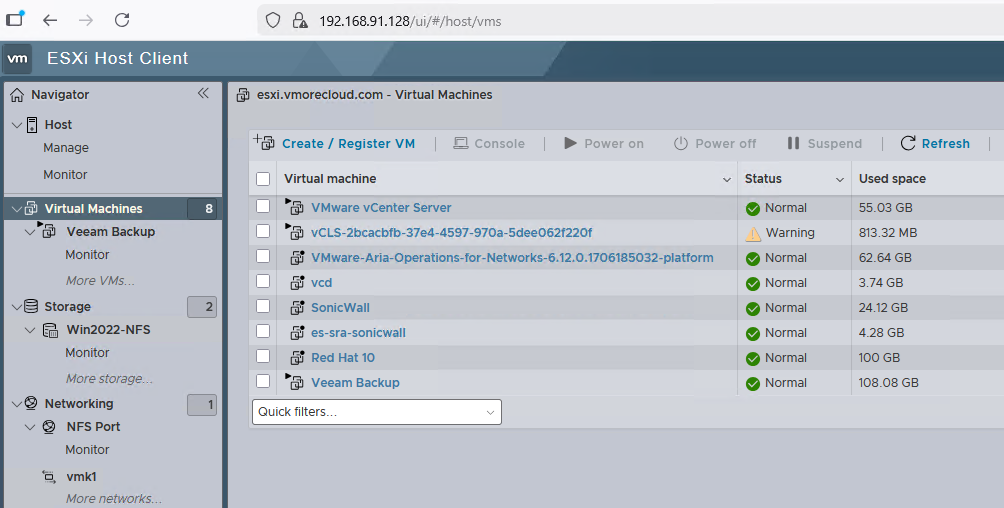
Go to Networking → VMkernel NICs
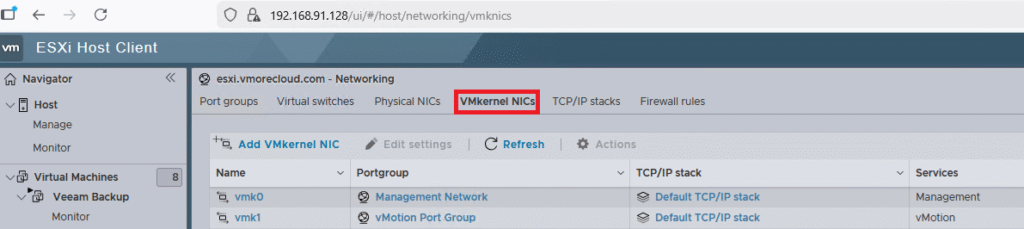
Click Add VMkernel NIC. Select a vSwitch (example: vSwitch0 or a dedicated vSwitch)

Enter:
Network Label:NFS-Port
VLAN ID:0 (or your storage VLAN)
I have set DHCP on. it this VMkernel port will received IP address automatically.

To check the IP address of this port, click on the Port Group name which is NFS Port. Here you can see the IP address assigned to this VMkernel NIC.

Test Connectivity From ESXi to Windows Server
SSH into your ESXi host and run:
vmkping 192.168.91.129
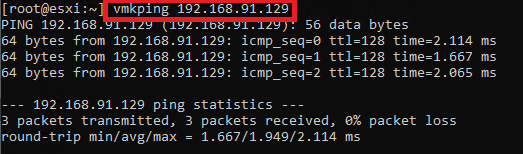
If you receive replies, your NFS VMkernel network is properly configured.
Read also How to Configure VMkernel Port for VMware vMotion
Step 6: Add NFS Datastore on ESXi
Go to Storage. Click New Datastore

Select NFS
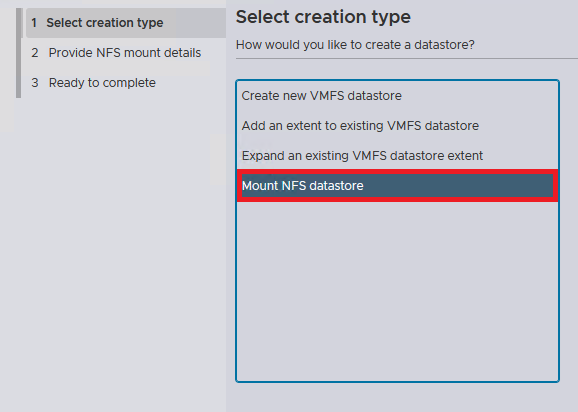
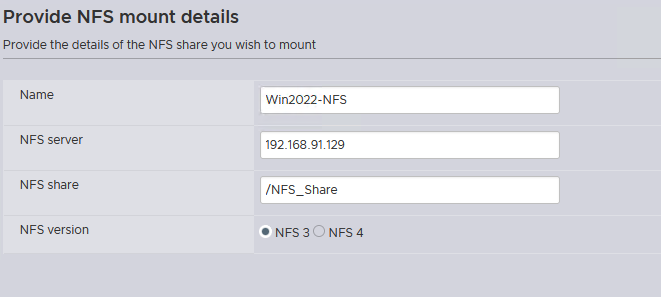
Choose NFS 3 (best compatibility with Windows)
Enter:
Name:Win2022-NFS
NFS Server:192.168.91.129
Share Path:/NFS-ESXi
NFS Version:
NFS 3
Click Next → Finish
Your NFS datastore should now appear under Storage.
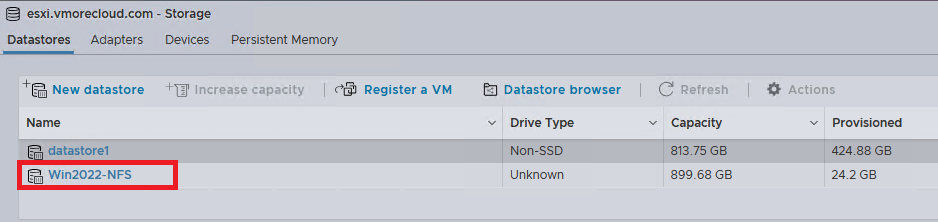
At this point Windows Server 2022 is sharing the NFS folder. ESXi has a dedicated VMkernel port for storage traffic. The NFS datastore is available for storing VMs, ISOs, templates, and snapshots. This setup is ideal for labs and lightweight production workloads.
Conclusion
Setting up NFS storage for VMware ESXi using Windows Server 2022 is a quick and flexible way to expand your virtualization environment. Using a dedicated VMkernel port improves performance, enhances isolation, and follows VMware best practices. If you’re running a home lab, SMB environment, or testing vSphere features, NFS is one of the easiest and fastest storage solutions to deploy.
6 Comments
Leave a Response


8 Best Free and Open Source Virtualization Tools for Linux in 2026
Introduction Virtualization has evolved from a niche enterprise data center technology into an essential part of everyday computing. Whether you...
How to Create and Access Shared Folders in Windows 11 (Step‑By‑Step)
Windows file sharing allows any Windows PC to host a file share, making files available to other computers on the same network. Better still, files located within the shared folder are not solely accessible to Windows devices. Apple devices running MacOS can also access the shared folder, as can Linux devices, so long as those devices are operating on the same network. Some organizations use this type of file sharing as an alternative to deploying Network Attached Storage (NAS). The shared folder essentially functions as a NAS, allowing authorized users...
Block Program Installations from USB Drives on Domain Computers Using Group Policy in Windows Server 2025
Introduction USB drives are everywhere — and that is precisely the problem. In a managed domain environment, an uncontrolled USB port is an open door for unauthorized software installations, malware delivery, data exfiltration, and licensing headaches. One employee plugging in a personal flash drive loaded with an unsigned installer can quietly bypass your entire software deployment policy in under a minute. The silver lining is that Windows Server 2025 and its Group Policy engine give you a powerful, built-in mechanism to shut this down completely — no third-party endpoint agents...
PowerShell 7.6 LTS: New Features, How to Install, and How to Upgrade
Introduction On March 18, 2026, Microsoft released PowerShell 7.6.0, the newest Long-Term Support (LTS) version of the cross-platform automation shell. Built on .NET 10 — itself an LTS release — PowerShell 7.6 is the recommended version for production automation environments, carrying three years of critical security updates and servicing fixes from Microsoft. For IT administrators, DevOps engineers, and infrastructure professionals who rely on PowerShell for daily automation, Windows Server management, Active Directory administration, and cloud operations, this release is a meaningful quality-of-life upgrade. The headline themes are a dramatically improved...




Awesome! Its genuinely remarkable post, I have got much clear idea regarding from this post
Nice post. I learn something totally new and challenging on this website.
Pretty! This has been a really wonderful post. Many thanks for providing these details.
very informative articles or reviews at this time.
[…] Read also How to Configure NFS Storage for VMware ESXi Using Windows Server 2022 […]
[…] I have created a detail setup on how to configure NFS datastore. […]